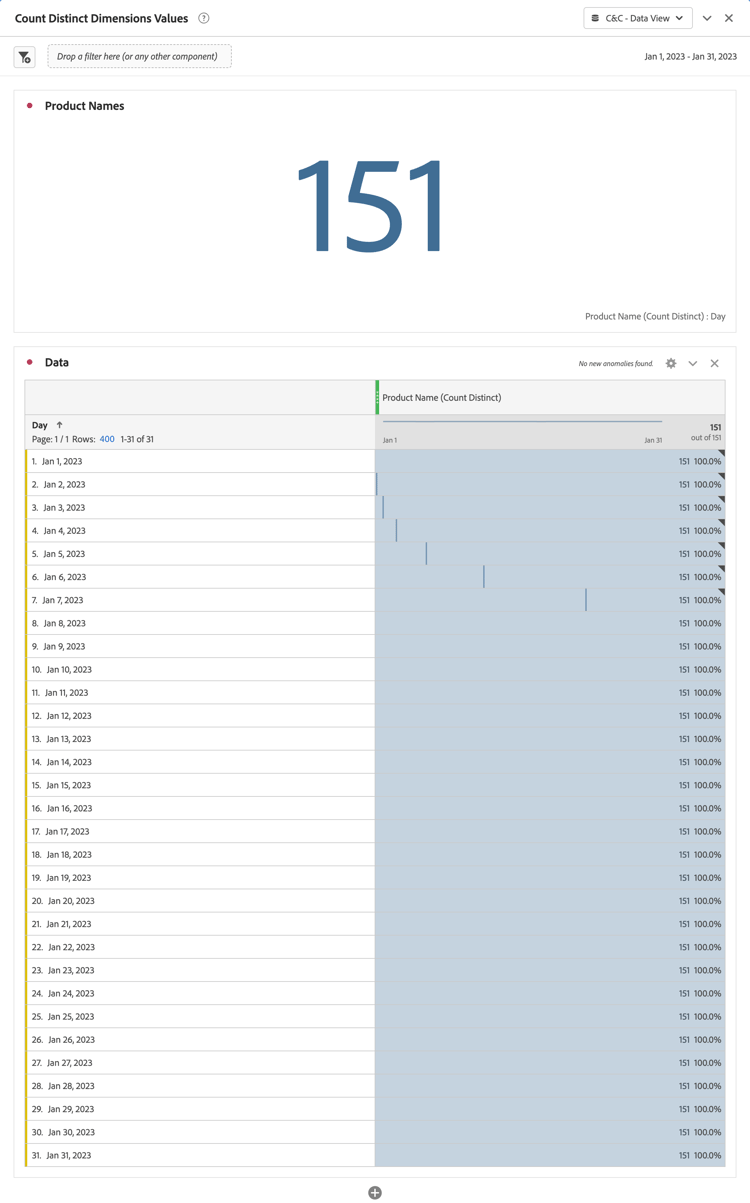
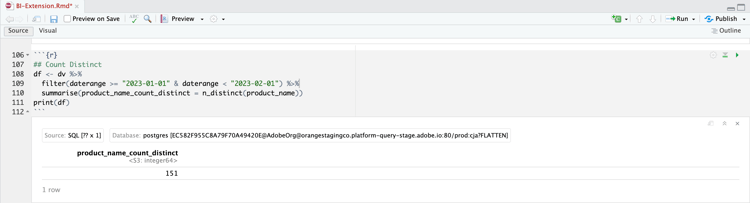
In this use case, you want to get the distinct number of product names that have been reported on during January 2023.
Customer Journey Analytics
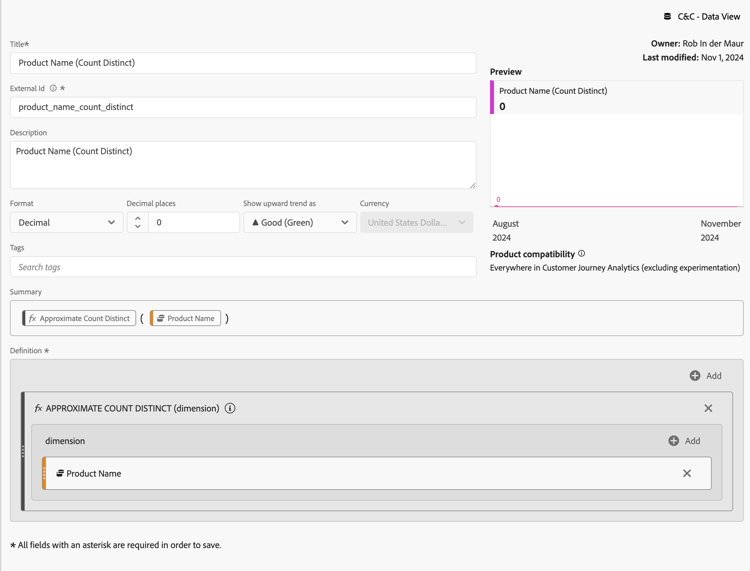
To report on a distinct count of product names, you set up a calculated metric in Customer Journey Analytics, with TitleProduct Name (Count Distinct) and External Idproduct_name_count_distinct.
You then can use that metric in an example Count Distinct Dimension Values panel for the use case:
To ensure the date range apply to all visualizations, drag and drop daterangeday from the Data pane on to Filters on this page.
Select the daterangeday is (All) from Filters on this page.
Select Advanced filtering as the Filter type.
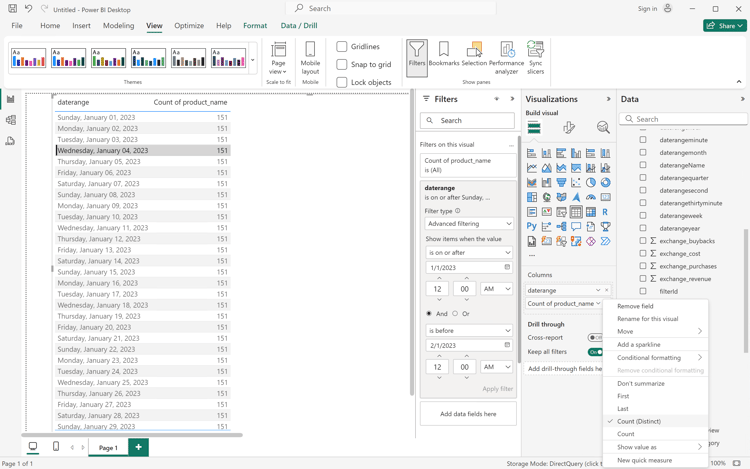
Define the filter to Show items when the valueis on or after1/1/2023Andis before2/1/2023.
Select Apply filter.
In the Data pane:
Select datarangeday.
Select sum cm_product_name_count_distinct, which is the calculated metric defined in Customer Journey Analytics.
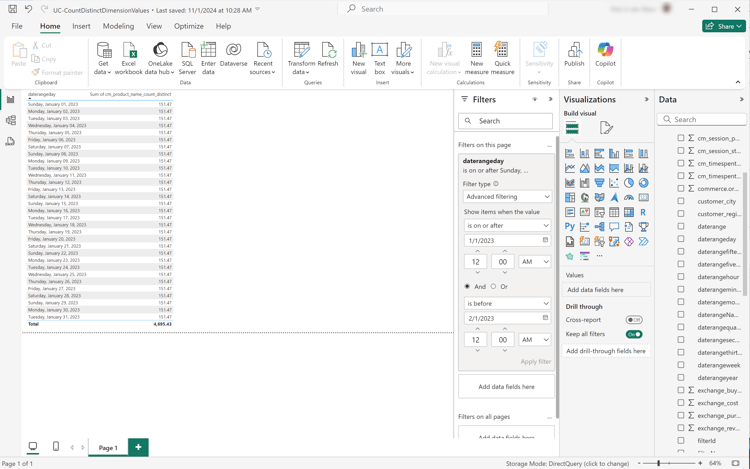
To modify the vertical bar chart to a Table, ensure you have the chart selected and select Table from the Visualizations pane.
Your Power BI Desktop should look like below.
Select the table visualization. From the context menu, select Copy > Copy visual.
Paste the visualization using ctrl-v. The exact copy of the visualization overlaps the original one. Move it to the right in the report area.
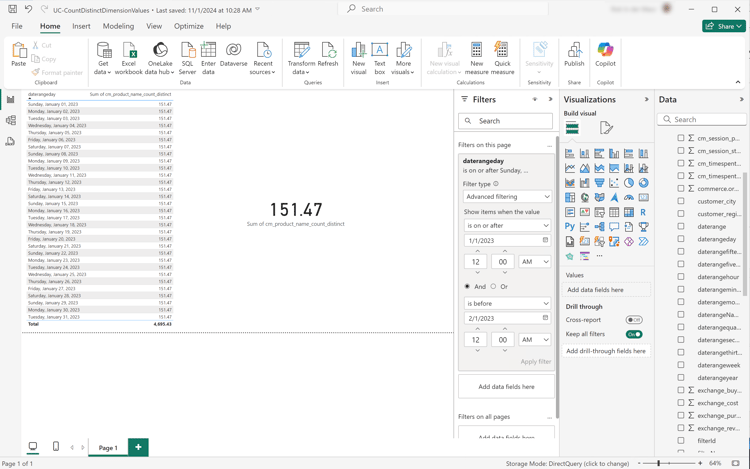
To modify the copied visualization from a table to a card, select Card from Visualizations.
Your Power BI Desktop should look like below.
Alternatively, you can use the count distinct functionality from Power BI.
Select the product_name dimension.
Apply the Count (Distinct) function on the product_name dimension in Columns.
Tableau Desktop
Select the Sheet 1 tab at the bottom to switch from Data source. In the Sheet 1 view:
Drag the Daterange entry from the Tables list in the Data pane and drop the entry onto the Filters shelf.
In the Filter Field [Daterange] dialog, select Range of Dates and select Next >.
In the Filter [Daterange] dialog, select Range of dates, and select 01/01/2023 - 31/1/2023. Select Apply and OK.
Drag Cm Product Name Count Distinct to Rows. The value changes to SUM(Cm Product Name Count Distinct). This field is the calculated metric that you have defined in Customer Journey Analytics.
Drag Daterangeday and drop next to Columns. Select Daterangeday and from the drop-down menu select Day.
To modify the lines visualization to a table, select Text Table from Show Me.
Select Swap Rows and Columns from the toolbar.
Select Fit Width from the Fit drop-down menu.
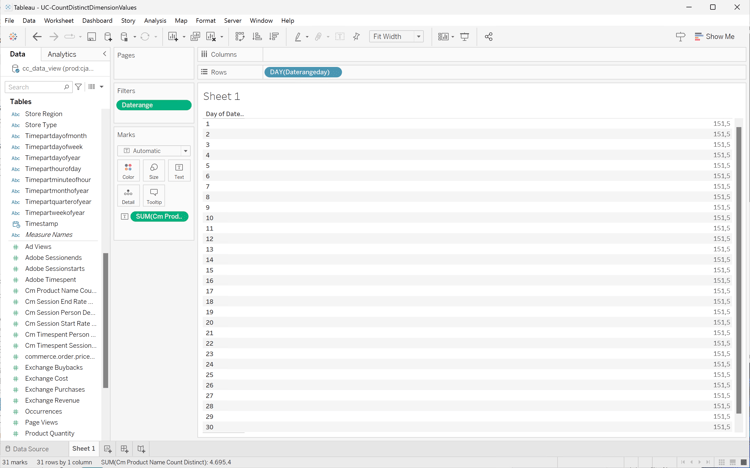
Your Tableau Desktop should look like below.
Select Duplicate from the Sheet 1 tab context menu to create a second sheet.
Select Rename from the Sheet 1 tab context menu to rename the sheet to Data.
Select Rename from the Sheet 1 (2) tab context menu to rename the sheet to Card.
Ensure you have selected the Card view.
Select DAY(Daterangeday) and from the drop-down menu select Month. The value changes to MONTH(Daterangeday).
Select SUM(Cm Product Name Count Distinct) in Marks and from the drop-down menu select Format.
To change the font size, in the Format SUM(CM Product Name Count Distinct) pane, select Font within Default and select 72 for the font size.
To align the number, select Automatic next to Alignment and set Horizontal to centered.
To use whole numbers, select 123.456 next to Numbers and select Number (Custom). Set Decimal places to 0.
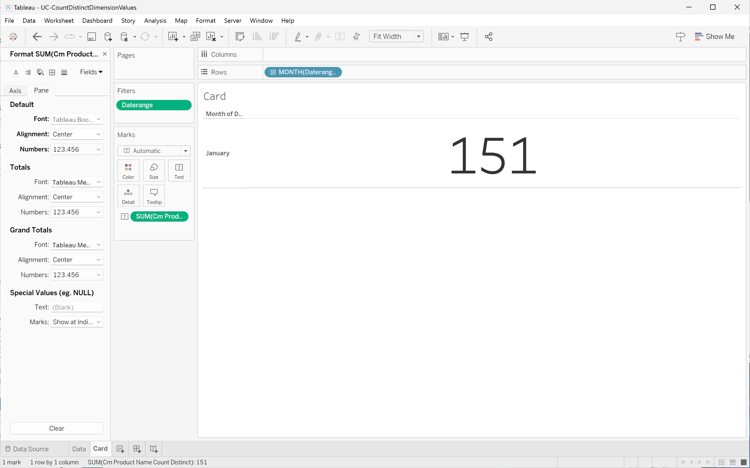
Your Tableau Desktop should look like below.
Select New Dashboard tab button (at the bottom) to create a new Dashboard 1 view. In the Dashboard 1 view:
Drag and drop the Card sheet from the Sheets shelf onto the Dashboard 1 view that reads Drop sheets here.
Drag and drop the Data sheet from the Sheets shelf underneath the Card sheet on the Dashboard 1 view.
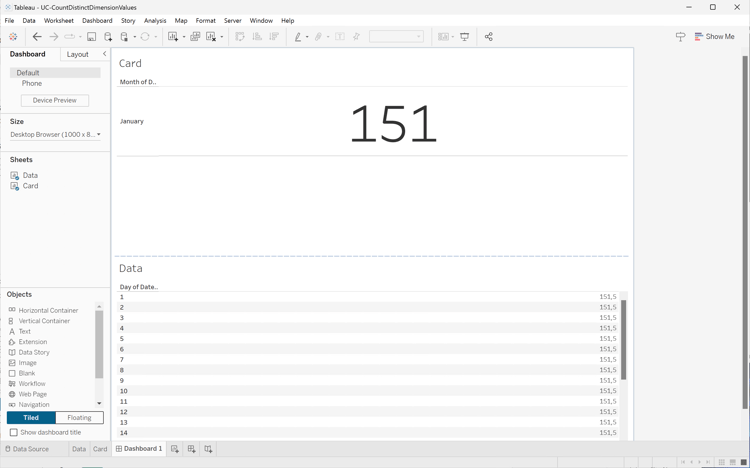
Your Dashboard 1 view should look like below.
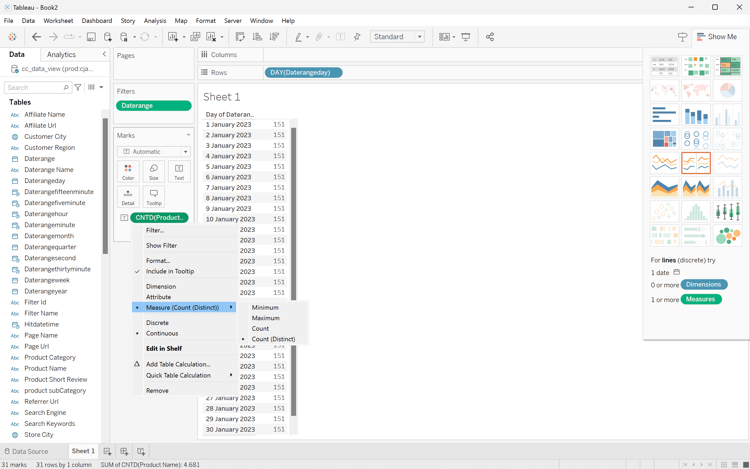
Alternatively, you can use the count distinct functionality from Tableau Desktop.
Use Product Name instead of Cm Product Name Count Distinct.
Apply Measure > Count (Distinct) on Product Name in Marks.
Looker
In the Explore interface of Looker, ensure you do have a clean setup. If not, select
Remove fields and filters.
Select + Filter underneath Filters.
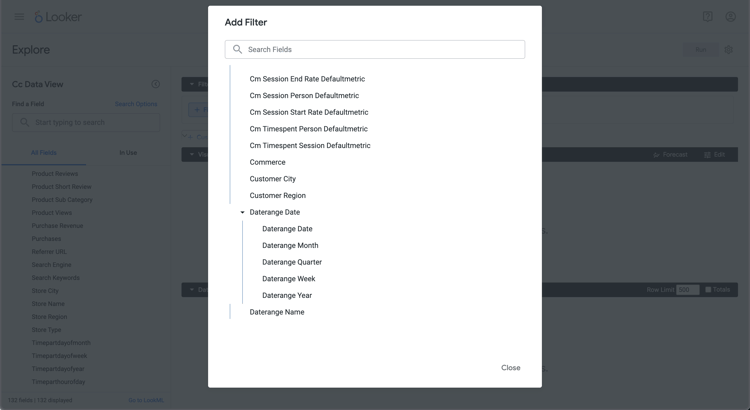
In the Add Filter dialog:
Select ‣ Cc Data View
From the list of fields, select ‣ Daterange Date then Daterange Date.
Specify the Cc Data View Daterange Date filter as is in range2023/01/01until (before)2023/02/01.
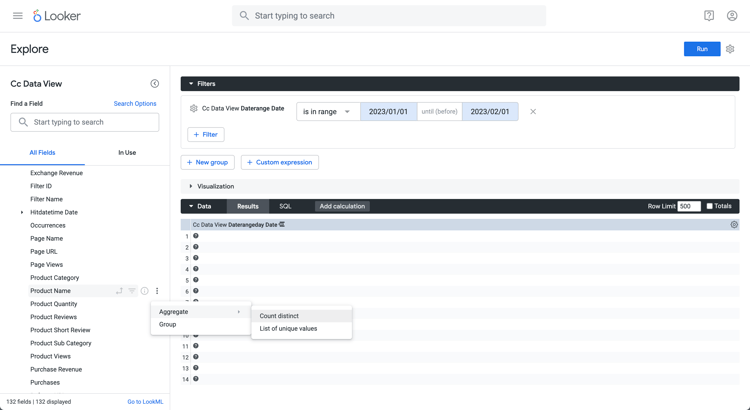
From the ‣ Cc Data View section in the left rail:
Select Daterange Date, then Date.
Select Aggregate ‣ Count Distinct from the ⋮ More context menu on Product Name.
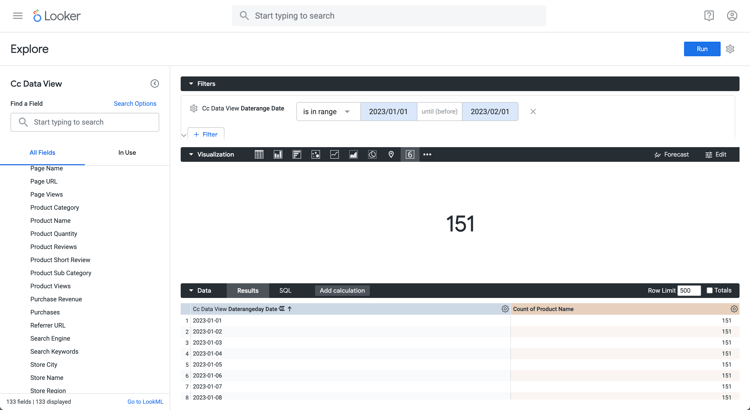
Select Run.
Select ‣ Visualization and select 6︎⃣ from the toolbar to display a Single value visualization.
You should see a visualization and table similar as shown below.
Jupyter Notebook
Enter the following statements in a new cell.
code language-none
data = %sql SELECT COUNT(DISTINCT(product_name)) AS `Product Name` \
   FROM cc_data_view \
   WHERE daterange BETWEEN '2023-01-01' AND '2023-02-01';
display(data)
Execute the cell. You should see output similar to the screenshot below.