Session settings session-settings
In Customer Journey Analytics, you can define a session in any way to match how persons interact with your digital experiences. You configure session settings within a data view.
Session settings definitions are non-destructive and do not alter the underlying data. You can set up multiple data views (each with their own specific session settings definition) as a foundation for your Workspace projects.
To define the context of a session within a data view:
-
Select Data views, optionally from Data management, in the main navigation of the Customer Journey Analytics UI.
-
Create a new or edit an existing data view. See Create or edit a data view for more information.
-
Select the Settings tab. Underneath Session settings:
-
Enter a value for Session timeout in minute(s), hour(s), day(s), or week(s). The session timeout determines how long a session can be idle (no events occur) before starting a new session.
Use a short session timeout (for example 30 minutes) if you are interested in analyzing mostly online interactions. For example, analyzing whether profiles visiting your online store product pages did add products to their cart or even purchased online.
Use a long session timeout (for example 3 months) if you are combining online and offline data and want to analyze whether customers that have purchased one or more of your products, have called your contact center within the first three months after their purchase.
-
Select a segment from the Add segments drop-down menu if you want to segment a data view. Alternatively, you can drag and drop a segment from

Only those segments are listed that are shared, to which you do have access, and that can be evaluated based on the components you have defined for the data view.
-
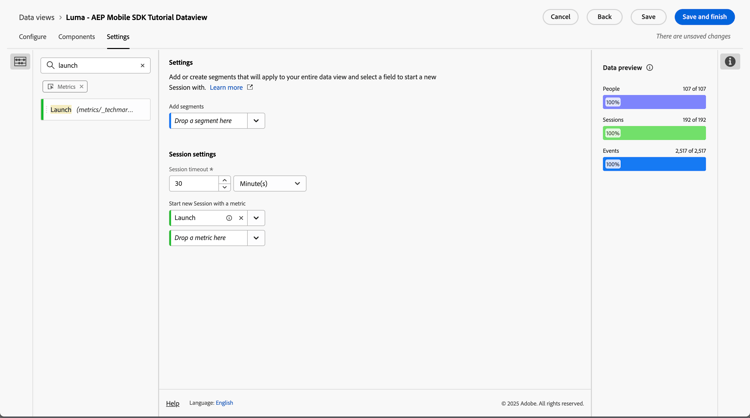
Select a metric from the Start new session with a metric drop-down menu . Alternatively, you can drag and drop a metric from

You can use any kind of metric to define a new session. As an example, imagine you want to define a new session every time a profile launches your mobile app. In Data view > Components, you define a component of type metric, named Launch, based on an appInteraction Name schema field. You further specify the Launch metric component to only count the value when the value matches
launch.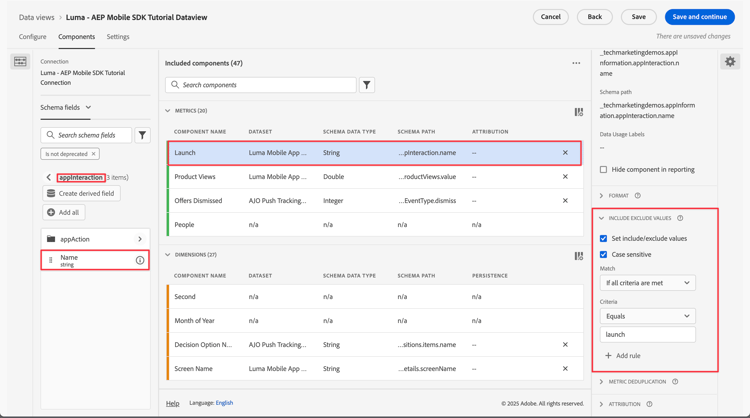
Then you drag and drop, or select the Launch metric as the metric to define a new session.
-
-
Select Save or Save and finish to save the session settings definition.