Sub-event components in data feeds
Sub-event components are dimensions and metrics based on fields inside an array or map in your XDM schema. They allow you to analyze data at a level more granular than the event level, such as the individual products in a purchase. For information about using this data in segments, see Sub-events.
Use the following information to understand how sub-event components from array and map fields appear in your Customer Journey Analytics data feeds.
Understand sub-event components
Sub-event components in the XDM schema
In the XDM schema, each element of an array (a string array or an object array) is a sub-event. Each entry in a map field is also a sub-event, as described in Map fields in data feeds. Dimensions and metrics based on the fields within a sub-event are sub-event components.
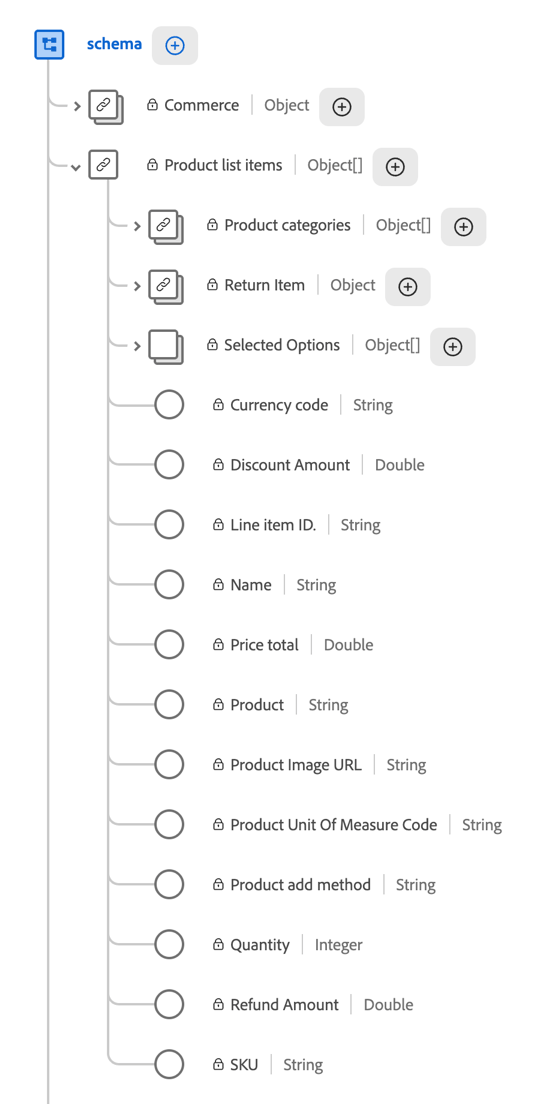
To view sub-events within the XDM schema in Adobe Experience Platform, select Schemas, then expand an event that contains sub-events.
In the following example, Product list items is an object array containing various sub-event components.
Sub-event differences between Analysis Workspace and data feeds
Sub-event components are represented differently between Analysis Workspace and data feeds in Customer Journey Analytics.
Sub-event differences between Adobe Analytics and Customer Journey Analytics
Sub-event data (such as multiple product details in a single purchase event) appears differently in Customer Journey Analytics data feeds than in Adobe Analytics data feeds. The following table compares how each product represents sub-event data.
A product list contains multiple products grouped in a single string:
Power Tools;Cordless Drill;1;129.99,Power Tools;Drill Battery Pack;2;39.98
A product list maintains its hierarchy that is defined in the XDM schema as an array:
[{"category":"Power Tools","product":"Cordless Drill","quantity":1,"revenue":129.99},{"category":"Power Tools","product":"Drill Battery Pack","quantity":2,"revenue":39.98}]
Sub-event example: Products in a purchase event
A customer purchases two products in a single order: one cordless drill and two drill battery packs. Your implementation sends a single purchase event that includes both products in the productListItems object array:
{
  "eventType": "commerce.purchases",
  "timestamp": "2026-09-16T14:32:07.512Z",
  "commerce": {
    "purchases": { "value": 1 }
  },
  "productListItems": [
    { "SKU": "CD-2000", "name": "Cordless Drill", "quantity": 1, "priceTotal": 129.99 },
    { "SKU": "BP-2000", "name": "Drill Battery Pack", "quantity": 2, "priceTotal": 39.98 }
  ]
}
This event contains two sub-events, one for each object in the productListItems array. The following table shows which fields belong to the event and which belong to its sub-events.
eventType, timestamp, commerce.purchases.value1 for this event, regardless of how many products it contains.SKU, name, quantity, priceTotal in each productListItems objectquantity is 1 for the cordless drill and 2 for the drill battery pack.productListItems on that purchase event.Add sub-event components to a data feed
When you add a sub-event component to a data feed, a dialog prompts you to add the other components from the same sub-event.

Fields from the same sub-event appear on the canvas as a collapsible nested group rather than a flat item.

This group reflects the underlying data structure.
In the data feed output, all of these components appear as a nested array in a single column.
For information about how to add components, including sub-event components, to a data feed, see Create a data feed.
Query sub-event data in data feed output
Because sub-event data appears differently in Customer Journey Analytics data feeds, the queries you use for it differ from those you use for Adobe Analytics data feeds.
The following examples show how to find events that include a specific product. The examples use Google BigQuery syntax, where UNNEST expands an array into rows. Other data warehouses support the same approach with their own array functions, such as FLATTEN in Snowflake or explode in Databricks.
In Customer Journey Analytics data feeds, the same two products appear as an array of objects in the product_list_items column. No delimiter parsing is required:
| code language-json |
|---|
|
How you write the query depends on whether you want one row per event or one row per matching product.
Return one row per event
To filter events without changing the number of rows, use an array function such as UNNEST inside an EXISTS subquery:
| code language-sql |
|---|
|
This query returns one row for each matching event, with the complete product_list_items array intact, regardless of how many products in the array match.
Return one row per matching product
To return one row for each matching product, move the array function into the outer FROM clause:
| code language-sql |
|---|
|
An event with more than one matching product appears as multiple rows, and the event’s columns, such as row_id, repeat on each row. Use this approach only when you need product-level detail. To count events in the results, use COUNT(DISTINCT row_id) instead of counting rows.
This approach applies to any array field in your XDM schema, not only products.
In Adobe Analytics data feeds, an event with two products purchased together appears as a single delimited string in the product_list column:
| code language-text |
|---|
|
To find events that include a Cordless Drill, you parse this string with a regular expression:
| code language-sql |
|---|
|
Use map fields in data feeds
Map fields in your XDM schema store key-value pairs. Data feeds export each map as an array of objects, the same way as other sub-event data. Each object contains the map key and its value as separate fields.
Field names in the output come from the component IDs that you configure for the data feed, not fixed names such as key or value. The examples in this section use sample component IDs.
Simple maps
Simple maps are the map type that you can create in your own schema. Each key is a string, and each value is a string or an integer.
For example, a survey map stores each question as a key and the response as a value:
{
  "_yourtenant": {
    "surveyResponses": {
      "How did you hear about us?": "Search engine",
      "How likely are you to recommend us?": 9
    }
  }
}
In the data feed output, survey_question and survey_answer are the component IDs for the key and the value:
{
  "survey_responses": [
    { "survey_question": "How did you hear about us?", "survey_answer": "Search engine" },
    { "survey_question": "How likely are you to recommend us?", "survey_answer": 9 }
  ]
}
Identity map
Each identity in the identityMap field is exported as one object. The object contains the identity namespace (the key), along with the identifier, authenticated state, and primary flag. The namespace repeats for each identity in that namespace.
Only the identity map attributes that exist as dimensions in your data view and that you add to the data feed are exported.
{
  "identity_map": [
    { "identity_namespace": "ECID", "identity_id": "83290187457380573620940587193016478103", "authenticated_state": "ambiguous", "is_primary": true },
    { "identity_namespace": "CRMID", "identity_id": "C-1048576", "authenticated_state": "authenticated", "is_primary": false }
  ]
}
Nested maps
Some Adobe-defined fields, such as segmentMembership, are maps of maps. Data feeds flatten these into a single array, with the first-level key and second-level key as separate fields in each object. The first-level key repeats in each object it applies to, so no data or relationships are lost.
For example, segment_namespace and segment_id are the component IDs for the first-level key and the second-level key:
{
  "segment_membership": [
    { "segment_namespace": "ups", "segment_id": "04a81716-43d6-4e7a-a49c-f1d8b3129ba9", "status": "realized" },
    { "segment_namespace": "ups", "segment_id": "53cba6b2-a23b-454a-8069-fc41308f1c0f", "status": "exited" }
  ]
}