Build a simple calculated metric
The following information explains how to create a simple Page Views per Visits metric.
-
Start to build a metric, as described in Build metrics.
-
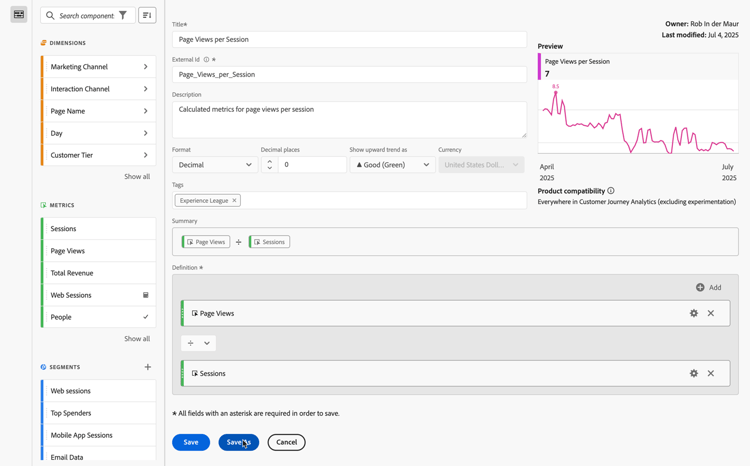
Name the metric
Page Views per Sessionor something similar. -
Give the metric a user-friendly Description to show what the metric is used for.
-
Select the right Format. For this example, choose Decimal.
-
Decide how many decimal places you want the report to show.
-
In the Show updward trend as drop-down menu, select ▲ Good (Green).
-
Add a Tag to organize your metrics.
-
For this calculated metric, first drag Page Views from the Metrics components into the Definition section of the canvas.
-
Then drag Sessions from the Metrics components and drop the metric underneath Page Views (wait until the blue line appears before you drop the metric).
-
Select the divide

-
You can see a Preview of the metric while you are building the metric.
-
Product compatibility shows if the calculated metric is compatible everywhere in Customer Journey Analytics (excluding experimentation).
-
Select Save.
Notice that the Summary formula updates anytime you make a change to the metric definition.
-
(Optional) To share, approve, (re-)tag, rename, or delete a metric, you can go to the Calculated metrics manager.