Auf dieser Seite: Erstellen Sie eine Aktions-Kampagne und definieren Sie deren grundlegende Eigenschaften wie Name, Beschreibung, Tags und Zugriffs-Labels, um Ihre Kampagne zu identifizieren, zu organisieren und den Zugriff darauf zu steuern, bevor Sie die zugehörige Aktion konfigurieren.
Gehen Sie wie folgt vor, um eine Aktionskampagne zu erstellen und ihre Eigenschaften zu definieren:
-
Navigieren Sie zum Menü Kampagnen und wählen Sie die Registerkarte Aktion aus.
-
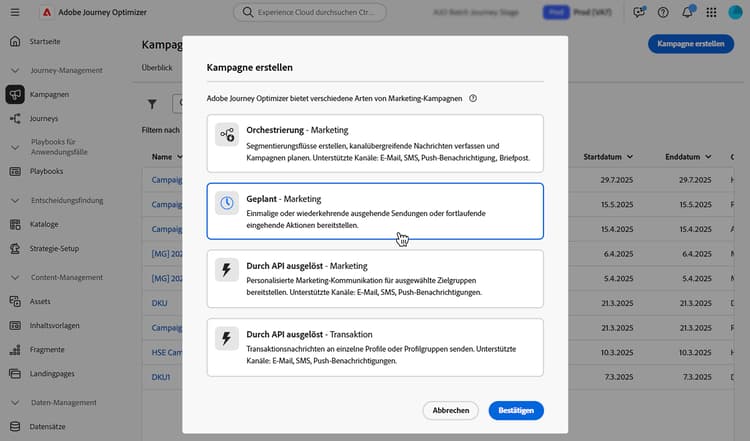
Klicken Sie auf die Schaltfläche Kampagne erstellen und wählen Sie den Kampagnentyp Geplant – Marketing aus.
-
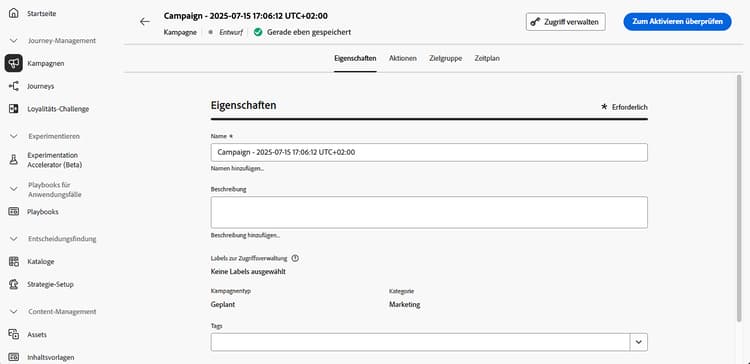
Geben Sie auf der Registerkarte Eigenschaften einen Namen und eine Beschreibung für Ihre Kampagne ein.
-
Verwenden Sie das Feld Tags, um Ihrer Kampagne einheitliche Adobe Experience Platform-Tags zuzuweisen. Dies ermöglicht eine einfache Klassifizierung und verbesserte Suche über die Kampagnenliste. Erfahren Sie, wie Sie mit Tags arbeiten.
-
Wenn benutzerdefinierte Metadatenfelder für Aktionskampagnen definiert und ausgewählt wurden, werden sie im Abschnitt Metadatenfelder der Registerkarte Eigenschaften angezeigt. Füllen Sie sie aus, um bestimmte Geschäftsinformationen wie Geschäftsbereich, Produkt oder Kostenstelle zu verfolgen. Mit einem Sternchen gekennzeichnete Felder sind Pflichtfelder. Erfahren Sie mehr über benutzerdefinierte Metadaten
note availability AVAILABILITY Diese Funktion ist eingeschränkt verfügbar. Wenden Sie sich an den Adobe-Support, um Zugriff zu erhalten. -
Sie können den Zugriff auf diese Kampagne basierend auf Zugriffs-Labels einschränken. Um eine Zugriffsbeschränkung hinzuzufügen, navigieren Sie zur Schaltfläche Zugriff verwalten oben auf dieser Seite. Es muss sichergestellt sein, dass Sie nur Labels ausgewählt werden, für die eine Berechtigung besteht. Erfahren Sie mehr über die Zugriffssteuerung auf Objektebene.
Nächste Schritte next
Sobald Ihre Aktionskampagne erstellt und konfiguriert ist, können Sie deren Aktion konfigurieren. Weitere Informationen
This section contains structured knowledge intended to support interpretation, retrieval, and question answering related to this topic.
For complete understanding, this information should be combined with the documentation on this page. Neither source is intended to stand alone; the page describes the feature, while this section provides additional context that helps disambiguate terminology, intent, applicability, and constraints.
- TL;DR: This page explains how to create an Action campaign of type Scheduled - Marketing and define its properties: name, description, tags, custom metadata fields, and access labels.
Intents:
- Create an Action campaign of type Scheduled - Marketing
- Enter a name and a description for the campaign
- Assign Adobe Experience Platform Unified Tags to classify the campaign and improve search from the campaigns list
- Fill in custom metadata fields to track business information
- Limit access to the campaign based on access labels
Glossary:
- Tags: Adobe Experience Platform Unified Tags assigned to a campaign to classify it and improve search from the campaigns list. (product-specific)
- Metadata fields: Custom fields, when defined and selected for Action campaigns, displayed in the Properties tab to track business information such as line of business, product or cost center. (product-specific)
- Access labels: Labels used to limit access to the campaign, set with the Manage access button. (product-specific)
Guardrails:
- Metadata fields marked with an asterisk are required.
- When adding an access limitation, select only labels you have permission for.
Prerequisites and permissions:
- Custom metadata fields on Action campaigns are available in Limited Availability; contact your Adobe representative to gain access.
Terminology:
- Canonical name: Action campaign properties — variants: campaign properties
- Acronym: OLAC — Object level access control
FAQ:
- Q: Which campaign type do I select to create an Action campaign? — Browse to the Campaigns menu, select the Action tab, click Create campaign, and select the Scheduled - Marketing campaign type.
- Q: Why do I not see the Metadata fields section? — The section is displayed if custom metadata fields have been defined and selected for Action campaigns. This capability is available in Limited Availability.
- Q: How do I limit access to a campaign? — Use access labels with the Manage access button; select only labels you have permission for.
- Q: What are tags used for? — To classify campaigns and improve search from the campaigns list.
Related pages:
- Tags: Learn how to work with tags (start/search-filter-categorize.md#tags)
- Custom metadata: Learn more on custom metadata (administration/custom-metadata.md)
- Access labels: Learn more about Object Level Access Control (administration/object-based-access.md)
- Next step, action: Configure the campaign action (campaigns/campaign-action.md)
Personas:
- marketer: Can create an Action campaign of type Scheduled - Marketing and enter a name and description in the Properties tab. Can assign Adobe Experience Platform Unified Tags, fill in metadata fields, and limit access using access labels in Manage access. The page states that metadata fields marked with an asterisk are required. Where: “Define the Action campaign properties”.
Onboarding:
- Level: Beginner
- First minimal step: Browse to the Campaigns menu and select the Action tab.
- Success check: The Action campaign is created and configured.
- Next: configuring the campaign’s action after the Action campaign is created and configured: Configure the campaign action (campaigns/campaign-action.md)