在此頁面上:瞭解如何使用資料集查詢活動,在執行階段動態擷取Adobe Experience Platform記錄資料集的資料,並使用外部資料豐富您的歷程,以進行個人化和決策。
透過「資料集查詢」活動,您可以在執行階段期間從 Adobe Experience Platform 記錄資料集動態檢索資料。 善用此功能,您便能夠存取可能不是存放在輪廓或事件承載中的資料,確保及時與您的客戶進行相關的互動。
主要優點:
- 即時個人化:使用擴充資料量身打造客戶體驗。
- 動態決策:使用外部資料來驅動歷程邏輯和動作。
- 增強型資料存取:擷取產品中繼資料、訂價表格或與特定金鑰繫結的關聯式資料。
必讀 must-read
在設定資料集查詢之前,請先檢閱這些需求。
資料集啟用
必須在Adobe Experience Platform中啟用資料集以進行查詢。 本節中有詳細資訊: 使用 Adobe Experience Platform 資料。
限制和限制
- 每個歷程最多10個資料集查詢活動。
- 最多20個選取的欄位。
- 查詢鍵陣列中最多可有50個鍵。
- 擴充的資料大小上限為10KB。
其他效能考量事項
以下建議是避免傳遞延遲的指引:
設定資料集查詢活動 configure
若要設定 資料集查詢 活動,請遵循下列步驟:
-
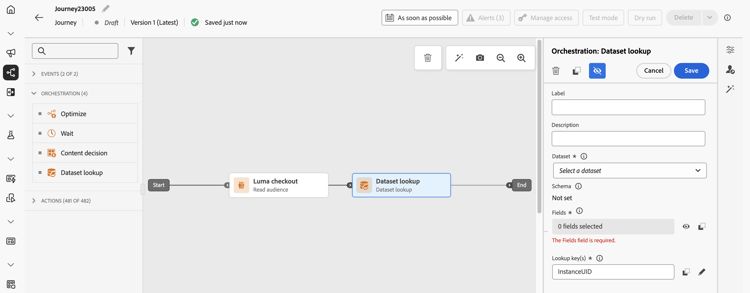
展開 協調流程 類別,並將 資料集查詢 活動拖放到畫布中。
歷程
-
新增標籤和說明。
-
在 資料集 欄位中,選取具有所需屬性的資料集。
note NOTE 如果您要尋找的資料集未顯示在清單中,請確定您已啟用它以進行查詢。 如需詳細資訊,請參閱必須讀取區段。 -
選取您要從資料集擷取的特定欄位。
-
您只能選取葉節點(位於結構描述最低層級的欄位)。 欄位必須是基本值(字串、數字、布林值、日期等)。
-
無法選取清單(陣列)和地圖(機碼值物件)。
accordion 範例 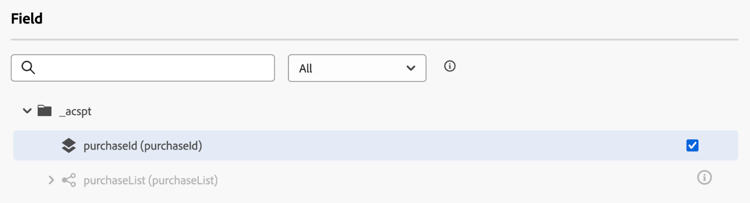
-
-
在 查閱索引鍵 欄位中,選擇同時存在於決定專案屬性和資料集中的加入索引鍵。 系統使用此索引鍵來搜尋所選資料集。
-
金鑰可以是衍生自歷程內容的運算式,例如SKU、電子郵件ID或其他識別碼。 範例:
@profile.email或list(@event{purchase_event.products.sku})。 -
只支援 字串 或字串清單。
note important IMPORTANT 您必須使用 進階模式 定義查詢索引鍵,資料集查詢活動的輸出才能在下游作為內容屬性使用。 如果 @datasetLookup{}在條件中傳回「找不到資料集查詢」錯誤,請參閱條件活動🔗中的找不到資料集查詢錯誤以取得原因和修正。設定查閱索引鍵,並將其結果用於個別的運算式編輯器: -
設定索引鍵:在資料集查閱活動的 查閱索引鍵 運算式編輯器中,切換至進階模式,定義索引鍵,然後儲存活動。 這會讓下游活動可以使用查閱內容。
-
使用結果:在條件的運算式編輯器中,切換到 進階模式 並參考查閱輸出,例如:
@datasetLookup{MyDatasetLookUpActivity1.entities}。 將MyDatasetLookUpActivity1取代為您資料集查詢活動的名稱。
如果下游無法取得查詢輸出,請確認索引鍵已定義於進階模式,且資料集查詢活動已儲存。 accordion 範例 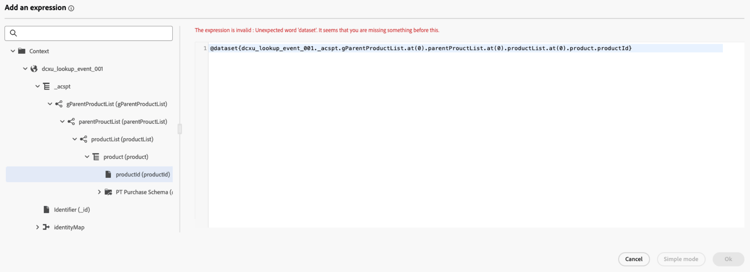
-
在歷程中使用擴充的資料
資料集查詢活動擷取的資料會以物件陣列的形式儲存在Journey內容中。 它可在歷程運算式編輯器和個人化編輯器中使用,以根據擴充的資料啟用條件式邏輯和個人化傳訊。
-
歷程運算式編輯器:
存取 進階模式 編輯器並使用語法:
@datasetLookup{MyDatasetLookUpActivity1.entities}。 瞭解如何使用進階運算式編輯器 -
Personalization編輯器:
使用語法:
{{context.journey.datasetLookup.1482319411.entities}}。
使用案例範例
案例:Send給家庭產品花費超過$40的使用者優惠券。
歷程流程:
-
購買事件:從使用者的購物車擷取SKU。
-
資料集查詢活動:
- 資料集:
products-dataset(SKU作為主索引鍵)。 - 查閱金鑰:
list(@event{purchase_event.products.sku})。 - 要傳回的欄位:
["SKU", "category", "price"]。
- 資料集:
-
條件活動:
-
篩選類別為「家庭」的SKU。
code language-none @event{purchase_event.products.all( in(currentEventField.sku, @datasetlookup{MyDatasetLookupActivity1.entities.all(currentDatasetLookupField.category == 'household').sku} ) )}
或
-
彙總家庭產品的總支出,並將其與$40的臨界值進行比較。
code language-none sum(@event{purchase_event.products.all( in(currentEventField.sku, @datasetlookup{MyDatasetLookUpActivity1.entities.all(currentDatasetLookupField.category == 'household').sku} ) )}.price}, ',', true ) > 40
-
-
Personalization編輯器:
使用擴充資料來個人化電子郵件內容:
code language-none {% let householdTotal = 0 %} {{#each journey.datasetlookup.3709000.entities as |product|}} {%#if get(product, "category") = "household"%} {% let householdTotal = householdTotal + product.price %}{%/if%} {{/each}} "Hi, thanks for spending " + {%= householdTotal %} + " on household products. Here is your reward!"
案例:識別設定檔的哪個電子郵件帳戶具有「白金」忠誠度狀態。 在這種情況下,忠誠度帳戶會與電子郵件ID相關聯,而標準設定檔查詢存放區中不會提供忠誠度資料。
歷程流程:
-
設定檔事件觸發器:從設定檔或事件內容擷取電子郵件ID。
-
資料集查詢活動:
- 資料集:
loyalty-member-dataset(以電子郵件作為主索引鍵)。 - 查閱金鑰:
@profile.email。 - 要傳回的欄位:
["email", "loyaltyTier"]。
- 資料集:
-
條件活動:
根據忠誠度等級來分支歷程:
code language-none @datasetLookup{MyDatasetLookUpActivity1.entity.loyaltyMember.loyaltyTier} == 'Platinum' -
Personalization編輯器:
使用擴充的熟客層級資料來個人化傳出通訊:
code language-none {{context.journey.datasetLookup.1482319411.entity.loyaltyMember.loyaltyTier}}
疑難排解 troubleshooting
條件活動中的「找不到資料集查詢」錯誤 troubleshooting-not-found
症狀:條件活動的進階運算式編輯器中的@datasetLookup{}語法傳回「找不到資料集查詢」錯誤,即使已在歷程中正確設定資料集查詢活動。
原因:資料集查詢活動中的查詢索引鍵是使用簡單模式設定的。 如果未在進階模式中定義索引鍵,則下游活動中不會將活動輸出公開為內容屬性。
修正:開啟資料集查閱活動,找到 查閱索引鍵 欄位,然後切換至 進階模式 以重新定義索引鍵運算式。 儲存活動並重新發佈歷程。
This section contains structured knowledge intended to support interpretation, retrieval, and question answering related to this topic.
For complete understanding, this information should be combined with the documentation on this page. Neither source is intended to stand alone; the page describes the feature, while this section provides additional context that helps disambiguate terminology, intent, applicability, and constraints.
- TL;DR: This page explains how to configure the Dataset lookup activity to dynamically retrieve data from Adobe Experience Platform record datasets at journey runtime for real-time personalization and conditional logic.
Intents:
- Add a Dataset lookup activity to a journey to fetch external Adobe Experience Platform record data at runtime
- Select specific dataset fields (leaf nodes / primitive values) to retrieve during lookup
- Define a lookup key in advanced mode to join journey context with dataset records
- Use enriched dataset data in the journey expression editor or personalization editor
- Troubleshoot “Dataset lookup not found” errors caused by using simple mode for the lookup key
Glossary:
- Dataset lookup activity: A journey orchestration activity that retrieves selected data from Adobe Experience Platform record datasets at runtime by matching a lookup key from the journey context to dataset records (product-specific)
- Leaf node: A field at the lowest level of a schema hierarchy that holds a primitive value (string, number, boolean, date) (product-specific)
- Lookup key: The joining expression (string or list of strings) used to match journey context data against records in the selected dataset (product-specific)
- Enriched data: Data retrieved by a Dataset lookup activity and stored transiently in the journey context for use in downstream activities (product-specific)
Guardrails:
- Maximum of 10 Dataset lookup activities per journey (hard limit).
- Maximum of 20 selected fields (hard limit).
- Maximum of 50 keys in the lookup keys array (hard limit).
- Enriched data size is limited to 10KB (hard limit).
- The dataset must be enabled for lookup in Adobe Experience Platform before it appears in the activity configuration.
- Only leaf nodes (primitive values) can be selected; arrays and maps cannot be selected.
- Only strings or lists of strings are supported as lookup keys.
- The lookup key must be defined in advanced mode; using simple mode causes the activity output to be unavailable as a context attribute downstream.
- Enriched data is transient and available only during journey runtime and in outbound activity personalization.
- To avoid delays in deliverability, up to 5 lookup activities per journey are recommended. Up to 20 attributes per lookup are also recommended.
Terminology:
- Canonical name: Dataset lookup activity
- Synonyms: “lookup key” = “joining key”
FAQ:
- Q: Why does my dataset not appear in the Dataset field dropdown? — The dataset must be enabled for lookup in Adobe Experience Platform. See the linked “Use Adobe Experience Platform data” section for details.
- Q: What should I check if lookup output is unavailable in a condition? — Confirm that the lookup key was defined in advanced mode and that the Dataset lookup activity was saved. In the condition’s separate expression editor, switch to advanced mode and reference the lookup output. If the key was defined using simple mode, redefine it in advanced mode and republish the journey.
- Q: Can I retrieve arrays or map fields from the dataset? — No, only primitive leaf node fields (string, number, boolean, date) can be selected.
- Q: How do I access enriched data in an email? — Use the personalization editor with the syntax
{{context.journey.datasetLookup.1482319411.entities}}. - Q: Is enriched data available after the journey runtime? — No, enriched data is transient and available only during journey runtime and in the personalization of outbound activities.