在此頁面上:瞭解如何建立可重複使用的熟客方案任務、設定購買、支出和自訂事件活動,以及定義任務屬性、資格和完成需求。
任務會定義客戶在忠誠度挑戰中必須完成的特定動作或里程碑,才能獲得獎勵。 您可以設定購買和支出任務,或是 自訂事件 任務,用於追蹤貴組織已擷取的Adobe Experience Platform體驗事件。
每項任務都代表可測量的動作,有助於完成挑戰。 任務是可重複使用的元件,可以獨立建立,然後新增到一個或多個挑戰,或直接在挑戰中建立。
➡️ 觀看如何建立任務
建立任務 create-task
您可以從兩個進入點建立任務。 無論您從何處開始,設定程式都相同。
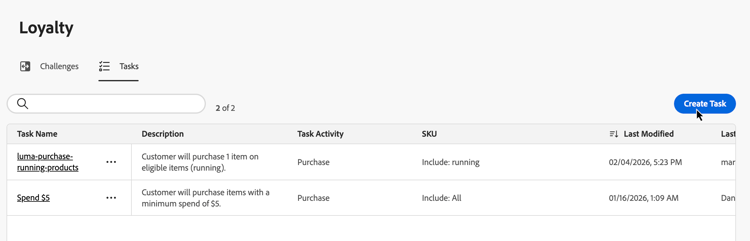
選取 工作 索引標籤並選取建立工作。 從詳細目錄建立的任務會儲存起來,並可在多個挑戰中重複使用。
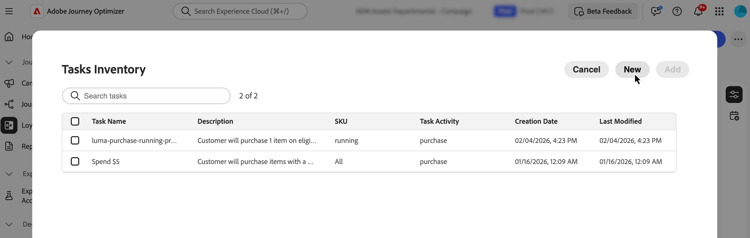
開啟現有的挑戰或建立新的挑戰。 選取 新增工作 並按一下 新增 按鈕。 以這種方式建立的任務會自動新增到您的挑戰中,也會儲存到任務詳細目錄中以供在其他挑戰中重複使用。
選擇客戶活動 choose-activity
選取客戶必須執行的活動型別以完成此作業:
- 購買:客戶必須購買一或多個專案才能完成此工作
- 支出:客戶必須支出指定的金額才能完成此工作
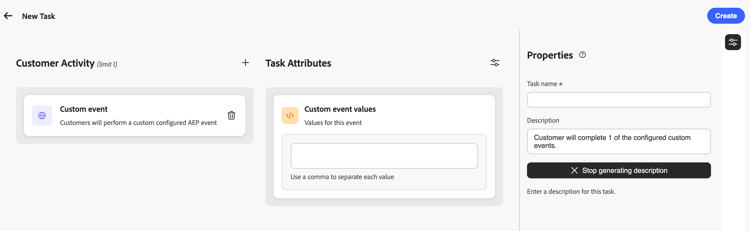
- 自訂事件:客戶必須執行Adobe Experience Platform體驗事件所代表的活動。 例如,飯店簽到、行動應用程式動作或稽核提交。 必須在Experience Platform中擷取基礎事件,並透過 熟客方案設定 功能表中的事件對應進行對應。 瞭解如何設定事件對應
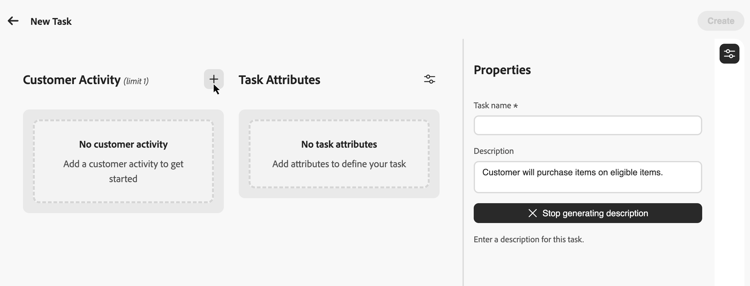
若要選取活動,請按一下 + 圖示,然後選取最符合您結果目標的客戶活動。 每個活動型別都有特定的可設定屬性,可進一步定義及塑造任務需求。
定義任務屬性 define-attributes
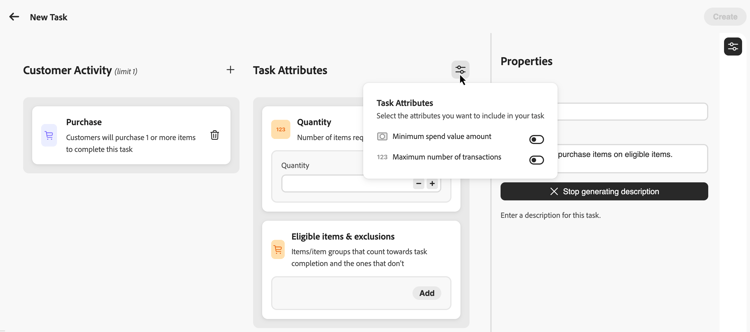
根據選取的活動型別設定工作屬性。 瀏覽下列標籤,檢視每種活動型別的可用屬性:
購買活動的可用屬性:
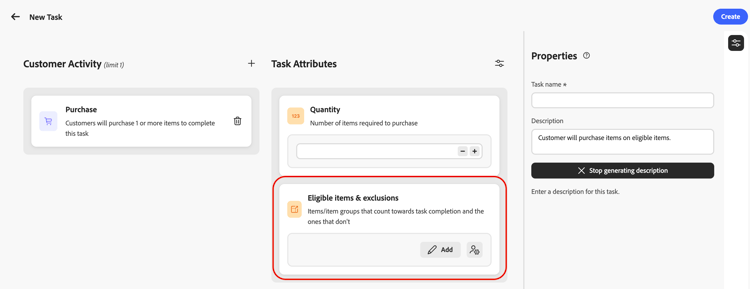
- 數量:輸入完成此任務必須購買的專案數。
- 符合資格的專案和排除:定義計入任務完成的專案或專案群組,以及未計入的專案或專案群組,或選擇 自帶資料 以從外部資料中推動符合資格。 了解更多
- 最小支出值金額:設定最低購買金額需求。
- 最大交易數:限制可用於完成工作的交易數。
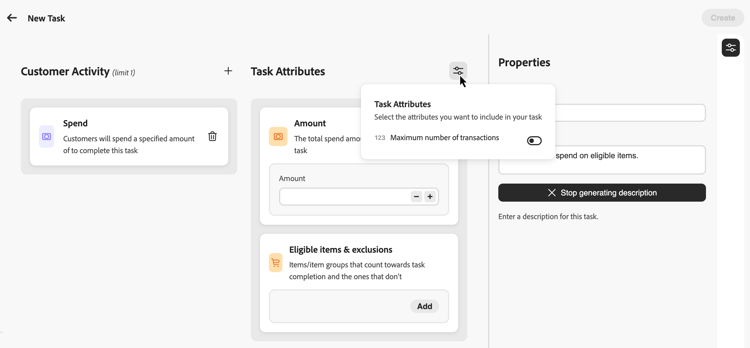
支出活動的可用屬性:
- 金額:輸入完成工作所需的總支出金額。
- 符合資格的專案和排除:定義計入任務完成的專案或專案群組,以及不計入任務完成的專案或專案群組。 進一步瞭解符合資格的專案和排除專案
- 交易數上限:指定允許符合支出需求的交易數。 您可以從引數圖示啟動此屬性。
定義適用項目與排除項目 eligible-items-exclusions
針對 購買 和 支出 活動,您可以使用 合格專案及排除專案 區段來定義哪些專案和群組符合資格,哪些專案及群組被排除。 您可以藉此鎖定特定產品、類別或位置,使其符合您的挑戰目標。
選取器中可用的專案和群組是由管理員使用者在 熟客方案設定 功能表中定義。 管理員會上傳用於合格專案的產品詳細目錄,並設定全組織範圍的排除專案,這些排除專案會在行銷人員建立任務時自動套用。 瞭解如何設定產品詳細目錄和排除專案
自訂事件工作未使用符合資格的專案和排除專案;完成是由您設定的 自訂事件值 所驅動。
例如,您可以將工作限制在特定產品類別中,或排除禮品卡或促銷專案,不計入工作的完成情況。
設定任務的合格專案
若要定義符合資格的專案,請從 符合資格的專案和排除專案 區段中選取新增。
在選取器中,選取應計入任務完成的專案或群組,然後選取包含。 內含的專案和群組會新增至合格清單。
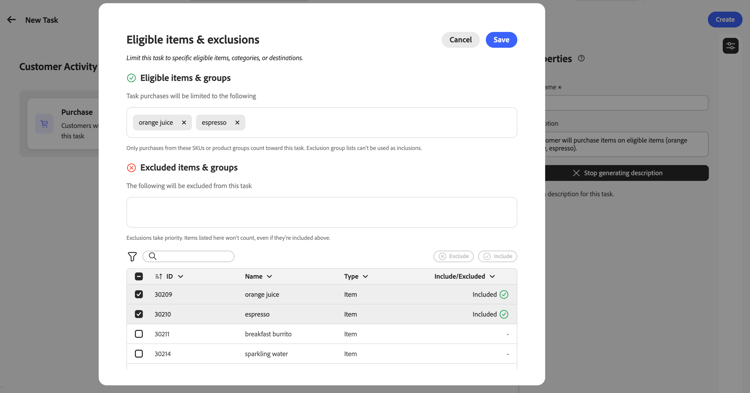
如果未選取合格料號或群組,除非已設定排除專案,否則購買不會限於特定存貨集。
從任務排除專案
若要從任務中排除專案,請從 合格的專案和排除專案 區段中選取新增。
選取不應計入任務完成的專案或群組,然後選取排除。
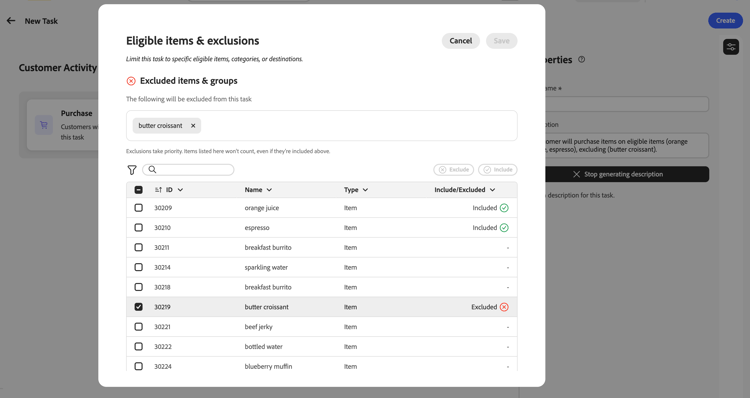
系統會自動將全域排除清單中的專案新增為排除專案。 排除專案優先於包含專案:列為排除的專案不計算,即使它們也是包含群組的一部分。
自備資料以取得資格和排除專案 byod-personalization
除了在Journey Optimizer中選取專案和群組之外,您也可以在執行階段使用 自備資料 選項,從外部忠誠度挑戰資料中提升資格。
選取 自備資料 時,會在執行階段從與您的「忠誠度挑戰」環境同步的資料中解析每位參與者的資格,而非專案ID清單。
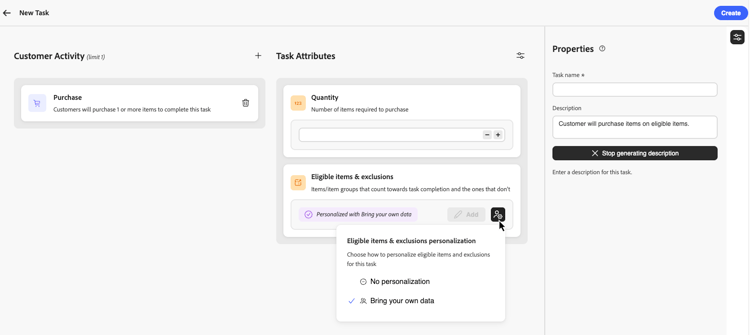
若要使用此選項,請在 合格專案與排除專案 中選取個人化圖示,然後選擇自帶資料。
定義任務屬性 define-task-properties
在工作 屬性 窗格中,設定基本工作資訊:
- 工作名稱:輸入工作的描述性名稱。
- 任務描述:描述會根據設定的活動和屬性自動產生。 若要輸入自訂說明,請關閉自動產生選項,然後在文字欄位中輸入說明。
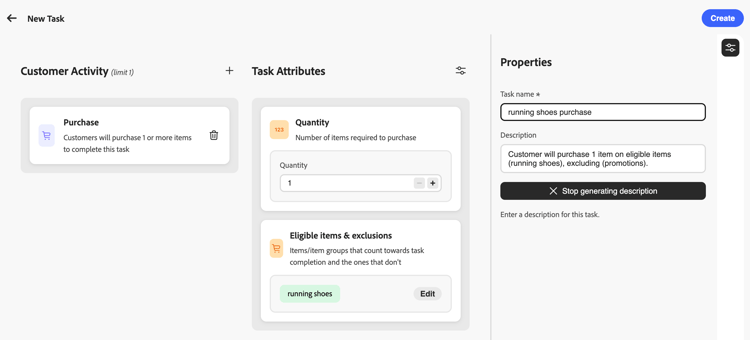
在設定所有屬性和屬性之後,選取 建立 以儲存工作。 任務會儲存到您的任務詳細目錄,如果是從挑戰中建立的,則會自動新增到該挑戰。
作法影片 video
透過此逐步教學課程,瞭解如何建立及設定工作:
This section contains structured knowledge intended to support interpretation, retrieval, and question answering related to this topic.
For complete understanding, this information should be combined with the documentation on this page. Neither source is intended to stand alone; the page describes the feature, while this section provides additional context that helps disambiguate terminology, intent, applicability, and constraints.
- TL;DR: This page explains how to create reusable loyalty tasks, configure Purchase, Spend, and Custom event activities, and define task attributes, eligibility, and completion requirements.
Intents:
- Create a task from the Tasks inventory or from within a challenge.
- Choose a customer activity type (Purchase, Spend, or Custom event) for a task.
- Configure activity-specific attributes, such as quantity, amount, or custom event values.
- Define eligible items and exclusions for Purchase and Spend tasks.
- Use Bring your own data to resolve task eligibility at runtime from external data instead of selecting items in Journey Optimizer.
- Define task properties, including the task name and description.
Glossary:
- Task: a reusable component representing a measurable action or milestone that customers must complete toward challenge completion (product-specific)
- Purchase activity: an activity type that requires customers to purchase one or more items to complete a task (product-specific)
- Spend activity: an activity type that requires customers to spend a specified amount to complete a task (product-specific)
- Custom event activity: an activity type based on an Adobe Experience Platform experience event that is already captured in Experience Platform and mapped through an event mapping in the Loyalty configurations menu (product-specific)
- Tasks inventory: the Tasks tab where tasks are saved and available for reuse across multiple challenges (product-specific)
- Eligible items & exclusions: the Purchase and Spend attribute that defines which items or groups count toward task completion and which are excluded (product-specific)
- Bring your own data: the option that resolves eligibility per participant at runtime from data synchronized with the Loyalty Challenges environment, instead of a list of item IDs (product-specific)
Guardrails:
- Custom event tasks do not use eligible items and exclusions; completion is driven by the Custom event values configured for the task.
- Custom event values entered for a task must match event mappings configured in the Loyalty configurations menu.
- Items from the global exclusions list are automatically added as exclusions.
- Exclusions take priority over inclusions: items listed as excluded do not count, even if they are also part of an included group.
- If no eligible items or groups are selected for a Purchase or Spend task, purchases are not limited to a specific inventory set, unless exclusions are configured.
- For Spend activities, the Maximum number of transactions attribute must be activated from the parameters icon.
- When assigning a task configured with Bring your own data to a challenge, select Standard as the challenge type; Bring your own data at the challenge level is reserved for fully data-driven challenges where the entire structure, including tasks and rewards, is supplied externally.
Applicability:
- Bring your own data (task-level eligibility for Purchase and Spend activities): applies only to a restricted set of organizations currently; will be made available more broadly in a future release.
Terminology:
- Canonical name: Adobe Experience Platform — Acronym: AEP — variants: Experience Platform
- Canonical name: Task — variants: none
- Synonyms: none
- Do not confuse: task-level “Bring your own data” (eligibility resolved at runtime from external data instead of item IDs) ≠ challenge-level “Bring your own data” (reserved for fully data-driven challenges where the entire structure, including tasks and rewards, is supplied externally)
- Do not confuse: “Eligible items & exclusions” (selecting items and groups within Journey Optimizer, for Purchase and Spend only) ≠ “Bring your own data” (eligibility resolved at runtime from synchronized external data)
FAQ:
- Q: What are the three activity types for a task? — Purchase, Spend, and Custom event.
- Q: Where can I create a task? — From the Tasks inventory (Tasks tab, Create Task) or from within a challenge (Add task, New); tasks created within a challenge are also saved to the Tasks inventory.
- Q: Do Custom event tasks use eligible items and exclusions? — No; completion for Custom event tasks is driven by the Custom event values configured for the task.
- Q: What happens if an item is both included and excluded? — Exclusions take priority over inclusions; excluded items do not count even if part of an included group.
- Q: What happens if no eligible items or groups are selected for a Purchase or Spend task? — Purchases are not limited to a specific inventory set, unless exclusions are configured.
- Q: What challenge type should I use with a task configured for Bring your own data? — Select Standard as the challenge type; Bring your own data at the challenge level is reserved for fully data-driven challenges where the entire structure, including tasks and rewards, is supplied externally.
Examples:
- Eligible items & exclusions (Purchase and Spend): limiting a task to specific product categories, or excluding gift cards or promotional items from counting toward task completion.
- Custom event activity: events such as a hotel check-in, mobile app action, or review submission, represented by an Adobe Experience Platform experience event.
Related pages:
- To configure the Custom event event mappings referenced by this page: Learn how to configure event mappings (loyalty-challenges/loyalty-admin.md)
- To configure the product inventory used for eligible items: Learn how to configure product inventory (loyalty-challenges/loyalty-admin.md)
- To configure organization-wide exclusions applied automatically to tasks: exclusions (loyalty-challenges/loyalty-admin.md)
Personas:
- marketer: Can create a task from the Tasks inventory by selecting Create Task, or from within a challenge by selecting Add task and New. Can choose a Purchase, Spend, or Custom event activity, then configure attributes such as Quantity, Amount, or Custom event values. Can define eligible items and exclusions for Purchase and Spend tasks, and set the task name and description. The page states that Custom event tasks do not use eligible items and exclusions. Where: “Create a task”.
Onboarding:
- Level: Intermediate
- First minimal step: Select the Tasks tab and select Create Task.
- Success check: The task is saved to your Tasks inventory and, if created from within a challenge, is automatically added to that challenge.
- Previous: Configure event mappings, product inventory, or exclusions used when building tasks: Configure loyalty challenges (loyalty-challenges/loyalty-admin.md)