在此頁面上:在歷程和行銷活動上線之前發現重疊之處,這樣您就可以避免一次用太多通訊轟炸客戶。
隨著行銷人員在Journey Optimizer中增加行銷活動和歷程的數量,行銷人員越來越難以知道他們是否透過過多的行銷互動轟炸其客戶。 因此,必須輕鬆識別何時有重疊的行銷活動和歷程,以確保在行銷通訊之間取得正確的平衡,同時降低客戶疲勞的風險。
要監控潛在重疊的主要區域包括:
- 時間表 (開始和結束日期):同時執行過多歷程嗎?
- 對象:我的歷程對象中有多少百分比同時屬於其他歷程?
- 頻道:是否有其他通訊已排程為相同的時間範圍,如果是,有多少通訊?
- 上限規則集:我為哪些型別的歷程設定上限,而且這些歷程中有重疊?
- 頻道設定:是否有其他歷程或行銷活動使用同一歷程或行銷活動中使用的任何頻道設定,以防止向一般使用者顯示歷程或行銷活動?
➡️ 在影片中探索此功能
Journey Optimizer如何偵測衝突 detection
以下為Journey Optimizer識別歷程與行銷活動潛在衝突的方式摘要:
- 衝突識別範圍:僅針對即時或排程的行銷活動和歷程顯示衝突。
- 單一歷程:如果選取的歷程是單一的,則會顯示以相同事件開始的其他歷程,因為此事件將會觸發所有此類歷程。
- 對象資格和讀取對象/商業事件歷程:如果選取的歷程是對象資格或讀取對象/商業事件歷程,則會顯示具有有效對象的所有相同型別歷程資料,因為對象之間可能會重疊。
- 行銷活動:由於所有行銷活動都是以對象為目標,而且沒有事件的概念,因此所有行銷活動都可能與區段觸發的歷程衝突(從讀取對象活動開始)。
- 即時/排程行銷活動:即時/排程行銷活動可能會因為可能的對象重疊而互相衝突。 對於任何特定行銷活動,所有即時或排程的行銷活動都會列在衝突檢視器中。
檢視特定歷程或行銷活動的已識別衝突 view
製作歷程或行銷活動時,Journey Optimizer可讓您檢查與其他歷程或行銷活動重疊的可能性。 要執行此操作,請依照下列步驟執行:
-
在編寫歷程或行銷活動時,按一下歷程或行銷活動屬性中的 檢視潛在衝突 按鈕。
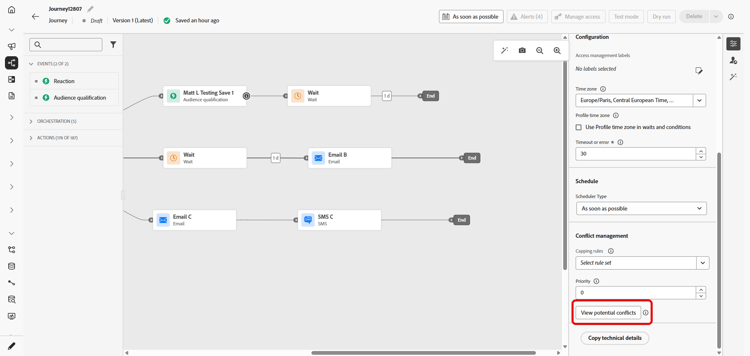
note NOTE 當您指派下列任何設定時,檢視潛在衝突按鈕就會可供選取: 開始/結束日期、對象、頻道、頻道設定以及規則集。 請確定您在指派這些設定後選取儲存,因為除非儲存變更,否則按鈕無法選取。 -
會開啟 潛在衝突 視窗,讓您以視覺效果呈現與目前歷程/行銷活動重疊的所有元素。
您可以選取名稱,從此畫面直接開啟重疊歷程或行銷活動。
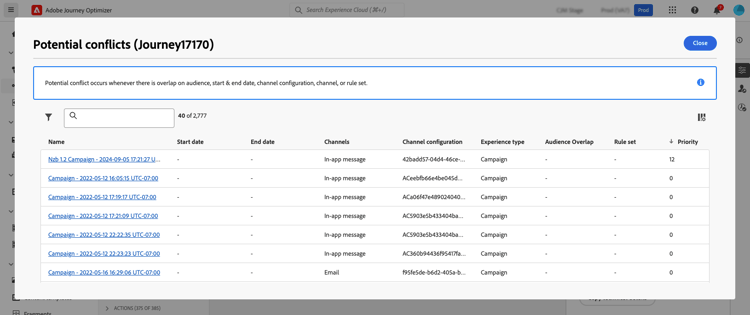
note NOTE 由於已實作快取,新發佈的歷程和行銷活動最長可能需要3-7分鐘才會顯示在衝突檢視器中。
若要進一步縮小潛在重疊的搜尋範圍,您可以根據相關的欄位來篩選行銷活動和歷程清單。 若要這麼做,請在詳細目錄檢視中選取篩選器圖示。 瞭解如何使用篩選器
解決衝突 resolve
以下是識別潛在衝突後減少這些衝突的一些秘訣:
- 調整開始/結束日期,以避免行銷活動或歷程重疊。
- 調整 對象目標定位 以最小化歷程之間的重疊。
- 實作 頻率上限 以防止客戶接收太多通訊。
- 減少 作用中歷程 的數量,以更有效地管理客戶體驗。
- 設定傳入動作的優先順序,以確保向客戶顯示最重要的動作。
運用這些功能,您就能確保行銷努力一致,並在溝通策略中維持正確的平衡。
作法影片 video
This section contains structured knowledge intended to support interpretation, retrieval, and question answering related to this topic.
For complete understanding, this information should be combined with the documentation on this page. Neither source is intended to stand alone; the page describes the feature, while this section provides additional context that helps disambiguate terminology, intent, applicability, and constraints.
- TL;DR: This page explains how Journey Optimizer detects potential conflicts between overlapping live or scheduled journeys and campaigns, how to view them, and how to resolve them.
Intents:
- Check whether a journey or campaign overlaps with other journeys or campaigns while authoring it
- Open the Potential conflicts window with the View Potential Conflicts button
- Monitor overlap across timeline, audience, channel, capping rule set, and channel configuration
- Filter the conflict list to refine the search for overlaps
- Apply resolution tactics such as adjusting dates, refining audiences, adding frequency caps, reducing active journeys, or setting priorities
Glossary:
- Potential conflicts: Window that opens from the button and shows all elements overlapping the current journey or campaign; you can open an overlapping journey or campaign by selecting its name (product-specific)
- Conflict viewer: The viewer in which live or scheduled journeys and campaigns that may overlap show up (product-specific)
- View Potential Conflicts: Button in the journey or campaign properties that opens the potential conflicts window (product-specific)
- Unitary journey: A journey type for which other journeys that start with the same event are displayed as potential conflicts (product-specific)
- Capping Rule Set: An overlap area that identifies which journey types are capped and whether there is overlap within those (product-specific)
- Channel Configuration: An overlap area that identifies other journeys or campaigns using the same channel configuration (product-specific)
Guardrails:
- Conflicts are shown only for live or scheduled campaigns and journeys.
- The View Potential Conflicts button becomes available as soon as you assign any of Start / end date, Audience, Channel, Channel configuration, and Rule set; select Save after assigning them, as the button is not selectable until changes are saved.
- Newly published journeys and campaigns may take up to 3-7 minutes to appear in the conflict viewer, due to caching.
- For a unitary journey, other journeys that start with the same event are displayed, as that event triggers all such journeys.
- For an Audience qualification or a Read Audience/Business Event journey, all other journeys of the same type with a valid audience are displayed.
- All campaigns potentially conflict with segment-triggered journeys (those starting with a Read audience activity), and live or scheduled campaigns may conflict with one another due to audience overlap.
Terminology:
- Canonical name: potential conflicts — variants: conflict viewer, View Potential Conflicts
- Synonyms: none
FAQ:
- Q: Which journeys and campaigns appear in the conflict viewer? — Only live or scheduled journeys and campaigns.
- Q: Why is the View Potential Conflicts button unavailable? — It becomes available as soon as you assign any of start/end date, audience, channel, channel configuration, and rule set; select Save after assigning them, as the button is not selectable until changes are saved.
- Q: Why does a newly published item not show as a conflict yet? — Newly published journeys and campaigns can take up to 3-7 minutes to appear, due to caching.
- Q: How can I reduce identified conflicts? — Adjust start/end dates, refine audience targeting, implement frequency caps, reduce the number of active journeys, or set priorities on inbound actions.
- Q: Do campaigns conflict with journeys? — Campaigns can conflict with segment-triggered journeys that start with a Read audience activity, and live or scheduled campaigns can conflict with one another due to audience overlap.