在此页面上:设置您的推送凭据和Live Activity渠道配置,以便您可以授权Adobe Journey Optimizer为您的iOS应用程序提供实时更新。
在发送实时活动之前,必须配置Adobe Journey Optimizer环境。 要执行此操作,请执行以下操作:
步骤1:在Journey Optimizer中添加应用程序推送凭据(可选) push-credentials-launch
需要移动设备应用程序推送凭据注册,才能授权Adobe代表您发送推送通知。
如果推送凭据已配置,则步骤1是可选的,因为这些凭据可重复用于实时活动渠道配置。 如果未定义凭据,则必须为应用程序创建新的推送凭据。 请参阅下面详述的步骤:
-
访问渠道 > 推送设置 > 推送凭据菜单。
-
单击创建推送凭据。

-
从 平台 下拉列表中,选择iOS。
-
输入移动设备应用程序应用程序ID。

-
启用 应用到所有沙盒 选项以使这些推送凭据在所有沙盒中可用。 如果特定沙盒对于同一平台和应用程序ID对拥有自己的凭据,则这些特定于沙盒的凭据将优先。
-
已打开 手动输入推送凭据 按钮以添加凭据。
-
拖放您的.p8 Apple推送通知身份验证密钥文件。 此密钥可从证书、标识符和 配置文件 页面获取。
-
提供密钥ID。 这是在创建p8身份验证密钥期间分配的10字符串。 可在证书、标识符和 配置文件 页面中的 密钥 选项卡下找到它。
-
提供团队ID。 这是一个字符串值,可以在“成员资格”选项卡下找到。
-
单击 提交 以创建您的应用程序配置。
-
访问渠道 > 推送设置 > 推送凭据菜单。
-
单击创建推送凭据。
-
从 平台 下拉列表中,选择Android。
-
输入移动设备应用程序应用程序ID。

-
启用 应用到所有沙盒 选项以使这些推送凭据在所有沙盒中可用。 如果特定沙盒对于同一平台和应用程序ID对拥有自己的凭据,则这些特定于沙盒的凭据将优先。
-
已打开 手动输入推送凭据 按钮以添加凭据。
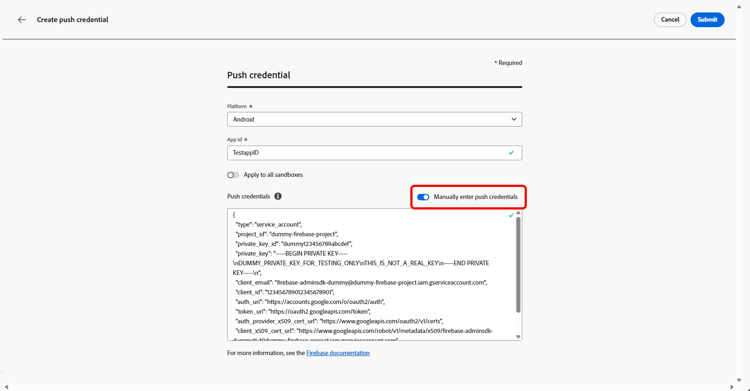
-
拖放您的 .json 专用密钥文件。
-
单击 提交 以创建您的应用程序配置。
步骤2:创建实时活动配置 config-live-activity
-
在左边栏中,浏览到管理 > 渠道并选择常规设置 > 渠道配置。 单击 创建渠道配置 按钮。

-
输入配置的名称和描述(可选),然后选择实时活动渠道。
note NOTE 名称必须以字母(A-Z)开头。 它只能包含字母数字字符。 您还可以使用下划线 _、点.和连字符-符号。 -
选择 Live activity 作为您的渠道。

-
选择 营销操作 以使用此配置将同意策略关联到消息。 所有与营销活动相关的同意政策均可利用,以尊重客户的偏好。 了解详情
-
选择您的平台。
-
从下拉列表中选择与上面配置的推送凭据相同的应用程序ID,或者选择现有应用程序ID。

-
配置所有参数后,单击 提交 以确认。 您还可以将渠道配置另存为草稿,并稍后恢复其配置。
-
创建渠道配置后,它将显示在状态为 正在处理 的列表中。
note NOTE 如果检查不成功,请在本节中进一步了解可能的失败原因。 -
检查成功后,通道配置将获得 活动 状态。 它随时可用于投放消息。
您现在可以开始与Adobe Experience Platform Mobile SDK集成,以在锁屏界面和Dynamic Island上启用实时动态更新。
➡️ 了解有关Adobe Experience Platform Mobile SDK集成的更多信息
This section contains structured knowledge intended to support interpretation, retrieval, and question answering related to this topic.
For complete understanding, this information should be combined with the documentation on this page. Neither source is intended to stand alone; the page describes the feature, while this section provides additional context that helps disambiguate terminology, intent, applicability, and constraints.
- TL;DR: This page explains how to set up your app push credentials and create a Live activity channel configuration so Adobe Journey Optimizer is authorized to deliver real-time updates to your iOS app.
Intents:
- Add app push credentials (optional if already configured) for iOS (a .p8 Apple Push Notification Authentication Key, Key ID, and Team ID) or for Android (a .json private key file)
- Reuse existing push credentials or make them available across sandboxes
- Create a Live activity channel configuration under Administration, Channels, General settings, Channel configurations
- Associate consent policies by selecting marketing action(s)
- Choose the Platform and select the matching App ID, then submit or save as draft
Glossary:
- Push credential: A registration required to authorize Adobe to send push notifications on your behalf (product-specific)
- .p8 Apple Push Notification Authentication Key: The key file dragged and dropped when manually entering iOS push credentials; for Android, a .json private key file is dragged and dropped instead
- Key ID: A 10 character string assigned during creation of the .p8 auth key
- Team ID: A string value found under the Membership tab
- Apply to all sandboxes: An option that makes push credentials available across all sandboxes; sandbox-specific credentials for the same Platform and App ID pair take precedence (product-specific)
- Channel configuration: A configuration created under General settings to deliver messages through the Live activity channel (product-specific)
- Marketing action(s): A selection that associates consent policies to messages using the configuration (product-specific)
- Processing / Active: The statuses a channel configuration passes through; Active means it is ready to deliver messages (product-specific)
Guardrails:
- Step 1 (adding push credentials) is optional if push credentials are already configured, as they can be reused for the Live activity channel configuration.
- Configuration names must begin with a letter (A-Z) and can only contain alpha-numeric characters plus underscore, dot, and hyphen characters.
- If a specific sandbox has its own credentials for the same Platform and App ID pair, those sandbox-specific credentials take precedence over credentials applied to all sandboxes.
- All consent policies associated with the selected marketing action are leveraged in order to respect the preferences of your customers.
- The channel configuration is ready to deliver messages only once the checks are successful and it reaches the Active status; if the checks are not successful, review the possible failure reasons in the channel surfaces documentation.
Terminology:
- Canonical name: Live activity channel configuration — Acronym: n/a — variants: channel configuration, Live activity configuration
- Do not confuse: “Processing” (status while the checks run) ≠ “Active” (status once the checks are successful, ready to deliver)
- Do not confuse: “Key ID” (10 character string for the .p8 auth key) ≠ “Team ID” (string found under the Membership tab)
FAQ:
- Q: Do I always need to create new push credentials? — No; Step 1 is optional if push credentials are already configured, as they can be reused for the Live activity channel configuration.
- Q: What are the naming rules for a configuration? — Names must begin with a letter (A-Z) and can only contain alpha-numeric characters plus underscore, dot, and hyphen.
- Q: Which platform do I select for a Live activity configuration? — Choose your Platform and select the same App ID as the push credential configured for the app, or choose an existing one.
- Q: How do I associate consent to messages using this configuration? — Select marketing action(s); all consent policies associated with the marketing action are leveraged to respect customer preferences.
- Q: When is the configuration usable? — Once the checks are successful and the channel configuration reaches the Active status.
- Q: What does Apply to all sandboxes do? — It makes the push credentials available across all sandboxes; sandbox-specific credentials for the same Platform and App ID pair take precedence.