在此页面上:请遵循此使用案例以构建一个现成的协调营销活动,该活动使用多级发送,在产品再次可用时为每个保存的愿望清单项发送单独的个性化电子邮件。
此用例展示了多级发送:使用与单个项目一起存储的电子邮件地址而不是收件人记录为每个愿望清单项目生成单独的电子邮件。 这样,即使客户对不同的项目使用不同的电子邮件地址,他们仍可收到愿望清单上每个产品的单独通知。

设计后备库存通知以告知客户其愿望清单中的商品何时再次可用。 此消息有助于重新吸引感兴趣的客户,并鼓励他们在补充库存的同时完成购买。
-
首先,发起一项专门针对希望列表重新参与的新活动。 这可确保您的消息聚焦于已通过将产品保存到愿望清单而显示购买意图的客户。
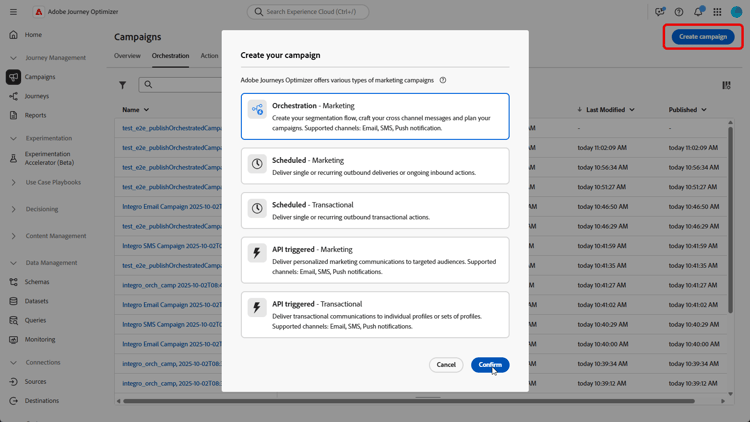
-
填写您的促销活动设置,如促销活动名称、描述、开始和结束日期以及相关标记。
-
添加一个 生成受众 活动,其愿望清单为定向维度。
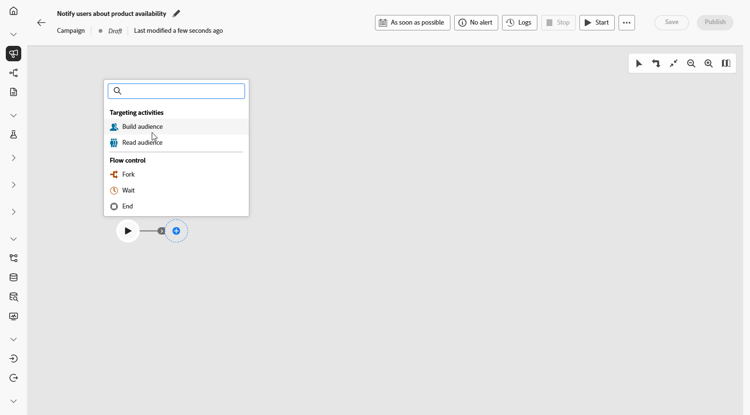
-
添加您的条件以仅包含过去36个月内创建的愿望清单。
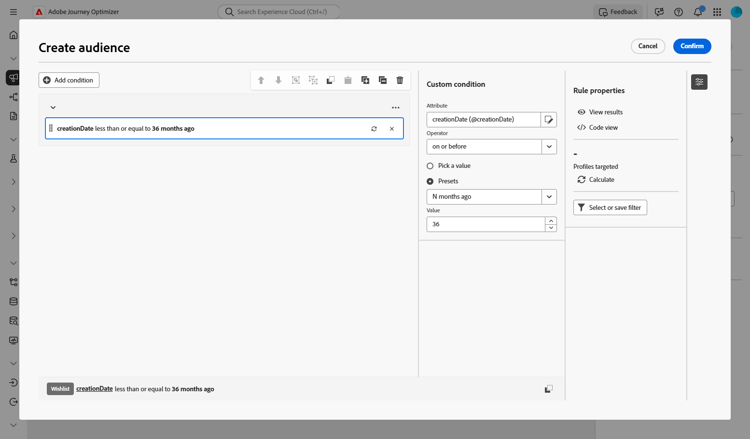
-
添加 更改维度 活动,将愿望清单切换回相应的客户集以进行定位。
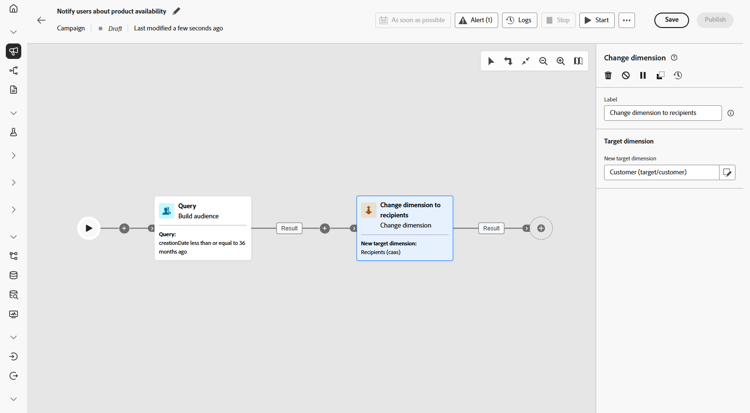
-
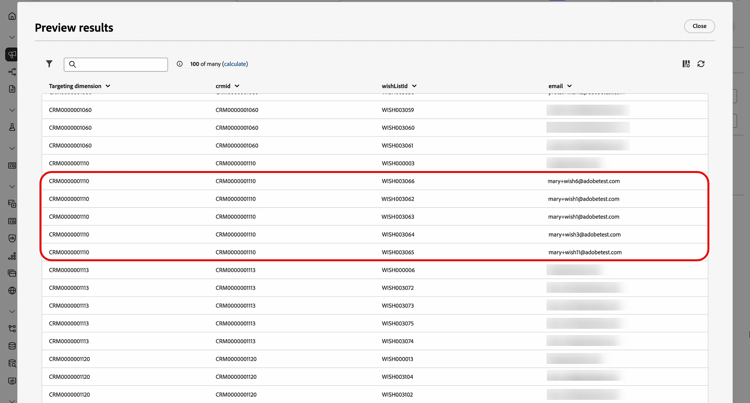
启动草稿模式后,使用愿望清单详细信息预览受众。 要获得更深入的见解,请单击输出结果,然后选择预览结果。
此处,数据既显示收件人,也显示其愿望清单项目。 某些客户具有多个愿望清单项目,并通过多级发送,为每个项目接收单独的电子邮件。 在某些情况下,客户会使用不同的电子邮件地址来分别申请补货。
-
若要为每个项目发送单独的电子邮件,请确保您的电子邮件配置设置为
Recipients - email作为配置文件目标Dimension,Wishlistitems作为次要维度。然后,从 执行地址 菜单中,选择
wishlist.email作为辅助维度。 每个愿望清单项目都会触发单独的电子邮件,使用愿望清单数据中存储的电子邮件地址作为次要维度。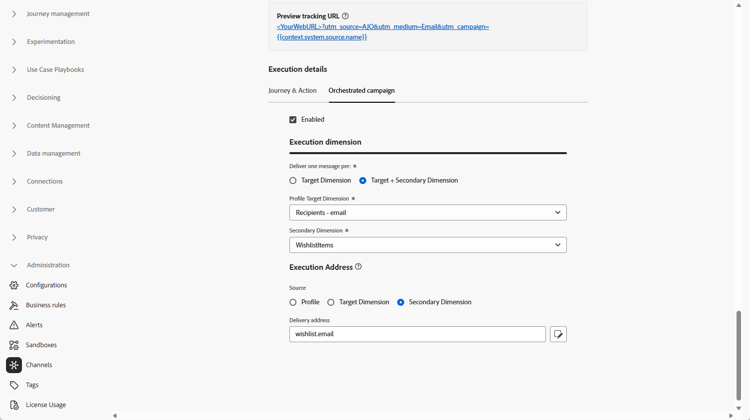
-
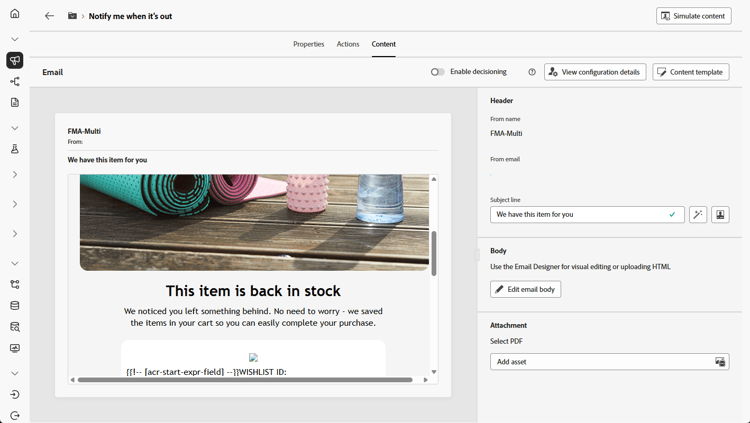
添加 电子邮件 活动以创建产品可用性消息。 单击 编辑内容 开始设计内容。
-
营销活动测试完成并准备就绪后,单击 发布 即可使其上线。
通过这项精心设计的活动,客户将收到一封单独的电子邮件,分别用于其愿望清单项目。 每个消息被发送到与该愿望清单相关联的特定电子邮件地址,其中从特定愿望清单项目的详情中提取个性化内容。
This section contains structured knowledge intended to support interpretation, retrieval, and question answering related to this topic.
For complete understanding, this information should be combined with the documentation on this page. Neither source is intended to stand alone; the page describes the feature, while this section provides additional context that helps disambiguate terminology, intent, applicability, and constraints.
- TL;DR: This page walks through building a back-in-stock Orchestrated campaign that uses multi-level sending to deliver a separate, personalized email for each saved Wishlist item when products become available again.
Intents:
- Set up a campaign dedicated to Wishlist re-engagement.
- Build an audience from Wishlist data using a Build audience activity with Wishlist as Targeting dimension.
- Shift targeting from wishlists back to the respective customer set using a Change dimension activity.
- Preview the audience to see recipients and their Wishlist items.
- Configure the email so that each Wishlist item triggers a separate email using the email address stored with that item.
- Add an Email activity to design and personalize the product availability message, then publish the campaign.
Glossary:
- Multi-level sending: generating a distinct email for each Wishlist item by using the email address stored with the individual item rather than the recipient record, so customers can receive separate notifications for every product on their wishlist even if they use different email addresses for different items (product-specific)
- Build audience activity: the activity used to build an audience, configured with a Targeting dimension (product-specific)
- Targeting dimension: the setting on a Build audience activity that determines which data (for example, Wishlist) the audience is built from (product-specific)
- Change dimension activity: the activity used to shift from one dimension (for example, wishlists) back to the respective customer set for targeting (product-specific)
- Profile Target Dimension: the email configuration field set to
Recipients - emailin this use case (product-specific) - Secondary dimension: two separate settings in this use case — in the email configuration, Secondary dimension is set to
Wishlistitems(paired withRecipients - emailas Profile Target Dimension); in the Execution Address menu, Secondary dimension is set towishlist.email. Together these settings mean each Wishlist item triggers a separate email using the email address stored in the Wishlist data (product-specific) - Execution Address: the menu where the Secondary dimension is set to
wishlist.emailso that each Wishlist item triggers a separate email (product-specific) - Preview results: the option, selected from an output result, used to see deeper insights into the audience, including recipients and their Wishlist items (product-specific)
Guardrails:
- None stated on the page.
Terminology:
- Canonical name: Multi-level sending — variants: none
FAQ:
- Q: What does multi-level sending do in this use case? — It generates a distinct email for each Wishlist item by using the email address stored with the individual item rather than the recipient record, so customers can receive separate notifications for every product on their wishlist even if they use different email addresses for different items.
- Q: How is the audience built for this campaign? — With a Build audience activity using Wishlist as Targeting dimension, then a Change dimension activity to shift back to the respective customer set for targeting.
- Q: How do I make sure a separate email is sent for each Wishlist item? — Set the email configuration with
Recipients - emailas Profile Target Dimension andWishlistitemsas Secondary dimension, then selectwishlist.emailas Secondary dimension from the Execution Address menu. - Q: Where can I preview the audience and its Wishlist items? — After starting draft mode, click an output result and select Preview results.
- Q: How do I add the actual message content? — Add an Email activity to create the product availability message, then click Edit content to design it.
- Q: How do I make the campaign live? — Once the campaign is tested and ready, click Publish.
Examples:
- In this use case, the Build audience activity’s condition includes only wishlists created over the last 36 months.
- In this use case, when previewing results, some customers have multiple Wishlist items and, through multi-level sending, receive a separate email for each item; in some cases, customers use different email addresses for separate back-in-stock requests.
Related pages:
- To set the email configuration with Profile Target Dimension and Secondary dimension for this use case: your email configuration (orchestrated/target-dimension.md)
- To design the product availability email content: Learn more on email personalization (email/content-from-scratch.md)
Personas:
- marketer: Can build an audience with a Build audience activity using Wishlist as Targeting dimension, then shift to the customer set with a Change dimension activity. Can set the email to Recipients - email as Profile Target Dimension and Wishlistitems as Secondary dimension, then select wishlist.email in Execution Address. The page states that the Build audience condition includes only wishlists created over the last 36 months. Where: “Intents”.
Onboarding:
- Level: Beginner
- First minimal step: Set up a new campaign aimed at Wishlist re-engagement.
- Success check: Each wishlist item triggers a separate email sent to its own stored email address, with personalized content from that item.
- Previous: Configure your email Target Dimension for multi-level sending: Create your Targeting dimension (orchestrated/target-dimension.md)
- Next: Design and personalize the email content for the product availability message: Design content from scratch in Journey Optimizer (email/content-from-scratch.md)