在此页面上:了解如何使用规则生成器来过滤数据,并创建查询,以针对编排的营销活动中的受众。
精心策划的营销活动附带规则生成器,可简化根据各种标准筛选数据库的过程。 规则生成器可高效处理极其复杂的长查询,提供更强的灵活性与精准度。
它还支持在条件中使用预定义过滤器,让您能轻松优化查询,同时借助高级表达式和运算符实现全面的受众目标选择与细分策略。
访问规则生成器 access
在需要定义规则以筛选数据的每个上下文中,都可以使用规则生成器。
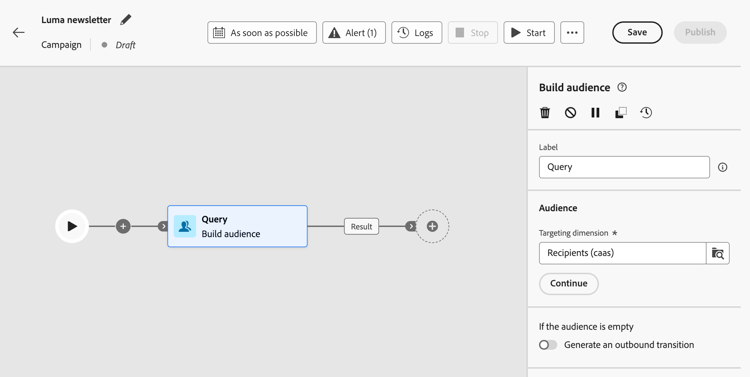
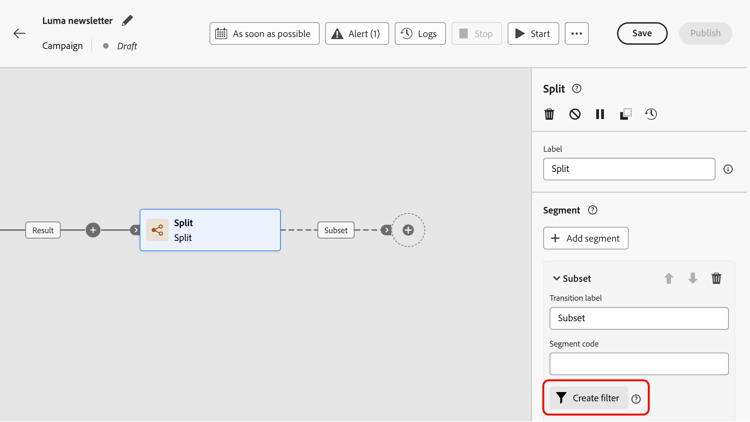
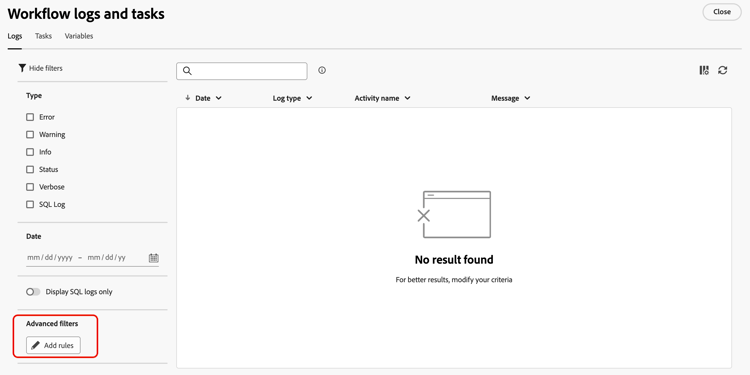
规则生成器界面 interface
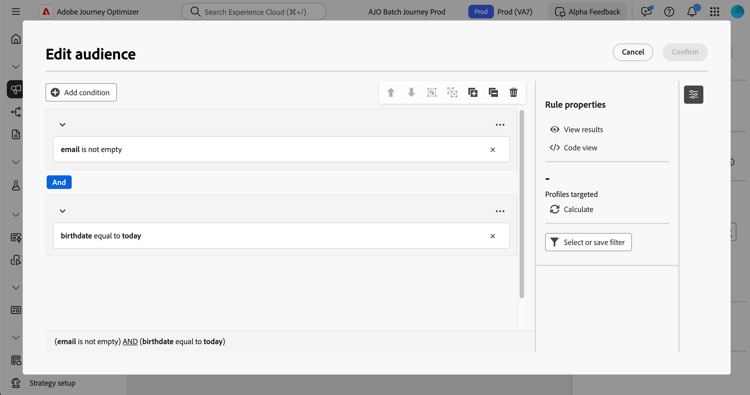
规则生成器提供了一个中央画布用于生成查询,并提供一个显示规则详情的属性窗格。
-
中央画布是添加和组合各类组件以生成规则的操作区域。 了解如何生成规则
-
规则属性窗格提供有关规则的信息。 它支持执行各种操作来检查规则,确保其符合您的需求。
在生成查询以创建受众时,会显示此窗格。 了解如何检查和验证您的查询
使用预定义过滤器
通过预定义过滤器,您可以重用规则生成器中保存的查询,包括带有参数的版本。 有关保存、应用和管理预定义过滤器的完整演练,请参阅使用预定义过滤器。
This section contains structured knowledge intended to support interpretation, retrieval, and question answering related to this topic.
For complete understanding, this information should be combined with the documentation on this page. Neither source is intended to stand alone; the page describes the feature, while this section provides additional context that helps disambiguate terminology, intent, applicability, and constraints.
- TL;DR: This page explains how to access and use the rule builder to filter data and build the queries that target audiences in Orchestrated campaigns.
Intents:
- Identify the contexts where the rule builder is available.
- Specify a target population using a Build audience activity.
- Apply a condition in the campaign canvas using a Split activity.
- Build advanced filters for lists such as campaign logs or targeting dimensions.
- Understand the central canvas and the Rule properties pane in the rule builder interface.
- Reuse saved queries through predefined filters.
Glossary:
- Rule builder: a tool that simplifies filtering the database based on various criteria, manages complex and long queries, and supports predefined filters within conditions (product-specific)
- Central canvas: the part of the rule builder interface where components are added and combined to build a rule (product-specific)
- Rule properties pane: the pane that provides information on the rule and allows operations to check the rule and ensure it suits the user’s needs; it displays when building a query to create an audience (product-specific)
- Build audience activity: used to specify the population to target in an Orchestrated campaign by creating new audiences (product-specific)
- Split activity: used to apply rules within the campaign canvas (product-specific)
- Predefined filters: saved queries, including versions with parameters, that can be reused in the rule builder (product-specific)
Guardrails:
- None stated on the page.
Terminology:
- Canonical name: rule builder — variants: none stated
FAQ:
- Q: Where is the rule builder available? — In every context where rules are needed to filter data, including building audiences with a Build audience activity, applying conditions in the campaign canvas with a Split activity, and building advanced filters for lists such as campaign logs or targeting dimensions.
- Q: What does the rule builder interface consist of? — A central canvas where components are added and combined to build the rule, and a Rule properties pane that provides information on the rule and lets the user check it.
- Q: When does the Rule properties pane display? — When building a query to create an audience.
- Q: Can saved queries be reused in the rule builder? — Yes, through predefined filters, including versions with parameters.
Related pages:
- To build audiences in Orchestrated campaigns: Learn how to build audiences (orchestrated/activities/build-audience.md)
- To apply a condition in the campaign canvas: Learn how to use a Split activity (orchestrated/activities/split.md)
- To build a rule in the central canvas: Learn how to build a rule (orchestrated/build-query.md)
- To check and validate a query: Learn how to check and validate your query (orchestrated/build-query.md)
- To save, apply, and manage predefined filters: Work with predefined filters (orchestrated/predefined-filters.md)
Personas:
- marketer: Can specify a target population in an Orchestrated campaign using a Build audience activity. Can apply a condition in the campaign canvas using a Split activity, or build advanced filters for lists such as campaign logs. Where: “Access the rule builder”.
Onboarding:
- Level: Intermediate
- First minimal step: Specify the population you want to target in your Orchestrated campaigns using a Build audience activity.
- Success check: The Rule properties pane lets you check the rule to ensure it suits your needs.
- Previous: Specify a target population using a Build audience activity: Use the Build audience activity (orchestrated/activities/build-audience.md); Apply a condition in the campaign canvas using a Split activity: Use the Split activity (orchestrated/activities/split.md)
- Next: Build a rule in the central canvas: Build your first rule (orchestrated/build-query.md); Reuse saved queries through predefined filters: Work with predefined filters (orchestrated/predefined-filters.md)