Nesta página: saiba como usar a atividade de direcionamento Reconciliação para corresponder dados externos ou não identificados com registros existentes no banco de dados durante uma campanha Orquestrada.
A atividade Reconciliação é uma atividade de Direcionamento que permite definir o vínculo entre os dados do banco de dados do Adobe Journey Optimizer e os dados de uma tabela de trabalho, como, por exemplo, dados carregados de um arquivo externo.
A atividade Enrichment permite adicionar dados adicionais à campanha orquestrada, por exemplo, combinando dados de várias fontes ou vinculando a um recurso temporário. Em contraste, a atividade Reconciliação é usada para corresponder dados não identificados ou externos a recursos existentes no banco de dados.
A Reconciliação exige que os registros relacionados já existam no sistema. Por exemplo, se você importar um arquivo de compra listando produtos, carimbos de data/hora e informações dos clientes, os produtos e os clientes já precisam estar presentes no banco de dados para estabelecer o vínculo.
Configurar a atividade de reconciliação reconciliation-configuration
Siga estas etapas para configurar a atividade Reconciliação:
-
Adicione uma atividade de Reconciliação à tela.
-
Escolha uma nova dimensão de direcionamento para definir a quem você está direcionando, como destinatários ou assinantes.
-
Defina os campos a serem usados para corresponder os seus dados de entrada a perfis existentes.
-
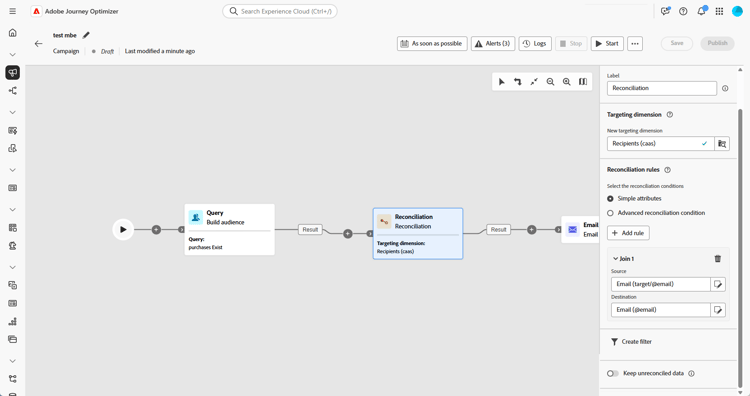
Para corresponder os dados por meio de campos básicos, selecione Atributos simples.
-
Defina os campos de correspondência:
-
Origem: lista os campos dos dados de entrada.
-
Destino: refere-se aos campos na dimensão de direcionamento selecionada.
Uma correspondência ocorre quando ambos os valores são iguais, como, por exemplo, quando o Email corresponde ao identificar perfis.
-
-
Para adicionar mais regras de correspondência, clique em Adicionar regra. Para que uma correspondência ocorra, todas as condições precisam ser satisfeitas.
-
Para condições mais complexas, escolha Condições de reconciliação avançadas. Use o construtor de regras para definir uma lógica personalizada.
-
Para filtrar quais dados reconciliar, clique em Criar filtro e defina sua condição no construtor de regras.
-
Por padrão, registros sem correspondência são mantidos na transição de saída e armazenados na tabela de trabalho. Para removê-los, habilite a opção Manter dados não reconciliados.
Exemplo example-reconciliation
Este exemplo usa a atividade Reconciliação no Adobe Journey Optimizer para garantir que os emails sejam enviados somente a clientes reconhecidos. Os dados fluem por meio de uma atividade Criar público-alvo que direciona os usuários com pedidos anteriores. Então, a atividade Reconciliação corresponde esses dados de entrada aos perfis existentes no banco de dados, usando o campo de email.

This section contains structured knowledge intended to support interpretation, retrieval, and question answering related to this topic.
For complete understanding, this information should be combined with the documentation on this page. Neither source is intended to stand alone; the page describes the feature, while this section provides additional context that helps disambiguate terminology, intent, applicability, and constraints.
- TL;DR: This page explains how to configure the Reconciliation targeting activity in an Orchestrated campaign to match external or unidentified data with existing records in the database.
Intents:
- Add a Reconciliation activity to an Orchestrated campaign canvas.
- Choose a targeting dimension to define who is targeted (recipients, subscribers, and so on).
- Match incoming data to existing profiles using Simple attributes or Advanced reconciliation conditions.
- Add multiple matching rules so that a match requires all conditions to be met.
- Filter which data to reconcile using the rule builder.
- Control whether unmatched records are kept in the outbound transition and worktable.
Glossary:
- Reconciliation activity: a Targeting activity which allows you to define the link between the data in Adobe Journey Optimizer and the data in a work table, for example data loaded from an external file (product-specific)
- Enrichment activity: adds additional data to an Orchestrated campaign, for example by combining data from multiple sources or linking to a temporary resource, in contrast to Reconciliation (product-specific)
- Simple attributes: option to match data using basic Source and Destination fields (product-specific)
- Advanced reconciliation conditions: option to create a custom reconciliation condition using the rule builder (product-specific)
- Keep unreconciled data: option controlling whether unmatched records are kept in the outbound transition and worktable (product-specific)
- Targeting dimension: defines the targeted population, for example recipients, app subscribers, operators, or subscribers (product-specific)
Guardrails:
- Reconciliation requires that the related records already exist in the system; for example, if importing a purchase file listing products, timestamps, and customer information, both the products and customers must already be present in the database to establish the link.
- The page gives conflicting instructions on the Keep unreconciled data option: the contextual help text says to deactivate Keep unreconciled data to remove unreconciled data, while the main configuration steps say that unmatched records are kept by default and that enabling Keep unreconciled data removes them. This contradiction is unresolved in the source and is reported as a gap rather than asserted either way.
Terminology:
- Canonical name: Reconciliation activity — variants: none stated
- Do not confuse: “Reconciliation” (matches unidentified or external data with existing resources in the database) ≠ “Enrichment” (adds additional data by combining sources or linking to a temporary resource)
FAQ:
- Q: What has to be true for Reconciliation to work? — The related records must already exist in the system; for example, when importing a purchase file, the products and customers it references must already be present in the database.
- Q: How does a Simple attributes match occur? — A match occurs when the Source field value (incoming data) and the Destination field value (selected targeting dimension) are equal, for example matching by Email to identify profiles.
- Q: What happens if I add more than one matching rule? — All conditions must be met for a match to occur.
- Q: Does Reconciliation support complex matching logic? — Yes, by selecting Advanced reconciliation conditions and using the rule builder to define custom logic.
- Q: What happens to data that does not match? — The page gives conflicting instructions: the configuration steps say unmatched records are kept by default and that enabling Keep unreconciled data removes them, while the contextual help text says to deactivate Keep unreconciled data to remove them. This contradiction is unresolved in the source.
Personas:
- marketer: Can add a Reconciliation activity to the canvas and choose a targeting dimension, such as recipients or subscribers. Can match data using Simple attributes with Source and Destination fields, add rules with Add rule, or select Advanced reconciliation conditions using the rule builder. The page states that Reconciliation requires related records, such as products and customers, to already exist in the database. Where: “Configure the Reconciliation activity”.
Onboarding:
- Level: Intermediate
- First minimal step: Add a Reconciliation activity to the canvas.
- Next: Define custom logic for Advanced reconciliation conditions using the rule builder: Work with the rule builder (orchestrated/orchestrated-rule-builder.md)