Nesta página: saiba como usar a atividade de controle de fluxo de bifurcação em uma campanha Orquestrada para criar várias transições de saída que executam várias atividades em paralelo.
A atividade Bifurcação é um componente de Controle do fluxo que permite criar várias transições de saída, permitindo que várias atividades sejam executadas em paralelo.
Configuração da atividade de bifurcação fork-configuration
Siga estas etapas para configurar a atividade Bifurcação:
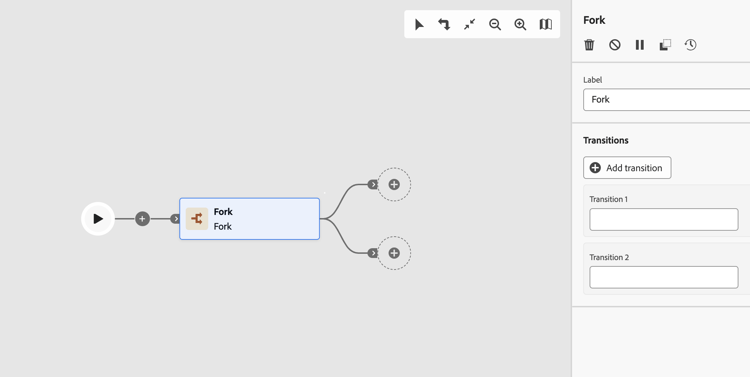
-
Adicione uma atividade Fork à sua campanha Orquestrada.
-
Defina um Rótulo.
-
Atribua um rótulo a cada transição de saída. Por padrão, duas transições são fornecidas.
-
Para remover uma transição, clique no ícone

-
Se necessário, clique em Adicionar transição para adicionar outra transição de saída.
Exemplos fork-examples
Este é um uso típico da atividade Fork: direcionar o mesmo público-alvo com dois canais de email diferentes, um de marketing e outro transacional, para comparar o comportamento de entrega.
Depois que uma atividade Criar público-alvo seleciona a população do público-alvo, uma Bifurcação cria duas ramificações paralelas:
- A Ramificação 1 se conecta a uma atividade de canal de email de Marketing. As mensagens seguem as regras de negócios padrão e são enviadas apenas para perfis de aceitação.
- A ramificação 2 se conecta a uma atividade de canal de email Transacional. As mensagens ignoram as regras de negócios e são entregues a todos os perfis, independentemente do status de aceitação.
Esse padrão é útil para entender como as configurações de categoria do canal afetam o comportamento do delivery e para enviar diferentes tipos de mensagem para o mesmo público-alvo em uma única execução de campanha.
This section contains structured knowledge intended to support interpretation, retrieval, and question answering related to this topic.
For complete understanding, this information should be combined with the documentation on this page. Neither source is intended to stand alone; the page describes the feature, while this section provides additional context that helps disambiguate terminology, intent, applicability, and constraints.
- TL;DR: This page explains how to configure the Fork flow control activity in an Orchestrated campaign to create multiple outbound transitions so that several activities run in parallel.
Intents:
- Add a Fork activity to an Orchestrated campaign.
- Use a Fork to run two or more activities in parallel.
- Define a label for the Fork activity and for each of its outbound transitions.
- Add or remove outbound transitions on a Fork activity.
- Use a Fork to send different message types to the same audience in a single campaign run.
Glossary:
- Fork: a Flow control component that lets you create multiple outbound transitions, enabling several activities to run in parallel (product-specific)
- Flow control: the category of component that the Fork activity belongs to (product-specific)
- Label: the name assigned to the Fork activity itself, and separately to each outbound transition (product-specific)
- Add transition: the button used to add an additional outbound transition to a Fork activity (product-specific)
Guardrails:
- By default, two outbound transitions are created with a Fork activity.
- Each outbound transition can be assigned its own label.
- A transition can be removed using the delete icon next to it.
- Additional outbound transitions can be added using the Add transition button.
Terminology:
- Canonical name: Fork — category: Flow control
FAQ:
- Q: What does the Fork activity do? — It creates multiple outbound transitions, enabling several activities to run in parallel.
- Q: How many outbound transitions does a Fork activity have by default? — Two, by default.
- Q: Can I add more than the default outbound transitions? — Yes, click Add transition to define an additional outbound transition and enter its label.
- Q: How do I remove an outbound transition? — Click the delete icon next to the transition.
- Q: What is a typical use of the Fork activity? — Targeting the same audience with two different email channels, one Marketing and one Transactional, to compare delivery behavior.
Examples:
- Example: targeting the same audience with two different email channels — one Marketing and one Transactional — to compare delivery behavior. After a Build audience activity selects the target population, a Fork activity creates two parallel branches: Branch 1 connects to a Marketing email channel activity, where messages follow standard business rules and are sent only to opted-in profiles; Branch 2 connects to a Transactional email channel activity, where messages bypass business rules and are delivered to all profiles regardless of opt-in status.
Personas:
- marketer: Can add a Fork activity to an Orchestrated campaign and define a Label for it and for each outbound transition. Can select Add transition to create an additional outbound transition, or remove one using the delete icon. The page states that two outbound transitions are created by default. Where: “Configure the Fork activity”.
Onboarding:
- Level: Intermediate
- First minimal step: Add a Fork activity to your Orchestrated campaign.
- Success check: Two outbound transitions are provided by default, and each can be assigned its own label.