Nesta página: saiba como usar a atividade de direcionamento Criar público-alvo para definir o público que entra em uma campanha Orquestrada, usando um público-alvo existente ou o construtor de regras.
Como profissional de marketing, você pode criar segmentos complexos de público-alvo por meio de uma interface intuitiva, permitindo direcionar usuários com base em uma grande variedade de critérios e comportamentos para adaptar as suas campanhas com mais eficiência.
Para isso, use a atividade de direcionamento Criar público-alvo. Essa atividade define o público-alvo que entra na campanha Orquestrada. Ao enviar mensagens como parte de uma campanha Orquestrada, o público-alvo é definido na atividade Criar público-alvo, não dentro da campanha Orquestrada.
Configurar a atividade Criar público-alvo build-audience-configuration
Siga estas etapas para configurar a atividade Criar público-alvo:
-
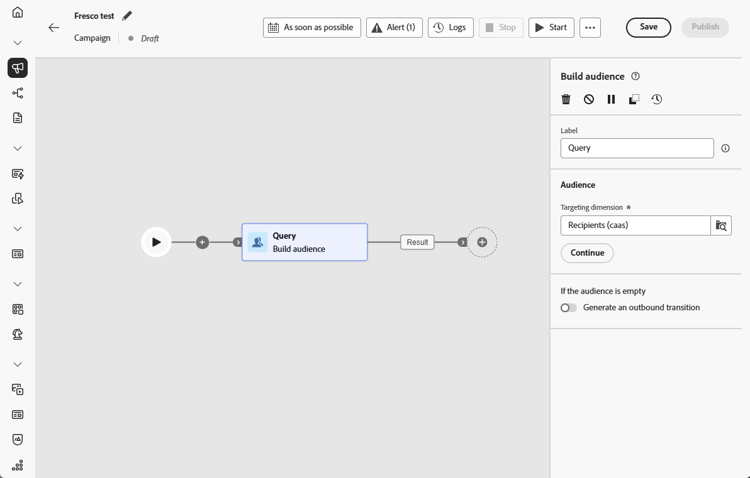
Adicione uma atividade Criar público-alvo.
-
Defina um Rótulo.
-
Configure o seu público-alvo, seguindo as etapas detalhadas nas guias abaixo.
-
Escolha a Dimensão de direcionamento. O targeting dimension permite definir o público alvo da operação: recipients, beneficiários de contrato, operadores, assinantes etc. Por padrão, o target é selecionado dos recipients.
-
Clique em Continuar.
-
Use o construtor de regras para definir sua consulta. Saiba mais sobre o Construtor de regras nesta seção
-
Especifique se uma transição de saída deve ser gerada quando o público-alvo estiver vazio.
Exemplos build-audience-examples
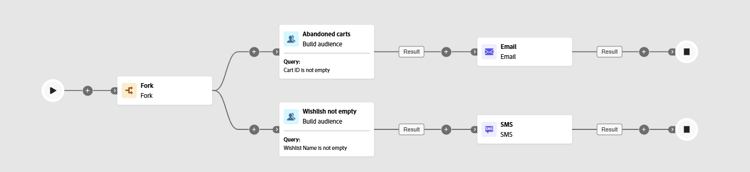
Este é um exemplo de uma campanha Orquestrada com duas atividades Build audience. A primeira é direcionada a perfis que têm itens em seus carrinhos, seguida por uma entrega de email. A segunda é direcionada a perfis com uma lista de desejos, seguida por uma entrega de SMS.
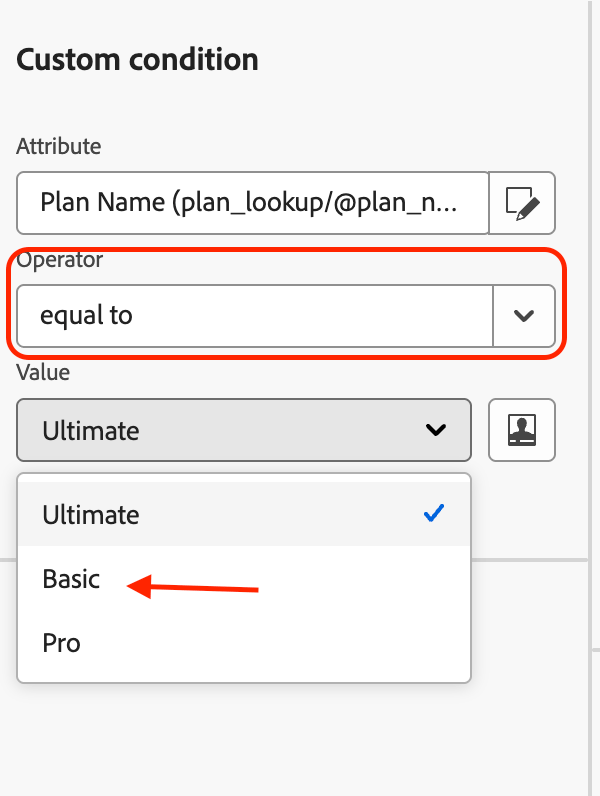
No exemplo abaixo, a atividade Criar público-alvo usa o construtor de regras para filtrar os perfis por seu plano de assinatura. Uma condição está definida no atributo plan para incluir apenas perfis em que plan = "basic", restringindo o público-alvo aos assinantes da camada básica antes de passá-los para a próxima atividade.
This section contains structured knowledge intended to support interpretation, retrieval, and question answering related to this topic.
For complete understanding, this information should be combined with the documentation on this page. Neither source is intended to stand alone; the page describes the feature, while this section provides additional context that helps disambiguate terminology, intent, applicability, and constraints.
- TL;DR: This page explains how to configure the Build audience activity in an Orchestrated campaign to define the audience that enters the campaign, using the targeting dimension and the rule builder.
Intents:
- Add a Build audience activity to an Orchestrated campaign.
- Define a label and choose the targeting dimension for the audience.
- Use the rule builder to define the query for the audience.
- Specify whether an outbound transition should be generated when the audience is empty.
Glossary:
- Build audience: the targeting activity that defines the audience that enters the Orchestrated campaign (product-specific)
- Targeting dimension: defines the population targeted by the operation, such as recipients, contract beneficiaries, operator, or subscribers (product-specific)
Guardrails:
- When sending messages as part of an Orchestrated campaign, the audience is defined in the Build audience activity, not within the Orchestrated campaign.
- By default, the target is selected from the recipients.
Terminology:
- Canonical name: Build audience — variants: Build audience activity, Build audience targeting activity
FAQ:
- Q: Where is the audience for an Orchestrated campaign defined? — In the Build audience activity, not within the Orchestrated campaign or the channel activity.
- Q: What does the targeting dimension do? — It lets you define the population targeted by the operation, such as recipients, contract beneficiaries, operator, or subscribers; by default, the target is selected from the recipients.
- Q: How do I define the query for the audience? — Use the rule builder after choosing the targeting dimension.
- Q: Can I control what happens when the audience is empty? — Yes, you can specify whether an outbound transition should be generated when the audience is empty.
Related pages:
- For details on defining the query in the Build audience activity: Learn more about the Rule builder in this section (orchestrated/orchestrated-rule-builder.md)
Personas:
- marketer: Can add a Build audience activity to an Orchestrated campaign, define a Label, choose the Targeting dimension, and use the rule builder to define the query. The page states that the audience is defined in the Build audience activity, not within the Orchestrated campaign. Where: “Configure the Build audience activity”.
Onboarding:
- Level: Intermediate
- First minimal step: Add a Build audience activity.
- Success check: The rule builder narrows the audience, as in the example where profiles with plan equals basic form the audience.
- Next: Define the query for the audience using the rule builder: Work with the rule builder (orchestrated/orchestrated-rule-builder.md)