이 페이지에서: 푸시 자격 증명과 라이브 활동 채널 구성을 설정하여 Adobe Journey Optimizer에서 iOS 앱에 대한 실시간 업데이트를 전달하도록 권한을 부여할 수 있습니다.
라이브 활동을 보내기 전에 Adobe Journey Optimizer 환경을 구성해야 합니다. 다음을 수행하십시오.
1단계: Journey Optimizer에서 앱 푸시 자격 증명 추가(선택 사항) push-credentials-launch
Adobe이 사용자를 대신하여 푸시 알림을 전송하도록 승인하려면 모바일 앱 푸시 자격 증명 등록이 필요합니다.
푸시 자격 증명이 이미 구성된 경우 1단계는 선택 사항이며, 이는 라이브 활동 채널 구성에 다시 사용할 수 있기 때문입니다. 자격 증명이 정의되지 않은 경우 앱에 대한 새 푸시 자격 증명을 만들어야 합니다. 아래에 자세히 설명된 단계를 참조하십시오.
-
채널 > 푸시 설정 > 푸시 자격 증명 메뉴에 액세스합니다.
-
푸시 자격 증명 만들기를 클릭합니다.

-
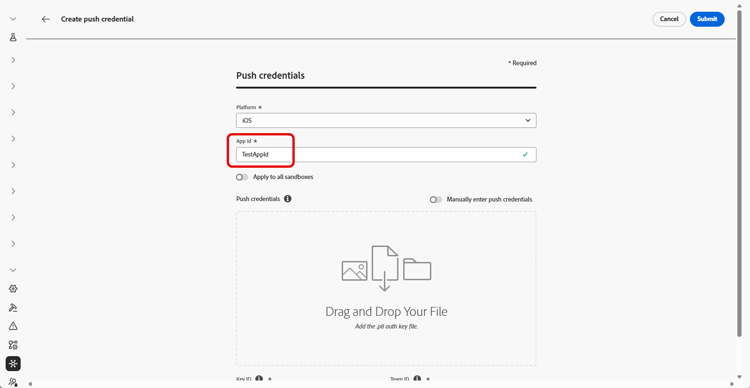
플랫폼 드롭다운에서 iOS을 선택합니다.
-
모바일 앱 앱 ID를 입력하세요.
-
모든 샌드박스에 적용 옵션을 활성화하여 모든 샌드박스에서 푸시 자격 증명을 사용할 수 있도록 합니다. 특정 샌드박스에 동일한 플랫폼 및 앱 ID 쌍에 대한 자체 자격 증명이 있는 경우 해당 샌드박스별 자격 증명이 우선합니다.
-
자격 증명을 추가하려면 푸시 자격 증명 수동 입력 단추를 켭니다.
-
.p8 Apple 푸시 알림 인증 키 파일을 끌어서 놓습니다. 이 키는 인증서, 식별자 및 프로필 페이지에서 가져올 수 있습니다.
-
키 ID을(를) 제공합니다. p8 인증 키를 만드는 동안 할당된 10개의 문자열입니다. 인증서, 식별자 및 프로필 페이지의 키 탭에서 찾을 수 있습니다.
-
팀 ID를 제공하십시오. 멤버십 탭에서 찾을 수 있는 문자열 값입니다.
-
앱 구성을 만들려면 제출을 클릭합니다.
-
채널 > 푸시 설정 > 푸시 자격 증명 메뉴에 액세스합니다.
-
푸시 자격 증명 만들기를 클릭합니다.
-
플랫폼 드롭다운에서 Android을 선택합니다.
-
모바일 앱 앱 ID를 입력하세요.

-
모든 샌드박스에 적용 옵션을 활성화하여 모든 샌드박스에서 푸시 자격 증명을 사용할 수 있도록 합니다. 특정 샌드박스에 동일한 플랫폼 및 앱 ID 쌍에 대한 자체 자격 증명이 있는 경우 해당 샌드박스별 자격 증명이 우선합니다.
-
자격 증명을 추가하려면 푸시 자격 증명 수동 입력 단추를 켭니다.

-
.json 비공개 키 파일을 끌어다 놓습니다.
-
앱 구성을 만들려면 제출을 클릭합니다.
2단계: 라이브 활동 구성 만들기 config-live-activity
-
왼쪽 레일에서 관리 > 채널(으)로 이동한 다음 일반 설정 > 채널 구성을 선택합니다. 채널 구성 만들기 단추를 클릭합니다.

-
구성의 이름 및 설명(선택 사항)을 입력한 다음 라이브 활동 채널을 선택합니다.
note NOTE 이름은 문자(A-Z)로 시작해야 합니다. 영숫자만 포함할 수 있습니다. 밑줄 _, 점., 하이픈-도 사용할 수 있습니다. -
Live activity을(를) 채널로 선택합니다.

-
이 구성을 사용하여 동의 정책을 메시지에 연결하려면 마케팅 액션을 선택하세요. 마케팅 액션과 관련된 모든 동의 정책은 고객의 선호도를 존중하기 위해 활용됩니다. 자세히 알아보기
-
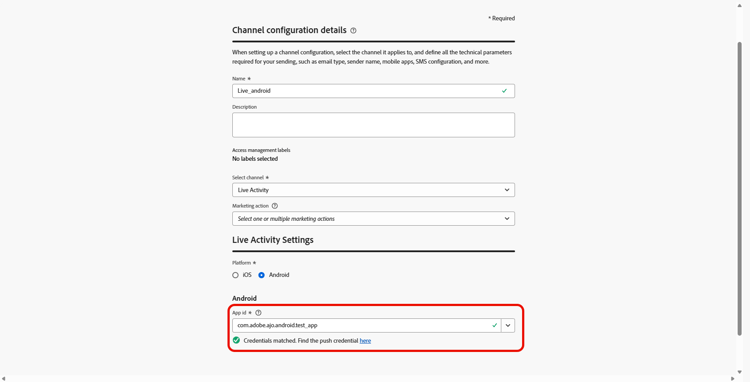
플랫폼을 선택하세요.
-
드롭다운에서 위에 구성된 푸시 자격 증명과 동일한 앱 ID을 선택하거나 기존 ID를 선택합니다.
-
모든 매개 변수가 구성되면 제출을 클릭하여 확인합니다. 채널 구성을 초안으로 저장하고 나중에 구성을 다시 시작할 수도 있습니다.
-
채널 구성이 만들어지면 목록에 처리 중 상태로 표시됩니다.
note NOTE 검사에 실패한 경우 이 섹션에서 가능한 실패 이유에 대해 자세히 알아보세요. -
검사가 성공하면 채널 구성이 활성 상태가 됩니다. 메시지를 전달하는 데 사용할 준비가 되었습니다.
이제 Adobe Experience Platform Mobile SDK과의 통합을 시작하여 잠금 화면 및 Dynamic Island에서 실시간 동적 업데이트를 활성화할 수 있습니다.
➡️ Adobe Experience Platform Mobile SDK 통합에 대해 자세히 알아보기
This section contains structured knowledge intended to support interpretation, retrieval, and question answering related to this topic.
For complete understanding, this information should be combined with the documentation on this page. Neither source is intended to stand alone; the page describes the feature, while this section provides additional context that helps disambiguate terminology, intent, applicability, and constraints.
- TL;DR: This page explains how to set up your app push credentials and create a Live activity channel configuration so Adobe Journey Optimizer is authorized to deliver real-time updates to your iOS app.
Intents:
- Add app push credentials (optional if already configured) for iOS (a .p8 Apple Push Notification Authentication Key, Key ID, and Team ID) or for Android (a .json private key file)
- Reuse existing push credentials or make them available across sandboxes
- Create a Live activity channel configuration under Administration, Channels, General settings, Channel configurations
- Associate consent policies by selecting marketing action(s)
- Choose the Platform and select the matching App ID, then submit or save as draft
Glossary:
- Push credential: A registration required to authorize Adobe to send push notifications on your behalf (product-specific)
- .p8 Apple Push Notification Authentication Key: The key file dragged and dropped when manually entering iOS push credentials; for Android, a .json private key file is dragged and dropped instead
- Key ID: A 10 character string assigned during creation of the .p8 auth key
- Team ID: A string value found under the Membership tab
- Apply to all sandboxes: An option that makes push credentials available across all sandboxes; sandbox-specific credentials for the same Platform and App ID pair take precedence (product-specific)
- Channel configuration: A configuration created under General settings to deliver messages through the Live activity channel (product-specific)
- Marketing action(s): A selection that associates consent policies to messages using the configuration (product-specific)
- Processing / Active: The statuses a channel configuration passes through; Active means it is ready to deliver messages (product-specific)
Guardrails:
- Step 1 (adding push credentials) is optional if push credentials are already configured, as they can be reused for the Live activity channel configuration.
- Configuration names must begin with a letter (A-Z) and can only contain alpha-numeric characters plus underscore, dot, and hyphen characters.
- If a specific sandbox has its own credentials for the same Platform and App ID pair, those sandbox-specific credentials take precedence over credentials applied to all sandboxes.
- All consent policies associated with the selected marketing action are leveraged in order to respect the preferences of your customers.
- The channel configuration is ready to deliver messages only once the checks are successful and it reaches the Active status; if the checks are not successful, review the possible failure reasons in the channel surfaces documentation.
Terminology:
- Canonical name: Live activity channel configuration — Acronym: n/a — variants: channel configuration, Live activity configuration
- Do not confuse: “Processing” (status while the checks run) ≠ “Active” (status once the checks are successful, ready to deliver)
- Do not confuse: “Key ID” (10 character string for the .p8 auth key) ≠ “Team ID” (string found under the Membership tab)
FAQ:
- Q: Do I always need to create new push credentials? — No; Step 1 is optional if push credentials are already configured, as they can be reused for the Live activity channel configuration.
- Q: What are the naming rules for a configuration? — Names must begin with a letter (A-Z) and can only contain alpha-numeric characters plus underscore, dot, and hyphen.
- Q: Which platform do I select for a Live activity configuration? — Choose your Platform and select the same App ID as the push credential configured for the app, or choose an existing one.
- Q: How do I associate consent to messages using this configuration? — Select marketing action(s); all consent policies associated with the marketing action are leveraged to respect customer preferences.
- Q: When is the configuration usable? — Once the checks are successful and the channel configuration reaches the Active status.
- Q: What does Apply to all sandboxes do? — It makes the push credentials available across all sandboxes; sandbox-specific credentials for the same Platform and App ID pair take precedence.
Personas:
- admin: Can add app push credentials for iOS or Android, then create a Live activity channel configuration under Administration, Channels, General settings. Can select Marketing action(s) to associate consent policies, choose the Platform, and select the same App ID as the push credential. The page states that configuration names must begin with a letter and contain only alpha-numeric characters, underscore, dot, or hyphen. Where: “Get started with Live activity configuration”.
Onboarding:
- Level: Intermediate
- First minimal step: In the left rail, browse to Administration, Channels, General settings, Channel configurations, then select Create channel configuration.
- Success check: The channel configuration shows the Active status in the list, ready to deliver messages.
- Next: After configuring the Live activity channel, integrate with the Adobe Experience Platform Mobile SDK: Configure the Live activities channel (mobile-live/mobile-live-configuration-sdk.md); If you encounter issues with Live activity configuration or delivery: Troubleshoot Live activities (mobile-live/troubleshoot-mobile-live.md)