이 페이지에서: 분할 타기팅 활동을 사용하여 오케스트레이션된 캠페인의 들어오는 모집단을 필터링 규칙, 제한 또는 모집단 크기를 기반으로 여러 하위 집합으로 분할하는 방법을 알아봅니다.
분할 활동은 필터링 규칙 또는 집단 크기와 같은 다양한 선택 기준에 따라 들어오는 집단을 여러 하위 집합으로 세분화할 수 있는 타기팅 활동입니다.
분할 활동 구성 split-configuration
분할 활동을 구성하려면 다음 단계를 따릅니다.
-
오케스트레이션된 캠페인에 분할 활동을 추가합니다.
-
활동 구성 창이 기본 하위 집합과 함께 열립니다. 수신 모집단을 세그먼트화하기 위해 원하는 만큼 하위 집합을 추가하려면 세그먼트 추가 버튼을 클릭합니다.
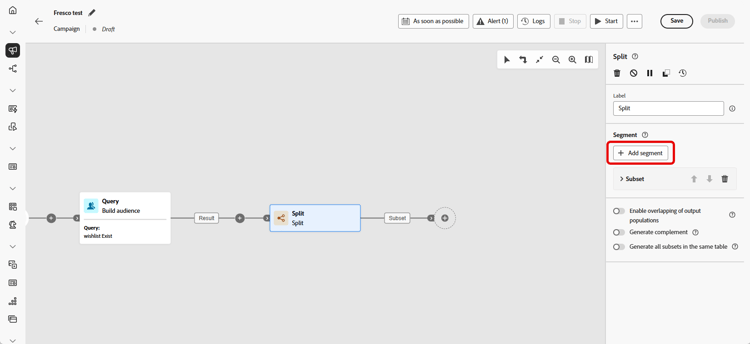
note important IMPORTANT 분할 활동은 하위 집합을 추가된 순서대로 처리합니다. 예를 들어 첫 번째 하위 집합이 집단의 70%를 포함하면 그 다음 하위 집합은 나머지 30%에 기준을 적용합니다. 오케스트레이션된 캠페인을 실행하기 전에 하위 집합의 순서가 의도한 대로 지정되어 있는지 확인하십시오. 화살표 버튼을 사용하여 하위 집합의 위치를 조정합니다. -
하위 집합이 추가되면 활동에 하위 집합 수만큼의 출력 전환이 표시됩니다. 오케스트레이션된 캠페인 캔버스에서 쉽게 식별할 수 있도록 각 하위 세트의 레이블을 변경하는 것이 좋습니다.
-
각 하위 집합에 대한 필터 구성:
-
하위 집합을 클릭하여 설정을 엽니다.
-
필터 만들기를 클릭하여 규칙 빌더를 사용하여 필터링 규칙을 정의합니다. 예를 들어 올바른 전자 메일 주소가 있는 프로필을 선택합니다.
-
세그먼트 코드 필드에 로그에서 하위 집합을 식별하는 코드를 입력하십시오. 이 코드는 프로필 데이터와 함께 저장되며 각 세그먼트의 성능을 추적하고 측정하는 데 사용할 수 있습니다. 비워 두면 하위 집합 레이블이 자동으로 사용됩니다.
-
선택하는 프로필의 수를 제한하려면 제한 활성화를 사용하도록 설정하고 숫자나 백분율을 지정합니다.
-
하위 집합이 비어 있을 때 전환을 건너뛰려면 빈 전환 건너뛰기를 활성화합니다.
-
-
어떤 하위 집합과도 일치하지 않는 프로필을 포함하려면 여집합 생성을 활성화합니다. 이렇게 하면 나머지 집단에 대한 추가 아웃바운드 전환이 만들어집니다.
note NOTE 모든 하위 집합을 동일한 테이블에 생성을 활성화하면 모든 하위 집합을 단일 전환으로 그룹화합니다. -
프로필이 여러 하위 집합에 표시되도록 하려면 결과 집단 오버랩 활성화를 사용합니다.
-
선택하지 않는 경우 각 프로필은 하나의 하위 집합에만 할당되며, 다른 하위 집합에 들어갈 수 있더라도 기준이 일치하는 첫 번째 하위 집합에만 할당됩니다.
-
선택하는 경우 프로필이 각 하위 집합에 대한 조건을 충족하기만 하면 여러 하위 집합에 포함시킬 수 있습니다.
-
이제 활동이 구성되었습니다. 오케스트레이션된 캠페인 실행에서 모집단은 활동에 추가된 순서로 다른 하위 집합으로 분할됩니다.
예 split-example
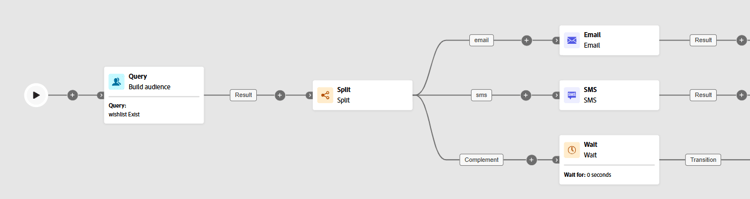
다음 예에서는 분할 활동을 통해 사용하려는 커뮤니케이션 채널을 기반으로 대상자를 별개의 하위 집합으로 세그먼트화합니다.
-
하위 집합 1 “이메일”: 전화번호를 입력한 프로필을 포함합니다.
-
하위 집합 2 “sms”: 데이터베이스에 휴대폰 번호가 저장된 프로필을 타기팅합니다.
-
여집합 전환: 하위 집합 기준을 충족하지 않는 나머지 프로필을 캡처합니다.
This section contains structured knowledge intended to support interpretation, retrieval, and question answering related to this topic.
For complete understanding, this information should be combined with the documentation on this page. Neither source is intended to stand alone; the page describes the feature, while this section provides additional context that helps disambiguate terminology, intent, applicability, and constraints.
- TL;DR: This page explains how to configure the Split targeting activity in an Orchestrated campaign to segment an incoming population into multiple subsets using filtering rules, limits, sorting, and complement or overlap options.
Intents:
- Add and order subsets to segment the incoming population of an Orchestrated campaign.
- Create filtering rules for a subset using the rule builder.
- Limit the number or percentage of profiles selected by a subset, optionally ranked by a profile attribute.
- Capture remaining unmatched profiles using a complement transition.
- Control whether a profile can appear in more than one output subset.
- Skip the output transition for a subset when its incoming population is empty.
Glossary:
- Split: a Targeting activity that segments the incoming population into multiple subsets based on defined selection criteria such as filtering rules or population size (product-specific)
- Subset: a segment of the incoming population defined within the Split activity, processed in the order it is added (product-specific)
- Create filter: the control used to define filtering rules for a subset using the rule builder (product-specific)
- Segment code: a field where you enter a code to identify a subset in logs, stored alongside profile data to track and measure segment performance; if left empty, the subset label is used automatically (product-specific)
- Enable limit: the option used to restrict the number or percentage of profiles selected by a subset (product-specific)
- Enable sorting: the option used to rank selected profiles by a profile attribute, in ascending or descending order, when a population limit is set (product-specific)
- Generate complement: the option that creates an additional outbound transition containing profiles not matched by any subset (product-specific)
- Generate all subsets in the same table: the option that groups all subsets into a single output transition (product-specific)
- Skip empty transition: the option that disables the output transition for a subset when its incoming population is empty (product-specific)
- Enable overlapping of output populations: the option that controls whether a profile can be present in several output transitions at once (product-specific)
Guardrails:
- The Split activity processes subsets in the order they are added; for example, if the first subset captures 70% of the population, the next subset applies its criteria to the remaining 30%.
- If Enable overlapping of output populations is unchecked, a recipient cannot be present in several output transitions even if they meet the criteria of several subsets; they are placed in the target of the first subset with matching criteria.
- If Enable overlapping of output populations is checked, recipients can be found in several subsets if they meet each subset’s filter criteria.
Terminology:
- Canonical name: Split — variants: Split activity, Split targeting activity
FAQ:
- Q: In what order does the Split activity process subsets? — In the order they are added to the activity; for example, if the first subset captures 70% of the population, the next subset applies its criteria to the remaining 30%.
- Q: What happens if the Segment code field is left empty? — The subset label is used automatically to identify the subset in logs.
- Q: How can I limit how many profiles go into a subset? — Enable the Enable limit option and specify a number or percentage of the population to include.
- Q: How do I capture profiles that do not match any subset? — Enable Generate complement to create an additional outbound transition for the remaining population.
- Q: Can a profile end up in more than one subset? — Only if Enable overlapping of output populations is checked; otherwise, the profile is assigned to the first subset whose criteria it matches.
- Q: How do I avoid an output transition when a subset’s population is empty? — Enable the Skip empty transition option.
Examples:
- Split activity used to segment an audience by communication channel: Subset 1 “email” includes profiles who have provided a phone number; Subset 2 “sms” targets profiles with a mobile phone number stored in the database; a Complement transition captures any remaining profiles who do not meet the criteria for either subset.
Best practices:
- We strongly recommend changing the label of each subset to identify them easily in the Orchestrated campaign canvas.
- Before running your Orchestrated campaign, make sure the subsets are ordered as intended, using the arrow buttons to adjust their position.
Personas:
- marketer: Can add subsets to a Split activity to segment the incoming population in an Orchestrated campaign. Can create filtering rules for a subset using the rule builder, and limit selected profiles with Enable limit. Can enable sorting to rank selected profiles by a profile attribute when a limit is set. Can enable Generate complement to capture profiles not matched by any subset, and enable overlapping of output populations. The page states that subsets are processed in the order they are added. Where: “Configure the Split activity”.
Onboarding:
- Level: Intermediate
- First minimal step: Add a Split activity to your Orchestrated campaign.
- Success check: The activity shows as many output transitions as there are subsets.