이 페이지에서: 오케스트레이션된 캠페인에서 날짜, 문자열 및 숫자 값을 조작하기 위해 표현식 편집기를 사용하여 데이터베이스 필드, 변수 및 도우미 함수를 사용하여 규칙을 수동으로 작성하는 방법에 대해 알아봅니다.
표현식 편집기를 사용하여 작업 edit
표현식을 편집하려면 수동으로 조건을 입력하여 규칙을 형성해야 합니다. 이 모드에서는 날짜, 문자열, 숫자 필드 및 정렬과 같은 특정 쿼리를 수행하는 데 사용되는 값을 조작할 수 있는 고급 함수를 사용할 수 있습니다.
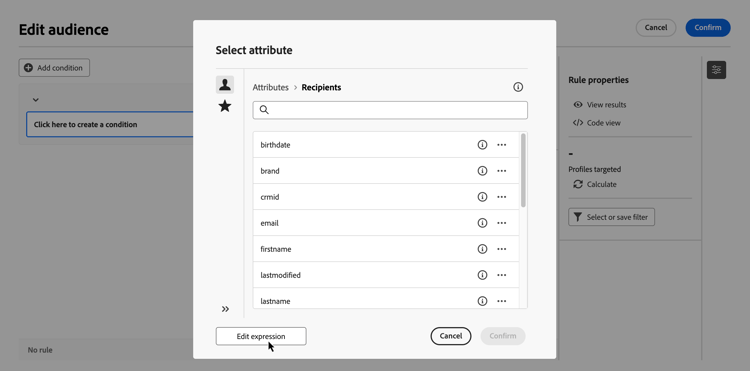
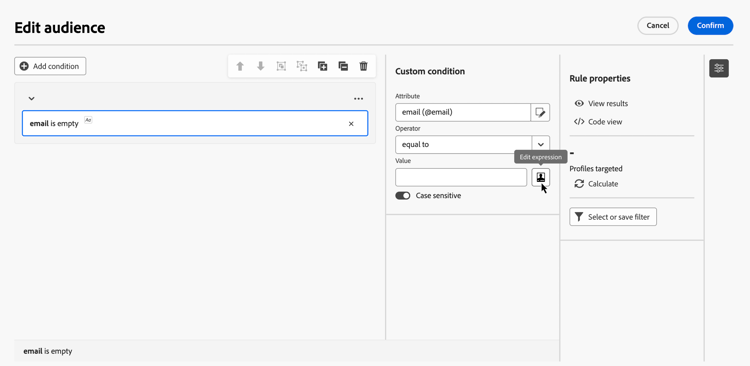
표현식 편집기는 규칙 빌더 표현식 편집 버튼에서 사용할 수 있으며, 사용자 정의 조건을 구성할 때 속성 및 값 필드에 사용할 수 있습니다.
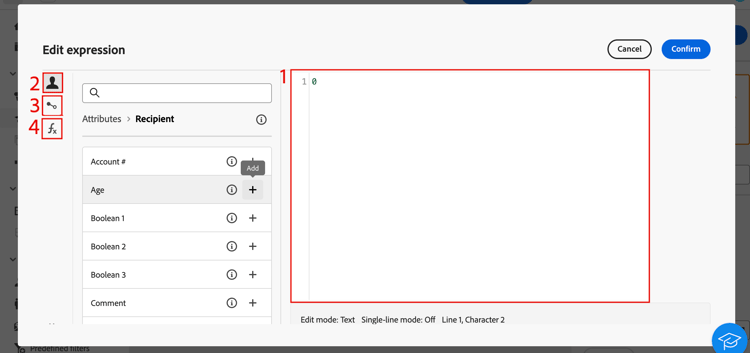
표현식 편집기에서 제공하는 사항:
-
표현식이 정의된 입력 필드(1)입니다.
-
표현식에서 사용할 수 있고 쿼리의 대상 차원에 해당하는 사용 가능한 필드(2) 목록입니다.
-
식에 사용할 수 있는 사용 가능한 변수(3) 목록입니다. 이 메뉴는 값 필드에 사용할 수 있습니다. 오케스트레이션된 캠페인에서 변수를 사용하는 방법을 알아봅니다
-
범주별로 정렬된 도우미 함수(4).
입력 필드에 직접 표현식을 입력하여 표현식을 편집합니다. 필드, 변수 또는 도우미 함수를 추가하려면 추가하려는 표현식에 커서를 놓고 + 단추를 클릭합니다.
도우미 함수
쿼리 편집 도구를 사용하면 고급 함수를 사용하여 원하는 결과와 조작된 데이터 유형에 따라 복잡한 필터링을 수행할 수 있습니다. 다음 함수를 사용할 수 있습니다.
집계
집계 함수는 값 집합에 대해 계산을 수행합니다.
일자
날짜 함수는 날짜 또는 시간 값을 조작합니다.
지오마케팅
지오마케팅 함수는 지리적 값을 조작하는 데 사용됩니다.
숫자
숫자 함수는 텍스트를 숫자로 변환하는 데 사용됩니다.
기타
이 테이블에는 사용 가능한 나머지 함수가 포함되어 있습니다.
문자열
문자열 함수는 문자열 집합을 조작하는 데 사용됩니다.
Window
This section contains structured knowledge intended to support interpretation, retrieval, and question answering related to this topic.
For complete understanding, this information should be combined with the documentation on this page. Neither source is intended to stand alone; the page describes the feature, while this section provides additional context that helps disambiguate terminology, intent, applicability, and constraints.
- TL;DR: This page explains how to use the expression editor to manually build rule conditions with fields, variables, and helper functions for manipulating dates, strings, numbers, and other values in Orchestrated campaigns.
Intents:
- Open the expression editor from the Attribute or Value field when configuring a custom condition in the rule builder.
- Enter an expression directly in the input field, or insert a field, variable, or helper function using the + button.
- Use helper functions (Aggregate, Date, Geomarketing, Numeric, Others, String, Window) to manipulate dates, strings, numeric values, and sorting.
- Insert variables into an expression from the Value field.
Glossary:
- Expression editor: a mode accessed from the rule builder Edit expression button that lets you manually enter conditions to form a rule, using advanced functions (product-specific)
- Helper functions: functions sorted by category (Aggregate, Date, Geomarketing, Numeric, Others, String, Window) available in the expression editor to manipulate values (product-specific)
- Fields: items available in the expression editor that correspond to the targeting dimension of the query (product-specific)
- Variables: items available in the expression editor, from the Value field menu, that can be used in an expression (product-specific)
Guardrails:
- The expression editor is available from the rule builder Edit expression button, for the Attribute and Value fields, when configuring a custom condition.
- The variables menu in the expression editor is available only for the Value field, not for the Attribute field.
- The DateOnly function takes into account the server’s timezone, not the operator’s.
Terminology:
- Canonical name: expression editor — variants: Edit expression
- Do not confuse: “fields” (correspond to the targeting dimension of the query) ≠ “variables” (listed in a separate menu, available from the Value field)
FAQ:
- Q: Where is the expression editor available from? — The rule builder Edit expression button, for the Attribute and Value fields, when configuring a custom condition.
- Q: How do I add a field, variable, or helper function to an expression? — Place your cursor in the expression where you want to add it and click the + button.
- Q: What categories of helper functions are available? — Aggregate, Date, Geomarketing, Numeric, Others, String, and Window.
- Q: Does the DateOnly function use my local timezone? — No, it takes into account the server’s timezone, not the operator’s.
- Q: Can I use variables from the Attribute field? — No, the variables menu is available only for the Value field.
Related pages:
- For using variables in an expression from the Value field: Learn how to use variables in Orchestrated campaigns (orchestrated/variables-orchestrated-campaigns.md)
Personas:
- marketer: Can open the expression editor from the Attribute or Value field when configuring a custom condition, and enter an expression directly in the input field. Can place the cursor and select the + button to add a field, variable, or helper function. Can use helper functions sorted by category, such as Aggregate, Date, Geomarketing, Numeric, Others, String, and Window, to manipulate dates, strings, numeric values, and sorting. The page states that the variables menu is available only for the Value field. Where: “Work with the expression editor”.
Onboarding:
- Level: Experienced
- First minimal step: Select the Edit expression button for the Attribute or Value field when configuring a custom condition.
- Next: Learn how to use variables in the expression editor: Use variables in Orchestrated campaigns (orchestrated/variables-orchestrated-campaigns.md)