이 페이지에서: 사용자 인터페이스에서 관계형 스키마를 수동으로 만들고, 특성을 추가하고, 스키마를 연결하고, 오케스트레이션된 캠페인에 대한 데이터 집합을 만들고 사용하도록 설정하는 방법을 알아봅니다.
사용자 인터페이스를 통해 직접 관계형 스키마를 생성할 수 있으므로 속성, 기본 키, 버전 관리 필드 및 관계를 세부적으로 구성할 수 있습니다.
다음 예제에서는 오케스트레이션된 캠페인에 필요한 구조를 보여 주기 위해 충성도 멤버십 스키마를 수동으로 정의합니다.
-
Adobe Experience Platform 인터페이스를 사용하여 관계형 스키마를 수동으로 만들기.
-
고객 ID, 멤버십 수준 및 상태 필드와 같은 특성을 추가합니다.
-
캠페인 타깃팅을 위해 수신자 등의 기본 제공 스키마에 스키마를 연결합니다.
-
스키마를 기반으로 데이터 집합을 만들고 오케스트레이션된 캠페인에서 사용하도록 설정합니다.
-
지원되는 소스에서 데이터 세트로 데이터를 수집합니다.
➡️ Adobe Experience Platform 설명서에서 수동 관계형 스키마에 대해 자세히 알아보기
스키마 만들기 schema
Adobe Experience Platform에서 수동으로 새 관계형 스키마를 생성하여 시작하십시오. 이 프로세스를 사용하면 이름 및 동작을 포함하여 스키마 구조를 처음부터 정의할 수 있습니다.
-
Adobe Experience Platform에 로그인.
-
데이터 관리 > 스키마 메뉴로 이동합니다.
-
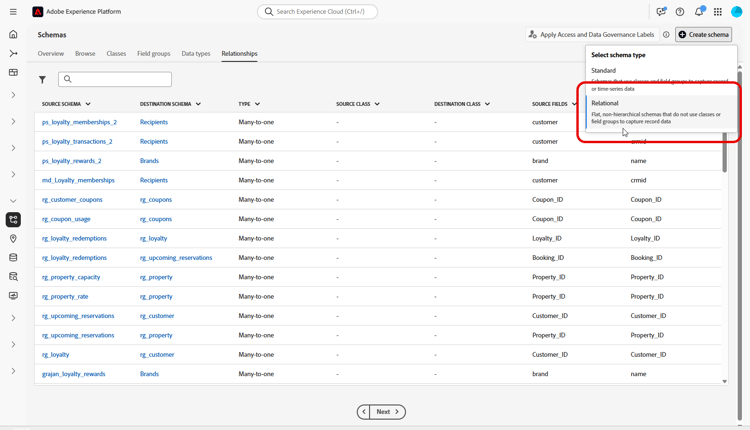
스키마 만들기를 클릭합니다.
-
관계형을(를) 스키마 형식(으)로 선택합니다.
-
필드를 수동으로 추가하여 스키마를 작성하려면 수동으로 만들기를 선택하십시오.
-
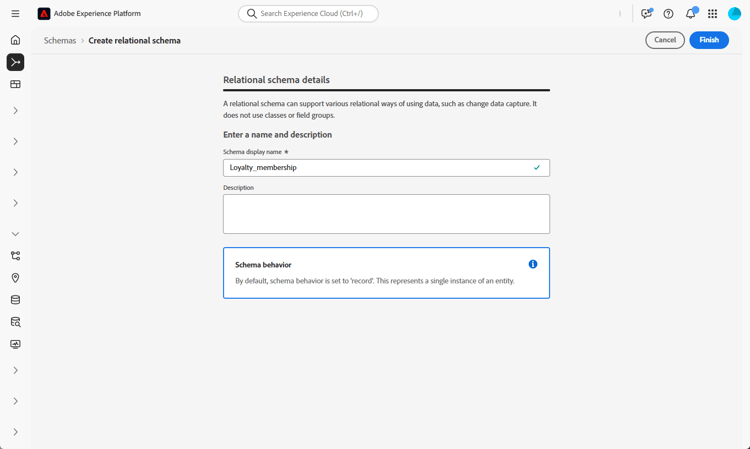
스키마 표시 이름을 입력하십시오.
-
스키마 만들기를 진행하려면 마침을 클릭하세요.
이제 스키마에 속성을 추가하여 구조를 정의할 수 있습니다.
스키마에 속성 추가 schema-attributes
그런 다음 속성을 추가하여 스키마의 구조를 정의합니다. 이러한 필드는 고객 식별자, 멤버십 세부 정보 및 활동 날짜와 같이 오케스트레이션된 캠페인에 사용되는 주요 데이터 포인트를 나타냅니다. 이를 정확하게 정의하면 신뢰할 수 있는 개인화, 세분화 및 추적이 보장됩니다.
타깃팅에 사용되는 모든 스키마에는 연결된 ID 네임스페이스가 있는 String 유형의 ID 필드가 하나 이상 포함되어야 합니다. 이렇게 하면 Adobe Journey Optimizer의 타기팅 및 ID 해결 기능과의 호환성이 보장됩니다.
-
열거형
ENUM 필드는 DDL 기반 및 수동 스키마 생성 모두에서 지원되므로 고정된 허용된 값 집합으로 속성을 정의할 수 있습니다. -
데이터 거버넌스용 스키마 레이블
액세스 제어 및 사용 제한과 같은 데이터 거버넌스 정책을 적용하기 위해 스키마 필드 수준에서 레이블 지정이 지원됩니다. 자세한 내용은 Adobe Experience Platform 설명서를 참조하세요. -
합성 키
여러 필드에 걸친 복합 기본 키가 관계형 스키마 정의에서 지원되므로 여러 필드를 함께 사용하여 레코드를 고유하게 식별할 수 있습니다.
-
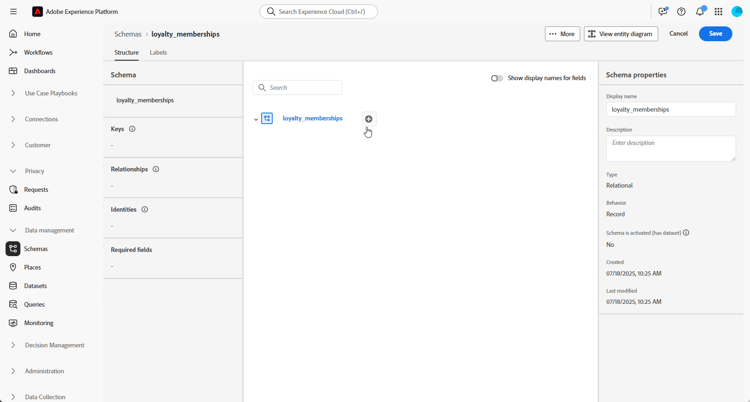
캔버스에서 스키마 이름 옆에 있는

-
특성 필드 이름, 표시 이름 및 유형을 입력하십시오.
이 예제에서는 아래 표에 설명된 특성을 충성도 멤버십 스키마에 추가했습니다.
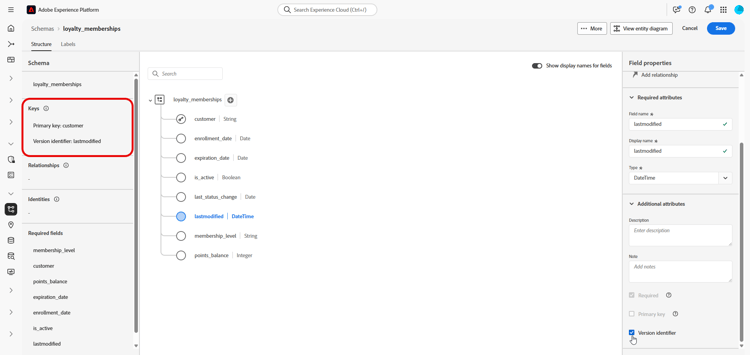
accordion 속성 예 table 0-row-3 1-row-3 2-row-3 3-row-3 4-row-3 5-row-3 6-row-3 7-row-3 8-row-3 속성 이름 데이터 유형 추가 속성 고객 문자열 기본 키 membership_level 문자열 필수 여부 points_balance 정수 필수 여부 enrollment_date 날짜 필수 여부 last_status_change 날짜 필수 여부 expiration_date 날짜 - is_active 부울 필수 여부 마지막으로 수정됨 날짜/시간 필수 여부 -
적절한 필드를 기본 키 및 버전 설명자(으)로 할당하십시오.
수동 스키마를 생성할 때 다음 필수 필드가 포함되어야 합니다.
- 하나 이상의 기본 키
datetime또는number유형의lastmodified필드와 같은 버전 식별자.- CDC(변경 데이터 캡처) 수집의 경우, 데이터 변경 유형(예: 삽입, 업데이트, 삭제)을 나타내고 증분 처리를 가능하게 하는
String유형의 이름이_change_request_type인 특수 열입니다._change_request_type은(는) 테이블 스키마에 포함되지 않아야 하며 수집 중에 데이터 파일에만 추가되어야 합니다.
-
저장을 클릭합니다.
속성을 만들고 저장한 후 관계를 정의하여 스키마를 다른 관계형 스키마와 연결할 수 있습니다.
스키마 연결 link-schema
두 스키마 간의 관계를 생성하면 기본 프로필 스키마 이상의 데이터로 오케스트레이션된 캠페인을 향상시킬 수 있습니다.
-
새로 만든 스키마에서 링크로 사용할 특성을 선택하고 관계 추가를 클릭합니다.
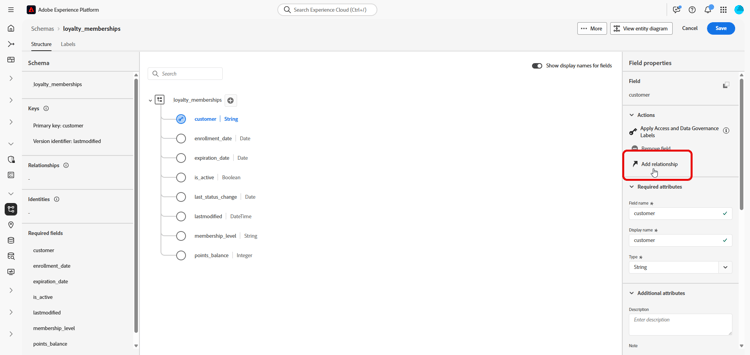
-
참조 스키마 및 참조 필드을(를) 선택하여 관계를 설정하십시오.
이 예제에서는
customer특성이recipients스키마에 연결되어 있습니다.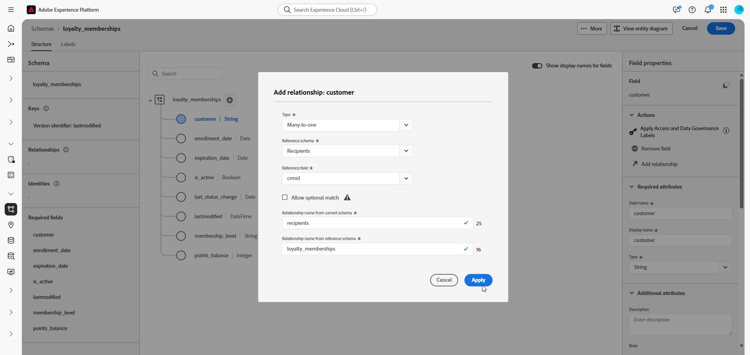
-
현재 스키마와 참조 스키마의 관계 이름을 입력합니다.
-
구성하고 나면 적용을 클릭합니다.
스키마에 대한 데이터 세트 만들기 dataset
이제 스키마를 정의한 후 이를 기반으로 데이터 세트를 만들 수 있습니다. 데이터 세트는 수집된 데이터를 저장하며, 오케스트레이션된 캠페인에 액세스할 수 있도록 활성화해야 합니다.
-
데이터 관리 > 데이터 세트 메뉴로 이동한 다음 데이터 세트 만들기를 클릭합니다.
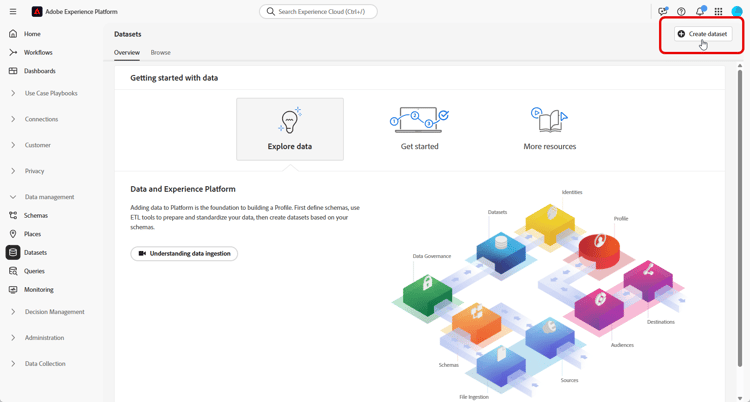
-
스키마에서 데이터 집합 만들기를 선택합니다.
-
앞에서 만든 스키마를 선택하세요. 여기서는 충성도 멤버십을 선택하고 다음을 클릭하세요.
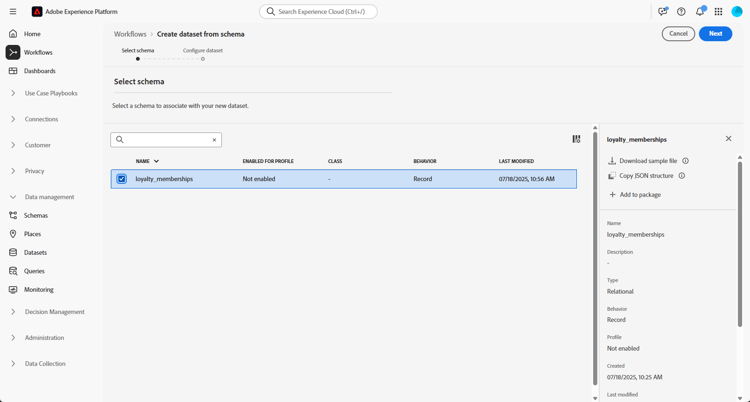
-
데이터 세트의 이름을(를) 입력하고 완료를 클릭합니다.
이제 오케스트레이션된 캠페인에 대한 데이터 세트를 활성화해야 합니다.
오케스트레이션된 캠페인에 대한 데이터 세트 활성화 enable
데이터 세트를 만든 후 오케스트레이션된 캠페인에서 사용할 수 있도록 명시적으로 활성화해야 합니다. 이 단계는 데이터 세트를 Adobe Journey Optimizer 내에서 실시간 오케스트레이션 및 개인화에 사용할 수 있도록 합니다.
데이터 집합에서 오케스트레이션된 Campaign 확장의 유효성을 검사하거나 사용하려면 Adobe Developer 설명서를 참조하세요.
-
데이터 세트 목록에서 데이터 세트를 찾습니다.
-
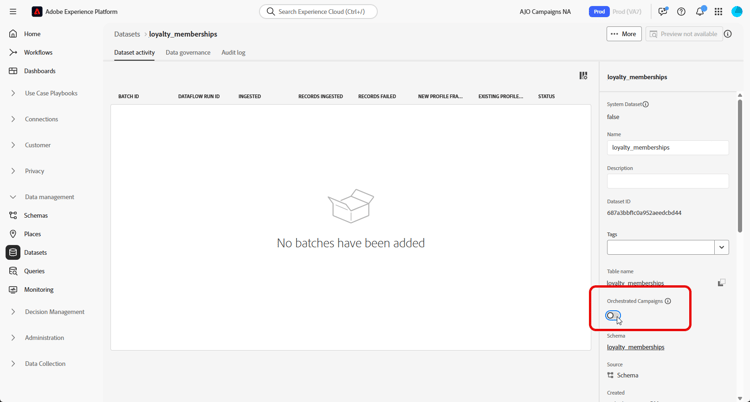
데이터 세트 설정에서 오케스트레이션된 캠페인 옵션을 활성화하여 오케스트레이션된 캠페인에서 사용할 수 있는 데이터 세트를 표시합니다.
-
지원 프로세스가 완료될 때까지 몇 분 정도 기다립니다. 이 설정이 완전히 활성화된 후에만 데이터 수집 및 캠페인 사용이 가능합니다.
이제 선택한 소스를 사용하여 스키마로 데이터 수집을 시작할 수 있습니다.
스키마 또는 데이터 집합이 오류 코드를 반환하는 경우 관계형 스키마 및 데이터 집합 오류를 참조하십시오.
This section contains structured knowledge intended to support interpretation, retrieval, and question answering related to this topic.
For complete understanding, this information should be combined with the documentation on this page. Neither source is intended to stand alone; the page describes the feature, while this section provides additional context that helps disambiguate terminology, intent, applicability, and constraints.
- TL;DR: This page explains how to manually create a relational schema in Adobe Experience Platform, add attributes, link schemas, and create and enable a dataset for use in Orchestrated campaigns.
Intents:
- Create a relational schema manually through the Adobe Experience Platform interface.
- Add attributes to a relational schema, including primary key, version descriptor, and required fields.
- Link a relational schema to another schema, such as Recipients, to extend Orchestrated campaigns with additional data.
- Create a dataset from a relational schema and enable it for Orchestrated campaigns.
- Ingest data into the enabled dataset.
Glossary:
- Relational schema: a schema type created directly through the Adobe Experience Platform interface, enabling detailed configuration of attributes, primary keys, versioning fields, and relationships (product-specific)
- Version Descriptor: a field, such as
lastmodifiedof typedatetimeornumber, used as a version identifier in a manual schema (product-specific) - _change_request_type: a special column of type String used for Change Data Capture (CDC) ingestion, indicating the type of data change (insert, update, delete) and enabling incremental processing (product-specific)
- Composite Key: a primary key spanning multiple fields, supported in relational schema definitions (product-specific)
- Schema Label: a data governance label supported at the schema field level to enforce policies such as access control and usage restrictions (product-specific)
Guardrails:
- Any schema used for targeting must include at least one identity field of type String with an associated identity namespace, to ensure compatibility with Adobe Journey Optimizer’s targeting and identity resolution capabilities.
- A manual schema must include at least one primary key and a version identifier, such as a
lastmodifiedfield of typedatetimeornumber. - For Change Data Capture (CDC) ingestion, the
_change_request_typecolumn must not be part of the table schema; it must only be added to the data file during ingestion. - ENUM fields are supported in both DDL-based and manual schema creation.
- Composite primary keys spanning multiple fields are supported in relational schema definitions.
- The View relationships diagram on the Relationship tab is read-only; to create or edit a relationship, the schema must be opened from the Browse tab instead.
- After enabling a dataset for Orchestrated campaigns, data ingestion and campaign use are only possible once the enablement setting is fully activated.
Terminology:
- Canonical name: Adobe Experience Platform — Acronym: AEP
FAQ:
- Q: What fields must a manual relational schema include? — At least one primary key and a version identifier, such as a
lastmodifiedfield of type datetime or number. - Q: What is required for a schema used for targeting? — At least one identity field of type String with an associated identity namespace.
- Q: Where does the
_change_request_typecolumn belong? — It is used for Change Data Capture (CDC) ingestion and must only be added to the data file during ingestion, not to the table schema. - Q: Can I edit a relationship from the View relationships diagram? — No, that view on the Relationship tab is read-only; open the schema from the Browse tab to create or edit a relationship.
- Q: What must be done after creating a dataset from a relational schema? — The dataset must be explicitly enabled for Orchestrated campaigns before data ingestion and campaign use are possible.
Related pages:
- To ingest data into the created dataset: Configuration steps (orchestrated/ingest-data.md)
- If a schema or dataset returns an error code: Relational schema and dataset errors (orchestrated/relational-schema-errors.md)
Personas:
- developer: Can add attributes such as customer, membership_level, points_balance, enrollment_date, and lastmodified when defining a relational schema. Can use a special column named _change_request_type of type String to indicate insert, update, or delete for Change Data Capture ingestion. The page states that _change_request_type must only be added to the data file during ingestion, not to the table schema. Where: “Add attributes to your schema”.
- admin: Can create a dataset from a relational schema and enable the Orchestrated campaigns option from the Datasets settings. Can locate the dataset in the Datasets list before enabling it. The page states that data ingestion and campaign use are only possible once this setting is fully activated. Where: “Enable dataset for orchestrated campaigns”.
Onboarding:
- Level: Experienced
- First minimal step: Create a relational schema manually using the Adobe Experience Platform interface.
- Success check: You can now start ingesting data into your schema using the source of your choice.
- Next: Ingest data into the enabled dataset: Configuration steps (orchestrated/ingest-data.md); If a schema or dataset returns an error code: Relational schema and dataset errors (orchestrated/relational-schema-errors.md)