[AEM Forms]{class="badge positive" title="AEM Forms에 적용됩니다."}
애플리케이션에 UI 연결 통합
이 문서에서는 Associate UI를 애플리케이션과 통합하여 현장 담당자 및 서비스 담당자와 같은 고객 대면 전문가가 게시 인스턴스에서 실시간으로 개인화된 대화형 커뮤니케이션을 생성할 수 있도록 하는 방법에 대해 설명합니다.
사전 요구 사항
UI와 응용 프로그램을 통합하기 전에 다음을 확인하십시오.
- 만들어진 대화형 통신 및 게시됨
- 팝업 지원이 활성화된 브라우저
- 사용자 연결은 forms-associates 그룹의 일부여야 합니다
- AEM🔗에서 지원하는 인증 메커니즘을 사용하여 구성된 인증(예: SAML 2.0, OAuth 또는 사용자 지정 인증 처리기)
- 이 문서에서는 Microsoft Entra ID(Azure AD)가 있는 SAML 2.0을 ID 공급자로 사용하는 인증 구성을 보여 줍니다.
- 연결 UI의 경우 SAML 2.0 인증 문서에 설명된 표준 설정 이상의 추가 SAML 구성이 필요합니다. 자세한 내용은 UI 연결에 대한 추가 SAML 구성 섹션을 참조하십시오.
연결 UI에 대한 추가 SAML 구성
연결 UI에 대한 SAML 2.0 인증을 구성할 때 OSGi 구성 파일에 다음과 같은 특정 설정을 적용해야 합니다.
SAML 인증 핸들러
SAML 인증 처리기는 서로 다른 리소스 트리에 대해 여러 SAML 구성을 허용하는 OSGi 팩토리 구성입니다. 이렇게 하면 다중 사이트 AEM 배포가 가능하고 UI 리소스 연결을 기존 SAML 설정에 추가할 수 있습니다.
ui.config/src/main/content/jcr_root/apps/<project-name>/osgiconfig/config.publish에서 com.adobe.granite.auth.saml.SamlAuthenticationHandler~saml.cfg.json 파일 만들기:
  {
    "path": ["/libs/fd/associate"],
    "serviceProviderEntityId": "https://publish-p{program-id}-e{env-id}.adobeaemcloud.com",
    "assertionConsumerServiceURL": "https://publish-p{program-id}-e{env-id}.adobeaemcloud.com/libs/fd/associate/saml_login"
    "idpUrl": "https://login.microsoftonline.com/{azure-tenant-id}/saml2",
    "idpCertAlias": "{your-certificate-alias}",
    "idpIdentifier": "https://sts.windows.net/{azure-tenant-id}/",
    "userIDAttribute": "http://schemas.xmlsoap.org/ws/2005/05/identity/claims/name",
    "createUser": true,
    "userIntermediatePath": "saml",
    "synchronizeAttributes": [
      "http://schemas.xmlsoap.org/ws/2005/05/identity/claims/givenname=profile/givenName",
      "http://schemas.xmlsoap.org/ws/2005/05/identity/claims/surname=profile/familyName",
      "http://schemas.xmlsoap.org/ws/2005/05/identity/claims/emailaddress=profile/email"
      ],
      "addGroupMemberships": true,
      "defaultGroups": ["forms-associates"],
      "defaultRedirectUrl": "/libs/fd/associate/ui.html",
      "idpHttpRedirect": false,
      "service.ranking": 5002
  }
path/libs/fd/associate(으)로 설정해야 합니다.defaultGroupsforms-associates(으)로 설정하십시오.defaultRedirectUrlidpHttpRedirectfalse이어야 합니다.idpCertAliasSling 인증자
Sling 인증자는 게시 시 UI 리소스 연결에 액세스하기 위한 인증을 적용합니다.
ui.config/src/main/content/jcr_root/apps/<project-name>/osgiconfig/config.publish에서 org.apache.sling.engine.impl.auth.SlingAuthenticator~saml.cfg.json 파일 업데이트:
{
  "sling.auth.requirements": ["+/libs/fd/associate/ui.html"],
  "sling.auth.anonymous": false
}
Dispatcher 필터
대화형 통신 API 및 연결 UI가 게시 인스턴스에서 올바르게 작동하도록 하려면 다음 규칙을 추가합니다.
아직 없으면 dispatcher/src/conf.dispatcher.d/filters/filters.any 파일에 다음 규칙을 추가합니다.
  # Allow Interactive Communications APIs and Associate UI
  /XXXX { /type "allow" /method '(GET|OPTIONS)' /url "/adobe/communications" }
  /XXXX { /type "allow" /method '(GET|POST|OPTIONS)' /url "/adobe/communications/*" }
  /XXXX { /type "allow" /method "GET" /url "/content/dam/fd:fonts/*" }
  /XXXX { /type "allow" /method '(GET|OPTIONS)' /url "/libs/fd/associate/*" }
XXXX을(를) 기존 filters.any 파일에 사용된 적절한 숫자 시퀀스로 바꾸십시오.게시 인스턴스에서 UI 연결 호출
이 섹션에서는 자체 애플리케이션에서 연결 UI를 시작하는 과정을 안내합니다. 다음 단계에 따라 즉시 사용 가능한 샘플 HTML 페이지부터 시작하여 해당 환경에 맞게 구성함으로써 빠르게 시작할 수 있습니다.
1단계: 샘플 HTML 페이지로 시작
UI 연결 통합 작동 방식을 빠르게 테스트하고 이해하려면 다음 샘플 HTML 페이지를 사용하십시오. 이 코드를 HTML 파일에 복사하여 브라우저에서 엽니다.
HTML 샘플은 대화형 통신 세부 사항을 입력하고 클릭 한 번으로 연결 UI를 시작할 수 있는 간단한 양식 인터페이스를 제공합니다.
<!DOCTYPE html>
<html>
<head>
  <title>Associate UI Integration</title>
  <style>
    body {
      font-family: sans-serif;
      max-width: 600px;
      margin: 50px auto;
      padding: 20px;
    }
    .form-group {
      margin: 20px 0;
    }
    label {
      display: block;
      margin-bottom: 5px;
      font-weight: bold;
    }
    input, textarea {
      width: 100%;
      padding: 8px;
      border: 1px solid #ccc;
      border-radius: 4px;
      box-sizing: border-box;
    }
    textarea {
      height: 80px;
      font-family: monospace;
    }
    button {
      padding: 10px 20px;
      margin: 5px;
      cursor: pointer;
      border-radius: 4px;
    }
    .btn-primary {
      background: #007bff;
      color: white;
      border: none;
    }
    .btn-primary:hover {
      background: #0056b3;
    }
    .error {
      color: red;
      font-size: 12px;
      display: none;
    }
  </style>
</head>
<body>
  <h1>Launch Associate UI</h1>

  <form id="form">
    <div class="form-group">
      <label>IC ID *</label>
      <input type="text" id="icId" placeholder="Enter Interactive Communication ID" required>
    </div>

    <div class="form-group">
      <label>Prefill Service</label>
      <input type="text" id="serviceName" placeholder="e.g., CustomerDataService">
    </div>

    <div class="form-group">
      <label>Service Parameters (JSON)</label>
      <textarea id="serviceParams" placeholder='{"customerId": "12345"}'>{}</textarea>
      <span id="paramsError" class="error">Invalid JSON format</span>
    </div>

    <div class="form-group">
      <label>Options (JSON)</label>
      <textarea id="options" placeholder='{"mode": "edit", "locale": "en_US"}'>{}</textarea>
      <span id="optionsError" class="error">Invalid JSON format</span>
    </div>

    <button type="button" onclick="reset()">Reset</button>
    <button type="button" class="btn-primary" onclick="launch()">Launch Associate UI</button>
  </form>

  <script>
    // Replace with your AEM Publish instance URL
    const AEM_URL = 'https://publish-p{program-id}-e{env-id}.adobeaemcloud.com/libs/fd/associate/ui.html';

    function validateJSON(str, errorId) {
      const err = document.getElementById(errorId);
      try {
        const obj = JSON.parse(str || '{}');
        err.style.display = 'none';
        return obj;
      } catch (e) {
        err.style.display = 'block';
        return null;
      }
    }

    function launch() {
      const icId = document.getElementById('icId').value.trim();
      if (!icId) {
        alert('IC ID is required');
        return;
      }

      const params = validateJSON(document.getElementById('serviceParams').value, 'paramsError');
      const opts = validateJSON(document.getElementById('options').value, 'optionsError');

      if (!params || !opts) {
        alert('Please fix JSON errors before launching');
        return;
      }

      const data = {
        id: icId,
        prefill: {
          serviceName: document.getElementById('serviceName').value.trim(),
          serviceParams: params
        },
        options: opts
      };

      const win = window.open(AEM_URL, '_blank');
      if (!win) {
        alert('Pop-up blocked. Please enable pop-ups for this site.');
        return;
      }

      const handler = (e) => {
        if (e.data && e.data.type === 'READY' && e.data.source === 'APP') {
          win.postMessage({ type: 'INIT', source: 'PORTAL', data }, '*');
          window.removeEventListener('message', handler);
        }
      };

      window.addEventListener('message', handler);

      // Fallback timeout in case READY message is missed
      setTimeout(() => {
        if (win && !win.closed) {
          win.postMessage({ type: 'INIT', source: 'PORTAL', data }, '*');
          window.removeEventListener('message', handler);
        }
      }, 1000);
    }

    function reset() {
      document.getElementById('form').reset();
      document.getElementById('serviceParams').value = '{}';
      document.getElementById('options').value = '{}';
      document.getElementById('paramsError').style.display = 'none';
      document.getElementById('optionsError').style.display = 'none';
    }
  </script>
</body>
</html>
2단계: 게시 인스턴스 URL 구성
UI 연결을 시작하려면 먼저 샘플을 AEM Forms Cloud Service 게시 인스턴스로 가리켜야 합니다.
위의 HTML 샘플에서 <script> 섹션에서 다음 줄을 찾습니다.
const AEM_URL = 'https://publish-p{program-id}-e{env-id}.adobeaemcloud.com/libs/fd/associate/ui.html';
자리 표시자 값을 실제 환경 세부 정보로 바꿉니다.
{program-id}: AEM Cloud Service 프로그램 ID{env-id}: 환경 ID
예를 들어 프로그램 ID가 12345이고 환경 ID가 67890인 경우 URL은 다음과 같습니다.
const AEM_URL = 'https://publish-p12345`-e67890.adobeaemcloud.com/libs/fd/associate/ui.html';
postMessage API를 사용하여 안전하게 전달됩니다.3단계: JavaScript 통합 기능 이해
샘플 HTML은 다음 JavaScript 함수를 사용하여 연결 UI를 시작합니다. 이 함수는 IC ID의 유효성을 검사하고, 데이터 페이로드를 구성하고, 새 브라우저 창에서 연결 UI를 열고, 브라우저의 postMessage API를 사용하여 데이터를 보냅니다.
function launchAssociateUI(icId, prefillService, prefillParams, options) {
  if (!icId) {
    console.error('IC ID required');
    return;
  }

  const data = {
    id: icId,
    prefill: {
      serviceName: prefillService || '',
      serviceParams: prefillParams || {}
    },
    options: options || {}
  };

  const AEM_URL = 'https://your-aem.adobeaemcloud.com/libs/fd/associate/ui.html';
  const win = window.open(AEM_URL, '_blank');

  if (!win) {
    alert('Please enable pop-ups for this site');
    return;
  }

  const readyHandler = (event) => {
    if (event.data && event.data.type === 'READY' && event.data.source === 'APP') {
      win.postMessage({ type: 'INIT', source: 'PORTAL', data: data }, '*');
      window.removeEventListener('message', readyHandler);
    }
  };

  window.addEventListener('message', readyHandler);

  // Fallback timeout in case READY message is missed
  setTimeout(() => {
    if (win && !win.closed) {
      win.postMessage({ type: 'INIT', source: 'PORTAL', data: data }, '*');
      window.removeEventListener('message', readyHandler);
    }
  }, 1000);
}
이 함수에는 IC ID(필수), 미리 채우기 서비스 이름, 미리 채우기 서비스 매개 변수 및 추가 옵션의 4가지 매개 변수를 사용할 수 있습니다. 이러한 매개변수는 아래 설명된 대로 데이터 페이로드로 구성됩니다.
4단계: 데이터 페이로드 구조 이해
페이로드 형식:
const data = {
  id: "your-ic-id",              // Required: Interactive Communication ID
  prefill: {                      // Optional: Data to prefill the IC
    serviceName: "YourService",
    serviceParams: { key: "value" }
  },
  options: {}                     // Optional: Additional configuration options
};
페이로드 구성 요소:
idprefillprefill.serviceNameprefill.serviceParamsoptions데이터 페이로드 예
최소 페이로드(IC ID만 해당)
미리 채우기 데이터가 필요하지 않은 경우 이 옵션을 사용합니다.
{
  "id": "12345",
  "prefill": {
    "serviceName": "",
    "serviceParams": {}
  },
  "options": {}
}
미리 채우기 데이터 사용
이를 사용하여 IC를 고객 데이터로 동적으로 채웁니다.
{
  "id": "12345",
  "prefill": {
    "serviceName": "IC_FDM",
    "serviceParams": {
      "customerId": "101",
      "accountNumber": "ACC-98765"
    }
  },
  "options": {}
}
PDF 렌더링 옵션 사용
추가 렌더링 옵션을 지정하려면 이 옵션을 사용합니다.
{
  "id": "12345",
  "prefill": {
    "serviceName": "IC_FDM",
    "serviceParams": {
      "customerId": "101",
      "accountNumber": "ACC-98765"
    }
  },
  "options": {
      "locale": "en_US",
      "includeAttachments": "true",
      "webOptimized": "false",
      "embedFonts": "false",
      "makeAccessible": "false"
  }
}
5단계: IC ID 입력 및 연결 UI 실행
이제 샘플 HTML 페이지를 사용하여 Associate UI를 시작할 준비가 되었습니다.
-
IC ID를 입력하십시오: IC ID 필드에 게시된 대화형 통신의 식별자를 입력하십시오. 이 필드만 필요합니다.
-
미리 채우기 서비스 구성: IC에 동적 데이터를 미리 채우려면 미리 채우기 서비스 필드에 양식 데이터 모델 서비스 이름을 입력하십시오. 예를 들어 샘플 데이터에
FdmTestData을(를) 사용합니다.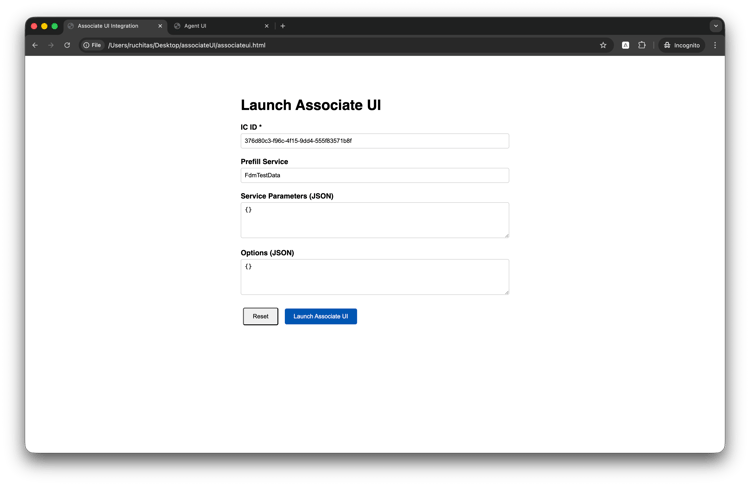
-
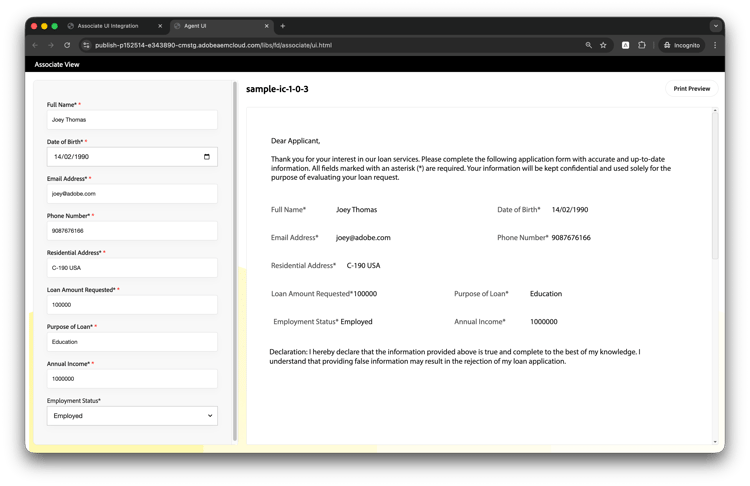
UI 연결 시작: UI 연결 시작 단추를 클릭합니다. 대화형 통신과 함께 미리 로드된 연결 UI가 있는 새 브라우저 창이 열립니다.
데이터를 입력하면 아래와 같이 연결 UI가 표시됩니다.
문제 해결
팝업이 차단됨
문제: UI 연결 창이 열리지 않습니다.
솔루션:
- 브라우저 설정에서 도메인에 대한 팝업 활성화
window.open()이(가) 사용자 작업(예: 단추 클릭)에서 호출되는지 확인- 다양한 브라우저로 테스트하여 차단 동작을 식별하십시오.
데이터 로드 안 됨
문제: 대화형 통신이 열리지만 데이터가 채워지지 않습니다.
솔루션:
- IC ID가 올바르고 IC가 게시되었는지 확인
- 브라우저 콘솔에서 JavaScript 오류 확인
postMessage구조가 사양과 정확히 일치하는지 확인합니다.- 양식 데이터 모델 서비스가 올바르게 구성되었는지 확인
인증 오류
문제: 연결 UI가 열릴 때 사용자에게 인증 오류가 표시됩니다.
솔루션:
- 게시 인스턴스에서 SAML 2.0 인증 구성
- 사용자가 forms-associates 그룹에 속해 있는지 확인하십시오
- 세션 시간 초과 설정 확인
CORS 오류
문제: 콘솔에서 원본 간 리소스 공유 오류가 발생했습니다.
솔루션:
- 개발용:
postMessage에서'*'을(를) 대상 원본으로 사용 - 프로덕션의 경우: 애플리케이션의 정확한 원본 URL을 지정합니다
- 게시 인스턴스 CORS 설정이 응용 프로그램 도메인을 허용하는지 확인합니다.