このページ:では、再利用可能なロイヤルティタスクの作成、購入、支出、およびカスタムのイベントアクティビティの設定方法、およびタスク属性、適格性、および完了要件の定義方法について説明します。
タスクとは、ロイヤルティに関する課題に直面した場合に、顧客が報酬を得るために実行しなければならない特定のアクションやマイルストーンを定義することです。 購入と支出のタスク、または組織が既にキャプチャしたAdobe Experience Platform エクスペリエンスイベントを追跡するカスタムイベント タスクを設定できます。
各タスクは、課題の完了に貢献する、測定可能な行動を表します。 タスクとは、個別に作成して1つ以上の課題に追加するか、課題の中で直接作成できる、再利用可能なコンポーネントのことです。
タスクを作成 create-task
タスクは、2つのエントリポイントから作成できます。 設定プロセスは、どこから開始しても同じです。
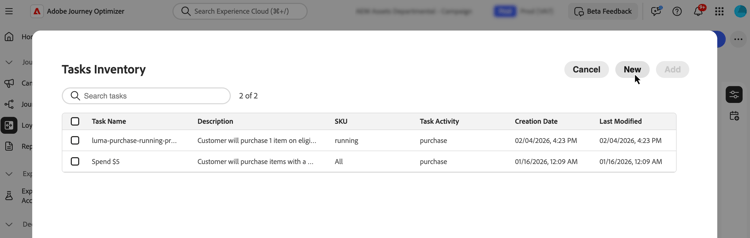
「タスク」タブを選択し、「タスクを作成」を選択します。 インベントリから作成されたタスクは保存され、複数の課題で再利用できます。

既存の課題を開くか、新しい課題を作成します。 「タスクを追加」を選択し、「新規」ボタンをクリックします。 このようにして作成されたタスクは、自動的にチャレンジに追加され、他のチャレンジで再利用するためにタスクインベントリに保存されます。
顧客アクティビティの選択 choose-activity
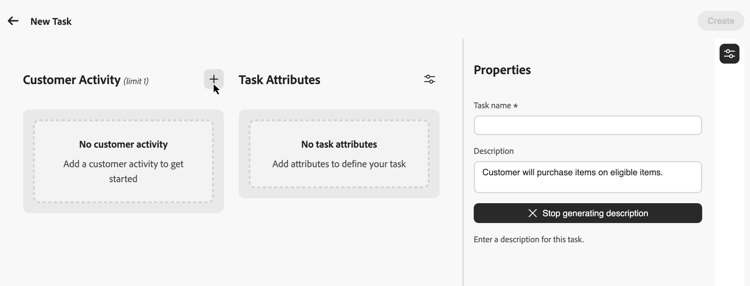
このタスクを完了するために顧客が実行する必要があるアクティビティのタイプを選択します。
- 購入:このタスクを完了するには、1つ以上のアイテムを購入する必要があります
- 支出:このタスクを完了するには、顧客が指定した金額を費やす必要があります
- カスタムイベント:お客様は、Adobe Experience Platform エクスペリエンスイベントで表されるアクティビティを実行する必要があります。 たとえば、ホテルのチェックイン、モバイルアプリのアクション、レビューの提出などがあります。 基になるイベントは、既にExperience Platformでキャプチャされ、ロイヤルティ設定 メニューのイベントマッピングを通じてマッピングされている必要があります。 イベントマッピングの設定方法を学ぶ
アクティビティを選択するには、+ アイコンをクリックし、成果の目標に最も適した顧客アクティビティを選択します。 各アクティビティタイプには、タスク要件をさらに定義して形成するための、特定の設定可能な属性が用意されています。
タスク属性の定義 define-attributes
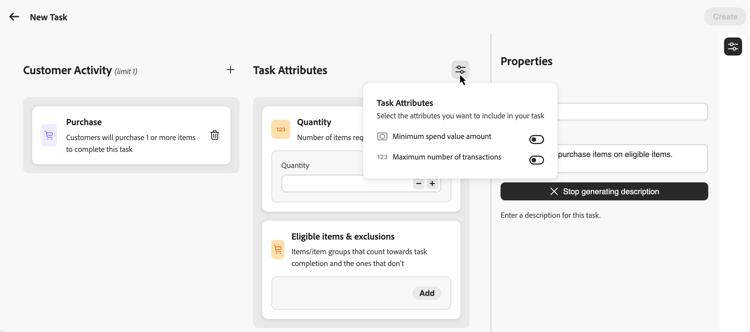
選択したアクティビティタイプに基づいてタスク属性を設定します。 以下のタブを参照して、各アクティビティタイプで使用可能な属性を確認します。
購入活動に使用できる属性:
- 数量:このタスクを完了するために購入する必要がある品目の数を入力します。
- 適格項目と除外: タスクの完了にカウントされる項目または項目グループとそうでない項目を定義するか、独自のデータを取り込むかを選択して、外部データから適格性を促進します。 詳細情報
- 最低支出額:最低購入額の要件を設定します。
- 最大トランザクション数:タスクを完了するために使用できるトランザクション数を制限します。
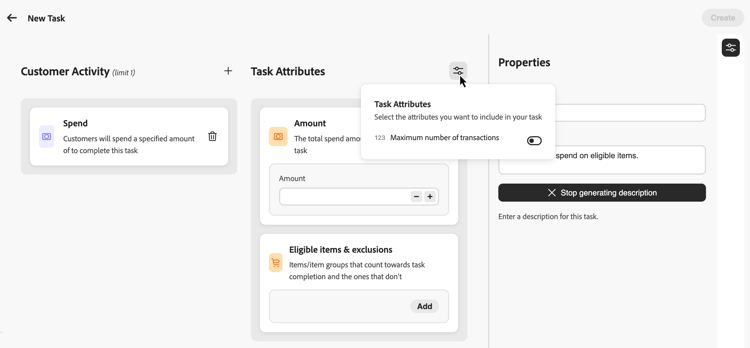
費用活動に使用できる属性:
- 金額: タスクを完了するために必要な合計支出額を入力します。
- 対象アイテムと除外: タスクの完了にカウントされるアイテムまたはアイテム グループとそうでないアイテムまたはアイテム グループを定義します。 対象となる項目と除外事項について詳しく見る
- 最大トランザクション数:支出要件を満たすために許可されるトランザクション数を指定します。 この属性は、パラメーターアイコンからアクティブにできます。
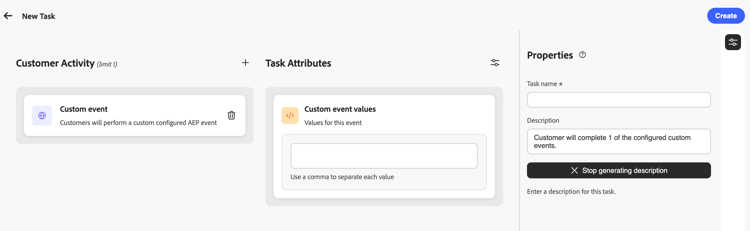
カスタムイベント アクティビティで使用できる属性:
- カスタムイベント値:顧客が完了する必要があるカスタムイベントの値を入力します。 コンマを使用して各値を区切ります。 これらの値は、ロイヤルティ設定 メニューで設定されたイベントマッピングと一致する必要があります。 イベントマッピングの設定方法を学ぶ
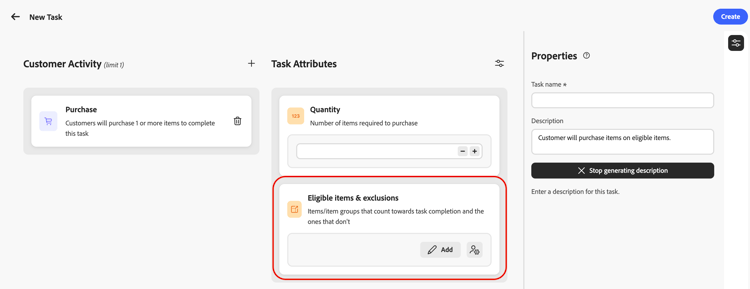
実施要件を満たす品目と除外品目を定義 eligible-items-exclusions
購入および支出 アクティビティの場合、対象アイテムと除外 セクションを使用して、対象となるアイテムとグループと除外されるグループを定義できます。 これにより、課題の目標に合わせて、特定の製品、カテゴリ、地域をターゲットにすることができます。
ピッカーで使用できる項目とグループは、ロイヤルティ設定 メニューの管理者ユーザーによって定義されます。 管理者は、対象品目に使用される製品在庫をアップロードし、マーケターがタスクを構築すると自動的に適用される組織全体の除外を設定します。 製品インベントリ と除外の設定方法について説明します
カスタムイベント タスクでは、対象となる項目と除外は使用されません。完了は、設定した カスタムイベント値 によって駆動されます。
例えば、タスクを特定の商品カテゴリーに制限したり、ギフトカードやプロモーションアイテムをタスクの完了に向けてカウントから除外したりすることができます。
タスクの対象となる項目の設定
対象アイテムを定義するには、対象アイテムと除外 セクションから 追加 を選択します。
ピッカーで、タスクの完了にカウントする項目またはグループを選択し、含めるを選択します。 含まれている項目とグループが対象リストに追加されます。
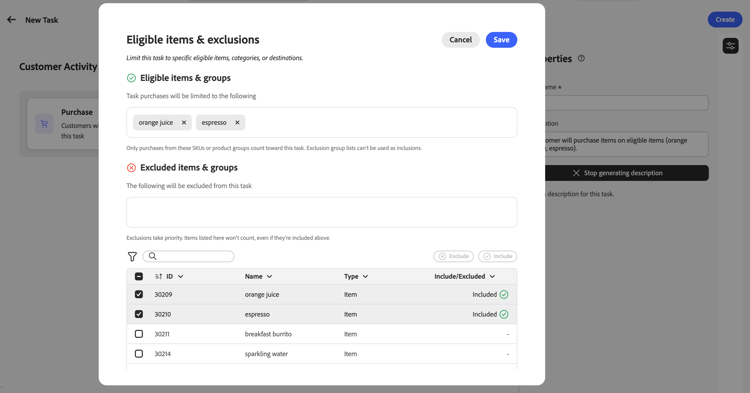
対象商品やグループが選択されていない場合、除外が設定されていない限り、購入は特定の在庫セットに限定されません。
タスクから項目を除外
タスクからアイテムを除外するには、対象アイテムと除外 セクションから 追加 を選択します。
タスクの完了にカウントしない項目またはグループを選択し、除外を選択します。
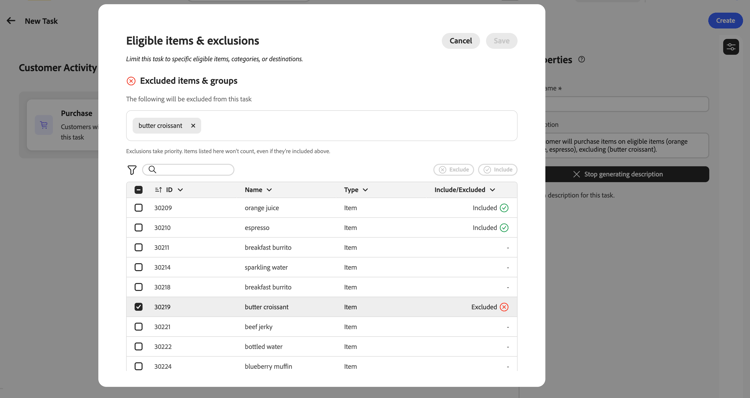
グローバル除外リストの項目は、除外として自動的に追加されます。 除外は除外よりも優先されます。除外としてリストされた項目は、含まれるグループの一部である場合でも、カウントされません。
自身のデータを持ち込んで適格性と除外条件を指定 byod-personalization
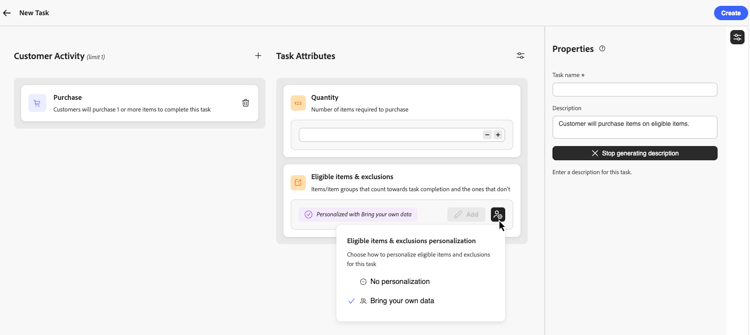
Journey Optimizerでアイテムとグループを選択するだけでなく、独自のデータを取り込む オプションを使用して、実行時に外部ロイヤルティチャレンジ データから適格性を促すこともできます。
自分のデータを取り込むが選択されている場合、参加者ごとの実施要件は、アイテム IDのリストではなく、ロイヤルティチャレンジ環境と同期されたデータから実行時に解決されます。
このオプションを使用するには、対象アイテムと除外でパーソナライゼーションアイコンを選択し、独自のデータを取り込むを選択します。
タスクのプロパティの定義 define-task-properties
タスク プロパティ ペインで、基本的なタスク情報を設定します。
- タスク名: タスクのわかりやすい名前を入力します。
- タスクの説明:説明は、設定されたアクティビティと属性に基づいて自動的に生成されます。 カスタムの説明を入力するには、自動生成オプションをオフにして、テキストフィールドに説明を入力します。
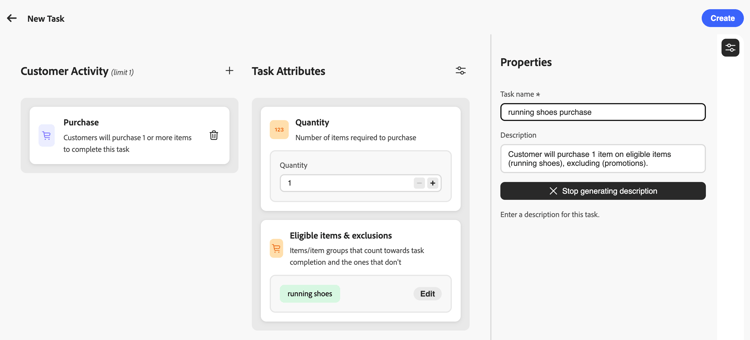
すべての属性とプロパティを設定したら、作成を選択してタスクを保存します。 タスクはタスクインベントリに保存され、チャレンジ内から作成された場合、そのチャレンジに自動的に追加されます。
チュートリアルビデオ video
ステップバイステップ形式のチュートリアルで、タスクの作成と設定方法を学びましょう。
This section contains structured knowledge intended to support interpretation, retrieval, and question answering related to this topic.
For complete understanding, this information should be combined with the documentation on this page. Neither source is intended to stand alone; the page describes the feature, while this section provides additional context that helps disambiguate terminology, intent, applicability, and constraints.
- TL;DR: This page explains how to create reusable loyalty tasks, configure Purchase, Spend, and Custom event activities, and define task attributes, eligibility, and completion requirements.
Intents:
- Create a task from the Tasks inventory or from within a challenge.
- Choose a customer activity type (Purchase, Spend, or Custom event) for a task.
- Configure activity-specific attributes, such as quantity, amount, or custom event values.
- Define eligible items and exclusions for Purchase and Spend tasks.
- Use Bring your own data to resolve task eligibility at runtime from external data instead of selecting items in Journey Optimizer.
- Define task properties, including the task name and description.
Glossary:
- Task: a reusable component representing a measurable action or milestone that customers must complete toward challenge completion (product-specific)
- Purchase activity: an activity type that requires customers to purchase one or more items to complete a task (product-specific)
- Spend activity: an activity type that requires customers to spend a specified amount to complete a task (product-specific)
- Custom event activity: an activity type based on an Adobe Experience Platform experience event that is already captured in Experience Platform and mapped through an event mapping in the Loyalty configurations menu (product-specific)
- Tasks inventory: the Tasks tab where tasks are saved and available for reuse across multiple challenges (product-specific)
- Eligible items & exclusions: the Purchase and Spend attribute that defines which items or groups count toward task completion and which are excluded (product-specific)
- Bring your own data: the option that resolves eligibility per participant at runtime from data synchronized with the Loyalty Challenges environment, instead of a list of item IDs (product-specific)
Guardrails:
- Custom event tasks do not use eligible items and exclusions; completion is driven by the Custom event values configured for the task.
- Custom event values entered for a task must match event mappings configured in the Loyalty configurations menu.
- Items from the global exclusions list are automatically added as exclusions.
- Exclusions take priority over inclusions: items listed as excluded do not count, even if they are also part of an included group.
- If no eligible items or groups are selected for a Purchase or Spend task, purchases are not limited to a specific inventory set, unless exclusions are configured.
- For Spend activities, the Maximum number of transactions attribute must be activated from the parameters icon.
- When assigning a task configured with Bring your own data to a challenge, select Standard as the challenge type; Bring your own data at the challenge level is reserved for fully data-driven challenges where the entire structure, including tasks and rewards, is supplied externally.
Applicability:
- Bring your own data (task-level eligibility for Purchase and Spend activities): applies only to a restricted set of organizations currently; will be made available more broadly in a future release.
Terminology:
- Canonical name: Adobe Experience Platform — Acronym: AEP — variants: Experience Platform
- Canonical name: Task — variants: none
- Synonyms: none
- Do not confuse: task-level “Bring your own data” (eligibility resolved at runtime from external data instead of item IDs) ≠ challenge-level “Bring your own data” (reserved for fully data-driven challenges where the entire structure, including tasks and rewards, is supplied externally)
- Do not confuse: “Eligible items & exclusions” (selecting items and groups within Journey Optimizer, for Purchase and Spend only) ≠ “Bring your own data” (eligibility resolved at runtime from synchronized external data)
FAQ:
- Q: What are the three activity types for a task? — Purchase, Spend, and Custom event.
- Q: Where can I create a task? — From the Tasks inventory (Tasks tab, Create Task) or from within a challenge (Add task, New); tasks created within a challenge are also saved to the Tasks inventory.
- Q: Do Custom event tasks use eligible items and exclusions? — No; completion for Custom event tasks is driven by the Custom event values configured for the task.
- Q: What happens if an item is both included and excluded? — Exclusions take priority over inclusions; excluded items do not count even if part of an included group.
- Q: What happens if no eligible items or groups are selected for a Purchase or Spend task? — Purchases are not limited to a specific inventory set, unless exclusions are configured.
- Q: What challenge type should I use with a task configured for Bring your own data? — Select Standard as the challenge type; Bring your own data at the challenge level is reserved for fully data-driven challenges where the entire structure, including tasks and rewards, is supplied externally.
Examples:
- Eligible items & exclusions (Purchase and Spend): limiting a task to specific product categories, or excluding gift cards or promotional items from counting toward task completion.
- Custom event activity: events such as a hotel check-in, mobile app action, or review submission, represented by an Adobe Experience Platform experience event.
Related pages:
- To configure the Custom event event mappings referenced by this page: Learn how to configure event mappings (loyalty-challenges/loyalty-admin.md)
- To configure the product inventory used for eligible items: Learn how to configure product inventory (loyalty-challenges/loyalty-admin.md)
- To configure organization-wide exclusions applied automatically to tasks: exclusions (loyalty-challenges/loyalty-admin.md)
Personas:
- marketer: Can create a task from the Tasks inventory by selecting Create Task, or from within a challenge by selecting Add task and New. Can choose a Purchase, Spend, or Custom event activity, then configure attributes such as Quantity, Amount, or Custom event values. Can define eligible items and exclusions for Purchase and Spend tasks, and set the task name and description. The page states that Custom event tasks do not use eligible items and exclusions. Where: “Create a task”.
Onboarding:
- Level: Intermediate
- First minimal step: Select the Tasks tab and select Create Task.
- Success check: The task is saved to your Tasks inventory and, if created from within a challenge, is automatically added to that challenge.
- Previous: Configure event mappings, product inventory, or exclusions used when building tasks: Configure loyalty challenges (loyalty-challenges/loyalty-admin.md)