このページ: Adobe Journey Optimizer の E メールデザイナーから直接、Adobe Stock 画像(類似写真を含む)を検索、ライセンス取得、挿入する方法について説明します。
Adobe Stock の基本を学ぶ get-started-stock
Adobe Stock と Adobe Journey Optimizer E メールデザイナーの統合プラグインを使用すると、メッセージオーサリングで使用する画像のナビゲーション、ライセンス取得および保存を簡単に行うことができます。
Adobe Stock では、数百万もの厳選された高品質な、ロイヤリティフリーの写真、ビデオ、イラスト、ベクターグラフィックを利用できます。 クレジットパックを購入してアセットのライセンスを取得するか、必要なアセットに対して通常ライセンスまたは強化ライセンスを 1 つだけ購入するかどうかを選択できます。 Adobe Stock はまた、アセットの無料コレクションを提供しています。
Adobe Journey Optimizer を使用すると、Adobe Stock からメールに画像を直接アップロードし、「Adobe Stock フォトを検索」オプションを使用して アセット フォルダーに追加できます。 「類似のストックフォトを検索」オプションを使用すると、配信で使用されるアセットのコンテンツ、カラー、構成に一致する画像を検索することができます。
権限 stock-permissions
「Adobe Stock フォトを検索」および「類似画像を検索」オプションは、AEM Assets Essentials 製品プロファイルにアクセスできるユーザーが使用できます。
詳しくは、Experience Manager Assets ドキュメントを参照してください。
Adobe Stock からの画像の挿入 add-stock-image
Adobe Stock からコンテンツに画像を追加するには、次の手順に従います。
-
E メールデザイナーの「コンテンツ コンポーネント」セクションから、画像をドラッグ&ドロップします。
-
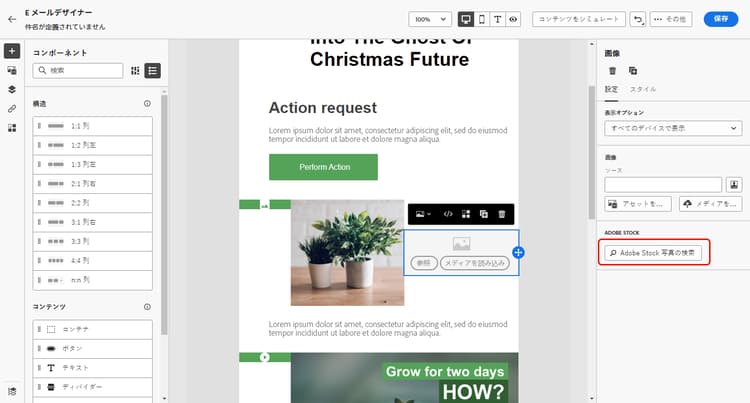
E メールデザイナーの左側にある「Adobe Stock フォトを検索」ボタンをクリックします。
-
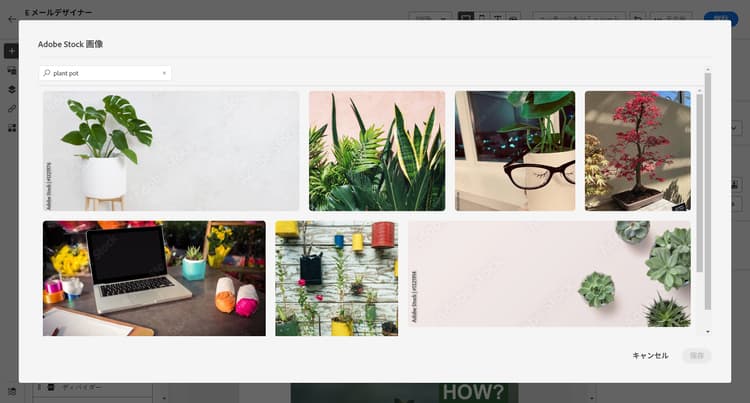
ライブラリを参照するか、検索フィールドに語句を入力します。
-
選んだ画像を選択し、「保存」をクリックします。
選択した画像がライセンス済みでない場合は、ライセンスを取得する必要があります。
類似フォトの検索 similar-stock-image
メールコンテンツ内の既存の画像を Adobe Stock のフォトに置き換えることができます。 このオプションは、ライセンス済み/未ライセンスのストック画像、アセットフォルダー内の画像などすべての画像に対して使用できます。
類似フォトを参照するには、次の手順に従います。
-
置き換える画像を選択します。
-
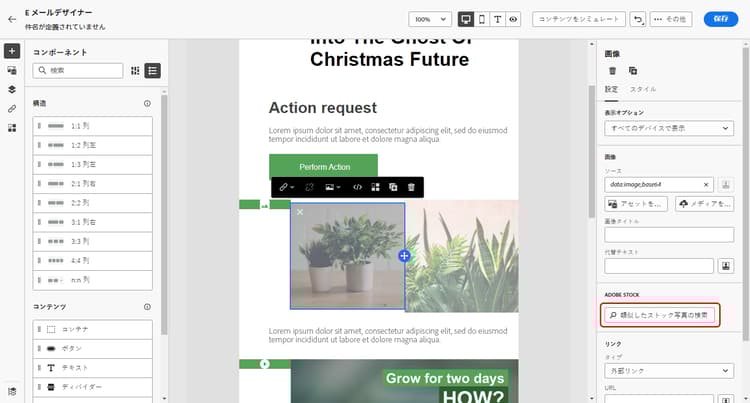
「類似のストックフォトを検索」ボタンをクリックして、画像のコンテンツ、カラー、構成に一致する Adobe Stock のアセットを表示します。
-
選んだ画像を選択し、「保存」をクリックします。
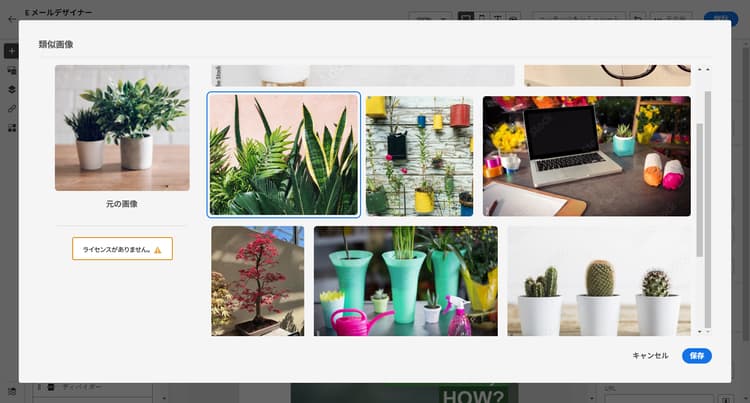
選択した画像がライセンス済みでない場合は、ライセンスを取得する必要があります。
-
必要に応じて、「設定」タブと「スタイル」タブで画像をカスタマイズします。 コンポーネント設定の詳細情報。
Adobe Stock からのライセンスの取得 license-stock-image
画像がライセンス済みの場合は、

画像のライセンスを取得してダウンロードするには、次の手順に従います。
-
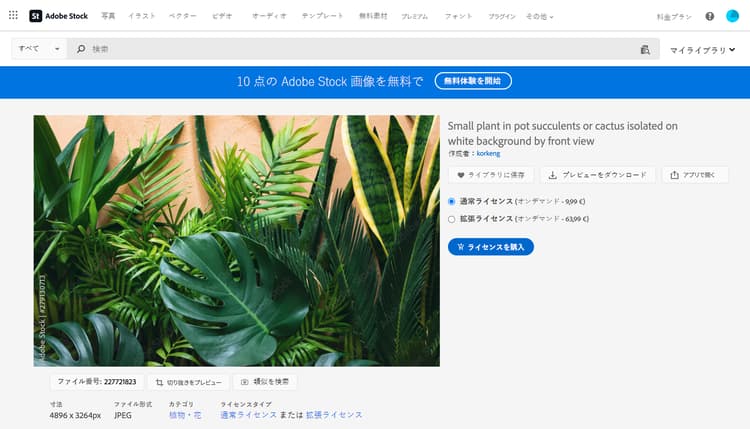
画像を選択して「Adobe Stock 画像のライセンス」アイコンをクリックします。

その後、ライセンスを購入するための Adobe Stock web サイトにリダイレクトされます。
-
Adobe Stock web サイトで、画像をダウンロードして透かしを削除するには、アセットを購入する必要があります。
購入価格は、Adobe Stock のプランまたはサブスクリプションによって異なります。 複数の Adobe Stock アカウントがある場合は、最後に使用した Stock ID にリダイレクトされます。 この場合、アセットのライセンスを取得する前に、正しいアカウントにサインインしていることを確認してください。
Adobe Stock のプランと価格について詳しくは、Adobe Stock ドキュメントを参照してください。
note warning WARNING 未ライセンスの画像を含むメールが送信された場合、画像は透かしのある未ライセンスのフォームを保持します。 -
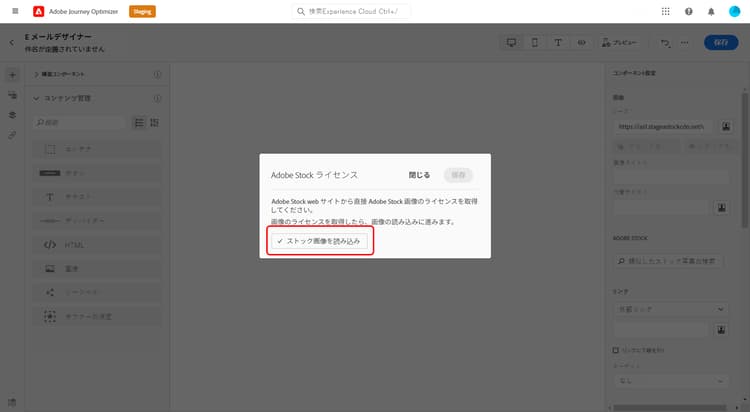
購入が完了したら、Adobe Journey Optimizer でメールに戻り、「ストック画像をインポート」を選択して、ライセンス済みの画像をアセットに読み込むことができます。
-
アセットを保存するフォルダーを選択します。 Experience Manager Assets について詳しくは、この節を参照してください。
関連トピック stock-related-topics
This section contains structured knowledge intended to support interpretation, retrieval, and question answering related to this topic.
For complete understanding, this information should be combined with the documentation on this page. Neither source is intended to stand alone; the page describes the feature, while this section provides additional context that helps disambiguate terminology, intent, applicability, and constraints.
- TL;DR: This page explains how to find, license, and insert Adobe Stock images, including similar photos, directly from the Email Designer in Adobe Journey Optimizer.
Intents:
- Insert an Adobe Stock image into email content from the Email Designer
- Find similar Stock photos that match the content, color, and composition of an existing image
- License an Adobe Stock image and import it into the Assets folder
- Understand the permissions required to use the Adobe Stock options
Glossary:
- Find Adobe Stock photos: Option to navigate or search the Adobe Stock library and add an image to the Assets folder from the Email Designer (product-specific)
- Find Similar Stock photos: Option that finds images matching the content, color, and composition of a selected image; available for all images (licensed/unlicensed Stock images and images from the Assets folder) (product-specific)
- License Adobe Stock image: Icon/action that redirects to the Adobe Stock website to buy a license for an unlicensed image (product-specific)
- Import stock image: Option to import a licensed image into your assets after purchase (product-specific)
- Standard / Extended license: The two per-asset license types you can buy for a needed asset, as an alternative to a credit pack (product-specific)
Guardrails:
- The Find Adobe Stock photos and Find Similar Image options are available to users with access to an AEM Assets Essentials Product Profile.
- If an email including an unlicensed image is sent, the image keeps its unlicensed form with the watermark.
- Licensing and purchase depend on your Adobe Stock plan or subscription.
- With multiple Adobe Stock accounts, you are redirected to the last used Stock ID; sign in to the correct account before licensing.
Terminology:
- Canonical name: Adobe Stock integration — Acronym: n/a — variants: Adobe Stock plugin, Adobe Stock images
- Synonyms: “Find Similar Stock photos” = “Find Similar Image”
- Do not confuse: “Find Adobe Stock photos” (browse or search the library) ≠ “Find Similar Stock photos” (match the content, color, and composition of an existing image)
- Do not confuse: “License Adobe Stock image” (buy the license on the Adobe Stock website) ≠ “Import stock image” (bring the licensed image into your assets)
FAQ:
- Q: What access do I need to use the Adobe Stock options? — Access to an AEM Assets Essentials Product Profile.
- Q: What happens if I send an email with an unlicensed image? — The image keeps its unlicensed form with the watermark.
- Q: Can I replace an existing image with a similar Stock photo? — Yes; select the image and click Find similar Stock photos, which works for licensed/unlicensed Stock images and images from the Assets folder.
- Q: How do I license and use an image? — Select it, click the License Adobe Stock image icon, purchase on the Adobe Stock website, then select Import stock image to bring the licensed image into your assets.