このページでは、高度なスタイル設定を行うためにメール Designerでカスタム CSSをメールコンテンツに追加する方法、CSSを有効に保つ方法、適用されないスタイルをトラブルシューティングする方法について説明します。
メールをデザインする際に、Journey OptimizerE メールデザイナー内で独自のカスタム CSS を直接追加できます。 この機能により、高度で特定のスタイル設定を適用して、コンテンツの外観に対する柔軟性と制御を高めることができます。
カスタム CSS の定義 define-custom-css
メールコンテンツにカスタム CSS を追加するには、次の手順に従います。
-
1 つ以上のコンポーネントを追加して、E メールデザイナーにコンテンツが定義されていることを確認します。
-
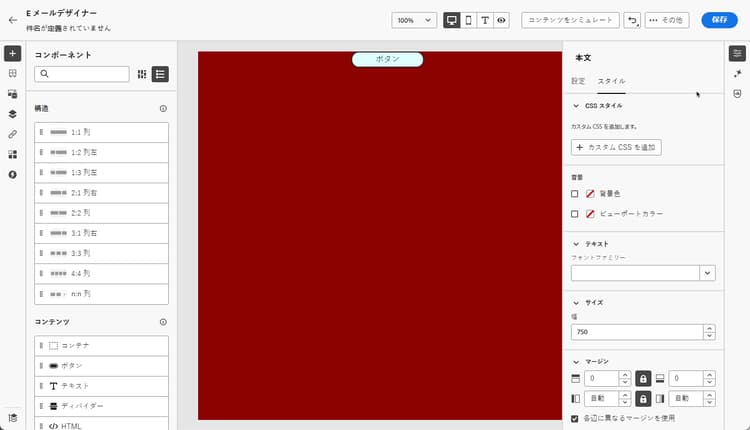
左側の ナビゲーションツリー または右側のパネルの上部にある「本文」を選択します。 右側に「CSS スタイル」セクションが表示されます。

note NOTE 「CSS スタイル」セクションは、エディターにコンテンツが既に存在する場合にのみ使用できます。 -
「カスタム CSS を追加」ボタンをクリックします。
note NOTE 「カスタム CSS を追加」ボタンは、「本文」を選択した場合にのみ使用できます。 ただし、コンテンツ内のすべてのコンポーネントにカスタム CSS スタイルを適用できます。 -
ポップアップ表示される専用のテキスト領域に CSS コードを入力します。 カスタム CSS が有効で、適切な構文に従っていることを確認します。 詳細情報
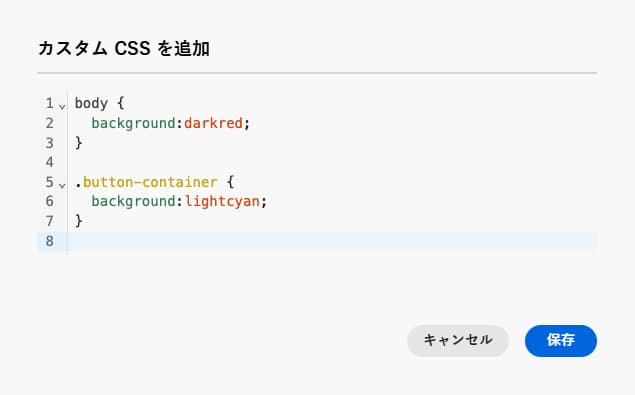
note NOTE コンテンツがロックされたテンプレートを使用する場合、コンテンツにカスタム CSS を追加できません。 ボタンのラベルが カスタム CSS を表示 に変わり、コンテンツに既に存在するカスタム CSS は読み取り専用になります。 -
カスタム CSS を保存し、カスタム CSS がコンテンツに正しく適用されていることを確認します。 該当しない場合は、トラブルシューティングの節を確認してください。
-
すべてのコンテンツを削除すると、セクションは非表示になり、以前に定義したカスタム CSS は適用されなくなります。
-
コンテンツをエディターに追加し直すと、「CSS スタイル」セクションが再表示されます。 カスタム CSS が再度適用されます。
有効な CSS の使用の確認 use-valid-css
「カスタム CSS を追加」テキスト領域に有効な CSS 文字列を入力できます。 適切に書式設定した CSS はコンテンツにすぐに適用されます。
有効な CSS の例を以下に示します。
| code language-css |
|---|
|
| code language-css |
|---|
|
無効な CSS を入力すると、CSS を保存できないことを示すエラーメッセージが表示されます。 無効な CSS の例を以下に示します。
<style> タグの使用は許可されていません。
| code language-html |
|---|
|
中括弧の欠落などの無効な構文は許可されていません。
| code language-css |
|---|
|
技術的な実装 implementation
次の例に示すように、カスタム CSS は、data-name="global-custom" 属性を持つ <style> タグの一部として <head> セクションの末尾に追加されます。 これにより、カスタムスタイルがコンテンツにグローバルに適用されます。
| code language-html |
|---|
|
カスタム CSS は、E メールデザイナーの 設定 パネルでは解釈または検証されません。 これは完全に独立しており、「カスタム CSS を追加」オプションを通じてのみ変更できます。
ガードレール - インポートしたコンテンツ
E メールデザイナーに読み込んだコンテンツでカスタム CSS を使用する場合は、次の点を考慮します。
-
CSS を含む外部 HTML コンテンツを読み込む場合、そのコンテンツを変換しない限り、互換性モードになり、「CSS スタイル」セクションは使用できません。 既存のコンテンツの読み込みの詳細情報
-
「カスタム CSS を追加」オプションを通じて適用された CSS を含む、E メールデザイナーで作成したコンテンツを読み込む場合、以前に適用された CSS は同じオプションから表示および編集できます。
トラブルシューティング troubleshooting
カスタム CSS が適用されない場合は、以下のオプションを考慮します。
-
CSS が有効で、構文エラー(中括弧の欠落、プロパティ名の誤りなど)がないことを確認します。 方法についてはこちらを参照
-
CSS が
data-name="global-custom"属性を持つ<style>タグに追加されていることを確認します。 -
global-customスタイルのタグに属性data-disabledがtrueに設定されているかどうかを確認します。 該当する場合、カスタム CSS は適用されません。accordion 次に例を示します。 code language-html <style data-name="global-custom" type="text/css" data-disabled="true"> body: { color: red; } </style> -
コンテンツに適用されたテーマを含む、他の CSS ルールによって CSS が上書きされないようにします。
-
ブラウザーの開発者ツールを使用してコンテンツを検査し、CSS が正しいセレクターをターゲットにしていることを確認します。
-
優先されるようにするには、宣言に
!importantを追加することを考慮します。accordion 次に例を示します。 code language-css .acr-Form { background: red !important; }
-
This section contains structured knowledge intended to support interpretation, retrieval, and question answering related to this topic.
For complete understanding, this information should be combined with the documentation on this page. Neither source is intended to stand alone; the page describes the feature, while this section provides additional context that helps disambiguate terminology, intent, applicability, and constraints.
- TL;DR: This page explains how to add custom CSS to email content in the Email Designer for advanced styling, how to keep the CSS valid, how it is implemented in the HTML, and how to troubleshoot styles that are not applied.
Intents:
- Add custom CSS to email content for advanced and specific styling
- Ensure the entered CSS is valid so it is applied and can be saved
- Understand where custom CSS is injected in the generated HTML
- Troubleshoot custom CSS that is not applied
- Understand custom CSS behavior with imported content
Glossary:
- Add Custom CSS: The Email Designer option (available when Body is selected) to enter custom CSS in a dedicated text area (product-specific)
- CSS styles section: The section, shown when Body is selected and content is present, from which custom CSS is added (product-specific)
- global-custom: The
data-name="global-custom"<style>tag added to the end of the<head>where custom CSS is placed (product-specific) - Compatibility mode: The mode for imported external HTML content (unless converted) in which the CSS styles section is not available (product-specific)
Guardrails:
- The CSS styles section is only available when content is already present in the editor; the Add custom CSS button is only available when Body is selected.
- Custom CSS must be valid and follow proper syntax; invalid CSS (for example using
<style>tags, or syntax errors such as missing braces) triggers an error message and cannot be saved. - When using a template with locked content, you cannot add custom CSS; the button changes to View custom CSS and existing custom CSS is read-only.
- If you remove all content, the CSS styles section disappears and the previously defined custom CSS is no longer applied; adding content back reapplies it.
- For imported external HTML content in Compatibility mode (unless converted), the CSS styles section is not available.
- Users are responsible for the security of their custom CSS and should ensure it does not introduce vulnerabilities or break the layout.
- Custom CSS is not interpreted or validated by the Settings pane; it is independent and can only be modified through the Add Custom CSS option.
Terminology:
- Canonical name: Custom CSS — Acronym: CSS — variants: Add Custom CSS, custom CSS styles
- Synonyms: “Add custom CSS” = “Add Custom CSS” (button); becomes “View custom CSS” for locked content
- Do not confuse: “custom CSS” (
global-customstyle tag) ≠ default/system-generated CSS styles (otherdata-namestyle tags such asdefault,grid,acr-theme) - Do not confuse: “Compatibility mode” (imported external HTML, no CSS styles section) ≠ content created with the Email Designer (custom CSS visible and editable)
FAQ:
- Q: Why is the Add custom CSS button missing? — The CSS styles section requires content in the editor, and the button is only available when Body is selected.
- Q: What happens if my CSS is invalid? — An error message is displayed indicating the CSS cannot be saved;
<style>tags and syntax errors such as missing braces are not accepted. - Q: Where is my custom CSS added in the HTML? — To the end of the
<head>section as a<style data-name="global-custom">tag. - Q: My custom CSS is not applied — what should I check? — Verify the CSS is valid, that it is in the
global-customstyle tag, thatdata-disabledis not set totrue, and that it is not overridden by other rules including an applied theme; consider adding!important. - Q: Can I add custom CSS to a template with locked content? — No; the button becomes View custom CSS and any existing custom CSS is read-only.