E メールデザイナーのコンテンツチェック content-check
Journey Optimizer に、E メールデザイナーでの自動技術検証が直接含まれます。これにより、送信前に HTML や CSS の問題を把握できます。
結果は、エラー、警告または情報通知としてオーサリングパネルに表示され、コンテキストの詳細とワンクリック修正が可能な場合は表示されるので、E メールデザイナーを離れることなく問題を解決できます。
コンテンツチェックへのアクセス access-content-checks
コンテンツチェックは、常に E メールデザイナーで使用できます。 これらを確認するには、右側のパネルにある問題アイコンをクリックして コンテンツチェック パネルを開きます。検出されたすべての問題がそこに一覧表示されます。
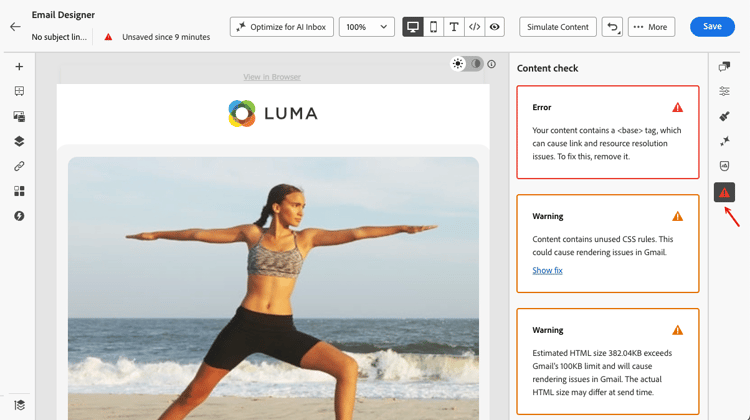
チェックは、次の 3 つの重要度レベルで表示されます。
問題が検出されない場合、パネルには 問題は検出されていません と表示され、対応するアイコンは緑色になります。
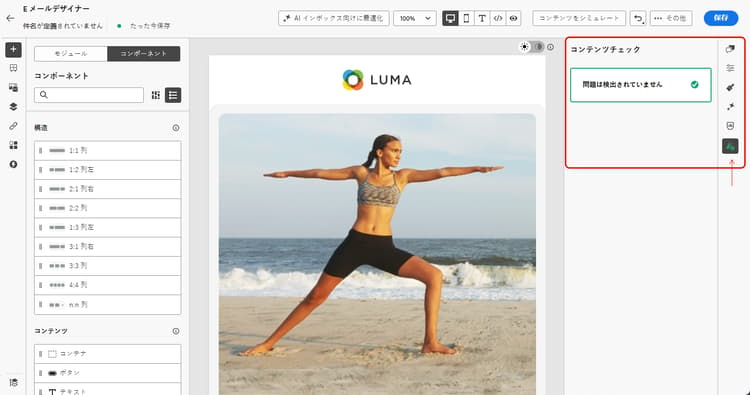
問題に応じて、より多くのコンテキストを表示したり、ワンクリック修正を適用したり、メールを保存してチェック結果を更新したりできます。
- 検出された問題については、「詳細を表示」ボタンをクリックして詳細なコンテキストを表示できます。 「詳細を非表示」をクリックして折りたたみます。

- 同様に、修正を表示ボタンをクリックし、使用可能な場合はワンクリック修正を適用できます。 修正を自動的に適用できない場合はメッセージが表示され、手動で問題を解決する必要があります。
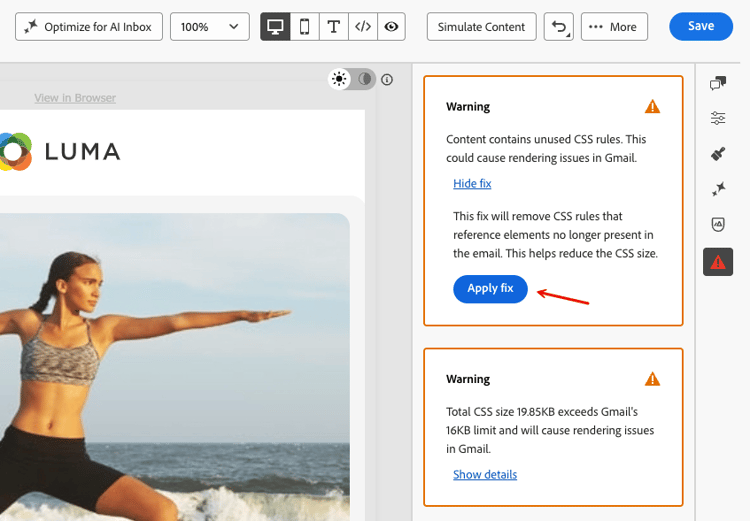
チェックの再計算 recalculation
サポートされていない HTML 要素、空の div、HTML サイズなど、ほとんどのチェックは、メールを編集するたびに再計算されるので、常に最新のコンテンツが反映されます。
CSS サイズなど、その他のチェックは、E メールデザイナーでのライブ編集中の状態ではなく、シリアル化されたコンテンツ(メールの読み込みまたは保存時のバージョン)から計算されます。 この場合、保存されたコンテンツは、編集時に表示される内容と少し異なることがあります。 保存せずに編集を行うと、結果が正確でなくなる場合があることを示す 古いチェック ラベルが表示されます。 メールを保存して、計算を更新します。
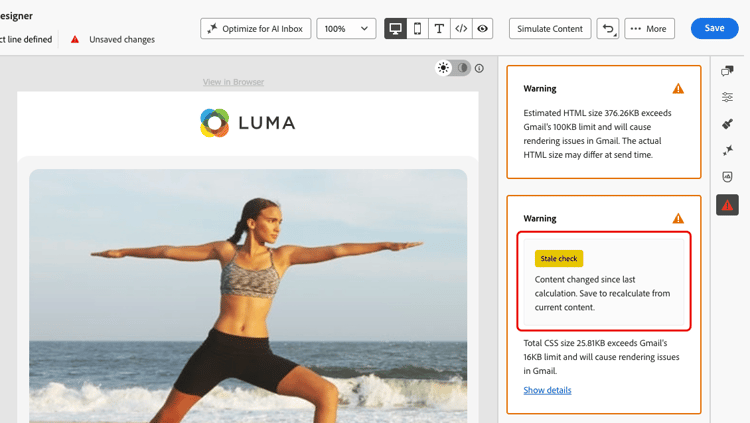
検出された問題の修正 fix-issues
次の表に、考えられるすべてのメッセージと、それぞれの推奨アクションを示します。 コンテンツチェックパネルに表示されているメッセージに一致するカテゴリを展開してください。
| table 0-row-3 1-row-3 2-row-3 3-row-3 4-row-3 | ||
|---|---|---|
| メッセージ | 重要度 | 必要なアクション |
コンテンツに <script> タグが含まれています。これは、どのメールシステムでもサポートされていません。 配信とレンダリングの問題を回避するために、これを削除してください。 |
エラー | HTML コンテンツからすべての <script> タグを見つけて削除します。 |
コンテンツに <base> タグが含まれているため、E メールデザイナーでリンクとリソースの解決に関する問題が発生する可能性があります。 修正するには、これを削除する必要があります。 |
エラー | HTML から <base> タグを削除します。 |
| コンテンツに refresh を含む HTML メタタグが含まれていますが、これは E メールデザイナーではサポートされていません。 予期しない動作を防ぐために、これを削除してください。 | 警告 | HTML から meta refresh タグを削除してください |
| コンテンツに空の div が含まれているため、Microsoft Outlook (MSO)でレイアウトの問題が発生する可能性があります。 これを修正するには、空の div を削除し、代わりに兄弟要素の間隔を使用してください。 | 警告 | 空の <div> 要素を削除し、周囲の要素のパディングまたは余白を調整して、間隔を維持します。 |
| table 0-row-3 1-row-3 2-row-3 3-row-3 4-row-3 | ||
|---|---|---|
| メッセージ | 重要度 | 必要なアクション |
| CSS の合計サイズが Gmail の上限である 16 KB を超えているため、Gmail でレンダリングの問題が発生します。 | エラー | 「修正を適用」を使用して未使用の CSS ルールを自動的に削除するか、手動でスタイルを簡素化します。 |
| CSS の合計サイズが Gmail の上限である 16 KB に近いため、CSS をさらに追加するとレンダリングの問題が発生する可能性があります。 | 警告 | 「修正を適用」を使用して未使用の CSS ルールを削除するか、コンテンツを追加する前にスタイルを減らします。 |
| このフラグメントの CSS サイズの合計が 3 KBを超えています。 これを他のフラグメントと組み合わせると、メールの CSS の合計が Gmail の上限である16 KBを超え、レンダリングの問題が発生する可能性があります。 | 警告 | このフラグメントの CSS を簡素化し、メールの CSS 全体を16 KB 未満に維持します。 |
| コンテンツに未使用の CSS ルールが含まれています。 これにより、Gmail でレンダリングの問題が発生する可能性があります。 | 警告 | 「修正を適用」を使用して、メールにもう存在していない要素を参照する CSS ルールを自動的に削除します。 |
| table 0-row-3 1-row-3 2-row-3 3-row-3 | ||
|---|---|---|
| メッセージ | 重要度 | 必要なアクション |
| HTML の推定サイズが Gmail の上限である 100 KB 超えているため、Gmail でレンダリングの問題が発生します。 実際の HTML サイズは、送信時に異なる場合があります。 | エラー | メールコンテンツの削減 – 不要な要素を削除したり、構造を簡素化したり、複数の送信にコンテンツを分割したりできます。 |
| HTML の推定サイズが Gmail の上限である 100 KB に近いため、HTML をさらに追加するとレンダリングの問題が発生する可能性があります。 実際の HTML サイズは、送信時に異なる場合があります。 | 警告 | コンテンツを追加する前に簡略化してください。 Gmail の制限を超えるメールは、受信者用にクリップされます。 |
| このフラグメントの推定 HTML サイズが 20 KB を超えています。 これを他のフラグメントと組み合わせると、メールの HTML の合計が Gmail の 100 KB という制限を超え、レンダリングの問題が発生する可能性があります。 実際の HTML サイズは、送信時に異なる場合があります。 | 警告 | 組み合わせたメールのサイズを Gmail の制限である 100 KB 未満に抑えるため、このフラグメントの HTML を削減してください。 |
HTML と CSS のサイズについて size-estimation
E メールデザイナーに表示される HTML と CSS のサイズ値は、オーサリング時に計算された推定値です。 これらは、その時点でエディターに存在する、完全にレンダリングされたペイロードを反映し、以下を含みます。
- HTML 構造 - すべてのマークアップ、タグ、レイアウトラッパー、インラインスタイル
- インライン化された CSS - E メールデザイナーはサイズを計算する前にスタイルをインライン化します。メールクライアントでは標準ですが、外部スタイルシートと比べて、生の数値は大きくなります
- テキストコンテンツ - すべてのコピーおよびパーソナライゼーションのトークン。プレースホルダーの長さでカウントされます(解決済みの値ではありません)
- フラグメント - 参照されるすべてのフラグメントはインラインで展開されるので、各フラグメントの HTML/CSS としての容量がそのまま全体の容量に加算されます
- 条件付きブロック(if-else) - 条件は送信時まで評価されないので、オーサリング時のサイズ見積もりには すべての分岐 が含まれます。
- 画像 - 画像参照(src URL)のみがカウントされ、バイナリ画像データ自体はカウントされません。
見積もりと配信サイズが異なる理由 size-estimate-difference
表示されるサイズは、最悪のケースの上限の推定値であり、受信者が受信するメールの正確なサイズではありません。 次の理由により異なる場合があります。
- 条件付きコンテンツ:送信時には、受信者のプロファイルに一致する分岐のみがレンダリングされます。 エディターで 120 KB と表示されるテンプレートでは、ほとんどの受信者に対して 60 KB のメールが生成される可能性があります。
- パーソナライゼーショントークン:プレースホルダートークンは、生のトークンの長さでカウントされます。 解決される値は通常、より短くなります。
- HTML サイズの最適化:「HTML サイズを最適化」オプションが有効な場合、送信時に空白、コメント、冗長な文字が削除され、最終的なペイロードが削減されます。 詳細情報
サイズに関する警告が作成者に意味すること size-warnings
サイズに関する警告(例:100 KB を超える HTML)は、送信前にメールを最適化するための プロアクティブなシグナル です。これらは、ハードブロックではなく、受信者が表示する正確なサイズを反映しません。 これらは、以下を回避するために役立ちます。
- Gmail によるメールのクリップ(HTML の約 102 KB でメッセージをクリップします)
- モバイルデバイスや低帯域幅の接続でのレンダリングの遅延
This section contains structured knowledge intended to support interpretation, retrieval, and question answering related to this topic.
For complete understanding, this information should be combined with the documentation on this page. Neither source is intended to stand alone; the page describes the feature, while this section provides additional context that helps disambiguate terminology, intent, applicability, and constraints.
- TL;DR: Content checks in the Email Designer automatically detect HTML and CSS issues before sending, surfacing them as errors, warnings, or informational notices with contextual details and one-click fixes where available.
Intents:
- Catch HTML and CSS issues in an email before sending
- Open the Content check pane from the Issues icon in the right rail to review all detected issues
- Apply a one-click fix or view details for a detected issue
- Understand the Error, Warning, and Info severity levels
- Understand why estimated HTML and CSS sizes can differ from the delivered email
- Refresh a stale check by saving the email
Glossary:
- Content check: Automated technical validation in the Email Designer that detects HTML and CSS issues before sending (product-specific)
- Stale check: A label indicating that a check result (such as CSS size, calculated from serialized content) may no longer be accurate because edits were made without saving (product-specific)
- Serialized content: The version of the email as it is loaded or saved, used to calculate certain checks such as CSS size, rather than the live editing state (product-specific)
- Optimize HTML size: An option that strips whitespace, comments, and redundant characters at send time to reduce the final payload (product-specific)
Guardrails:
- Three severity levels: Error (Red — critical issue causing delivery or rendering failures; resolve before sending), Warning (Orange — potential issue that may affect rendering in specific email clients; recommended to review and resolve), Info (Blue — does not block sending but may affect long-term maintainability).
- Total CSS size exceeds Gmail’s 16 KB limit causes rendering issues in Gmail (Gmail-imposed limit); a fragment whose CSS exceeds 3 KB is flagged because combining fragments could push the total email CSS over the 16 KB limit.
- Estimated HTML size exceeds Gmail’s 100 KB limit causes rendering issues in Gmail (Gmail-imposed limit); Gmail clips messages at approximately 102 KB of HTML; a fragment whose HTML exceeds 20 KB is flagged because combining fragments could push the total over the 100 KB limit.
- HTML and CSS size values are estimates computed at authoring time (a worst-case upper-bound); the actual size may differ at send time and is not the exact email a recipient receives.
- Size warnings are proactive signals, not hard blocks — they do not prevent sending and do not reflect the exact size recipients will see.
<script>and<base>tags are flagged as errors; meta refresh tags and empty divs are flagged as warnings.- CSS size is calculated from serialized content, not the live editing state; unsaved edits show a Stale check label, and saving refreshes the calculation.
Terminology:
- Canonical name: Content check — Acronym: n/a — variants: content checks, content check pane
- Synonyms: “one-click fix” = “Apply fix”
- Do not confuse: “Error” (Red, blocks/should be resolved before sending) ≠ “Warning” (Orange, may affect rendering in specific clients) ≠ “Info” (Blue, does not block sending)
- Do not confuse: “estimated size (authoring time)” ≠ “delivered size (send time)”
FAQ:
- Q: Where do I find content checks? — They are always available in the Email Designer; click the Issues icon in the right rail to open the Content check pane.
- Q: Do size warnings block me from sending? — No, they are proactive signals, not hard blocks; they do not reflect the exact size recipients will see.
- Q: Why does the size shown differ from what recipients receive? — The estimate is a worst-case upper bound; conditional content renders only the matching branch at send time, personalization tokens resolve shorter, and the Optimize HTML size option strips whitespace and comments at send time.
- Q: What is a Stale check label? — It appears when you make edits without saving, indicating a result (such as CSS size, calculated from serialized content) may no longer be accurate; save to refresh.
- Q: What are the three severity levels? — Error (Red), Warning (Orange), and Info (Blue).