このページ:式エディターを使用して、オーケストレーションキャンペーンで日付、文字列、数値を操作するためのデータベースフィールド、変数、ヘルパー関数を使用してルールを手動で作成する方法について説明します。
式エディターの操作 edit
式を編集する場合は、条件を手動で入力してルールを作成します。 このモードでは、日付、文字列、数値の各フィールドの操作や並べ替えなど、具体的なクエリの実行に使用する値を操作する高度な関数を使用できます。
式エディターは、ルールビルダーの「式を編集」ボタンから実行できます。このボタンは、カスタム条件を設定する際に「属性」フィールドと「値」フィールドで使用できます。


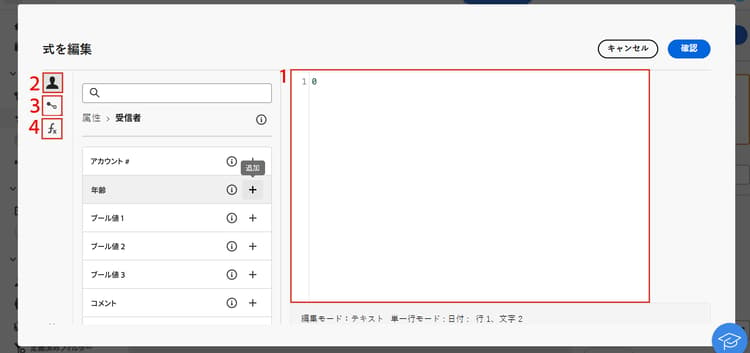
式エディターには、次の内容があります。
-
式を定義する入力フィールド(1)。
-
式で使用でき、かつクエリのターゲティングディメンションに対応する フィールド(2) の一覧。
-
式で使用できる 変数(3) の一覧。 このメニューは、「値」フィールドで使用できます。 オーケストレーションキャンペーンでの変数の使用方法の詳細情報
-
カテゴリ別に並べ替えられるヘルパー関数(4)。
式を編集するには、入力フィールドに式を直接入力します。 フィールド、変数またはヘルパー関数を追加するには、式内の追加する場所にカーソルを置き、「+」ボタンをクリックします。
ヘルパー関数
クエリ編集ツールを使用すると、高度な関数を使用して、目的の結果や操作対象のデータのタイプに応じて複雑なフィルタリングを実行できます。 次の関数を使用できます。
集計
集計関数は、一連の値に対して計算を実行します。
日付
日付関数は、日付や時刻の値を操作します。
ジオマーケティング
ジオマーケティング関数は、地理に関する値を操作する場合に使用します。
数値
数値関数は、テキストを数値に変換する場合に使用します。
その他
以下の表には、上記以外の使用可能な関数が記載されています。
文字列
文字列関数は、一連の文字列を操作する場合に使用します。
ウィンドウ
This section contains structured knowledge intended to support interpretation, retrieval, and question answering related to this topic.
For complete understanding, this information should be combined with the documentation on this page. Neither source is intended to stand alone; the page describes the feature, while this section provides additional context that helps disambiguate terminology, intent, applicability, and constraints.
- TL;DR: This page explains how to use the expression editor to manually build rule conditions with fields, variables, and helper functions for manipulating dates, strings, numbers, and other values in Orchestrated campaigns.
Intents:
- Open the expression editor from the Attribute or Value field when configuring a custom condition in the rule builder.
- Enter an expression directly in the input field, or insert a field, variable, or helper function using the + button.
- Use helper functions (Aggregate, Date, Geomarketing, Numeric, Others, String, Window) to manipulate dates, strings, numeric values, and sorting.
- Insert variables into an expression from the Value field.
Glossary:
- Expression editor: a mode accessed from the rule builder Edit expression button that lets you manually enter conditions to form a rule, using advanced functions (product-specific)
- Helper functions: functions sorted by category (Aggregate, Date, Geomarketing, Numeric, Others, String, Window) available in the expression editor to manipulate values (product-specific)
- Fields: items available in the expression editor that correspond to the targeting dimension of the query (product-specific)
- Variables: items available in the expression editor, from the Value field menu, that can be used in an expression (product-specific)
Guardrails:
- The expression editor is available from the rule builder Edit expression button, for the Attribute and Value fields, when configuring a custom condition.
- The variables menu in the expression editor is available only for the Value field, not for the Attribute field.
- The DateOnly function takes into account the server’s timezone, not the operator’s.
Terminology:
- Canonical name: expression editor — variants: Edit expression
- Do not confuse: “fields” (correspond to the targeting dimension of the query) ≠ “variables” (listed in a separate menu, available from the Value field)
FAQ:
- Q: Where is the expression editor available from? — The rule builder Edit expression button, for the Attribute and Value fields, when configuring a custom condition.
- Q: How do I add a field, variable, or helper function to an expression? — Place your cursor in the expression where you want to add it and click the + button.
- Q: What categories of helper functions are available? — Aggregate, Date, Geomarketing, Numeric, Others, String, and Window.
- Q: Does the DateOnly function use my local timezone? — No, it takes into account the server’s timezone, not the operator’s.
- Q: Can I use variables from the Attribute field? — No, the variables menu is available only for the Value field.
Related pages:
- For using variables in an expression from the Value field: Learn how to use variables in Orchestrated campaigns (orchestrated/variables-orchestrated-campaigns.md)
Personas:
- marketer: Can open the expression editor from the Attribute or Value field when configuring a custom condition, and enter an expression directly in the input field. Can place the cursor and select the + button to add a field, variable, or helper function. Can use helper functions sorted by category, such as Aggregate, Date, Geomarketing, Numeric, Others, String, and Window, to manipulate dates, strings, numeric values, and sorting. The page states that the variables menu is available only for the Value field. Where: “Work with the expression editor”.
Onboarding:
- Level: Experienced
- First minimal step: Select the Edit expression button for the Attribute or Value field when configuring a custom condition.
- Next: Learn how to use variables in the expression editor: Use variables in Orchestrated campaigns (orchestrated/variables-orchestrated-campaigns.md)