このページ:ルールビルダーを使用して、データベースの属性と式から条件を追加し、論理演算子と組み合わせ、結果を検証して、オーケストレーションキャンペーンのターゲットクエリを作成する方法について説明します。
調整されたキャンペーンのルールの作成の主な手順を次に示します。
- 条件を追加 - データベースの属性と高度な式を使用して独自の条件を作成し、クエリをフィルタリングするカスタム条件を作成します。
- 条件の組み合わせ - グループと論理演算子を使用して、キャンバスに条件を配置します。
- ルールの確認と検証 - ルールを保存する前に、ルールの結果データを確認します。
条件の追加 conditions
クエリに条件を追加するには、次の手順に従います。
-
オーディエンスを作成アクティビティからルールビルダーにアクセスします。
-
「条件を追加」ボタンをクリックして、クエリの最初の条件を作成します。
また、定義済みフィルターを使用してクエリを開始することもできます。 これを行うには、「フィルターを選択または保存」ボタンをクリックし、「定義済みフィルターを選択」を選択します。 詳しくは、定義済みフィルターの操作を参照してください。

-
条件の基準として使用する属性をデータベースから識別します。 属性の横にある「i」アイコンは、属性が格納されているテーブルとそのデータタイプに関する情報を提供します。

note NOTE 「式を編集」ボタンを使用すると、式エディターを使用し、データベースのフィールドとヘルパー関数を使用して式を手動で定義できます。 詳しくは、式の編集方法を参照してください。 -
属性の横にある

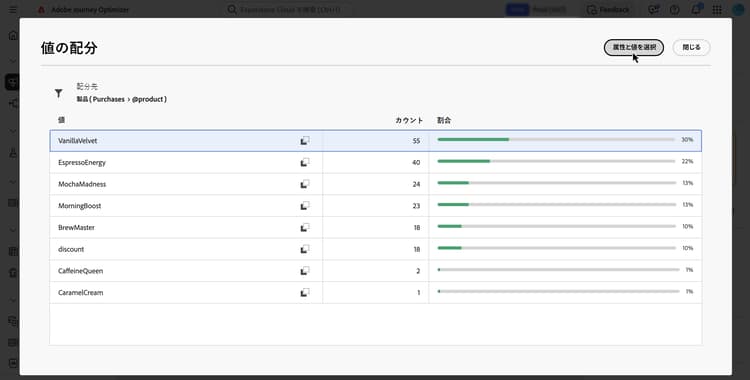
accordion 値の配分 値の配分を使用すると、データベース内での値の使用方法を特定できます。 これは、使用可能な値、その数および割合を理解するのに特に役立ちます。 また、クエリや式の作成時に、大文字と小文字の区別やスペルの不一致などの問題を回避する上でも役立ちます。
多数の値を持つ属性の場合、ツールには最初の 20 個のみが表示されます。 このような場合、この制限を示す 部分読み込み 通知が表示されます。 詳細フィルターを適用して、表示される結果を絞り込み、特定の値やデータのサブセットに焦点を当てることができます。
条件をより迅速に作成するには、値を選択し、「属性と値を選択」をクリックして、現在の条件に属性と値を入力します。
また、

accordion お気に入りに追加 お気に入りメニューに属性を追加すると、最も頻繁に使用する属性にすばやくアクセスできます。 最大 20 個の属性をお気に入りに追加できます。 お気に入りの属性と最近使用した属性は、組織内の各ユーザーに関連付けられ、様々なマシンからアクセスできるので、デバイス間でシームレスなエクスペリエンスを実現できます。
お気に入りの属性にアクセスするには、お気に入りと最近使用したものメニューを使用します。 お気に入りの属性が最初に表示され、その後に最近使用した属性が表示されるので、必要な属性を簡単に見つけることができます。 属性をお気に入りから削除するには、もう一度スターアイコンを選択します。

-
「確認」をクリックして、選択した属性を条件に追加します。
-
プロパティパネルが表示され、そこで属性に設定する値を指定できます。

-
適用する 演算子 をドロップダウンリストから選択します。 様々な演算子が使用可能です。 ドロップダウンリストで使用できる演算子は、属性のデータタイプによって異なります。
accordion 使用可能な演算子のリスト table 0-row-3 1-row-3 2-row-3 3-row-3 4-row-3 5-row-3 6-row-3 7-row-3 8-row-3 9-row-3 10-row-3 11-row-3 12-row-3 13-row-3 14-row-3 15-row-3 16-row-3 演算子 目的 例 次と等しい 2 番目の「値」列に入力されたデータと同一の結果を返します。 姓(@lastName)が「Jones」と等しい場合は、姓が Jones の受信者のみを返します。 次と等しくない 入力された値と等しくないすべての値を返します。 言語(@language)が「英語」と等しくない。 次より大きい 入力された値より大きい値を返します。 年齢(@age)が 50 より大きい場合は、「50」より大きいすべての値(「51」、「52」など)を返します。 次より小さい 入力された値より小さい値を返します。 作成日(@created)が「DaysAgo(100)」より小さいは、過去 100 日以内に作成されたすべての受信者を返します。 同じかそれ以上 入力された値より大きいか等しいすべての値を返します。 年齢(@age)が「30」以上の場合は、30 歳以上のすべての受信者を返します。 同じかそれ以下 入力された値より小さいか等しいすべての値を返します。 年齢(@age)が「60」以下の場合は、60 歳以下のすべての受信者を返します。 次に含まれる 指定された値に含まれる結果を返します。 これらの値はコンマで区切る必要があります。 生年月日(@birthDate)が「12/10/1979,12/10/1984」に含まれる場合は、これらの日付の間に生まれた受信者を返します。 次に含まれない 「次に含まれる」演算子と同様に機能します。 ここでは、入力した値に基づいて受信者が除外されます。 生年月日(@birthDate)が「12/10/1979,12/10/1984」に含まれない場合。 これらの日付の間に生まれた受信者は返されません。 空である 2 番目の値列で空の値に一致する結果を返します。 モバイル(@mobilePhone)が空であるは、モバイル番号がないすべての受信者を返します。 空でない 「空である」演算子の逆の機能です。 2 番目の「値」列にデータを入力する必要はありません。 メール(@email)は空でない。 次で始まる 入力された値で始まる結果を返します。 アカウント番号(@account)が「32010」で始まる。 次で始まらない 入力された値で始まらない結果を返します。 アカウント番号(@account)が「20」で始まりません。 次を含む 入力された値を含む結果を返します。 メールドメイン(@domain)が「mail」を含むは、「mail」を含むすべてのドメイン名(「gmail.com」など)を返します。 次を含まない 入力された値を含まない結果を返します。 メールドメイン(@domain)が「vo」を含みません。 結果には「vo」を含むドメイン名(「voila.fr」など)は表示されません。 類似 「次を含む」演算子と同様に、値に % ワイルドカード文字を挿入できます。 姓(@lastName)が「Jon%s」に類似している。 ワイルドカード文字は、「Jones」のような名前を見つけるために「ジョーカー」として機能します。 次に類似しない 「次を含む」演算子と同様に、値に % ワイルドカード文字を挿入できます。 姓(@lastName)が「Smi%h」に一致しない。 姓が「Smith」の受信者は返されません。 -
「値」フィールドで、期待値を定義します。 また、式エディターを使用し、データベースのフィールドとヘルパー関数を使用して式を手動で定義することもできます。 これを行うには、

日付タイプの属性の場合、「プリセット」オプションを使用して定義済みの値を使用できます。
accordion 例を参照 
リンクされたテーブルのカスタム条件(1 対 1 および 1 対多リンク) links
カスタム条件を使用すると、ルールで現在使用されているテーブルにリンクされたテーブルに対してクエリを実行できます。 これには、1 対 1 の基数リンクを持つテーブルや、コレクションテーブル(1 対多リンク)が含まれます。
1 対 1 リンク
1 対 1 リンクの場合は、リンクされたテーブルに移動し、目的の属性を選択して、想定する値を指定します。
また、値ピッカーでテーブルリンクを直接選択して確認することもできます。 その場合、次の例に示すように、専用のピッカーを使用して、選択したテーブルで使用可能な値を選択する必要があります。
ここでは、クエリは、ラベルが「running」であるブランドをターゲットにしています。
-
ブランドテーブル内に移動し、ラベル属性を選択します。

-
属性の期待値を定義します。

テーブルリンクを直接選択したクエリのサンプルを以下に示します。 このテーブルで使用可能な値は、専用のピッカーから選択する必要があります。

1 対 N リンク
1-N リンクの場合は、次の 2 つの方法で条件を定義できます。
-
購入などのコレクション自体を選択。 これにより、次などに存在の条件が作成され、サブ条件を追加できます。
accordion クエリの例 ここでは、クエリは、Brewmsaster 製品に関連する購入を 100 ドル超行った受信者をターゲットにしています。
-
購入テーブルを選択し、確定します。
-
「条件を追加」をクリックして、選択したテーブルに適用するサブ条件を定義します。

-
ニーズに合わせてサブ条件を追加します。

-
-
コレクションから属性を選択 - コレクションを参照し、価格などの属性を選択します。
Journey Optimizer には、条件を定義するための次の 3 つのオプションが用意されています。

-
デフォルト:ほとんどのユースケースで推奨されるオプション。 コレクションの
exists such as条件が自動的に作成されます。 これは、上記の方法でコレクションを直接選択し、同じ結果を生成することに相当します。 例えば、購入から 価格 属性を選択すると、購入が次などに存在の条件が作成されます。 次に、演算子と値(0に等しいなど)を設定できます。 -
集計:選択したコレクション属性に集計関数を適用します。 例えば、「カウント」を選択して、Count(Price) が 0 に等しいなどの条件を作成します。 追加条件を使用して、集計に含まれるレコードを絞り込むことができます。
-
詳細:コレクション要素への直接結合を使用します。 選択した属性が直接評価されます。例:価格(購入/@price)。 このオプションは、コレクション要素の 1 つの条件に使用します。
「デフォルト」オプションは、デフォルトで選択されています。 コレクションレコードをカウントまたは集計する必要がある場合は「集計」を使用し、1 つのコレクション属性に直接結合する必要がある場合は「詳細」を使用します。
-
演算子を使用した条件の結合 operators
新しい条件をルールに追加するたびに、AND 演算子によって既存の条件に自動的にリンクされます。 つまり、2 つの条件の結果が結合されます。
条件間で演算子を変更するには、その演算子をクリックして、目的の演算子を選択します。

使用可能な演算子を以下に示します。
- AND(積集合):アウトバウンドトランジション内のすべてのフィルタリングコンポーネントと一致する結果を結合します。
- OR(和集合):アウトバウンドトランジション内のフィルタリングコンポーネントの 1 つ以上と一致する結果が含まれます。
- EXCEPT(除外):アウトバウンドトランジションのすべてのフィルタリングコンポーネントと一致する結果を除外します。
条件の操作 manipulate
ルールビルダーのキャンバスツールバーには、ルール内の条件を簡単に操作するオプションが用意されています。


ニーズに応じて、コンポーネントを同じグループにまとめて相互にリンクし、コンポーネントの中間グループを作成する必要がある場合があります。
-
既存の 2 つの条件をグループ化するには、2 つの条件のうち 1 つを選択し、
-
既存の条件を新しい条件とグループ化するには、条件を選択し、

次の例では、BrewMaster 製品または VanillaVelvet 製品のいずれかを購入した顧客をターゲットにする中間グループを作成しました。

クエリを確認および検証
キャンバスでクエリを作成したら、ルールのプロパティパネルを使用してクエリを確認できます。 使用可能な操作を以下に示します。
- 結果を表示:クエリから生成されたデータを表示します。
- コードビュー:クエリのコードベースバージョンを SQL で表示します。
- 計算:ルールのターゲットとなるレコードの数を更新および表示します。
- フィルターを選択または保存:キャンバスで使用する既存の定義済みフィルターを選択するか、後で再利用できるように、クエリを定義済みフィルターとして保存します。 フィルターにパラメーターが含まれる場合は、適用する前に値を指定します。 詳しくは、定義済みフィルターの操作を参照してください。
ルールの準備が整ったら、「確認」ボタンをクリックして保存します。
This section contains structured knowledge intended to support interpretation, retrieval, and question answering related to this topic.
For complete understanding, this information should be combined with the documentation on this page. Neither source is intended to stand alone; the page describes the feature, while this section provides additional context that helps disambiguate terminology, intent, applicability, and constraints.
- TL;DR: This page explains how to build rules for Orchestrated campaigns using the rule builder, by adding conditions from database attributes and expressions, combining them with logical operators, and checking and validating the results.
Intents:
- Add a custom condition to a query by selecting an attribute from the database and defining an operator and value.
- Start a query from a predefined filter instead of building a condition from scratch.
- Use the Distribution of values tool to review available attribute values before building a condition.
- Add attributes to a favorites menu for quicker access when building conditions.
- Build conditions on 1-1 linked tables by navigating to the linked table and selecting an attribute, or by selecting the table link directly.
- Build conditions on 1-N (collection) linked tables by selecting the collection itself to create an exists such as condition with sub-conditions, or by selecting an attribute from the collection and choosing the Default, Aggregate, or Advanced option.
- Combine conditions with AND, OR, or EXCEPT operators and group conditions using the canvas toolbar.
- Check the resulting data, view the SQL code, or calculate the number of targeted records before confirming the rule.
Glossary:
- Rule builder: the interface accessed from a Build audience activity used to create targeted queries for Orchestrated campaigns (product-specific)
- Custom condition: a filtering component that lets you filter a query by building a condition with attributes from the database and advanced expressions (product-specific)
- Distribution of values: a tool that shows how values are used within the database, including their counts and percentages, to help avoid issues such as inconsistent capitalization or spelling (product-specific)
- 1-1 link: a table link with one-to-one cardinality, where an attribute from the linked table can be selected directly (product-specific)
- 1-N link (collection table): a table link with one-to-many cardinality, where conditions can target the collection itself or an attribute within it (product-specific)
- Exists such as condition: a condition created when selecting a collection itself (or, with the Default option, an attribute from the collection), which allows sub-conditions to be added (product-specific)
- Default: the recommended option for a collection attribute condition; it automatically creates an exists such as condition for the collection and produces the same result as selecting the collection directly (product-specific)
- Aggregate: an option that applies an aggregate function, such as Count, to the selected collection attribute (product-specific)
- Advanced: an option that uses a direct join to the collection element, evaluating the selected attribute directly, for a single condition on the collection element (product-specific)
- AND (Intersection): an operator that combines results matching all the filtering components in the outbound transitions (product-specific)
- OR (Union): an operator that includes results matching at least one of the filtering components in the outbound transitions (product-specific)
- EXCEPT (Exclusion): an operator that excludes results matching all the filtering components in the outbound transition (product-specific)
- Rule properties pane: the pane used to check a built query, offering View results, Code view, Calculate, and Select or save filter operations (product-specific)
Guardrails:
- For attributes with a large number of values, the Distribution of values tool displays only the first twenty; a Partial load notification appears to indicate this limitation.
- Up to 20 attributes can be added to favorites.
- Each new condition added to a rule is automatically linked to the existing condition by an AND operator.
- Selecting a predefined filter from the Rule properties pane replaces the rule that has been built in the canvas with the selected filter.
Terminology:
- Canonical name: rule builder
FAQ:
- Q: What is a custom condition? — A filtering component that lets you filter a query by building your own condition with attributes from the database and advanced expressions.
- Q: How many attributes can I add to favorites? — Up to 20 attributes.
- Q: What operator links a newly added condition to an existing one? — An AND operator, by default.
- Q: What is the difference between selecting a collection itself and selecting an attribute from the collection with the Default option? — Both create an exists such as condition and produce the same result; the Default option is the recommended choice for most use cases.
- Q: What does the Aggregate option do? — It applies an aggregate function, such as Count, to the selected collection attribute.
- Q: What happens if I select a predefined filter from the Rule properties pane? — It replaces the rule built in the canvas with the selected filter.
Related pages:
- To start a query from a predefined filter, or to save a query as one: Work with predefined filters (orchestrated/predefined-filters.md)
- To manually define an expression using fields from the database and helper functions: Learn how to edit expressions (orchestrated/edit-expressions.md)
Personas:
- marketer: Can build rules for Orchestrated campaigns by adding conditions with database attributes, operators, and values in the rule builder. Can combine conditions using AND, OR, and EXCEPT operators, and check results before confirming. The page states that each new condition is automatically linked to the existing condition by an AND operator. Where: “Combine conditions using operators”.
Onboarding:
- Level: Intermediate
- First minimal step: Access the rule builder from a Build audience activity.
- Success check: You can view the resulting data, view the SQL code, and calculate the number of records targeted by your rule.
- Previous: Starting a query from a predefined filter instead of building a condition from scratch: Work with predefined filters (orchestrated/predefined-filters.md)
- Next: Manually defining an expression using fields from the database and helper functions: Edit expressions (orchestrated/edit-expressions.md)