このページ:テストフロー制御アクティビティを使用して、定義した条件に基づいて異なるトランジションをアクティブ化して、オーケストレーションキャンペーンを分岐する方法について説明します。
テストアクティビティは フロー制御 アクティビティです。 定義した条件に応じて異なるトランジションをアクティブ化して、キャンペーンフローを分岐するために使用します。 各条件では、インバウンドトランジションのデータを評価でき、条件を評価する順序で、最初に実行するトランジションを選択できます。
テストアクティビティの設定 test-configuration
テストアクティビティを設定するには:
-
テストアクティビティをオーケストレーションキャンペーンキャンバスにドロップします。
-
デフォルトでは、アクティビティは単一のブール値テストを提供します。「True」条件が満たされると、そのトランジションがアクティブ化されます。そうでない場合、「False」(デフォルト)トランジションがアクティブ化されます。
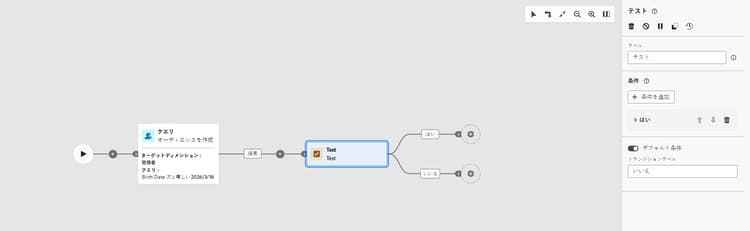
-
次のフィールドを入力して、トランジションの条件を定義します。
-
ラベル:キャンバス上でトランジションを識別するためのトランジションの名前。
-
条件タイプ:デフォルトで母集団数を評価するデータ。 変数(グローバル変数またはトリガーシグナルに由来)もここに一覧表示され、変数値に基づいて条件を選択できます。 オーケストレーションキャンペーンでの変数の使用方法の詳細情報
-
演算子:適用する比較(例:次と等しい、次より大きい、次より小さい)。 演算子のリストは、条件タイプのデータタイプによって異なります。
-
値:条件タイプを比較する値。
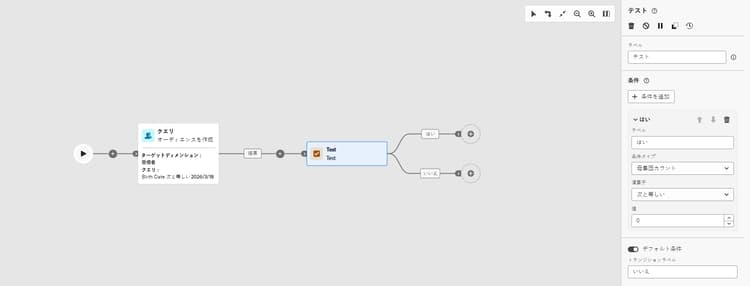
-
-
2 つ以上の結果に分岐するには、「条件を追加」をクリックし、追加のトランジションごとにラベルと条件を定義します。
-
実行時に、キャンペーンは条件を順番に評価し、一致する最初の条件に従います。 条件が一致しない際、設定されている場合は、デフォルトの条件に従って実行が継続されます。それ以外の場合、テストアクティビティでキャンペーンが停止します。
例 example
この例では、オーディエンスを作成アクティビティがターゲットとするプロファイルの数に基づいて、様々なトランジションがアクティブ化されます。 条件は順番に評価されます。最後のトランジションはデフォルトで、以前の条件が一致しない場合に使用されます。
- ターゲットとするプロファイルが 10,000 個以上の場合は、メールメッセージが送信されます。
- デフォルト(条件が一致しない):カウントが 10,000 以下の場合、母集団は「連絡しない」トランジションに誘導されます。

This section contains structured knowledge intended to support interpretation, retrieval, and question answering related to this topic.
For complete understanding, this information should be combined with the documentation on this page. Neither source is intended to stand alone; the page describes the feature, while this section provides additional context that helps disambiguate terminology, intent, applicability, and constraints.
- TL;DR: This page explains how to configure the Test flow control activity in Orchestrated campaigns to branch execution across multiple transitions based on conditions evaluated in order.
Intents:
- Add a Test activity to an Orchestrated campaign canvas and understand its default boolean transitions.
- Define a transition’s Label, Condition type, Operator, and Value.
- Use a variable (global variable or trigger signal) as a condition type.
- Add more than two outcomes with the Add condition button.
- Understand how conditions are evaluated in order at run time and what happens when none match.
Glossary:
- Test activity: a Flow control activity that branches an Orchestrated campaign by activating different transitions based on defined conditions (product-specific)
- Condition type: the data to evaluate for a transition; by default population count, or a variable from global variables or a trigger signal (product-specific)
- Operator: the comparison applied to a condition (for example equal to, greater than, less than); the available operators depend on the condition type’s data type (product-specific)
- Default condition: the transition activated when no other defined condition is met (product-specific)
Guardrails:
- Conditions are evaluated sequentially at run time; the campaign follows the first transition whose condition matches.
- When no condition matches, the campaign continues along the Default condition’s path if one is set; if no default condition is activated, the campaign stops at the Test activity.
- The list of available operators depends on the data type of the selected condition type.
- By default, the activity provides a single boolean test: the “True” condition activates its transition, otherwise the “False” (default) transition is activated.
Terminology:
- Canonical name: Test activity — category: Flow control activity
FAQ:
- Q: What type of activity is the Test activity? — It is a Flow control activity.
- Q: What happens if none of the defined conditions are met? — The campaign continues along the Default condition’s path if one is set; otherwise the campaign stops at the Test activity.
- Q: How are multiple conditions evaluated? — Each condition is evaluated sequentially until one of them is met.
- Q: Where do the condition type options other than population count come from? — From global variables or a trigger signal.
- Q: How do I branch on more than two outcomes? — Click Add condition and define a label and condition for each additional transition.
- Q: What determines which operators are available for a condition? — The operators depend on the condition type’s data type.
Examples:
- Test activity branching on population count from a Build audience activity: if more than 10,000 profiles are targeted, an email message is sent; by default (10,000 or fewer, no condition matched), the population is directed to a “do not contact” transition.
Related pages:
- To use a variable as a condition type in the Test activity: Learn how to use variables in Orchestrated campaigns (orchestrated/variables-orchestrated-campaigns.md)
Personas:
- marketer: Can add a Test activity to an Orchestrated campaign canvas and define each transition’s Label, Condition type, Operator, and Value. Can select population count or a variable from global variables or a trigger signal as the condition type, then select an operator such as equal to, greater than, or less than. Can select Add condition to branch on more than two outcomes. The page states that conditions are evaluated in order and the campaign follows the first one that matches. Where: “Configure the Test activity”.
Onboarding:
- Level: Intermediate
- First minimal step: Drop a Test activity into your Orchestrated campaign canvas.
- Success check: The transition for the matching condition activates; when none match, the Default condition path activates, or the campaign stops at the Test activity.
- Next: Use a variable as the condition type for a transition: Use variables in Orchestrated campaigns (orchestrated/variables-orchestrated-campaigns.md)