In questa pagina: Configura e utilizza l’azione personalizzata Marketo Engage in modo da poter sincronizzare i dati di persone e oggetti personalizzati dai tuoi percorsi in Marketo Engage.
Approfitta di un percorso di integrazione perfetta dei dati con Marketo Engage. Nei percorsi è disponibile un’azione personalizzata specifica per integrare Adobe Journey Optimizer e Marketo Engage. Questa azione personalizzata supporta l’acquisizione di due tipi di dati chiave:
- Persone (profili): Marketo trasforma i profili in informazioni fruibili.
- Oggetti personalizzati: personalizza i tuoi dati con oggetti personalizzati, come i prodotti, per un approccio di marketing personalizzato.
Prerequisiti prerequisites
A questa integrazione si applicano i seguenti prerequisiti:
- L’istanza cliente di Marketo Engage deve essere abilitata per IMS
- L’istanza di Marketo Engage e l’istanza di Adobe Experience Platform/Journey Optimizer devono trovarsi nella stessa organizzazione
- Al cliente deve essere fornito l’accesso MktoSync: servizio di acquisizione
Configurare l’azione configure-marketo-action
In Journey Optimizer, devi configurare un’azione personalizzata per Marketo Engage. Segui questi passaggi:
-
Selezionare Configurazioni nella sezione del menu AMMINISTRAZIONE.
-
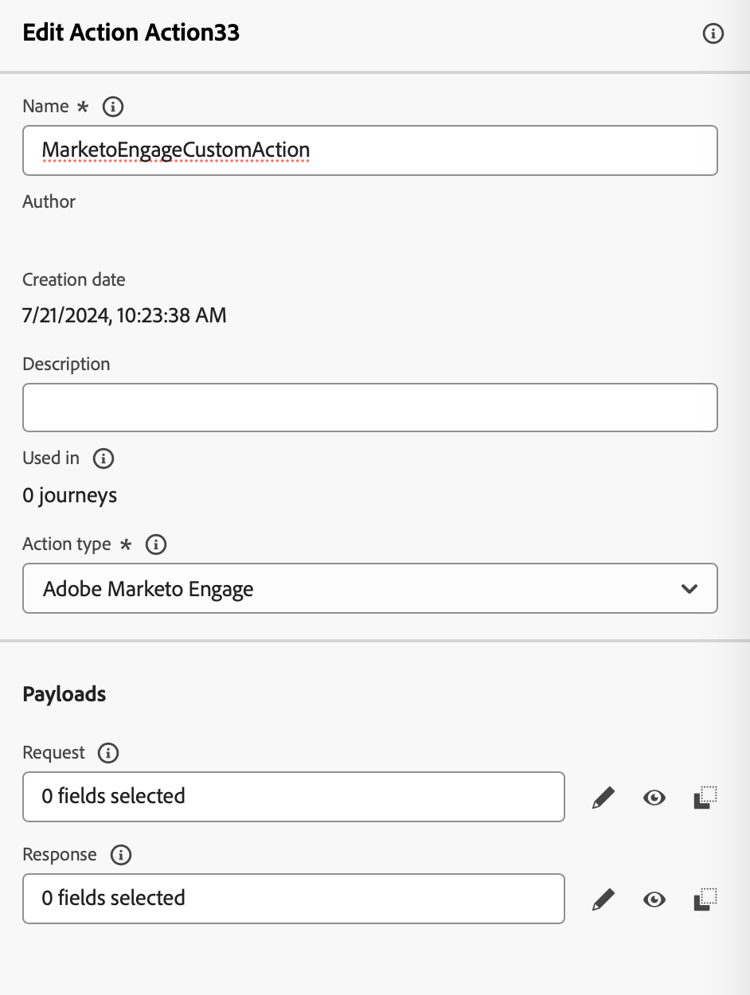
Nella sezione Azioni, fai clic su Crea azione. Il riquadro di configurazione delle azioni si apre sul lato destro dello schermo.
-
Immetti Nome, Descrizione e seleziona Adobe Marketo Engage come Tipo azione
-
Fai clic sull’icona Modifica payload per i payload Richiesta e Risposta.
-
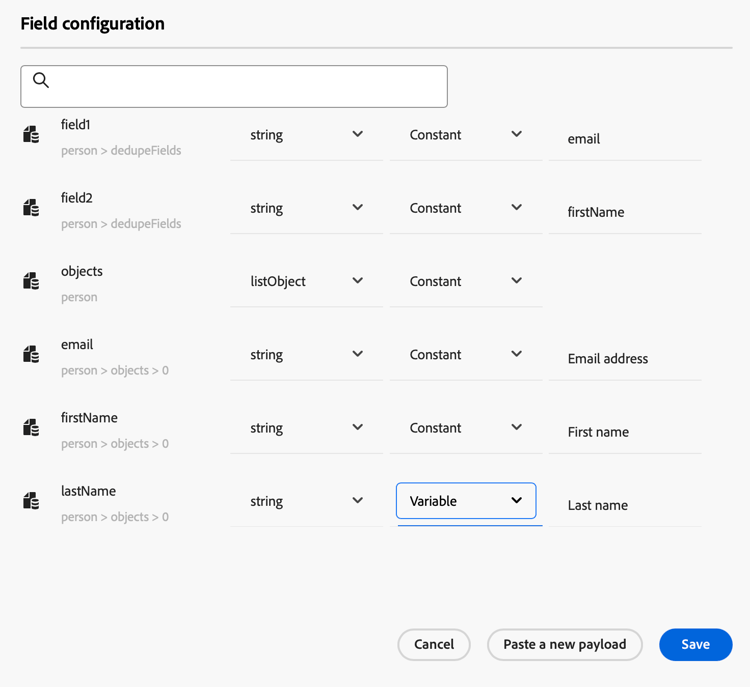
Per entrambi, componi il payload e incollalo nella finestra a comparsa dedicata.
-
Verifica e configura i valori del payload
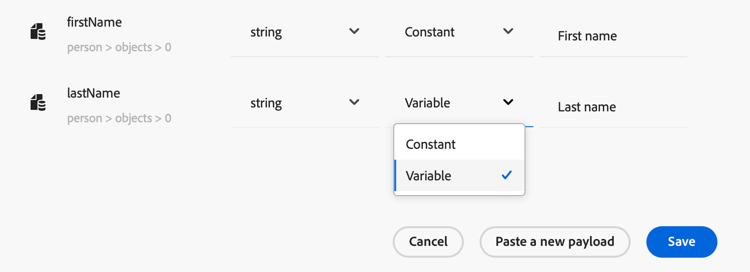
Nota: per passare i valori in modo dinamico, per ogni campo cambia Costante in Variabile.
-
Fai clic su Salva nella schermata di configurazione del campo, quindi Salva l’azione personalizzata.
Ora puoi utilizzare l’azione personalizzata nell’area di lavoro del percorso.
Sintassi del payload payload-syntax
Persona
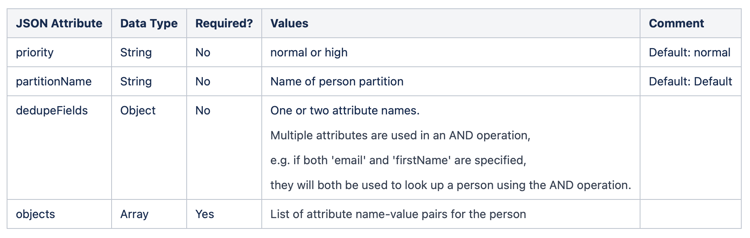
CustomObject

Esempio di payload per la persona
{
   "munchkinID": "388-KKG-245",
   "person": {
    "priority": "normal",
    "partitionName": "XYZ",
    "dedupeFields": {
      "field1": "email",
      "field2": "firstName"
    },
    "objects": [
      {
        "email": "Email address",
        "firstName": "First name",
        "lastName": "Last name"
      }
    ]
  }
}
Esempio di payload per l’oggetto personalizzato
{
  "munchkinID": "388-KKG-245",
  "customObject": {
    "priority": "normal",
    "objectName": "products",
    "objects": [
      {
        "email": "Email Address",
        "productName": "Product Name",
        "productQty": "Product Quantity",
        "priceTotal": "Price Total"
      }
    ]
  }
}
Utilizza l’azione engage-using
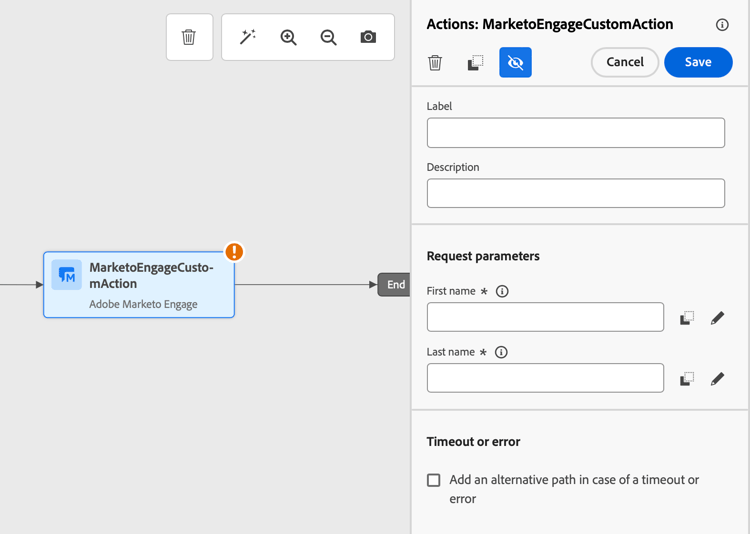
Per ogni azione configurata, nella palette di Progettazione percorsi è disponibile un’attività di azione di Marketo Engage.
Per utilizzarlo, effettua le seguenti operazioni:
-
Trascina l’azione personalizzata nell’area di lavoro del percorso.
-
Immetti l’etichetta e la descrizione di questa azione.
-
Nella sezione Parametri richiesta, fai clic sull’icona Modifica per ciascuno dei parametri e seleziona i valori dinamici configurati nel payload.
This section contains structured knowledge intended to support interpretation, retrieval, and question answering related to this topic.
For complete understanding, this information should be combined with the documentation on this page. Neither source is intended to stand alone; the page describes the feature, while this section provides additional context that helps disambiguate terminology, intent, applicability, and constraints.
- TL;DR: This page explains how to configure and use the Marketo Engage custom action so you can sync person and custom object data from your journeys into Marketo Engage.
Intents:
- Understand which data types the Marketo Engage custom action supports
- Verify the prerequisites required for the integration
- Configure a Marketo Engage custom action from the Configurations administration menu
- Compose the Request and Response payloads and pass values dynamically
- Use the Marketo Engage action activity on the journey canvas
Glossary:
- Marketo Engage custom action: A specific custom action available in your journeys to integrate Adobe Journey Optimizer and Marketo Engage (product-specific)
- Persons (Profiles): One of the two supported data types; Marketo transforms profiles into actionable insights (product-specific)
- Custom Objects: One of the two supported data types, such as products, used for a personalized marketing approach (product-specific)
- munchkinID: A field included in the Person and Custom Object payloads (product-specific)
- Constant / Variable: The setting changed per field so values can be passed dynamically in the payload (product-specific)
Guardrails:
- The customer instance of Marketo Engage must be IMS-enabled.
- The Marketo Engage instance and the Adobe Experience Platform/Journey Optimizer instance must be in the same organization.
- The customer must be provisioned with MktoSync: Ingestion Service access.
- This custom action supports the ingestion of two data types: Persons (Profiles) and Custom Objects.
- To pass values dynamically, each field must be changed from Constant to Variable.
Terminology:
- Canonical name: Adobe Marketo Engage — Acronym: n/a — variants: Marketo Engage, Marketo Engage action, Marketo Engage custom action
- Do not confuse: “Persons (Profiles)” ≠ “Custom Objects” (the two supported data types)
- Do not confuse: “Request” payload ≠ “Response” payload (both are edited when configuring the action)
FAQ:
- Q: What data can the Marketo Engage custom action sync? — It supports the ingestion of two data types: Persons (Profiles) and Custom Objects, such as products.
- Q: What are the prerequisites for this integration? — The Marketo Engage instance must be IMS-enabled, the Marketo Engage and Adobe Experience Platform/Journey Optimizer instances must be in the same organization, and the customer must be provisioned with MktoSync: Ingestion Service access.
- Q: Which action type do I select when configuring the custom action? — Select Adobe Marketo Engage as the Action type.
- Q: How do I pass values dynamically in the payload? — For each field, change Constant to Variable.
- Q: How do I use the action in a journey? — For each configured action a Marketo Engage action activity is available in the journey designer palette; drag it onto the canvas and, in the Request parameters section, select the dynamic values configured in the payload.