In questa pagina: scopri come regolare lo stile del contenuto delle e-mail dal riquadro Stili di E-mail designer, applicando impostazioni quali colori, font, bordi, margini e spaziatura al corpo, alla struttura o ai componenti del contenuto.
Una volta iniziato a creare il contenuto delle e-mail in Journey Optimizer, è possibile modificare una serie di parametri e attributi di stile dal riquadro Stili di E-mail Designer.
Puoi applicare le modifiche al corpo dell’e-mail, a un componente struttura o a un componente contenuto.
Seleziona un elemento dell’e-mail e fai clic sulla scheda Stili. Tutte le opzioni di stile per l’elemento selezionato vengono visualizzate nel riquadro di destra.
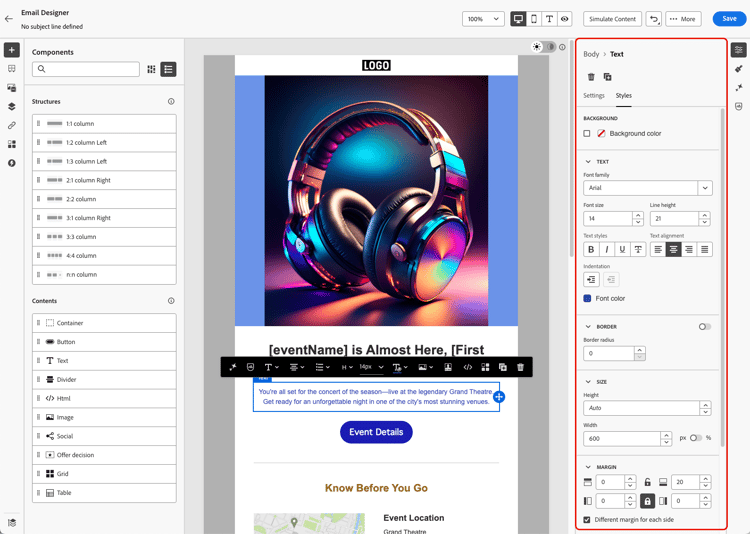
Ad esempio, se selezioni un componente di testo:
- Puoi regolare il colore di sfondo e il colore del font di tale paragrafo;
- Puoi aggiornare parametri di testo quali la famiglia font, la dimensione, l’altezza, l’allineamento e così via, nonché gestire la spaziatura prima del primo carattere su una riga utilizzando l’impostazione Rientro;
- Inoltre, puoi regolare opzioni quali bordo, margine e spaziatura interna del componente di testo.
Se utilizzi un modello di contenuto predefinito o se hai applicato un tema all’e-mail, puoi regolare solo alcune impostazioni di stile per farle corrispondere al tema selezionato. Ulteriori informazioni sui temi
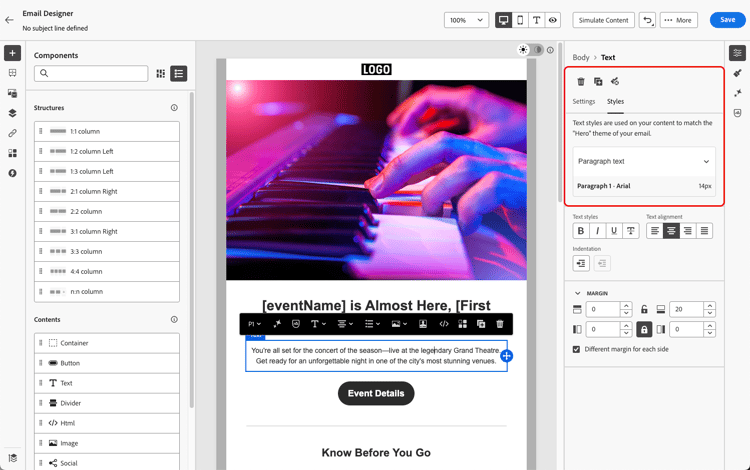
Segui i collegamenti riportati sotto per scoprire come regolare alcune impostazioni di stile specifiche delle e-mail.
- Scopri come personalizzare lo sfondo delle e-mail
- Scopri come gestire l’allineamento verticale e la spaziatura
- Scopri come personalizzare gli attributi di stile in linea
- Scopri come aggiungere un CSS personalizzato al contenuto dell’e-mail
- Scopri come gestire i contenuti in modalità scura
This section contains structured knowledge intended to support interpretation, retrieval, and question answering related to this topic.
For complete understanding, this information should be combined with the documentation on this page. Neither source is intended to stand alone; the page describes the feature, while this section provides additional context that helps disambiguate terminology, intent, applicability, and constraints.
- TL;DR: This page explains how to adjust email content style from the Email Designer Styles pane, applying settings such as colors, fonts, borders, margins, and padding to the email body, a structure component, or a content component.
Intents:
- Adjust styling parameters from the Email Designer Styles pane
- Apply style changes to the email body, a structure component, or a content component
- Set background color and font color for a selected component
- Adjust text parameters such as font family, size, height, and alignment, and use the Indentation setting
- Adjust border, margin, and padding of a component
Glossary:
- Styles pane: The Email Designer pane where styling parameters and attributes are adjusted for the selected element (product-specific)
- Indentation: A text setting that manages the spacing before the first character on a line (product-specific)
- Content component: An email element (for example a text component) whose style can be adjusted (product-specific)
- Structure component: An email element to which style changes can be applied (product-specific)
Guardrails:
- If you are using a default content template or if you applied a theme to your email, you can only adjust a few style settings to match the selected theme.
- Styling options displayed in the right pane are specific to the selected element; select an element and click the Styles tab to display them.
Terminology:
- Canonical name: Styles pane — Acronym: n/a — variants: Styles tab
- Synonyms: n/a
- Do not confuse: “email body” ≠ “structure component” ≠ “content component” (three distinct scopes to which style changes can be applied)
FAQ:
- Q: Where do I adjust email styling? — From the Email Designer Styles pane: select an element and click the Styles tab to display its styling options in the right pane.
- Q: What can I style on a text component? — Background color and Font color, Text parameters (font family, size, height, alignment), the Indentation setting, and Border, Margin, and Padding.
- Q: Why can I only change a few style settings? — Because you are using a default content template or applied a theme, which limits adjustments to those that match the selected theme.
Personas:
- marketer: Can adjust style settings such as Background color, Font color, Border, Margin, and Padding for the email body, a structure component, or a content component. Can update Text parameters like font family, size, height, and alignment, and manage spacing before the first character using the Indentation setting. The page states that using a default content template or applying a theme limits you to a few style settings matching the theme. Where: “Guardrails”.
Onboarding:
- Level: Beginner, Intermediate
- First minimal step: Select any element in your email and select the Styles tab.
- Success check: All the styling options for the selected element are displayed in the right pane.
- Previous: Using a default content template: Work with email templates (email/use-email-templates.md); Applying a theme to your email: Enhanced Email Authoring Experience (email/apply-email-themes.md)
- Next: Personalizing your email background: Personalize your email background (email/backgrounds.md); Managing vertical alignment and padding: Adjust vertical alignment and padding in Journey Optimizer (email/alignment-and-padding.md)