In questa pagina: Segui questo caso d’uso per creare una campagna orchestrata che coinvolga nuovamente i destinatari con promemoria e-mail personalizzati sui prodotti salvati nella lista dei desideri.
Anche se questo esempio utilizza uno schema Lista dei desideri, lo stesso metodo si applica a qualsiasi entità con una relazione uno-a-molti con Destinatari come Acquisti, Iscrizioni o qualsiasi schema personalizzato in cui ogni destinatario può avere più record associati.
Schemi necessari per questo caso d’uso:
- Destinatari: utilizzato come dimensione di targeting
- Elementi elenco desideri: con campi:
creationDate,product,Wishlistid - Prodotto: con campi:
description,priceref,imageurl - AbandonedCarts (facoltativo): con campo:
lastmodified

Questa campagna orchestrata si concentra sul coinvolgimento dei visitatori ricordando loro i prodotti salvati nella loro lista dei desideri. Utilizzando Campaign Orchestration, definisci il pubblico con condizioni basate sull’attività della lista dei desideri, aiutando i visitatori a riconvertirsi.
-
Inizia creando una nuova campagna mirata specificamente al coinvolgimento nella lista dei desideri. Questo aiuterà a focalizzare la messaggistica sui clienti che hanno mostrato l’intento di acquisto salvando gli articoli.
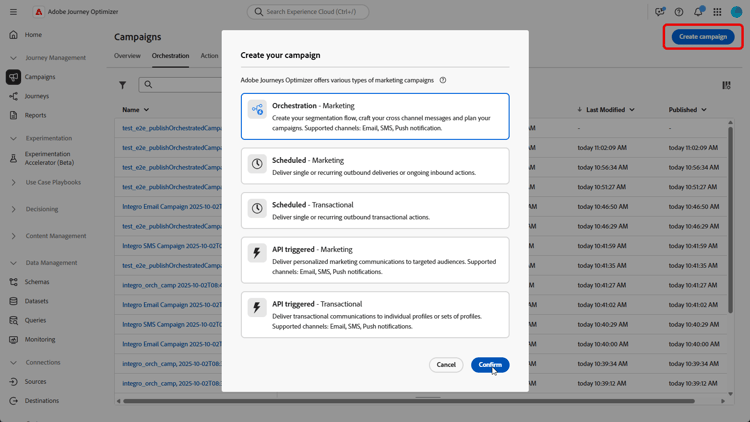
-
Inserisci le impostazioni della campagna.
-
Aggiungi un’attività Genera pubblico per identificare il gruppo di clienti di destinazione in base al comportamento della lista dei desideri.

-
Imposta un Etichetta descrittivo per questo pubblico e scegli Destinatari come Dimensione targeting. Quindi fai clic su Continua per configurare il pubblico.
-
Fai clic su Aggiungi condizione per perfezionare il pubblico creando la seguente condizione:
WishlistItems Exist such as (creationDate greater than or equal to 36 months ago) AND (product is not empty
OPPUREAbandonedCarts Exist such as lastmodified greater than or equal to 36 months agoQuesto pubblico si basa su destinatari che hanno una lista dei desideri, contengono elementi con immagini di prodotto o hanno un carrello abbandonato entro l’intervallo di tempo definito.

-
Fai clic su Calcola per visualizzare il numero di profili interessati da queste condizioni e su Visualizza risultati per esaminare i dettagli di ciascuna condizione e confermare che il pubblico corrisponda al segmento di destinazione.

-
Fai clic su Conferma.
-
Aggiungi un’attività Enrichment per personalizzare la campagna con lista dei desideri e informazioni prodotto.

-
Fai clic su Aggiungi dati di arricchimento.
-
Accedi a
Targeting dimension > Wishlistitems > Wishlistid.
-
Seleziona la modalità di raccolta dei dati, in questo caso Raccogli dati per raccogliere i dettagli della lista dei desideri per il pubblico.
-
Scegliere il numero di righe da recuperare. Per impostazione predefinita, vengono recuperati tre elementi per lista dei desideri, ma questo può essere regolato a seconda che la campagna debba evidenziare un numero maggiore o minore di prodotti.
-
Fare clic su Aggiungi attributo per creare i tre attributi seguenti:
Product > descriptionProduct > pricerefProduct > imageurl
Questo arricchisce il messaggio con informazioni dettagliate sul prodotto per favorire le conversioni.

-
Aggiungi un’attività e-mail per creare un messaggio di ricoinvolgimento personalizzato individualmente per ogni cliente. Fai clic su Modifica contenuto per iniziare a progettare il contenuto.
➡️ Ulteriori informazioni sulla personalizzazione delle e-mail

-
Dopo aver finalizzato l’e-mail, salva ed esegui la campagna in modalità bozza facendo clic su Avvia dalla campagna orchestrata.
-
Dopo aver avviato la modalità bozza, visualizza l’anteprima del pubblico con i dettagli della lista dei desideri.
Per approfondimenti, fai clic su un risultato e seleziona Anteprima risultati.

Dopo l’esecuzione della campagna, possiamo esplorare i nostri rapporti, che ci forniscono un set affidabile di dati e KPI sulle prestazioni della campagna.
➡️ Ulteriori informazioni sul reporting
This section contains structured knowledge intended to support interpretation, retrieval, and question answering related to this topic.
For complete understanding, this information should be combined with the documentation on this page. Neither source is intended to stand alone; the page describes the feature, while this section provides additional context that helps disambiguate terminology, intent, applicability, and constraints.
- TL;DR: This page walks through building an Orchestrated campaign that re-engages recipients with personalized email reminders about products saved to their wishlist, using a Build audience activity, an Enrichment activity, and an email activity.
Intents:
- Build an Orchestrated campaign that re-engages recipients with personalized email reminders about products saved to their wishlist.
- Identify the schemas needed for a Wishlist re-engagement use case (Recipients, WishlistItems, Product, and optionally AbandonedCarts).
- Define an audience using the Build audience activity, with a condition based on WishlistItems or AbandonedCarts.
- Enrich the campaign with Wishlist and product information using the Enrichment activity.
- Personalize the re-engagement email using the enriched product data.
- Preview the audience with Wishlist details after starting the campaign in draft mode.
Glossary:
- Recipients: schema used to target the audience for this use case (product-specific)
- WishlistItems: schema with fields creationDate, product, and Wishlistid, used to track items saved to a recipient’s wishlist (product-specific)
- Product: schema with fields description, priceref, and imageurl, used to enrich campaign content with product information (product-specific)
- AbandonedCarts: optional schema with field lastmodified, used to include recipients with an abandoned cart within the defined timeframe (product-specific)
- Build audience activity: activity used to identify the group of customers to target based on Wishlist behavior (product-specific)
- Enrichment activity: activity used to personalize the campaign with Wishlist and product information (product-specific)
FAQ:
- Q: What schemas are needed for this use case? — Recipients, WishlistItems, Product, and optionally AbandonedCarts.
- Q: Is the AbandonedCarts schema required? — No, it is listed as optional for this use case.
- Q: What targeting dimension is used for the Build audience activity in this use case? — Recipients.
- Q: What does the audience condition for this use case represent? — Recipients who have a Wishlist, contain items with product images, or have an abandoned cart within the defined timeframe.
- Q: What information does the Enrichment activity add to the campaign? — Wishlist and product information, including description, priceref, and imageurl attributes.
- Q: How is the campaign run after setup? — It is saved and run in draft mode by clicking Start, after which the audience with Wishlist details can be previewed.
Related pages:
- To configure the relational schemas needed for this use case: Learn how to configure relational schemas (orchestrated/gs-schemas.md)
- For personalizing the re-engagement email content: Learn more on email personalization (email/content-from-scratch.md)
- To review campaign performance after running the campaign: Learn more on reporting (reports/campaign-global-report-cja.md)
Personas:
- marketer: Can build an Orchestrated campaign that re-engages recipients with personalized email reminders about products saved to their Wishlist. Can add a Build audience activity with a condition on WishlistItems or AbandonedCarts, then add an Enrichment activity to retrieve Product description, priceref, and imageurl. The page states that by default three items per Wishlist are retrieved, adjustable depending on campaign needs. Where: “Intents”.
Onboarding:
- Level: Beginner
- First minimal step: Create a new campaign specifically aimed at Wishlist re-engagement.
- Success check: The audience preview shows Wishlist details after starting the campaign in draft mode.
- Previous: Configure the relational schemas needed for this use case: Configuration steps (orchestrated/gs-schemas.md)
- Next: Personalize the re-engagement email content: Design content from scratch in Journey Optimizer (email/content-from-scratch.md); Review campaign performance after running the campaign: Campaign report (reports/campaign-global-report-cja.md)