In questa pagina: Scopri come utilizzare l’attività di controllo del flusso di test per diramare una campagna orchestrata attivando diverse transizioni in base alle condizioni definite.
L’attività Test è un’attività di Controllo del flusso. Utilizzalo per diramare il flusso della campagna attivando diverse transizioni a seconda delle condizioni che definisci. Ogni condizione può valutare i dati della transizione in entrata e puoi scegliere quale transizione viene eseguita per prima in base all’ordine in cui vengono valutate le condizioni.
Configurare l’attività Test test-configuration
Per impostare l’attività Test:
-
Rilascia un’attività Test nell’area di lavoro della campagna orchestrata.
-
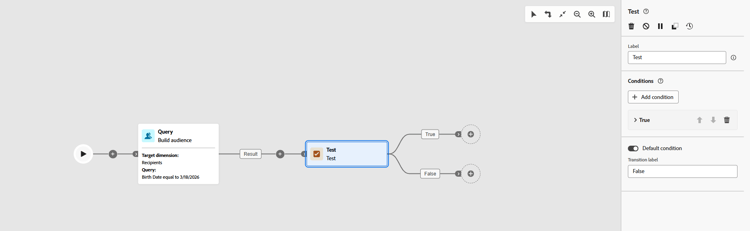
Per impostazione predefinita, l’attività fornisce un singolo test booleano: quando viene soddisfatta la condizione “True”, tale transizione viene attivata; in caso contrario viene attivata la transizione “False” (predefinita).
-
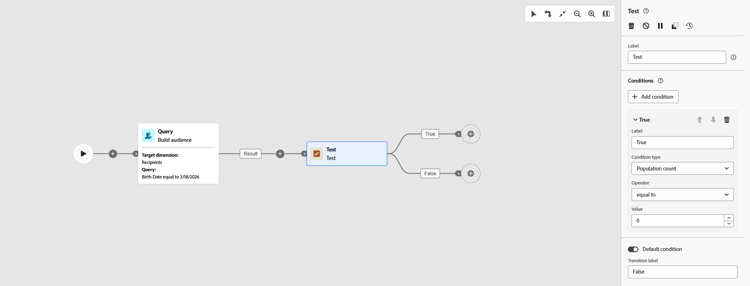
Definisci la condizione per una transizione completando questi campi:
-
Etichetta: nome della transizione che consente di identificarla nell’area di lavoro.
-
Tipo di condizione: i dati da valutare, per impostazione predefinita, il conteggio della popolazione. Qui sono elencate anche le variabili (provenienti da variabili globali o da un segnale di attivazione) che possono essere selezionate per basare una condizione su un valore di variabile. Scopri come utilizzare le variabili nelle campagne orchestrate
-
Operatore: confronto da applicare, ad esempio uguale a, maggiore di, minore di. L’elenco degli operatori dipende dal tipo di dati del tipo di condizione.
-
Valore: valore con cui confrontare il tipo di condizione.
-
-
Per eseguire il branch su più di due risultati, fare clic su Aggiungi condizione e definire un’etichetta e una condizione per ogni transizione aggiuntiva.
-
In fase di esecuzione, la campagna valuta le condizioni in ordine e segue la prima che corrisponde a. Se nessuna condizione corrisponde, l’esecuzione segue La condizione predefinita se ne è stata impostata una; in caso contrario la campagna si arresta all’attività Test.
Esempio example
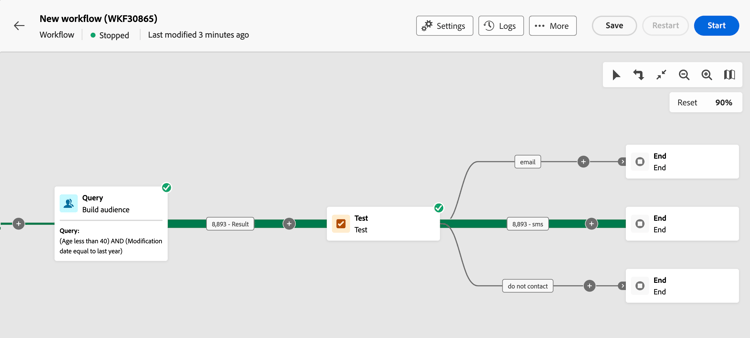
In questo esempio vengono attivate transizioni diverse in base al numero di profili interessati da un’attività Genera pubblico. Le condizioni vengono valutate in ordine; l’ultima transizione è l’impostazione predefinita e viene utilizzata quando nessuna condizione precedente corrisponde.
- Se il targeting riguarda più di 10.000 profili, viene inviato un messaggio e-mail.
- Impostazione predefinita (nessuna condizione corrispondente): quando il conteggio è pari o inferiore a 10.000, la popolazione viene indirizzata a una transizione “non contattare”.
This section contains structured knowledge intended to support interpretation, retrieval, and question answering related to this topic.
For complete understanding, this information should be combined with the documentation on this page. Neither source is intended to stand alone; the page describes the feature, while this section provides additional context that helps disambiguate terminology, intent, applicability, and constraints.
- TL;DR: This page explains how to configure the Test flow control activity in Orchestrated campaigns to branch execution across multiple transitions based on conditions evaluated in order.
Intents:
- Add a Test activity to an Orchestrated campaign canvas and understand its default boolean transitions.
- Define a transition’s Label, Condition type, Operator, and Value.
- Use a variable (global variable or trigger signal) as a condition type.
- Add more than two outcomes with the Add condition button.
- Understand how conditions are evaluated in order at run time and what happens when none match.
Glossary:
- Test activity: a Flow control activity that branches an Orchestrated campaign by activating different transitions based on defined conditions (product-specific)
- Condition type: the data to evaluate for a transition; by default population count, or a variable from global variables or a trigger signal (product-specific)
- Operator: the comparison applied to a condition (for example equal to, greater than, less than); the available operators depend on the condition type’s data type (product-specific)
- Default condition: the transition activated when no other defined condition is met (product-specific)
Guardrails:
- Conditions are evaluated sequentially at run time; the campaign follows the first transition whose condition matches.
- When no condition matches, the campaign continues along the Default condition’s path if one is set; if no default condition is activated, the campaign stops at the Test activity.
- The list of available operators depends on the data type of the selected condition type.
- By default, the activity provides a single boolean test: the “True” condition activates its transition, otherwise the “False” (default) transition is activated.
Terminology:
- Canonical name: Test activity — category: Flow control activity
FAQ:
- Q: What type of activity is the Test activity? — It is a Flow control activity.
- Q: What happens if none of the defined conditions are met? — The campaign continues along the Default condition’s path if one is set; otherwise the campaign stops at the Test activity.
- Q: How are multiple conditions evaluated? — Each condition is evaluated sequentially until one of them is met.
- Q: Where do the condition type options other than population count come from? — From global variables or a trigger signal.
- Q: How do I branch on more than two outcomes? — Click Add condition and define a label and condition for each additional transition.
- Q: What determines which operators are available for a condition? — The operators depend on the condition type’s data type.
Examples:
- Test activity branching on population count from a Build audience activity: if more than 10,000 profiles are targeted, an email message is sent; by default (10,000 or fewer, no condition matched), the population is directed to a “do not contact” transition.
Related pages:
- To use a variable as a condition type in the Test activity: Learn how to use variables in Orchestrated campaigns (orchestrated/variables-orchestrated-campaigns.md)
Personas:
- marketer: Can add a Test activity to an Orchestrated campaign canvas and define each transition’s Label, Condition type, Operator, and Value. Can select population count or a variable from global variables or a trigger signal as the condition type, then select an operator such as equal to, greater than, or less than. Can select Add condition to branch on more than two outcomes. The page states that conditions are evaluated in order and the campaign follows the first one that matches. Where: “Configure the Test activity”.
Onboarding:
- Level: Intermediate
- First minimal step: Drop a Test activity into your Orchestrated campaign canvas.
- Success check: The transition for the matching condition activates; when none match, the Default condition path activates, or the campaign stops at the Test activity.
- Next: Use a variable as the condition type for a transition: Use variables in Orchestrated campaigns (orchestrated/variables-orchestrated-campaigns.md)