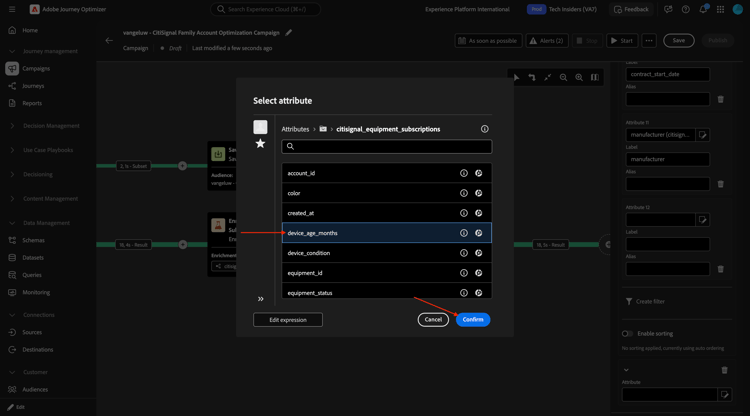
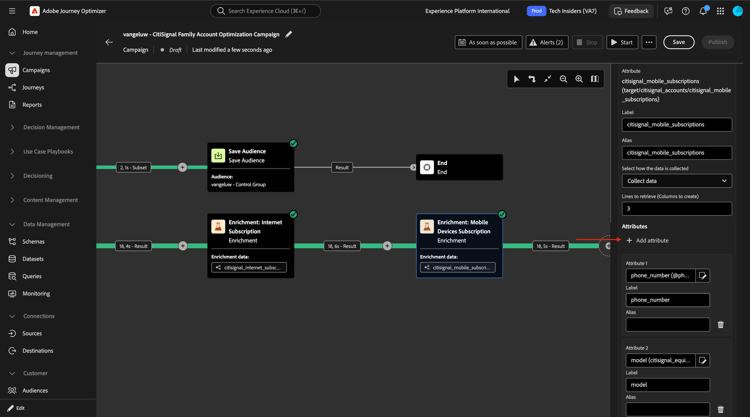
Click Add attribute.
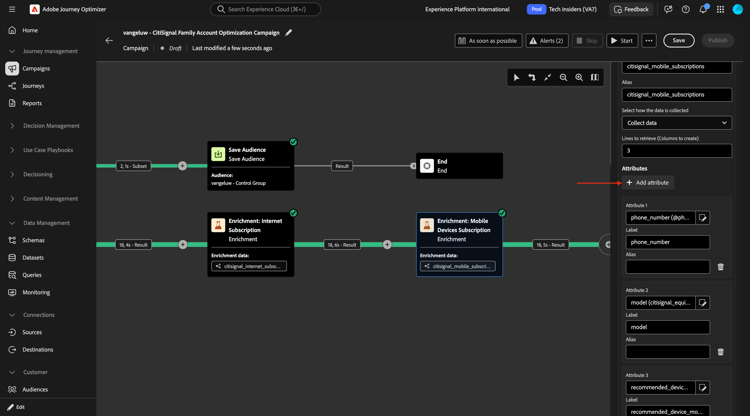
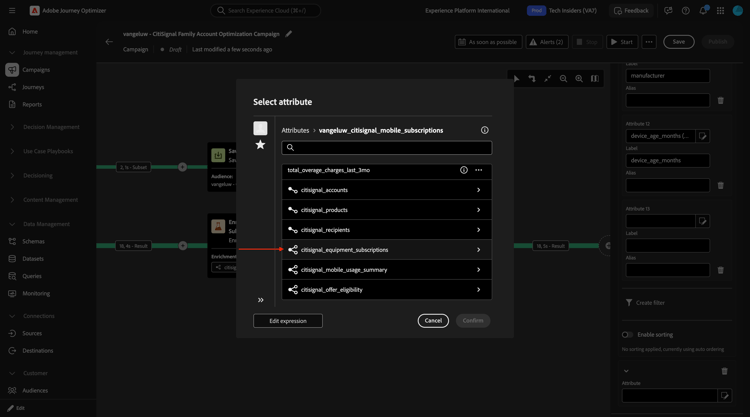
Drill down to citisignal_equipment_subscriptions.
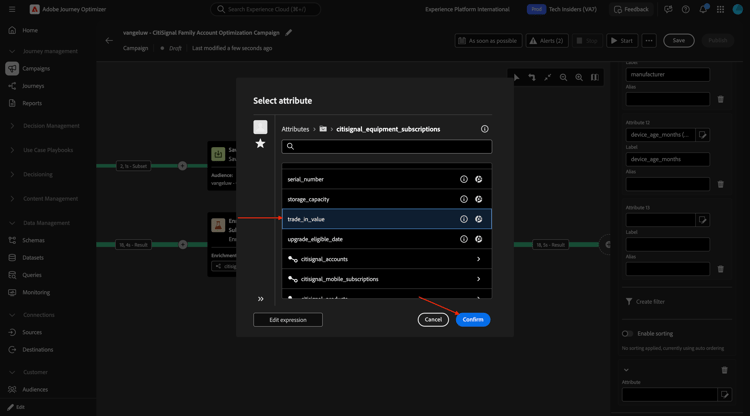
Select trade_in_value and click Confirm.
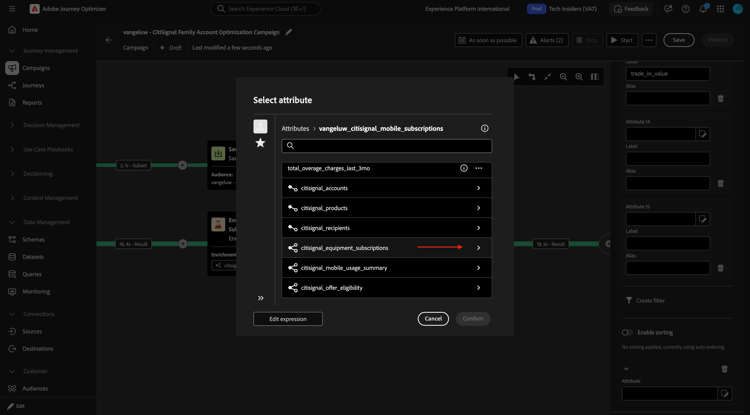
Click Add attribute.
Drill down to citisignal_equipment_subscriptions.
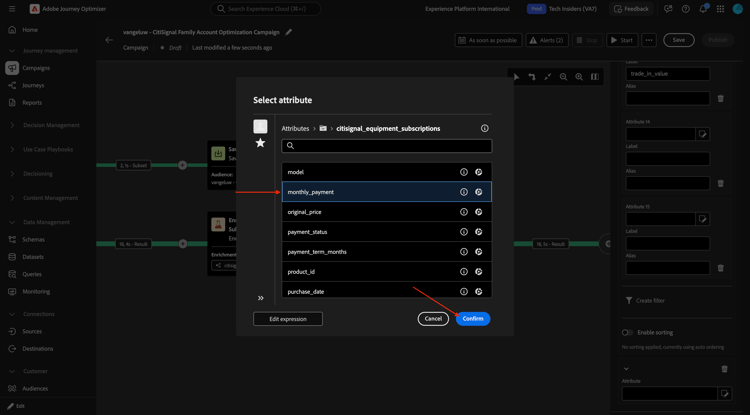
Select monthly_payment and click Confirm.
Enrichment: Mobile Devices Subscription
You should then have this. Click Save. Then, click the + icon to add a new node and select Enrichment.
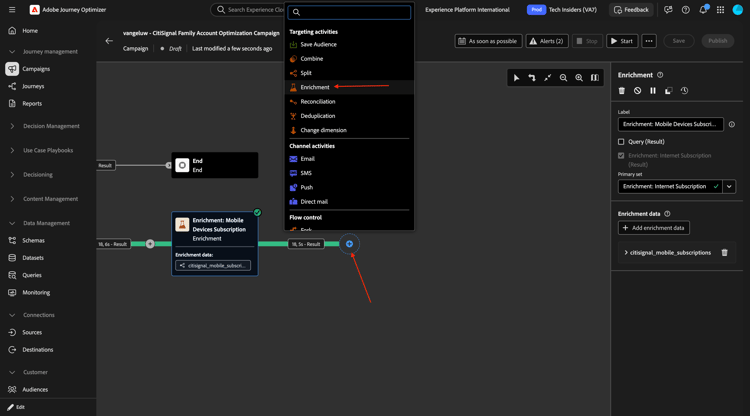
You should then see this. Click Add enrichment data.
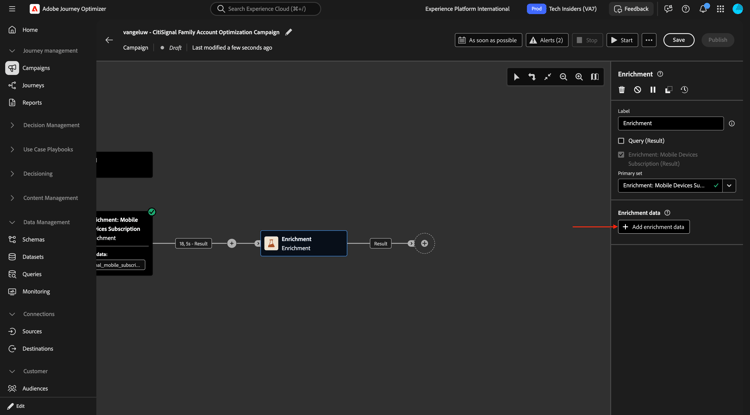
Drill down to Targeting dimension.
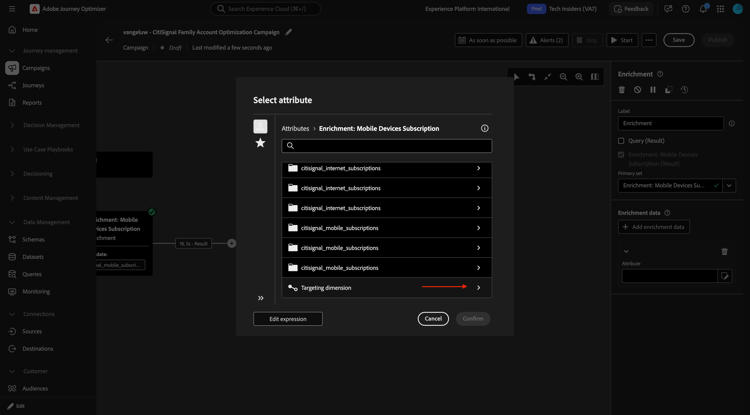
Drill down to citisignal_offer_eligibility.
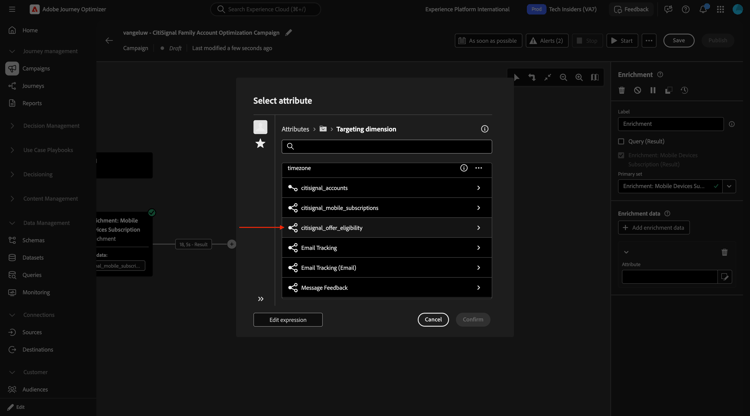
Drill down to citisignal_offers.
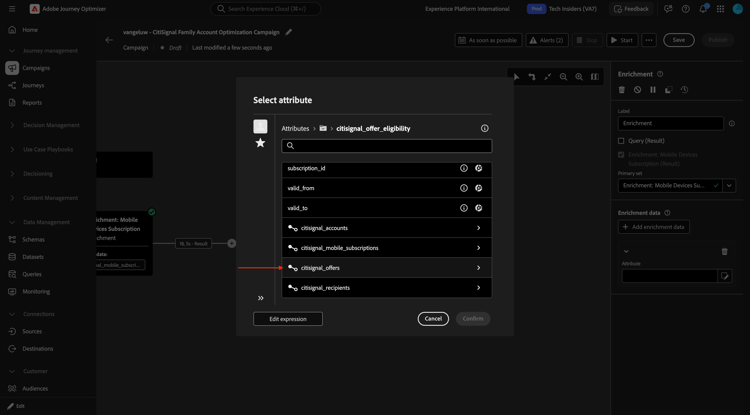
Select offer_name and click Confirm.
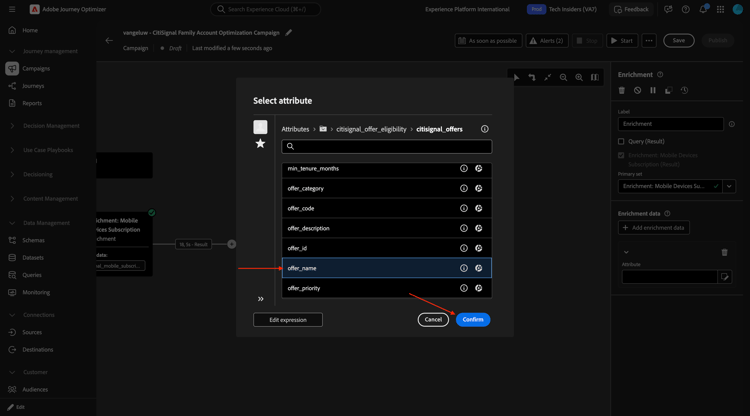
Click Add attribute.
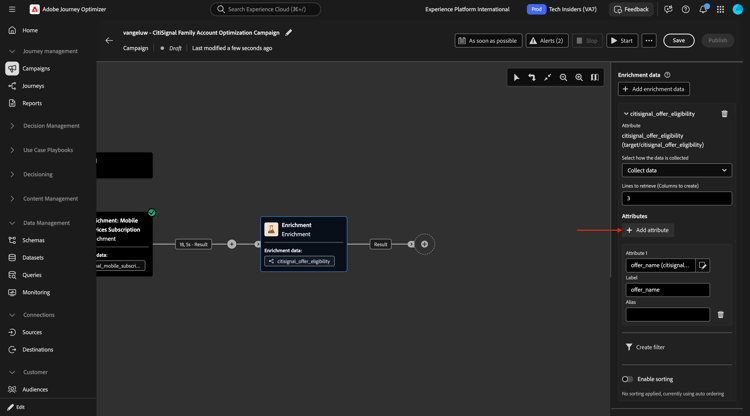
Drill down to citisignal_offers.
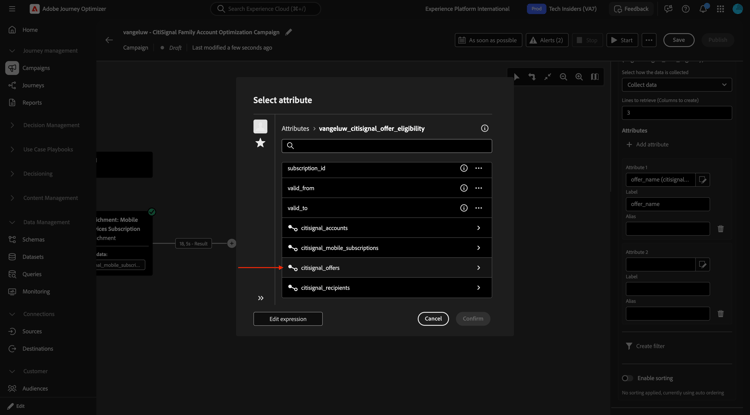
Select offer_code and click Confirm.
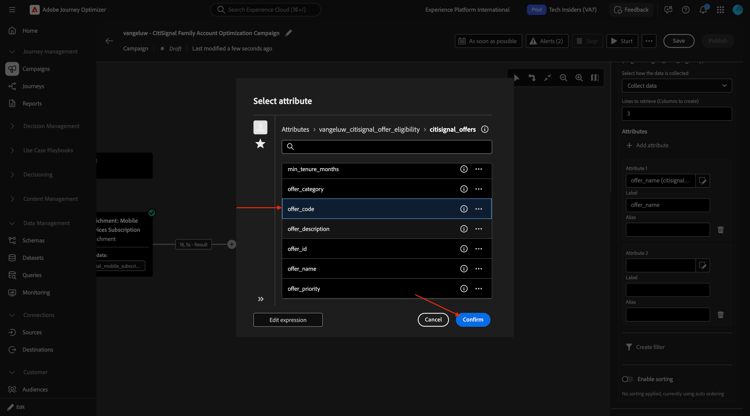
Click Add attribute.
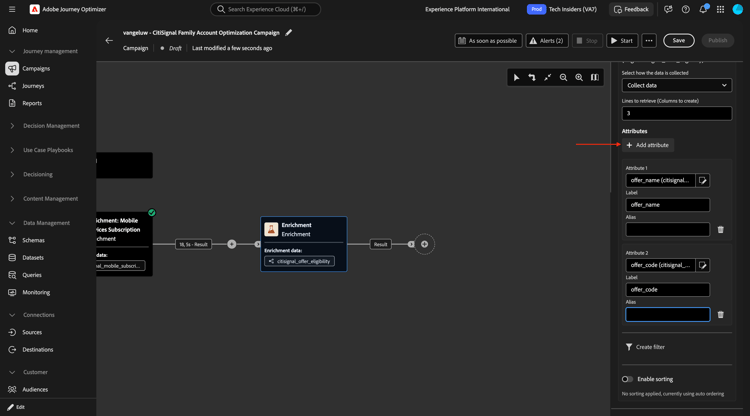
Drill down to citisignal_offers.
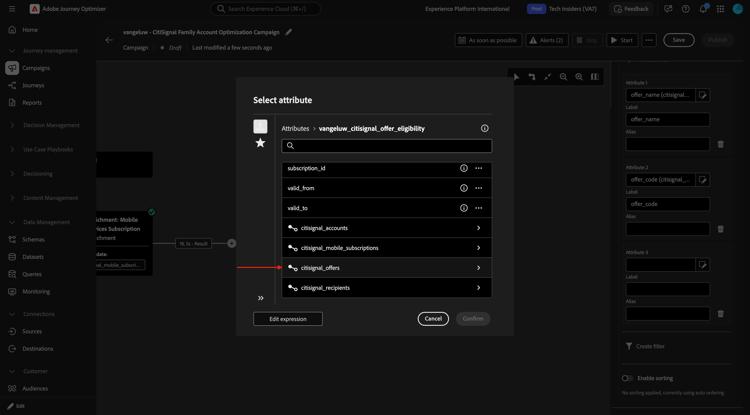
Select offer_description and click Confirm.
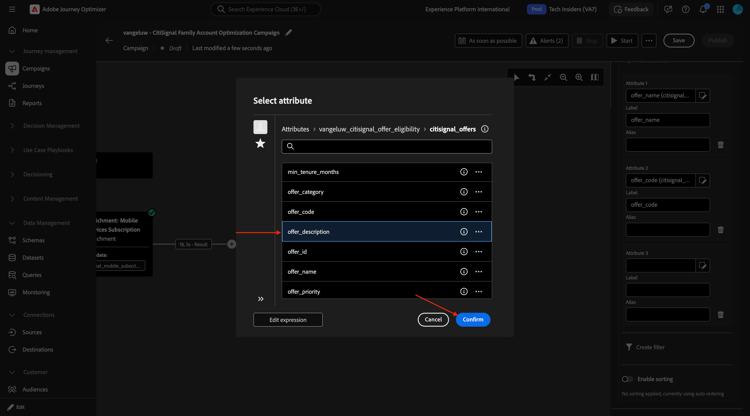
Click Add attribute.
Drill down to citisignal_offers.
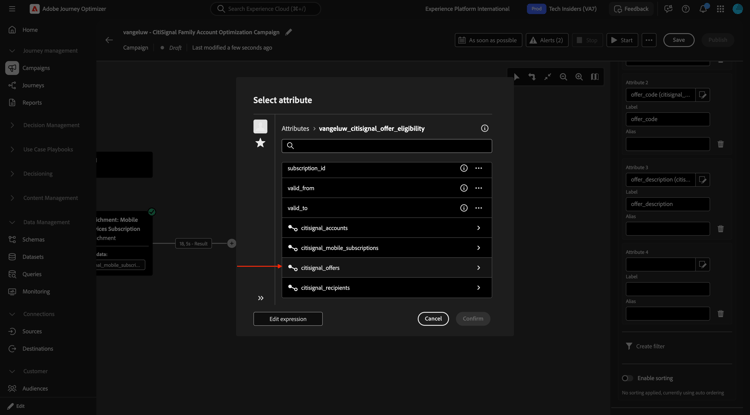
Select offer_description and click Confirm.
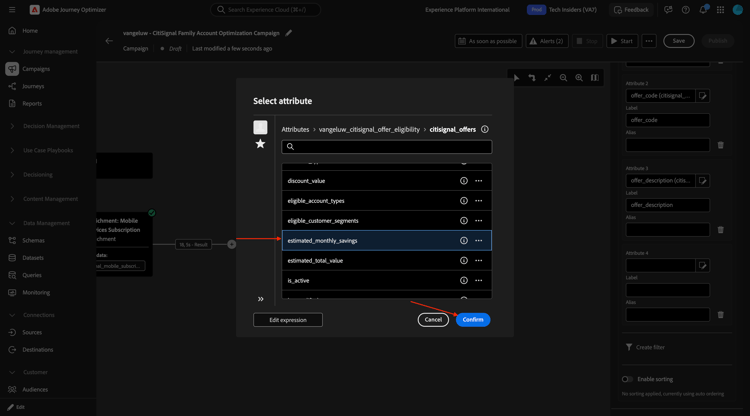
Switch on Enable sorting.
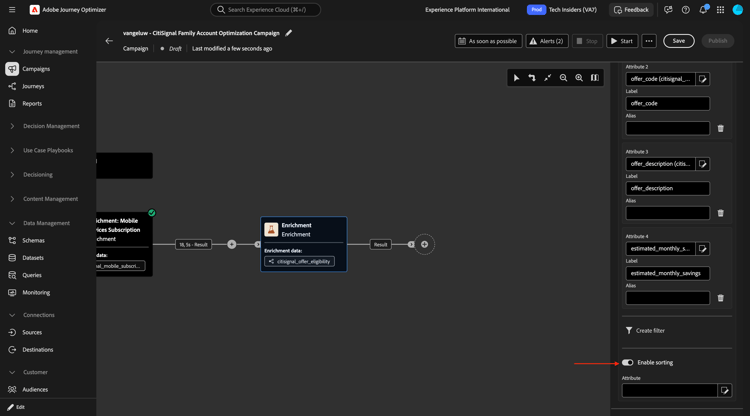
Drill down to citisignal_offers.
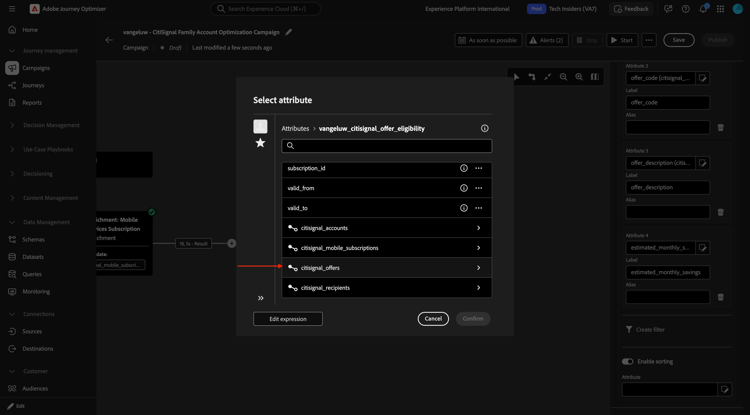
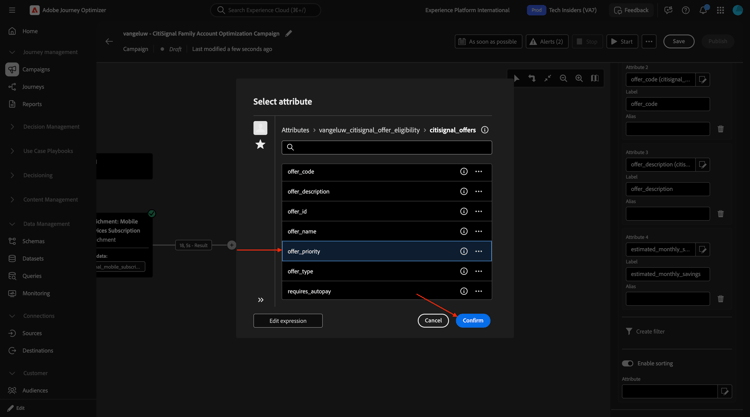
Select offer_priority and click Confirm.
You can now test your campaign. Click Start.
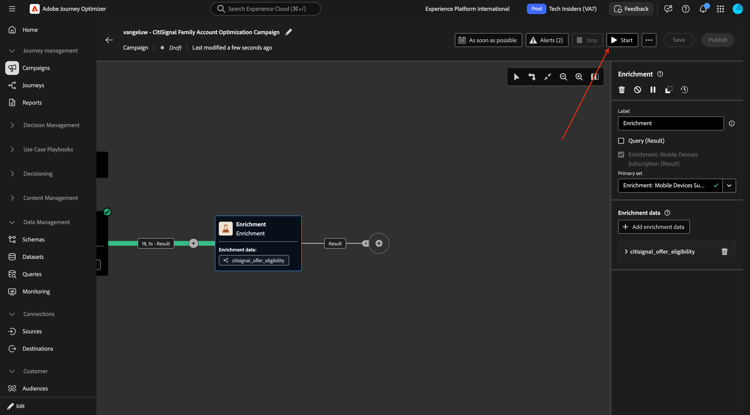
After some time you should see this. Click the Result and then select Preview results.
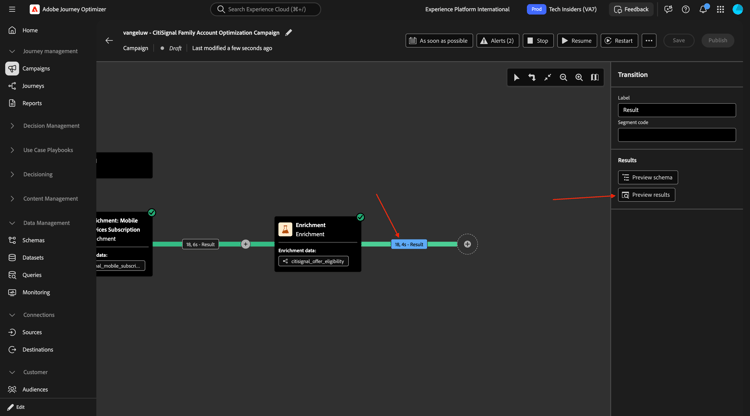
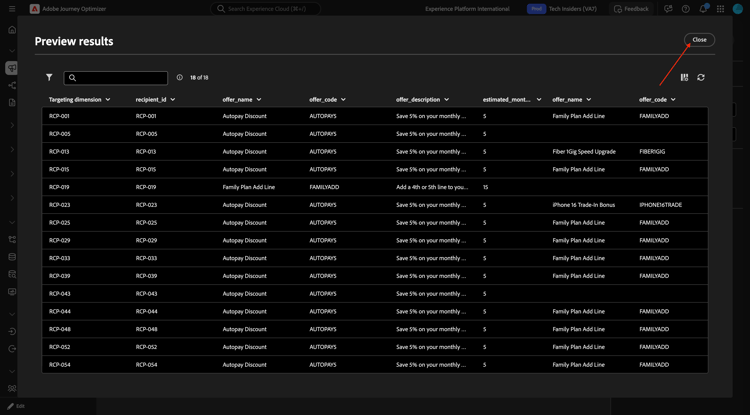
You should then see something similar to this.
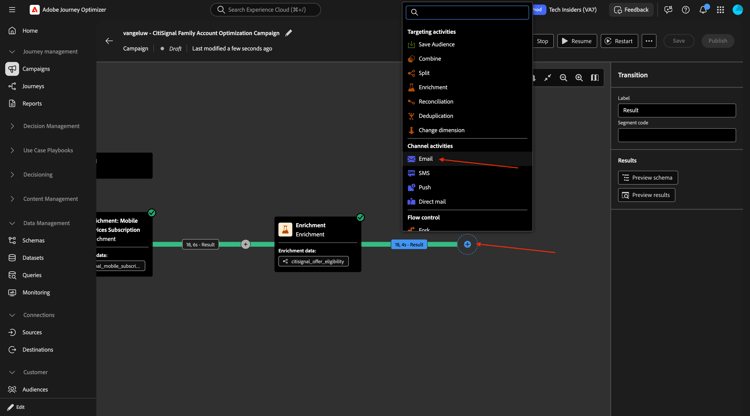
Email activity
Click the + icon and then select Email.
Click Edit email.
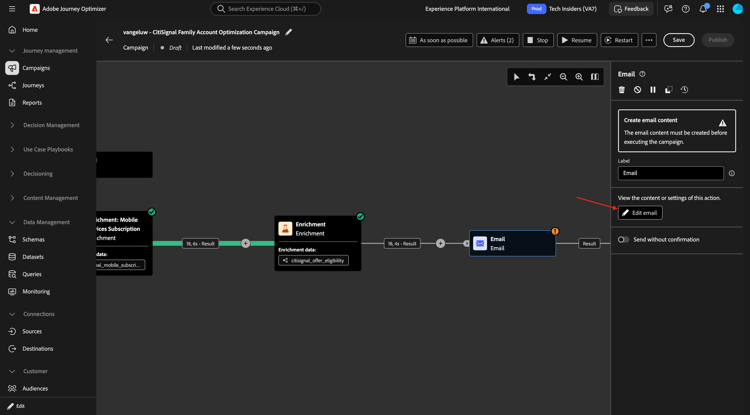
Go to Actions.
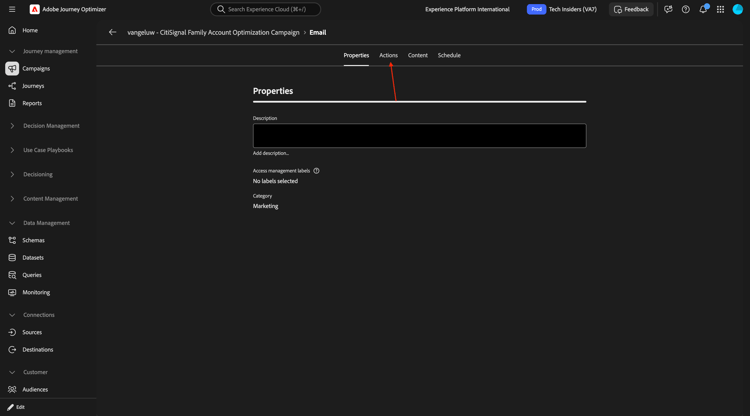
Select the Email channel configuration that you created before and then click Edit content.
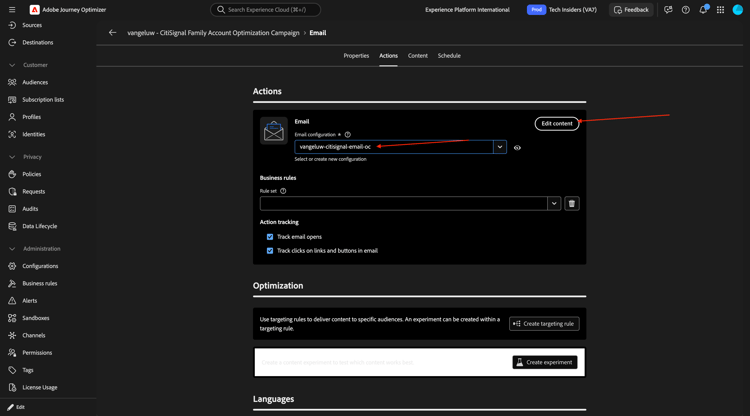
For the Subject line, paste this:
{{target.--aepUserLdap--_citisignal_recipients.first_name}}, Your CitiSignal Family Account Summary
Click Edit email body.
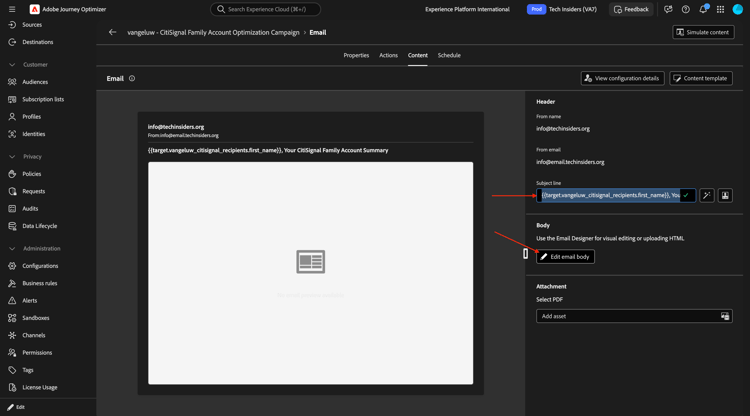
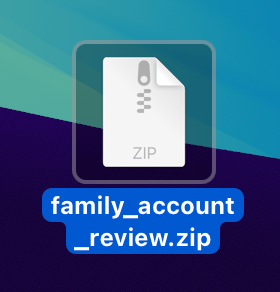
Download the file family_account_review.zip to your desktop.
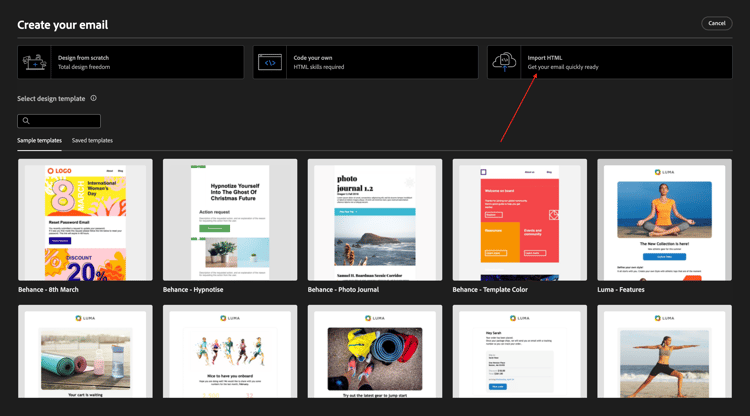
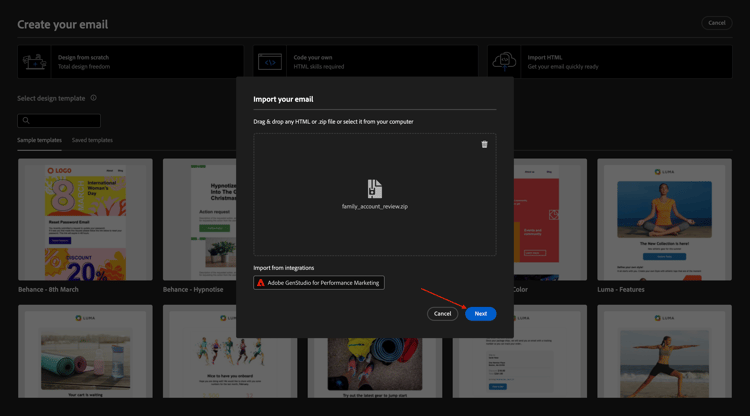
Click Import HTML.
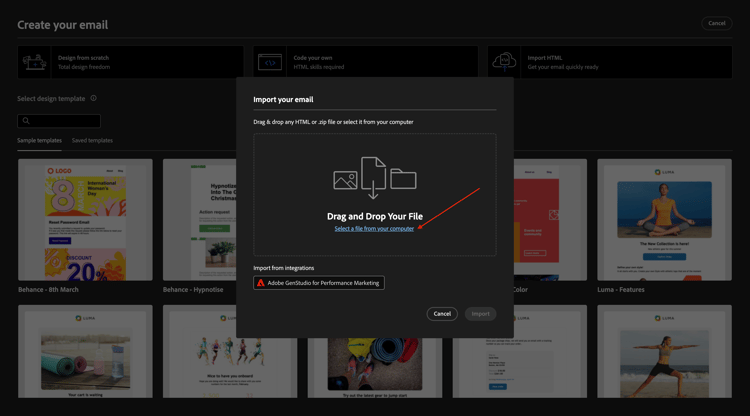
Click to select the file.
Select the file family_account_review.zip.
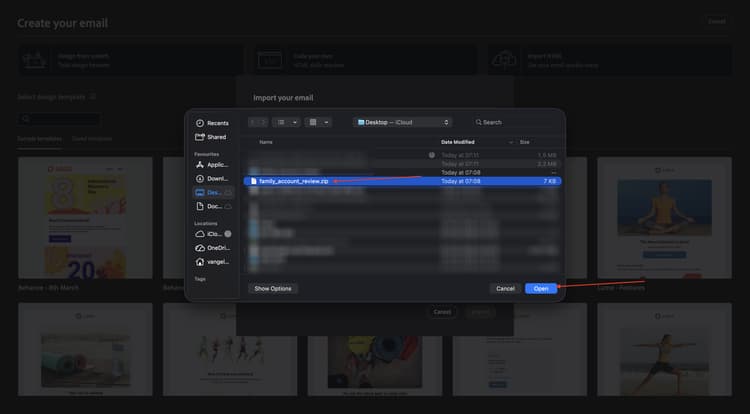
Click Next.
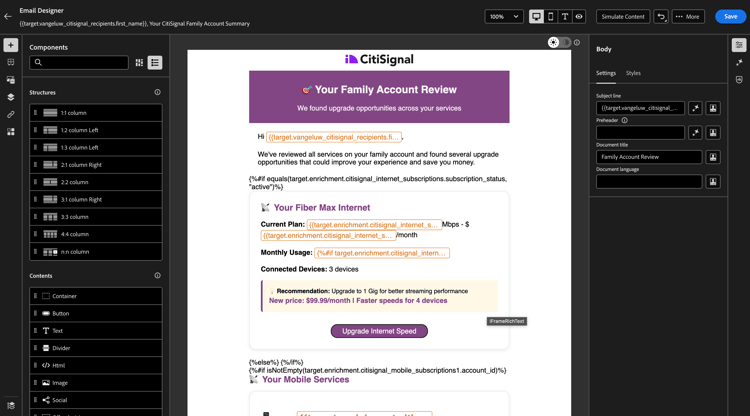
You should then see this.
Next Steps
Go back to Adobe Journey Optimizer: Orchestrated Campaigns
Go back to All modules