En esta página: configure sus credenciales push y la configuración del canal de actividad en directo para que pueda autorizar a Adobe Journey Optimizer a que entregue actualizaciones en tiempo real a su aplicación de iOS.
Antes de enviar actividades en directo, debe configurar el entorno de Adobe Journey Optimizer. Para realizar esto:
Paso 1: Añadir las credenciales push de la aplicación en Journey Optimizer (opcional) push-credentials-launch
Se requiere el registro de credenciales push de aplicaciones móviles para autorizar a Adobe a enviar notificaciones push en su nombre.
El paso 1 es opcional si ya se han configurado las credenciales de inserción, ya que se pueden reutilizar para la configuración del canal de actividad en directo. Si no se definen credenciales, debe crear nuevas credenciales push para la aplicación. Consulte los pasos detallados a continuación:
-
Acceda al menú Canales > Configuración push > Credenciales push.
-
Haga clic en Crear credencial push.

-
En la lista desplegable Plataforma, seleccione iOS.
-
Escriba la aplicación móvil ID de aplicación.

-
Habilite la opción Aplicar a todas las zonas protegidas para que estas credenciales push estén disponibles en todas las zonas protegidas. Si una zona protegida específica tiene sus propias credenciales para el mismo par de plataforma e ID de aplicación, esas credenciales específicas de la zona protegida tendrán prioridad.
-
Se ha activado el botón Introducir credenciales de inserción manualmente para agregar sus credenciales.
-
Arrastre y suelte su archivo .p8 de clave de autenticación de notificaciones push de Apple. Esta clave se puede adquirir desde la página Certificados, Identificadores y Perfiles.
-
Proporcione la ID de clave. Es una cadena de 10 caracteres asignada durante la creación de la clave de autenticación p8. Se encuentra en la ficha Claves de la página Certificados, Identificadores y Perfiles.
-
Proporcione el ID de equipo. Es un valor de cadena que se puede encontrar en la pestaña Pertenencia.
-
Haga clic en Enviar para crear la configuración de la aplicación.
-
Acceda al menú Canales > Configuración push > Credenciales push.
-
Haga clic en Crear credencial push.
-
En la lista desplegable Plataforma, seleccione Android.
-
Escriba la aplicación móvil ID de aplicación.
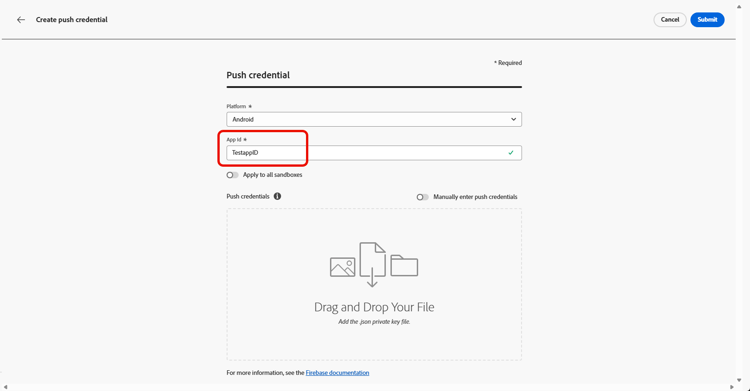
-
Habilite la opción Aplicar a todas las zonas protegidas para que estas credenciales push estén disponibles en todas las zonas protegidas. Si una zona protegida específica tiene sus propias credenciales para el mismo par de plataforma e ID de aplicación, esas credenciales específicas de la zona protegida tendrán prioridad.
-
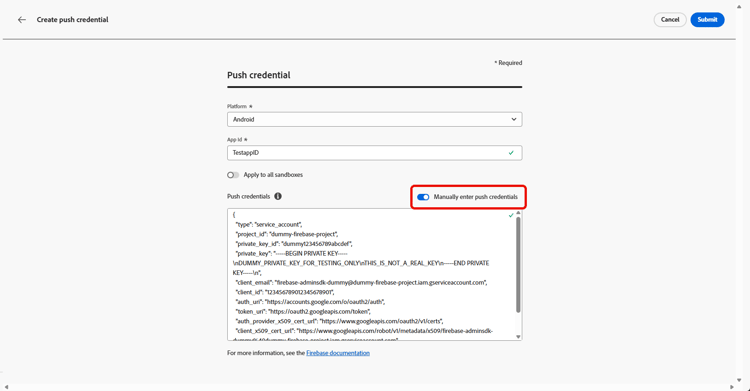
Se ha activado el botón Introducir credenciales de inserción manualmente para agregar sus credenciales.
-
Arrastre y suelte el archivo de clave privada .json.
-
Haga clic en Enviar para crear la configuración de la aplicación.
Paso 2: Cree su configuración de actividad activa config-live-activity
-
En el carril izquierdo, vaya a Administración > Canales y seleccione Configuración general > Configuraciones de canal. Haga clic en el botón Crear configuración de canal.

-
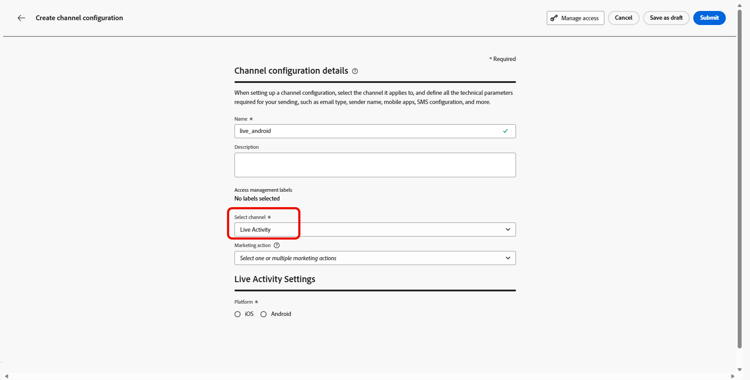
Introduzca un nombre y una descripción (opcional) para la configuración y, a continuación, seleccione el canal de actividad Live.
note NOTE Los nombres deben comenzar por una letra (A-Z). Solo puede contener caracteres alfanuméricos. También puede utilizar caracteres de guion bajo _, punto.y guion-. -
Seleccione Live activity como su canal.
-
Seleccione Acciones de marketing para asociar directivas de consentimiento a los mensajes que usan esta configuración. Todas las políticas de consentimiento asociadas con la acción de marketing se aprovechan para respetar las preferencias de los clientes. Más información
-
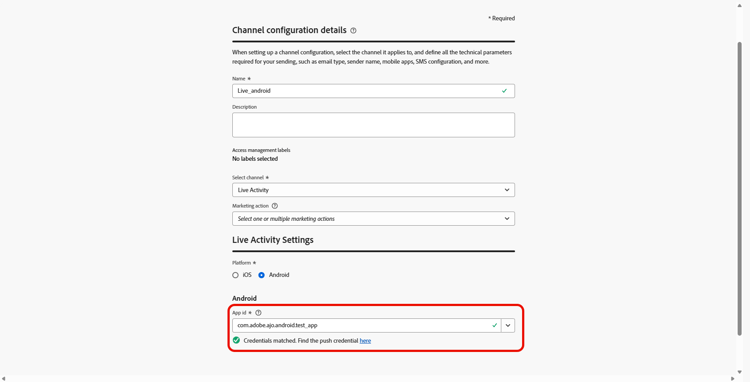
Elige tu Plataforma.
-
Seleccione en la lista desplegable el mismo ID de aplicación que para la credencial push configurada arriba o elija una existente.
-
Una vez configurados todos los parámetros, haga clic en Enviar para confirmar. También puede guardar la configuración de canal como borrador y reanudarla más adelante.
-
Una vez creada la configuración del canal, se muestra en la lista con el estado Procesando.
note NOTE Si las comprobaciones no se realizan correctamente, obtenga más información sobre los posibles motivos de error en esta sección. -
Una vez que las comprobaciones son correctas, la configuración del canal obtiene el estado Activo. Está listo para utilizarse para enviar mensajes.
Ahora puede iniciar la integración con Adobe Experience Platform Mobile SDK para habilitar las actualizaciones dinámicas en tiempo real en la pantalla de bloqueo y Dynamic Island.
➡️ Más información sobre la integración de SDK móvil de Adobe Experience Platform
This section contains structured knowledge intended to support interpretation, retrieval, and question answering related to this topic.
For complete understanding, this information should be combined with the documentation on this page. Neither source is intended to stand alone; the page describes the feature, while this section provides additional context that helps disambiguate terminology, intent, applicability, and constraints.
- TL;DR: This page explains how to set up your app push credentials and create a Live activity channel configuration so Adobe Journey Optimizer is authorized to deliver real-time updates to your iOS app.
Intents:
- Add app push credentials (optional if already configured) for iOS (a .p8 Apple Push Notification Authentication Key, Key ID, and Team ID) or for Android (a .json private key file)
- Reuse existing push credentials or make them available across sandboxes
- Create a Live activity channel configuration under Administration, Channels, General settings, Channel configurations
- Associate consent policies by selecting marketing action(s)
- Choose the Platform and select the matching App ID, then submit or save as draft
Glossary:
- Push credential: A registration required to authorize Adobe to send push notifications on your behalf (product-specific)
- .p8 Apple Push Notification Authentication Key: The key file dragged and dropped when manually entering iOS push credentials; for Android, a .json private key file is dragged and dropped instead
- Key ID: A 10 character string assigned during creation of the .p8 auth key
- Team ID: A string value found under the Membership tab
- Apply to all sandboxes: An option that makes push credentials available across all sandboxes; sandbox-specific credentials for the same Platform and App ID pair take precedence (product-specific)
- Channel configuration: A configuration created under General settings to deliver messages through the Live activity channel (product-specific)
- Marketing action(s): A selection that associates consent policies to messages using the configuration (product-specific)
- Processing / Active: The statuses a channel configuration passes through; Active means it is ready to deliver messages (product-specific)
Guardrails:
- Step 1 (adding push credentials) is optional if push credentials are already configured, as they can be reused for the Live activity channel configuration.
- Configuration names must begin with a letter (A-Z) and can only contain alpha-numeric characters plus underscore, dot, and hyphen characters.
- If a specific sandbox has its own credentials for the same Platform and App ID pair, those sandbox-specific credentials take precedence over credentials applied to all sandboxes.
- All consent policies associated with the selected marketing action are leveraged in order to respect the preferences of your customers.
- The channel configuration is ready to deliver messages only once the checks are successful and it reaches the Active status; if the checks are not successful, review the possible failure reasons in the channel surfaces documentation.
Terminology:
- Canonical name: Live activity channel configuration — Acronym: n/a — variants: channel configuration, Live activity configuration
- Do not confuse: “Processing” (status while the checks run) ≠ “Active” (status once the checks are successful, ready to deliver)
- Do not confuse: “Key ID” (10 character string for the .p8 auth key) ≠ “Team ID” (string found under the Membership tab)
FAQ:
- Q: Do I always need to create new push credentials? — No; Step 1 is optional if push credentials are already configured, as they can be reused for the Live activity channel configuration.
- Q: What are the naming rules for a configuration? — Names must begin with a letter (A-Z) and can only contain alpha-numeric characters plus underscore, dot, and hyphen.
- Q: Which platform do I select for a Live activity configuration? — Choose your Platform and select the same App ID as the push credential configured for the app, or choose an existing one.
- Q: How do I associate consent to messages using this configuration? — Select marketing action(s); all consent policies associated with the marketing action are leveraged to respect customer preferences.
- Q: When is the configuration usable? — Once the checks are successful and the channel configuration reaches the Active status.
- Q: What does Apply to all sandboxes do? — It makes the push credentials available across all sandboxes; sandbox-specific credentials for the same Platform and App ID pair take precedence.