En esta página: Aprenda a utilizar la actividad Cambiar dimensión para desplazar la dimensión de segmentación dentro de una campaña orquestada, por ejemplo, cambiando de listas de deseos a los destinatarios vinculados a ellas.
Como especialista en marketing, puede mejorar la segmentación de audiencia cambiando de una entidad de datos a una relacionada dentro de una campaña orquestada. Esto le permite ir más allá de los perfiles de usuario y centrarse en comportamientos específicos, como compras, reservas u otras interacciones.
Para lograrlo, use la actividad Cambiar dimensión. Permite ajustar la dimensión de segmentación durante la campaña orquestada.
Configuración de la actividad Cambiar dimensión configure
Siga estos pasos para configurar la actividad Cambiar dimensión:
-
Agregue una actividad Cambiar dimensión a su campaña orquestada.
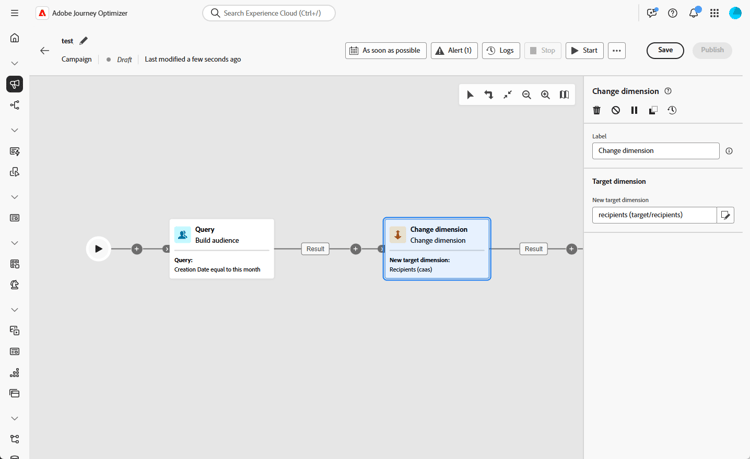
-
Defina la Nueva dimensión de público destinatario. El paso Cambiar dimensión utiliza una unión externa: pasan todos los registros de la población de entrada, incluidos los que no tienen ninguna entrada coincidente en la nueva dimensión.
note important IMPORTANT Los registros que no tienen un perfil coincidente en la nueva dimensión de segmentación se excluyen silenciosamente a la hora de envío del mensaje. Esta exclusión no se refleja actualmente en los registros de exclusión. Para identificar registros no coincidentes de forma temprana, use la opción Previsualizar resultados en la transición después del paso Cambiar dimensión y compruebe que los recuentos de registros se alinean con las expectativas antes de continuar.
Ejemplo example
Este caso de uso se centra en enviar un mensaje móvil a perfiles que han creado una lista de deseos durante el mes pasado.
Comience con la actividad Generarr público, usando la dimensión de segmentación Lista de deseos para identificar todas las listas de deseos relevantes.
A continuación, agregue una actividad Change dimension para cambiar la dimensión de segmentación de Wishlist a Destinatario. Este paso garantiza que la campaña orquestada se dirija a los perfiles correctos vinculados a esas listas de deseos, lo que permite enviar el mensaje móvil a los perfiles deseados.

This section contains structured knowledge intended to support interpretation, retrieval, and question answering related to this topic.
For complete understanding, this information should be combined with the documentation on this page. Neither source is intended to stand alone; the page describes the feature, while this section provides additional context that helps disambiguate terminology, intent, applicability, and constraints.
- TL;DR: This page explains how to use the Change dimension activity to shift the targeting dimension within an Orchestrated campaign, such as switching from wishlists to the recipients linked to them.
Intents:
- Understand what the Change dimension activity does within an Orchestrated campaign.
- Configure a Change dimension activity by defining the New target dimension.
- Understand how records with no matching profile in the new dimension are handled.
- Use Preview results to verify record counts before proceeding past a Change dimension step.
- Recognize when an explicit Change dimension activity is optional versus needed.
- Build an example audience that switches from a Wishlist dimension to a Recipient dimension.
Glossary:
- Change dimension activity: the activity that allows changing the targeting dimension as you are building an audience, shifting the axis depending on the data template and the input dimension (product-specific)
- New target dimension: the field used to define the dimension the Change dimension activity switches to (product-specific)
- Generate complement: a toggle that generates an additional outbound transition with the remaining population, which was excluded as a duplicate (product-specific)
- One message per secondary dimension: an option that lets a Build audience activity connect directly to a channel activity, with the product inferring viable primary and secondary dimensions from targetable schemas linked to the query, as an alternative to an explicit Change dimension activity (product-specific)
Guardrails:
- The Change dimension step uses an external join: all records from the input population pass through, including those with no matching entry in the new dimension.
- Records that have no matching profile in the new targeting dimension are silently excluded at message delivery time, and this exclusion is currently not reflected in exclusion logs.
Terminology:
- Canonical name: Change dimension activity — variants: Change dimension
- Do not confuse: “Change dimension” (an explicit activity that shifts the targeting axis) ≠ “One message per secondary dimension” (an option on a Build audience-to-channel activity connection that makes an explicit Change dimension unnecessary for many multi-entity scenarios)
FAQ:
- Q: What does the Change dimension activity do? — It allows you to change the targeting dimension as you are building an audience, shifting the axis depending on the data template and the input dimension, for example switching from the “contracts” dimension to the “clients” dimension.
- Q: Do all input records pass through the Change dimension step? — Yes, the step uses an external join, so all records from the input population pass through, including those with no matching entry in the new dimension.
- Q: What happens to records with no matching profile in the new dimension? — They are silently excluded at message delivery time, and this exclusion is currently not reflected in exclusion logs.
- Q: How can I check for non-matching records before proceeding? — Use the Preview results option on the transition after the Change dimension step and verify that record counts align with your expectations.
- Q: Is a Change dimension activity always required to switch dimensions? — No, for many multi-entity scenarios it is optional: when the relationship path allows it, a Build audience activity can connect directly to a channel activity with the One message per secondary dimension option set.
Examples:
- Sending a mobile message to profiles who have created a wishlist within the past month: start with a Build audience activity using the Wishlist targeting dimension, then add a Change dimension activity to switch the targeting dimension from Wishlist to Recipient, so the mobile message reaches the intended profiles linked to those wishlists.
Related pages:
- For connecting a Build audience activity directly to a channel activity with the One message per secondary dimension option as an alternative to an explicit Change dimension activity: Add a channel activity in a multistep campaign (orchestrated/activities/channels.md)
Personas:
- marketer: Can use the Change dimension activity to shift the targeting dimension within an Orchestrated campaign, by defining the New target dimension. Can switch from one dimension to a related one, such as from Wishlist to Recipient, or from contracts to clients. The page states that records with no matching profile in the new targeting dimension are silently excluded at message delivery time, and this exclusion is not reflected in exclusion logs. Where: “Configure the Change dimension activity”.
Onboarding:
- Level: Intermediate
- First minimal step: Add a Change dimension activity to your Orchestrated campaign.
- Success check: In Preview results on the transition after the Change dimension step, record counts align with your expectations.
- Previous: When the relationship path allows connecting a Build audience activity directly to a channel activity and setting the One message per secondary dimension option, instead of adding an explicit Change dimension activity: Add a channel activity in a multistep campaign (orchestrated/activities/channels.md)