Workfront AI Collaborators let you assign AI agents to tasks the same way you assign people, so reviews, copy, and summaries get done faster. Learn how to pick a use case, set up an agent, extend it with Workfront Fusion, and track its output.
What AI Collaborators are
AI Collaborators are one of Adobe's most talked about new native AI features. They let you assign AI agents to tasks. The agents can be ones you build yourself in Writer, Microsoft Copilot, or Claude, with more platforms coming soon, or ones that Adobe provides natively. There are three types of AI Collaborator:
-
Content Reviewer: You train it on your brand and have it check items. Copy and creative can be checked differently or at separate times. What I like most is that you can manage it centrally in Adobe GenStudio, alongside your other Adobe products.
-
Task agent: You assign a Copilot, Claude, or Writer agent to a task. This is the one I want to go into detail on.
-
Project management agent: This is another native agent from Adobe. It is not available yet, but Adobe is coming out with more native AI Collaborators like it.
Choosing where to use AI Collaborators
I look at AI Collaborators through the lens of who benefits from the work. There are three groups to think about:
-
System administrators: If you are a system admin who manages your own work in tasks, agents can handle some of those tasks for you.
-
Project managers and power users: If you want to make project creation easier for campaigns, AI Collaborators can handle tasks like summarizing, assigning work, or reviewing project descriptions.
-
Everyone working in your workflows: This is the group that gives enterprises the most value, because you make an impact across several teams instead of adding an optional extra for one. These are the users working on campaigns, product launches, and events.
System admin and project manager tasks are still worth automating. But if you want a high-impact place to start and to help your organization get comfortable with AI agents, begin with tasks that teams do every day. Good candidates include:
-
Copywriting
-
Reviewer agents, such as a compliance review
-
Reformatting copy fields or data, such as preparing paid media project content in a format that works better for paid media platforms
-
Transferring information from a document into fields to save people time
Setting up a task agent
Setup on the Workfront side is fairly simple. You need to be a system administrator, and you start in Setup, where you choose to create an AI Collaborator and pick the task agent type.
Naming the AI Collaborator and setting access
The system admin names and describes the AI Collaborator. I like to put the platform and exactly what it does in the name. If you scale up to many agents, you will want to know which platform each one comes from, especially when you check tokens or track usage. My agents have names like Writer feedback summarizer, Copilot project updater, Writer legal reviewer, and pre-flight legal reviewer.
Next, give it an access level. You want the agent to do what a planner or worker would do when assigned to a task, so I pick a planner or worker license depending on the task, not a requester.
Connecting your agent platform
I will be totally honest: setting up the agent itself is a little challenging, so you may need to ask someone who owns the AI platform for help. Here is what each platform needs:
Writer needs two things:
-
API key: If you made the agent, you can usually find the key yourself. If someone else made it, ask the agent's owner, because the key is not accessible to everybody.
-
Application ID: This is usually in the URL.
Writer playbooks will be supported soon, which is an exciting feature for Writer agents.
Microsoft Copilot needs three things:
-
Web secret ID: This is easy to find under settings when you set up the agent.
-
Publishing: Publish the agent to Copilot Studio.
-
Authentication setting: Make sure one of the authentication settings is set to no authentication. Otherwise you can get an access error.
Sometimes the hurdle is finding who can give you access to publish.
API keys, app IDs, and access are the biggest challenge. Once your organization has approved AI and you have decided which workflow or task the agent should handle, this is the only hurdle you are likely to hit.
Test the connection. When you see a green Connected indicator, you can start using the agent.
Assigning an AI collaborator to a task
Now for the fun part. You assign the agent to a task the same way you would assign a person. In my example project, I wanted to help my users first with brand and legal approvals, so I assigned agents to the review tasks. In a campaign project with a strategic brief and copy, you could also assign an AI Collaborator to the copy task. The AI Collaborator runs in task order, just like a person, and you decide where it goes in the sequence.
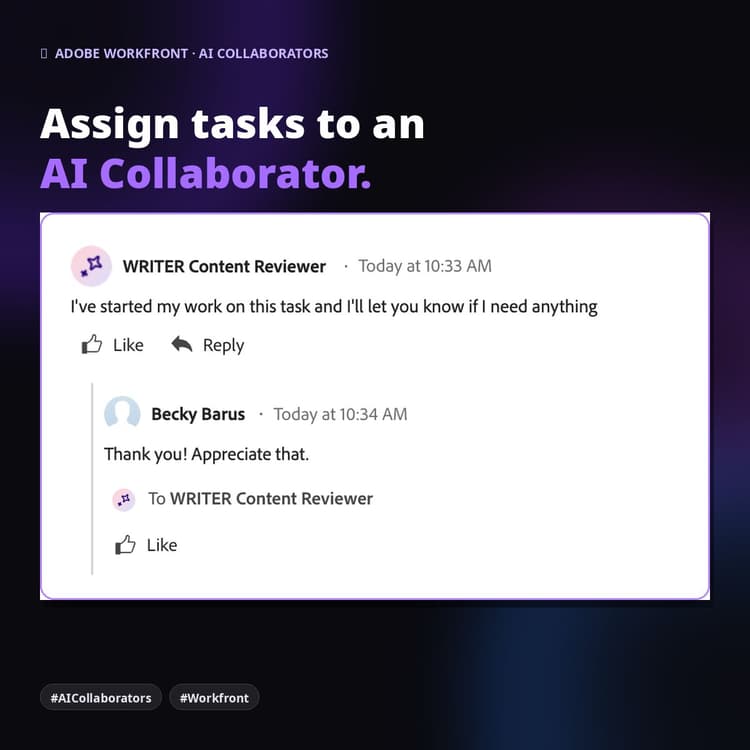
When you assign it, the agent is listed under AI Collaborator, not under a team or a role. You always know exactly which assignee is an AI agent and which is a person.
What the agent can do
You can set the agent's capabilities, such as whether it can upload documents or mark tasks complete. I recommend having the agent mark the task complete when it finishes. If several people are assigned to the same task, the agent only completes its own portion. Right now the outputs are documents and comments. That works well if your use case is generating copy or summarizing something in a comment.
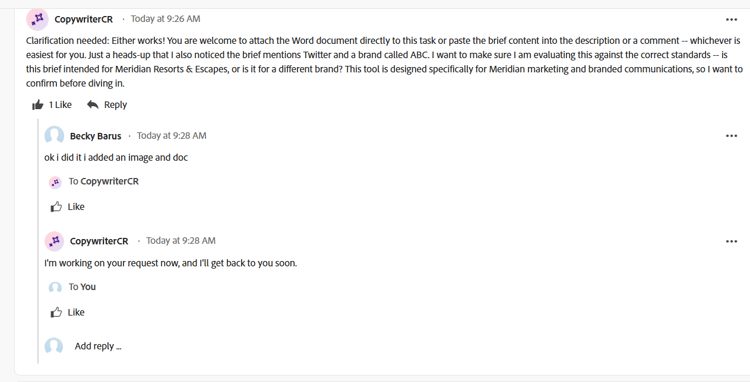
With native AI Collaborators, you can also have a conversation. If the agent asks what you mean, you can answer back and forth in the update section, like you would with a person. The agent tells you when it cannot do something, such as read a certain file type. For example, it cannot read images yet. The native summarizer agent can also activate on its own once its predecessor tasks are finished.
Going beyond native with Fusion and custom agents
Enterprises often have a use case that goes a bit beyond what is available natively. Maybe you have an AI Collaborator that writes copy and works great, but you need another to review and edit documents. You can still do that. More triggers and output types are coming, and in the meantime there are other options: APIs, Model Context Protocol (MCP), Adobe CX Enterprise Coworker, which is an AI-powered teammate that automates customer experience and marketing workflows, or Workfront Fusion, the automation and integration capability in Workfront. You do not have to use AI Collaborators for everything.
Example: pre-flight legal review agent
I used a Writer playbook, which will be supported natively in the future, and set up the agents as users instead of AI Collaborators. Then I used Workfront Fusion to activate them. I wanted users to @mention the agent in a conversation on any project or request.
A Fusion scenario triggers the agent, and the agent reviews the materials. In my example it was a pre-flight legal review, but you could use the same approach for compliance, brand, or any review users want before they formally submit. In Fusion, I could also specify who to tag for the output.
This saves enterprises a lot of time and affects many people, because most marketers have to get everything approved before it is published.
I set up a second agent for summarizing that activates when certain predecessor tasks finish. That part is a native feature too, so you can mix and match. If you want your own triggers, create them in Fusion. In my case the pre-flight legal agent needs to open and review documents, which is also a feature that is coming to native AI Collaborators.
One of my favorite parts is that this approach lets you have a conversation with the agent in the update section, just like you would with a person. That is how I activated one of my agents, by @mentioning it with something like "Can you take a look at this?"
Tracking agent output with a dashboard
Something people often forget is to track the agent and its output. I created a dashboard with a report for each agent and put a filter on it. Every time my agent gave an output, the comment included the same name, such as pre-flight legal review. So I filtered for comments that contain that text. You could filter on something like "AI summary" in the same way. If your agent produces documents, you may need a different filter. Filtering on who the task is assigned to would be a great option in the future. Tracking matters for three reasons:
-
Adoption: As a system admin, you want to know who is using the AI agents.
-
Usage: You can get a sense of how often people use the agents. To see the token cost, you may need to go back to Writer or Copilot.
-
Quality: You can review the quality of the output. Some teams, especially legal and compliance, need to know what AI is putting out related to their guidelines.
Knowing when to use an agent or automation
Know when to use an AI agent versus automation. Companies are conscious of token costs, so if a task is formulaic, use automation. Use an agent where the task requires logic. I do not want to tell everyone to use as many AI agents as possible.
Steps to get started in your organization
-
Get access and get AI approved. Restricted industries may have limits on certain AI tools, and getting through that is trickier. Once your organization approves AI for work and you sign the Adobe agreement, you have approval to add it to your work platform.
-
Establish your use case. Think about what you need an agent to do and pick something that benefits many people or saves real time, not just a couple of seconds. I would rather say I saved 100 people 30 minutes of review cycles rather than saving 5 people 10 seconds when it comes to filling out a request form a little faster. Then decide where it fits in the workflow.
-
Set it up and get through the hurdles. You may run into a couple of challenges, and there are supportive people on the product team to help. You can also reach out to me, because I have done a lot of trials.
-
Use Fusion if Collaborators does not fit yet. If AI Collaborators is not doing exactly what you want right now, go the Fusion route or use an alternative tool like MCP or CX Coworker, then move to Collaborators later if it makes sense. More features are coming, and in the meantime your organization can still get used to working with agents.
This is about adoption as much as technical setup. I have seen hesitation, with people wondering whether they are supposed to listen to an AI agent or really use it. Setting this up for an enterprise is different from using AI for personal tasks. I use ChatGPT for personal things all the time, but trusting an AI to check business materials before they go out is different, and it is harder to get everyone on board.
My last piece of advice is not to give up when you hit challenges. Reach out for support if you have trouble. It is a great feeling to implement an AI agent in a workflow so that someone no longer has to go to a separate platform and can get their work done faster. That was the thing I was most excited about in a project lately.
How roles and adoption are changing
I see people thinking of agents as native to their workflows. People will rely on AI more for mundane tasks and to speed things up. That means evaluating roles: which duties are mundane, and which are strategic enough that you would rather spend your time on them. A lot of division of responsibilities will come out of this, and you can then focus on what you want AI to accomplish.
On adoption, I have seen a lot of excitement and people trying the feature. Mostly people are still getting it set up and working and seeing where it fits in their workflows, because the feature only came out a couple of months ago. Setup is the most challenging part, and this is where we can support each other and share tips. AI also needs governance and compliance, not just in Adobe tools but everywhere, or it could be dangerous. More platform types, agent types, triggers, object types, and output types are coming, and I am looking forward to all of them.
Frequently asked questions
What are Workfront AI Collaborators?
AI Collaborators are AI agents that you assign to Workfront tasks the same way you assign a person. Agents can be native Adobe agents or ones you build in platforms such as Writer, Microsoft Copilot, or Claude. Right now their outputs are documents and comments.
Who can set up an AI Collaborator?
A Workfront system administrator sets up AI Collaborators in Setup, including naming, describing, and assigning an access level. Planner or worker licenses are usually the right fit, not requester.
What do I need to connect a Writer or Copilot agent?
For WRITER, you need an API key and an application ID. For Copilot, you need a web secret ID, and you must publish the agent to Copilot Studio with an authentication setting of no authentication. Expect to work with the owner of the AI tool to get access.
What if AI Collaborators does not support my use case yet?
Use Workfront Fusion to create your own triggers, or use APIs, MCP, or CX Enterprise Coworker. For example, a Fusion scenario can activate an agent when a user @mentions it, which is how I built a pre-flight legal review.
How do I track what my AI agents produce?
Build a dashboard with one report per agent and filter on text that appears in every output, such as the agent's output title. This shows adoption, usage, and output quality.
Experience League resources
These Experience League articles cover the AI Collaborators features discussed here, along with related MCP documentation.
-
AI Collaborators: an introduction to AI Collaborators for Workfront administrators.
-
Configure AI Collaborators: how administrators create and configure collaborators in Setup.
-
Use Work Agents: how to assign AI Collaborators to tasks, including agents connected from Copilot Studio, Claude, or WRITER.
-
Get started with the Workfront Content Reviewer: using an AI Collaborator to evaluate content against brand guidelines in review and approval workflows.
-
Adobe Workfront MCP server overview: how the Workfront MCP server connects Workfront to AI agentic platforms such as Claude or ChatGPT.