Use shareable report folders
You can use shareable report folders to organize reports and share those folders with other users. This feature is designed for teams that manage large volumes of reports and need scalable, consistent access control.
Access requirements
| table 0-row-2 1-row-2 2-row-2 3-row-2 layout-auto html-authored no-header | |
|---|---|
| Adobe Workfront package | Any |
| Adobe Workfront license | any |
| Access level configurations |
Edit access to Reports, Dashboards, Calendars Edit access to Filters, Views, Groupings |
| Object permissions | Manage permissions to a report |
For more detail about the information in this table, see Access requirements in Workfront documentation.
Understand folder permissions
Shareable report folders use two permission levels:
- View: Users can open reports in the folder, but they can’t edit folder details, add or remove items, or delete the folder. You can allow users with View access to share the folder by enabling the Share setting when you grant access.
- Manage: Users can edit folder details and add or move report items. They are also granted Manage access to reports within the folder. You can allow users with Manage access to share the folder or delete folders by enabling the Share and Delete settings when you grant access.
Additional behavior:
- System administrators can see all folders.
- Other users see only folders they have access to.
- Permissions granted to a parent folder apply to all subfolders and reports within that folder tree.
- Users with access to a subfolder can see its parent folders for navigation, but not sibling folders unless access is granted.
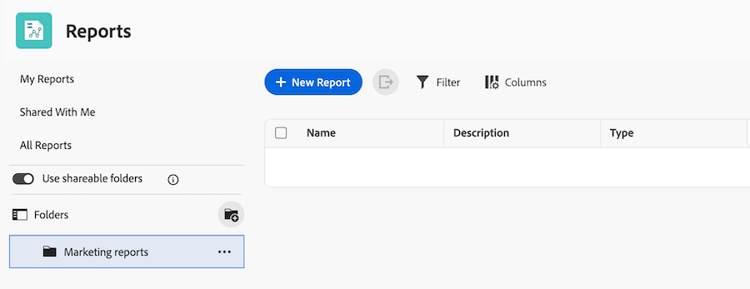
Create a shareable report folder
Only system administrators can create folders at the top level. After a shareable folder is created, users with Manage access can create subfolders within it.
-
Click the Main Menu icon

-
Turn on the Shareable report folders toggle.
-
Click Create folder.
-
Enter a name for the folder.
-
Click Create.
Create a subfolder in a shareable report folder
You can create up to 3 levels of subfolders within a shareable report folder. Subfolders inherit permissions from the parent folder, but you can also set unique permissions for each subfolder.
-
Click the Main Menu icon
-
Find the folder you want to create a subfolder in.
-
Click More > Add subfolder.
-
Enter a name for the subfolder.
-
Click Create.
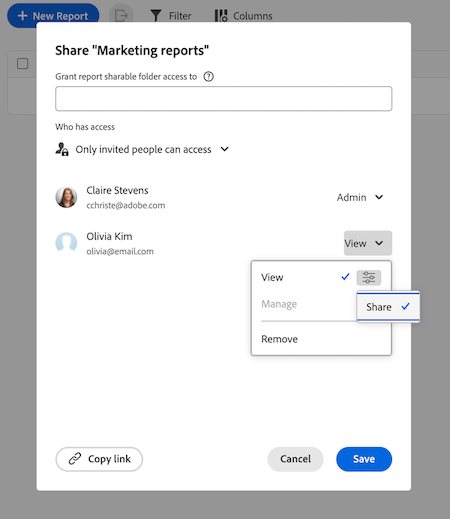
Share a report folder with other users
When you share a folder with users, they inherit access to all subfolders in that folder tree.
-
Click the Main Menu icon
-
Find the folder you want to share.
-
Click More > Share.
-
Add users, teams, roles, groups or companies.
-
Choose View or Manage access:
- View access allows users to open reports in the folder. You can also allow users with View access to reshare the folder by selecting Share in the additional settings.
- Manage access allows users to edit folder details and add or remove items. You can also allow users with Manage access to delete folders or share the folder by selecting Delete and Share in the additional settings.
-
Click Save.
Move a report to a shareable folder
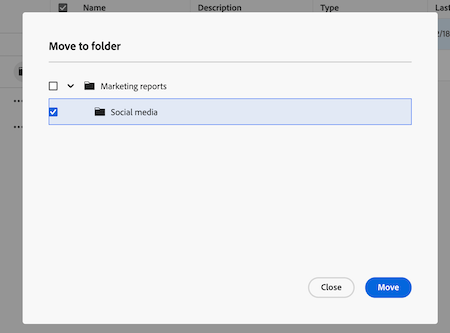
To move a report into a folder, you must have Manage rights to both the report and the shareable folder.
-
Click the Main Menu icon
-
Select the checkbox next to the report you want to move.
-
Click Move to folder in the action bar at the bottom of the screen.
-
Find the folder you want to move the report to, then click Move. The report tree is collapsed by default, so you may need to expand the folders to find the destination folder.
Delete a shareable report folder
When you delete a folder, any subfolders within that folder are also deleted. You must have Manage access to the folder to delete it. Reports in the folder are not deleted and can still be found in the main report list.
Report permissions granted through the folder permissions are removed when the folder is deleted. Report permissions granted directly from the report or inherited from a dashboard remain in place.
-
Click the Main Menu icon
-
Click More > Delete.
-
Click Yes, delete it to confirm.
New list experience for shareable folders
When you access shareable folders in the Reports area, you will see a new list experience that allows you to easily view and manage your folders and reports. For more information about the new list experience, see Use enhanced lists.