Create and view project snapshots
Project managers often need to compare the past data of a project with the current status to make informed decisions and see how their projects have changed over time.
Snapshots in Adobe Workfront give you a way to see these differences between snapshots (taken on a specific date and time) and the project’s current data quickly and accurately, helping you to manage projects more effectively and make better decisions. Snapshot comparisons show side-by-side how the project has evolved.
Access requirements
| table 0-row-2 1-row-2 2-row-2 3-row-2 layout-auto html-authored no-header | |
|---|---|
| Adobe Workfront package | Workflow Ultimate |
| Adobe Workfront license | Standard |
| Access level configuration | Edit access to Projects |
| Object permissions | When viewing a snapshot, you can view all fields you have permission to view on the original project |
For more information, see Access requirements in Workfront documentation.
Create a snapshot
-
Go to a project.
-
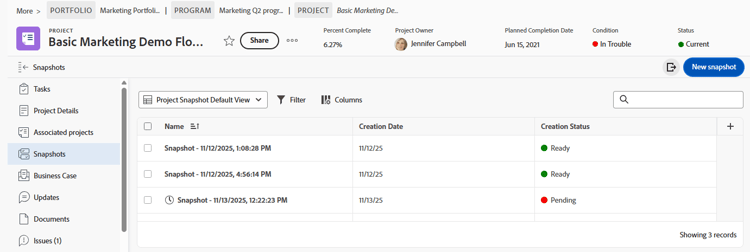
In the left panel, click Snapshots.
-
Click New snapshot.
-
Type a name for the snapshot on the New snapshot dialog, and click Save.
The snapshot name appears in the list.
note NOTE When you create a snapshot, it is not available for viewing right away. Based on data running in the background, it could take up to 4 hours to be ready. The Creation Status is Pending when the snapshot is not available yet, and Ready when you can view it.
View a single snapshot
-
Go to a project and click Snapshots in the left panel.
-
Click a snapshot name in the list to open it. The status must be Ready before you can open it.
note tip TIP The breadcrumbs at the top of the screen link back to the project and help you identify that you are viewing a snapshot. The snapshot displays the following items as they existed at the time the snapshot was created:
- The hierarchy of tasks and subtasks in the project
- Project details and any custom forms attached to the details
- Associated projects and their hierarchy
- Issues
- Rates
- Billing records
- Expenses
- Project team (People tab)
You can customize any lists in the snapshot by filtering, sorting, adding and removing columns, or applying a view. Time-phased KPIs are available to add to the snapshot view. For more information, see Customize snapshot lists in this article.
Compare snapshots
-
Go to a project and click Snapshots in the left panel.
-
Select an option for comparing snapshots:
-
To compare two or more snapshots to each other, select the check boxes next to the snapshots in the list, and click Compare in the action bar at the bottom of the screen.
-
To compare snapshots to the current project, select the check boxes next to the snapshots in the list, and click Compare with current in the action bar at the bottom of the screen.
note NOTE The status of each snapshot you want to compare must be Ready.
-
-
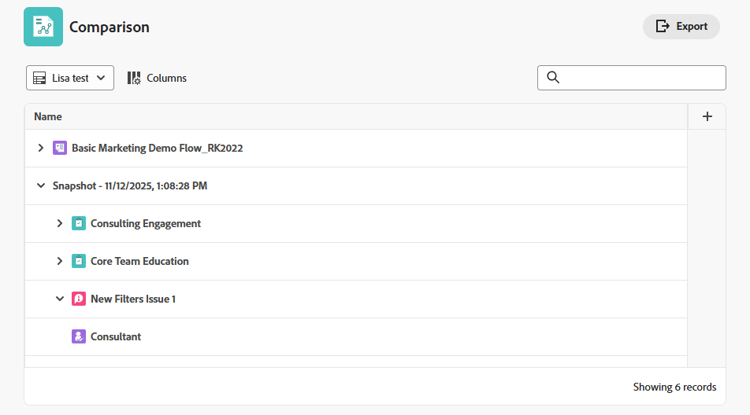
On the Comparison screen, expand each snapshot and the current project to see the hierarchy underneath.
-
You can customize the comparison by sorting, adding and removing columns, or applying a view. For more information, see Customize snapshot lists in this article.
Export snapshots
You can export the list of all snapshots or a snapshot comparison in .xlsx or .csv format. All displayed columns are included in the exported file.
-
Click the Export icon

-
Select the format for the export file.
The file is saved to your computer. You may be prompted to choose the location.
-
(Optional) Open the exported list using the appropriate application.
Customize snapshot lists
You can customize the list of all snapshots, as well as any lists within a snapshot or comparison, by filtering, sorting, adding and removing columns, or applying a view.
For more information about list customizations, see Use enhanced lists.
Filter items in a list
Filters help you reduce the amount of information you display in the list.
-
Click Filter above the list.
-
In the Filter box, click Add condition.
-
Select a field to filter by.
-
Select a filter modifier, such as “Has any of,” “Has none of,” “Is before,” or “Is after.” The modifier options are different depending on the type of field you are filtering by.
-
Select the field value or values. Depending on the field type you are filtering by, you might be prompted to select the item from a list, search for it, or use a calendar to select a date range.
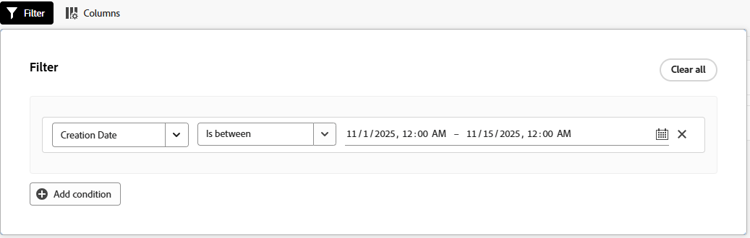
The filter is applied to the list automatically.
-
Click Add condition to add another condition to the filter.
You can join multiple filters by an AND or an OR connector.
-
When the filter is applied, you can open the Filter options again to change the filter options or clear all of the filters.
An indicator appears on the Filter button when a filter is applied to the list.

Sort in a list
To sort individual columns:
-
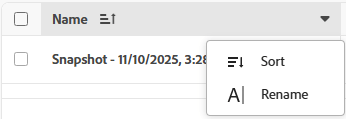
Hover over the column, then click the down arrow and select Sort.
An icon next to a column name indicates that the list is sorted by the values in that column, and the direction of the sort.
Customize columns in a list
You can hide, display, and reorder columns in a list.
-
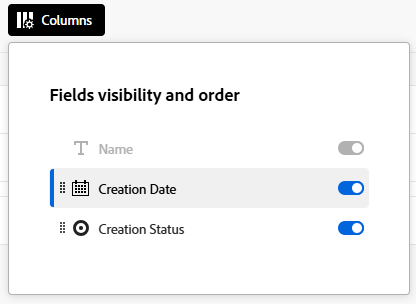
Click Columns above the list.
-
Use the toggles to display or hide columns in the list.
-
To reorder the columns, click the Drag icon

note NOTE The primary field is the first column in the list. It is fixed in the first position, and you cannot change its column. If the number of columns is large, then the primary field is frozen to the left, and when you scroll horizontally you will always see it. The icon next to a field name shows the field type, such as text or date field. An indicator appears on the Columns button when columns are hidden. The indicator does not appear when you reorder columns.

Add and remove columns with the Column manager
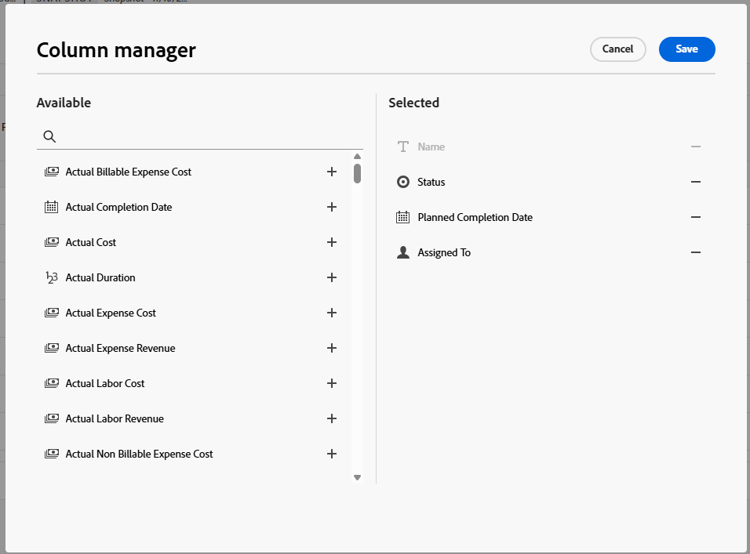
You can use the Column manager in some enhanced lists to easily add and remove columns on the list. You can add or remove both system and custom fields that already exist in Workfront as columns.
-
Click the + icon on the upper-right corner of the table to open the Column manager box.
-
Search for an existing object field in the Available column, then click + to the right of the field name it to add it to the Selected column.
-
Click - to the right of a field in the Selected column to remove it from the list.
-
Click Save.
The list updates the columns according to the choices you made.
Apply a view to a list
To apply or create a view:
-
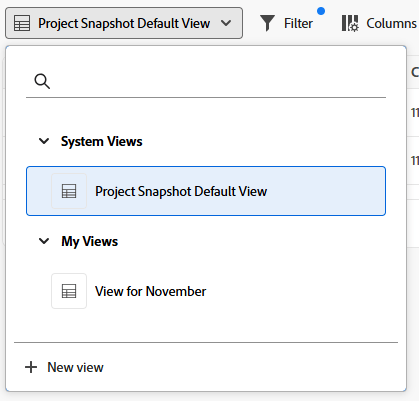
Click the Views dropdown and select an existing view to apply it to the list
OR
Click New view to create one.
-
(Conditional) For adding a new view, enter a name for the view, then click Create.
-
(Optional) Hide, show, or rearrange the columns. For more information, see Customize columns in a list.
-
(Optional) Filter the list. For more information, see Filter items in a list.
Changes to views are saved automatically. The next time you apply this view, the column and filter settings remain the way you set them. For more information about views, see Use enhanced lists.