Use Workfront documents in Creative Cloud apps
After a Workfront project is available in the Creative Cloud Projects panel, you can work with its documents directly from Photoshop, Illustrator, or InDesign.
Prerequisites
- Your organization must be on a version of Workfront that supports Adobe cloud storage.
- Workfront and Photoshop, Illustrator, or InDesign must be entitled in the same Adobe Identity Management System (IMS) organization.
Access requirements
| table 0-row-2 1-row-2 layout-auto html-authored no-header | |
|---|---|
| Adobe Workfront version | Workflow Ultimate, with Adobe cloud storage enabled |
| Object permissions |
View access to a project to see it in the Creative Cloud projects panel Edit access to a project to add, edit, or delete it |
For information, see Access requirements in Workfront documentation.
Access a Workfront project
The Documents folder structure in a Workfront project is mirrored in the Projects panel. When you open a document from a project folder, edit it, and save, your changes appear in Workfront.
To access a Workfront project in Photoshop, Illustrator, or InDesign:
-
Open Photoshop, Illustrator, or InDesign.
-
In the Projects panel on the left side of the app, select the Workfront project you want to open.

-
Open a document in the project to edit it. Once you save your changes, they are automatically saved back to the Workfront project.
Save a new document to Workfront from a Creative Cloud App
You can save a new file to Workfront or you can save a new copy of an existing file to Workfront from Photoshop, Illustrator, or InDesign.
To save a new document to Workfront:
-
Open Photoshop, Illustrator, or InDesign, and create a new file.
-
In the top menu, do one of the following:
- To save a new file, click Save.
- To save a new copy of an existing file, click Save As.
-
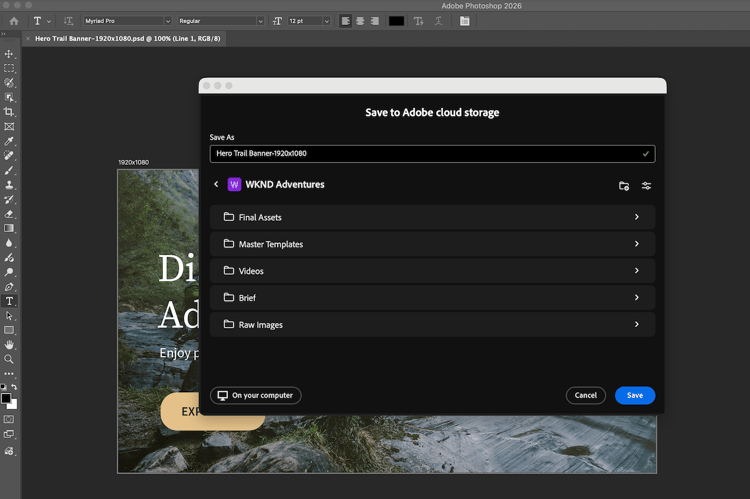
In the Save As dialog, select Save to cloud documents, then choose the Workfront project you need.
note NOTE When saving a document already in the Workfront project, the Save As dialog doesn’t open. You can select a Workfront project, save to a different folder or choose a different Workfront project. 
-
Choose a document folder, then click Save. If you don’t choose a folder, the document is saved to the project root folder.
Request an approval on a document
You can add a document approval in Workfront to any document you uploaded from Photoshop, Illustrator, or InDesign, or from Adobe Cloud Drive, the same as any other document. For more information, see Create a document approval workflow.
Manage versions of a document in Workfront from a Creative Cloud app
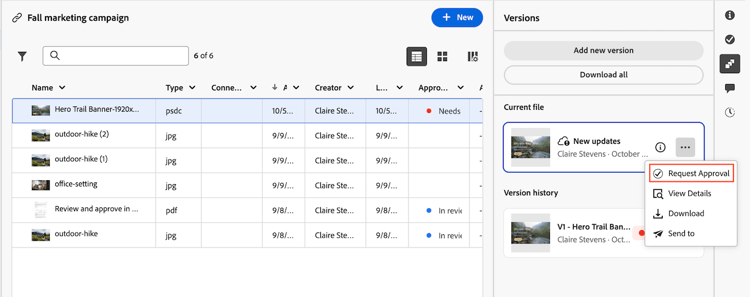
When you save a document from Photoshop, Illustrator, or InDesign to Workfront, the changes you save appear in the Current file on the Versions tab and are marked with a “New updates” badge.
You can request an approval on the Current file rather than uploading a new version of the document. For more information, see Request an approval on the Current file.

Request approval on the Current file
To request an approval on the Current file of a document in Workfront:
-
Go to the project in Workfront that contains the document you want to request an approval on.
-
Open the document and go to the Versions tab.
-
On the Current file, click More menu, then click Request Approval.
-
In the Request Approval dialog, follow the steps in Create a document approval workflow to create the approval.