Create workspace hierarchies
As a workspace manager, you can create multiple workspace hierarchies between record types in Adobe Workfront Planning.
After record types are connected within a workspace, you can create a hierarchy that organizes those connections.
Hierarchies organize record and object types into parent–child relationships and can contain up to 4 object types each. You can create up to 5 hierarchies in one workspace.
If a connection between two record types does not already exist, it can be created as you set up the hierarchy. Once defined, the hierarchy establishes a structured path across related record types within the workspace.
Hierarchies generate breadcrumbs for their respective records that display in their headers. This way, users know where they are in the hierarchy at any stage of their workflow.
For general information about hierarchies and breadcrumbs, see Hierarchy and breadcrumb overview.
Access requirements
| table 0-row-0 1-row-0 2-row-2 3-row-2 4-row-2 5-row-2 6-row-2 layout-auto html-authored no-header | |
|---|---|
| Adobe Workfront package |
|
| Adobe Workfront license | Workflow Standard |
| Adobe Planning license | Planning Standard |
| Access level configuration | You must add both a Workflow and a Planning license type to the access level when you have both a Workflow and a Planning package |
| Object permissions |
Manage permissions to a workspace System Administrators have permissions to all workspaces, including the ones they did not create |
For more information about Workfront access requirements, see Access requirements in Workfront documentation.
Create a workspace hierarchy
-
Click a workspace card.
-
Click the More menu

The Hierarchies section opens by default. -
Click New hierarchy in the upper-right corner of the Hierarchies page.
-
Click Add object and select an object type from the dropdown menu. This is going to be the first object type in your hierarchy.
The first object type can only be a Planning record type.
Workfront projects cannot be selected as parents of other object types in a hierarchy.
-
Click Add object to add a second object type which is the first child in your hierarchy, then select another object type in the dropdown menu.
Each additional object types become children of the previous object types.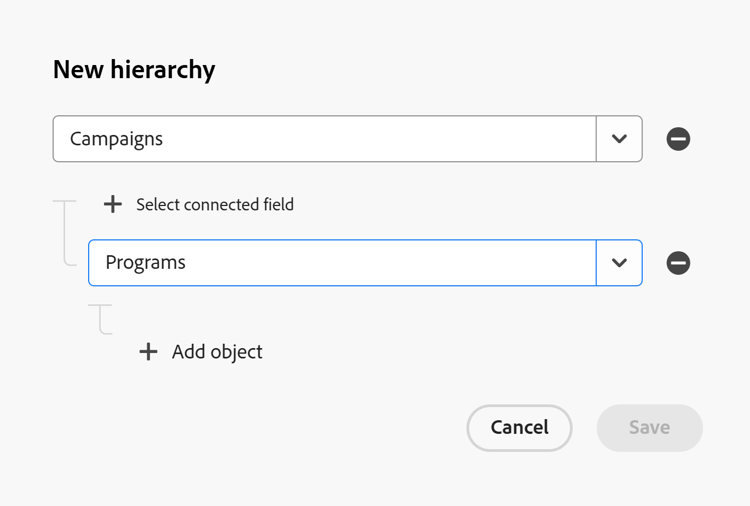
-
Click Select connected field to indicate which field connects the two objects.
-
(Conditional) If there are multiple connection fields, select one from the list,
Or
Click Add new connection to add a new connection field.
This creates a connection field from the record type that you are using as a parent and a corresponding connection field to it from the record type that you are using as a child.
If you are creating a connection to Workfront projects, no field is created on the project.
-
(Conditional) If there are no connected fields available, click Create connection and add a new connection, then click Save.
-
(Conditional) If you are adding a new connection, do the following:
-
Add a name for your connected field in the Name box.
-
Select from the following connection types:
- Many to many
- One to many
- Many to one
- One to one
-
Select one of the following types of record appearances:
- Name and image
- Name
- Image
For more information, see Connect record types.
-
Click Save.
-
-
(Conditional) If the Create corresponding field on linked record type was not selected when the connected field was created, you get an error and must do the following first:
- Click Cancel in the New hierarchy box.
- Click the back arrow to the left of the workspace name, then click the card of the record type you want to choose as a parent.
- Open the table view of the record type you selected in the step above, then go to the connection field with the object type you want to use as the child, hover over the column header, then click Edit field.
- Turn on the Create corresponding field on linked record type setting, then click Save.
- Return to the workspace’s Settings area and click New hierarchy again, then follow the steps to create a hierarchy.
-
(Optional) Continue adding up to 4 object types to your hierarchies following the steps above. You can add all your object types first and then add the connection fields between them.
-
(Optional) Click the Remove icon

-
Click Save to save your hierarchy.
note tip TIP The Save button is dimmed if you don’t have all the connected fields in place. The following things occur:
- The hierarchy is added to the Hierarchies section of the workspace.
- The records that populate the connection fields display all the connections in their breadcrumbs, when you go to a record’s page.
note NOTE You can connect one record from a child record type to up to 10 records from a parent record type. For more information, see Hierarchy and breadcrumb overview. -
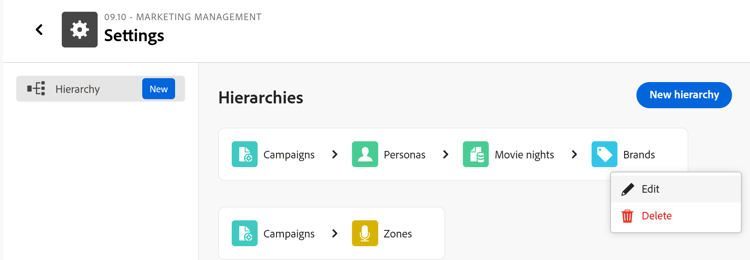
(Optional) Hover over a hierarchy, then click the More menu.
-
Click one of the following:
- Edit: This opens the Edit hierarchy box where you can make changes.
- Delete: This deletes the hierarchy permanently. Deleted hierarchies cannot be recovered. Connection fields are not deleted.
-
(Optional) Click the name of the last record type in your hierarchy, then the name of a record from that record type’s view. This opens the record’s details page. Find the hierarchy you created in the breadcrumb of a record at the top of the record’s page.
For more information, see Manage the record page layout.