Grant access to brand permissions
Users are granted the brand create, edit, and publish permissions of Adobe GenStudio system managers when added to a user group.
Access requirements
| table 0-row-2 1-row-2 2-row-2 3-row-2 layout-auto html-authored no-header | |
|---|---|
| Adobe Workfront package | Any |
| Adobe Workfront license | Standard |
| Access level configurations | You must be a Workfront administrator. |
| Admin Console permissions | You must be a system administrator in the Adobe Admin Console. |
For more detail about the information in this table, see Access requirements in Workfront documentation.
Requirements
-
Your Workfront instance must have Unified Approvals enabled.
-
Your organization must have GenStudio Foundation.
- AI Reviewer in Workfront provides the functionality available in GenStudio Foundation for asset review and approval workflows. You do not need to access GenStudio Foundation directly to complete your work. Your access to GenStudio Foundation functionality through AI Reviewer falls under the terms of your Workfront contract.
-
Adobe must have a signed Adobe Gen AI agreement on file.
For more information on signing the agreement, see Sign the Adobe Gen AI agreement.
1. Configure brand permissions in the Admin Console
Step 1: Create a user group
Create a new user group in the Admin Console to manage permissions for brand creation and editing.
Step 2: Assign a product profile to the user group
The entitlement associated with the assigned profile gives all users in this group GenStudio Brands permissions (create, update, and delete brands).
To assign a profile:
- Navigate to the newly created user group.
- Click the Assigned product profiles tab.
- Click Assign profile.
- In the popup, select Adobe GenStudio from the products list, then click Apply.
- Select the Adobe GenStudio Foundation editors profile.
- Click Apply.
- Click Save.
Step 3: Add users to the user group
To assign users permissions to create, edit, and publish brands, add them to the user group.
To add users:
- Go to Admin Console > Users > User Groups.
- Select your user group.
- Add users by username or email address.
- Select from suggested matches for existing users.
Step 4: Create a Brands project
A project provides a storage location where users can save brand assets.
To create a project:
-
Navigate to the Storage tab in Admin Console.
-
Click Projects.
-
Click Create Project.
-
In the popup, enter the project name: Adobe GenStudio Brands.
note important IMPORTANT Enter the project name exactly as shown. Do not add extra spaces or change the case. -
Click Create.
Step 5: Invite the user group to the project
Add the user group to the Brands project so they can access and manage assets.
- In the Invite to project popup, add the user group you created.
- Select Can edit permissions.
- Click Invite.
Result
Users in the group now have permissions to create, edit, and publish brand assets within Workfront.
2. Grant access to Brands in Workfront access levels
You must complete all steps in the previous section before granting access to individual users to Brands in Workfront access levels.
- Only users assigned to the user group with the GenStudio system manager product profile in the Admin Console can create, edit, and publish brands in Workfront, even if other users have access to Brands enabled in their access level settings.
- Users added to the access level with Brands access enabled but not added to the user group in the Admin Console can only view brands.
To grant access to Brands in Workfront access levels:
-
Click the Main Menu icon


-
Click Access Levels in the left panel.
-
Find the access level you want to edit, then click the edit icon

Or
Click New Access Level to create a new access level. For more information about creating access levels, see Create or modify custom access levels.
-
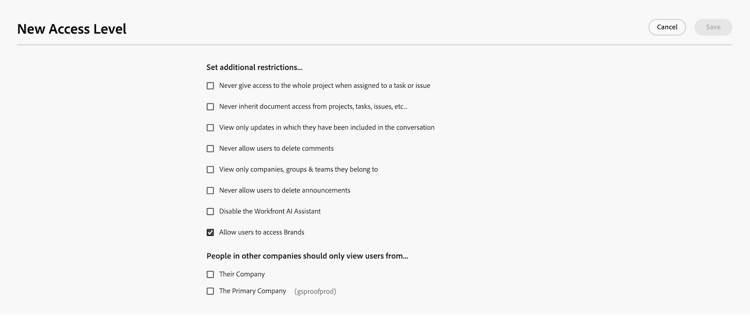
Scroll down to Set additional restrictions, then select Allow users to access Brands.
-
Click Save.
Once you have configured Brands, you can create an AI Reviewer to review assets against brand guidelines in the review and approval workflow. For more information, see Configure AI Collaborators.