View and manage chained scenario relationships
You can a map of the relationships between parent and child scenarios. You can also use the map to jump to different scenarios in the chain.
For more information on chained scenarios, see Chain multiple scenarios together.
For information on configuring chained scenarios, see Chain modules
Access requirements
| table 0-row-2 1-row-2 2-row-2 layout-auto html-authored no-header | |
|---|---|
| Adobe Workfront package |
Any Adobe Workfront Workflow package and any Adobe Workfront Automation and Integration package Workfront Ultimate Workfront Prime and Select packages, with an additional purchase of Workfront Fusion. |
| Adobe Workfront licenses |
Standard Work or higher |
| Product | If your organization has a Select or Prime Workfront package that does not include Workfront Automation and Integration, your organization must purchase Adobe Workfront Fusion. |
For more detail about the information in this table, see Access requirements in documentation.
View a map of chained relationships
You can view a map of the current scenario and its parent or child scenarios. The map displays a diagram of data flow throughout the chained scenarios.
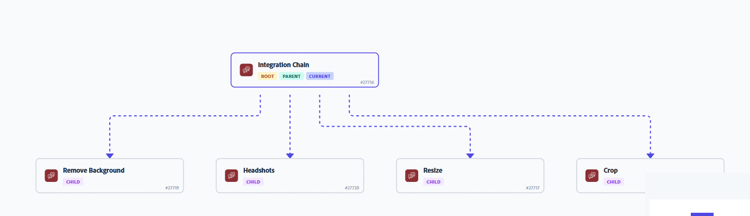
To view the relationship map for a chained scenario:
-
Click the Scenario tab in the left panel, then click the scenario.
Or
If you are working on the scenario in the Scenario editor, click the left arrow

-
Click the Relationships tab.
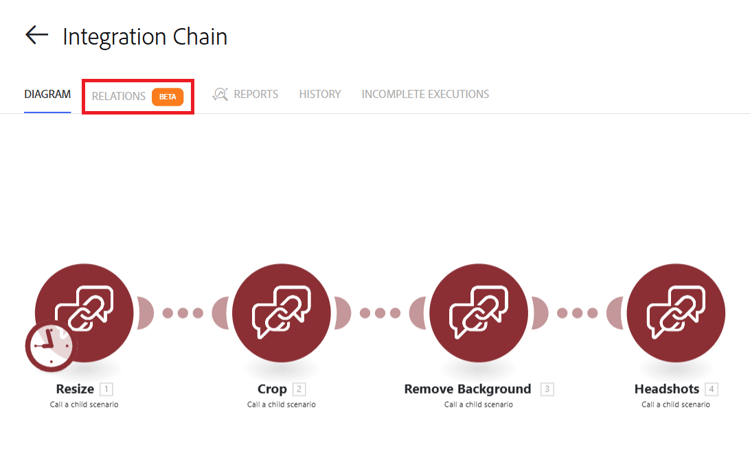
-
For general details about each chained scenario, check the tags.
Each scenario has one or more of the following tags:
- Root: The scenario is the beginning of the chain, and has no parent scenario.
- Parent: The scenario is a parent scenario.
- Child: The scenario is a child scenario. A scenario can be both a parent and a child.
- Current: This is the scenario that the user is currently viewing. In other words, this is the scenario from which the user opened the relationships map.
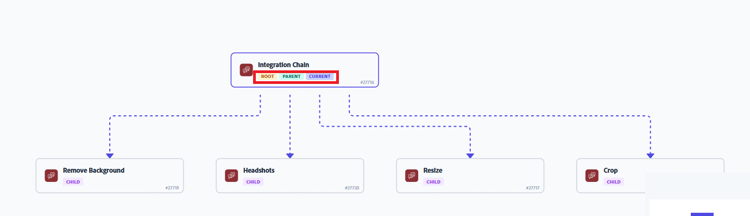
-
(Optional) To view a small diagram of a scenario, hover over the scenario.
-
(Optional) to go directly to another scenario from the map, click on the scenario.
The clicked scenario opens in another window.
-
(Optional) To switch between horizontal and vertical views of the map, click Horizontal or Vertical near the upper-right of the Scenario Details page.
-
(Optional) To see a simplified view of the map, check the lower-right corner of the page.
This may be convenient if your chain map is large or complex.
- If you are viewing only a portion of the map, that portion is darker on the simplified map.
- The current scenario is marked in blue on the simplified map.
-
To view execution history for the chain, click the History tab near the top of the view.
You can click on a history to view the specific data passed between chained scenarios.