System Insights
System Insights provide proactive findings that help identify potential issues across performance, security, and functionality in an Adobe product setup. These insights surface risks such as performance degradation, security vulnerabilities, or incorrect configurations based on telemetry data collected from observability tools, including APIs, New Relic, and Splunk.
System Insights appear during the case creation process and help accelerate diagnosis and resolution.
How System Insights are created
Adobe teams continuously analyze common support issues and emerging trends. Based on these findings, Adobe adds automated checks to the system.
These checks scan the product setup to detect issues such as misconfigurations, stuck jobs, or conditions that could result in functional problems or system outages.
When a check identifies a value or state outside the safe range defined by Adobe product and support teams, the system surfaces it as a System Insight.
Why System Insights matter
Regularly reviewing System Insights helps identify problems early, before they affect system stability or customer experience. This proactive approach:
- Improves platform reliability
- Reduces downtime
- Helps maintain Adobe‑recommended best practices
Availability and scope
System Insights are currently available for Adobe Commerce only. These insights appear during the case creation process on Experience League Support and are also available through the Site‑Wide Analysis Tool (SWAT).
Accessing System Insights
System Insights appear throughout the case creation workflow. As issue details are entered, the System Insights panel appears on the right side of the screen, above the AI‑powered recommendations section. To learn more about AI‑powered recommendations, see Fill out the support ticket in the Adobe Customer Support Experience article.
The panel displays a scrollable list of insights scoped to the specific project instance. Scoping is based on the information entered in the Project URL field. Enter the Project URL accurately to ensure insights reflect the correct environment.
After the panel loads, it displays a scrollable list of insight cards flagged for your environment. Each insight card includes:
- A title that summarizes the issue
- A brief description of the insight

To view full insight details, select an insight card from the list. The detailed view provides the following information:
-
Insight name
-
Adobe product where the insight is flagged
-
Insight type, categorized as:
- Functionality
- Performance
- Security
-
Risk level indicating the severity
-
Last Check Run indicates when the finding was detected.
-
Insight Source, provided by the Site‑Wide Analysis Tool (SWAT)
-
A detailed explanation of the issue and its potential impact, along with actionable steps to investigate and address the issue. The detailed view also explains the typical causes of this type of issue and includes links to relevant Adobe documentation for additional reference.
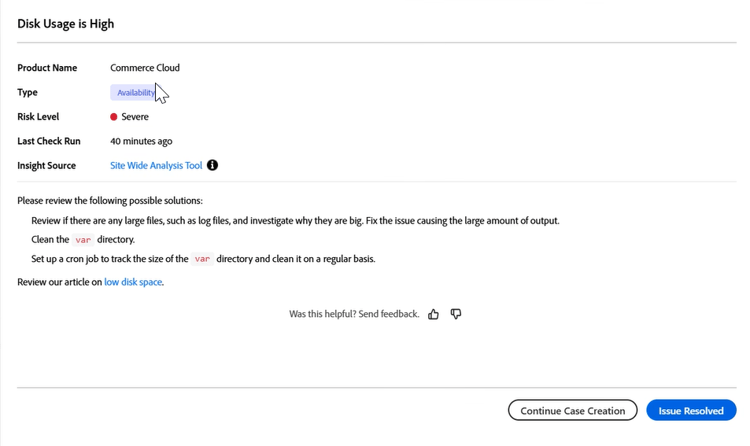
Review all insights in the panel before proceeding, as an insight may directly address the issue being experienced.
Taking action on an insight
After reviewing an insight, choose one of the following actions.
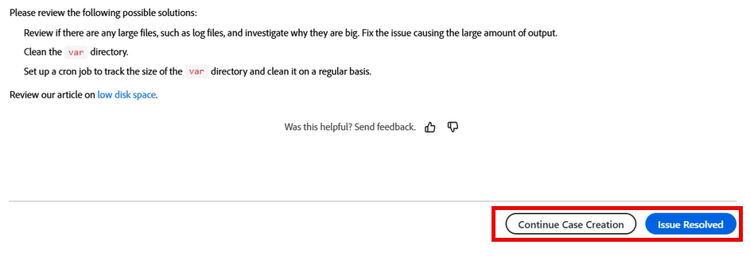
Continue case creation
If the issue persists or requires additional assistance, select Continue Case Creation. The system retains all previously entered case information.
Mark issue as resolved
If the insight resolves the issue and a support case is no longer required, select Issue Resolved.
When this option is selected:
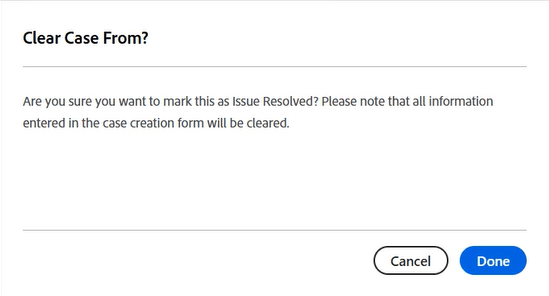
- A confirmation dialog appears.
- The dialog indicates that all entered case data will be permanently cleared.
Select Done to confirm and return to the My Cases page. Select Cancel to return to the insight detail view.
Providing feedback on an insight
At the bottom of each insight detail view, feedback can be provided on whether the insight was helpful. This feedback helps Adobe continuously improve the relevance and accuracy of System Insights.
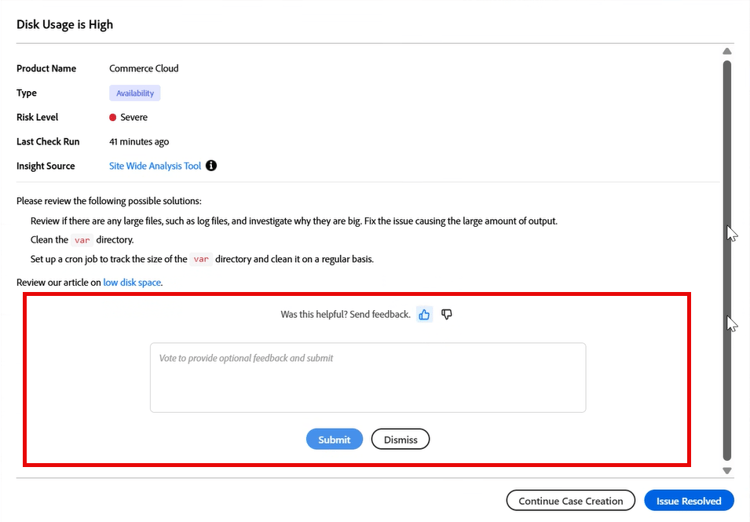
To provide feedback:
-
Open an insight detail view.
-
Scroll to the bottom of the panel.
-
Locate the prompt Was this helpful? Send feedback.
-
Select one of the following options:
- Thumbs up icon if the insight was helpful
- Thumbs down icon if the insight was not helpful
-
(Optional) Enter additional comments.
-
Select Submit to send feedback, or Dismiss to close the feedback section without submitting.