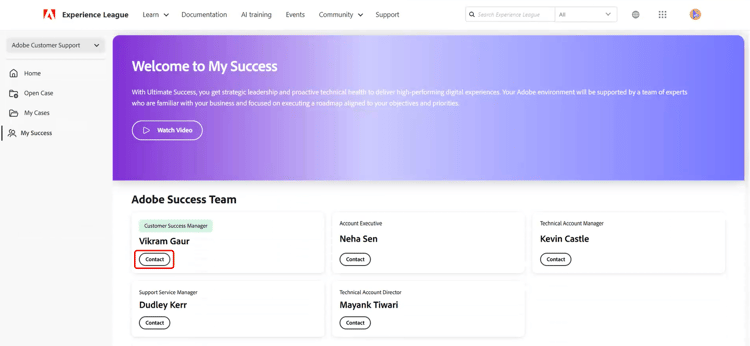
Experience League support portal - new user interface
Overview
The redesigned Experience League Support Portal is now the default experience for all users. When you access the support application, you are automatically directed to the redesigned portal. The portal provides a unified and intuitive experience for managing Adobe support activities, with faster access to essential features such as tracking support cases, monitoring product status, accessing case insights, and connecting with the Success team.
Home Page
The Home page serves as the central hub for support activities. It provides an overview of the support environment and quick access to key features.
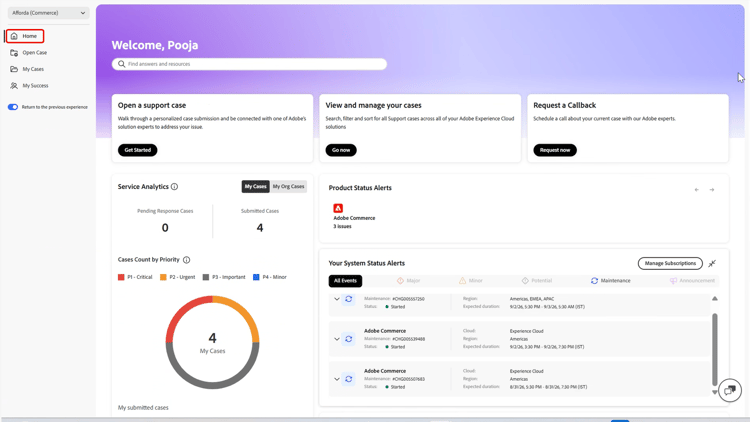
The left navigation panel provides access to the following sections:
- Home opens as the default landing page and displays a centralized view of support activity.
- Open Case opens the case creation workflow in the redesigned portal.
- My Cases opens the cases list in the redesigned portal.
- My Success is available only to Ultimate Success plan customers.
Switching Organizations
If associated with multiple organizations, use the Organization Switcher located in the upper-left corner of the portal.
Switching organizations updates case data, product status, and support information across the portal to reflect the selected organization.
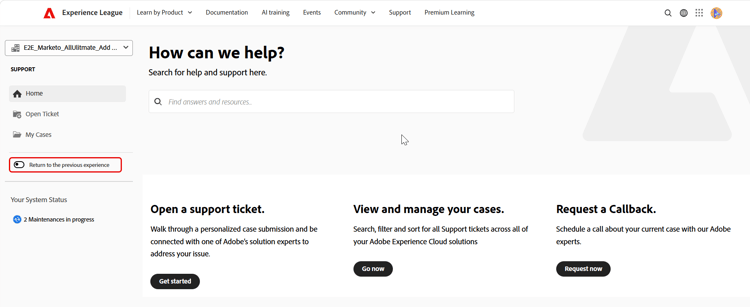
Switching Between Portals
Use the toggle in the portal to switch between the redesigned Experience League Support portal and the current portal.

Both portal experiences remain synchronized, ensuring that support case data and information stay consistent across experiences. Your portal preference is saved based on the selection of the Return to the previous experience switcher, and you are directed to your last selected portal experience each time you visit.
The Home page includes a personalized welcome banner with a global search bar that enables searching across the Experience League Support portal.
The following quick actions are available at the top of the Home page:
-
Open a support case — Opens the case creation workflow in the redesigned portal. Select Get Started.
-
View and manage your cases — Opens the My Cases page in the redesigned portal. Select Go now.
-
Request a Callback - Schedule a call about the case with an Adobe expert. For P1 (Critical) cases, request an immediate callback. For P2 and P3 cases, schedule a web meeting with a support engineer at a convenient date and time. Select Request now to get started.
Service Analytics
The Service Analytics section displays a summary of support case activity. Use the view selector to switch between My Cases and My Org Cases:
- My Cases — Displays case statistics specific to the individual.
- My Org Cases — Displays case statistics for the selected organization.
The selected view applies to all metrics and charts in this section, including Cases Count by Priority and My submitted Cases sections.
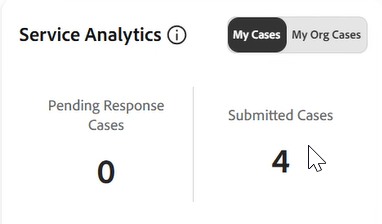
The Service Analytics section provides the following metrics:
- Pending Response Cases — Displays the number of cases that are awaiting a response.
- Submitted Cases — Displays the total number of cases submitted.
Cases Count by Priority
This section displays a visual breakdown of support cases by priority level.
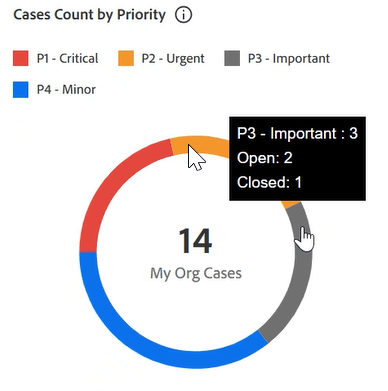
The My Cases and My Org Cases selection in the Service Analytics section applies to this chart and enables viewing at an individual or organizational level.
Hover over a priority segment to view a tooltip that shows:
- Total number of cases for that priority level
- Number of open cases
- Number of closed cases
My submitted Cases
This section displays the three most recently submitted support cases, including:
- Case ID
- Case Title
- Priority
- Submission Date
- Status

When My Cases is selected in Service Analytics, this section displays the three most recently submitted cases. When My Org Cases is selected in the Service Analytics section, it displays the three most recently submitted cases across the organization.

Select a Case ID to view case details in the redesigned Experience League support portal.

Select View all cases to open the My Cases page in the redesigned Experience League support portal.

The portal pre-selects the tab that matches your original selection:
- If you select My Cases in Service Analytics, the My Cases tab is pre-selected.
- If you select My Org Cases in Service Analytics, the My Org Cases tab is pre-selected.
Product Status Alerts
This section displays the current operational status of Adobe products assigned to the organization.
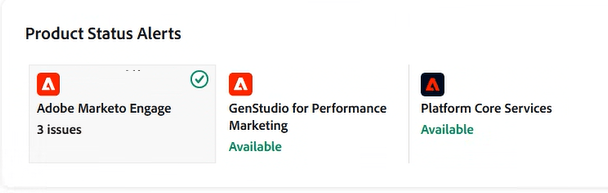
A status of Available indicates that the product is fully operational with no active outages. If one or more issues exist, the total number of active issues appears on the product card.
Products appear in the following order:
- Products with active issues
- Remaining products, listed in alphabetical order
This prioritization helps quickly identify and prioritize products that require attention. You can select one or more product cards to filter alerts in Your System Status Alerts on the Home page.

Your System Status Alerts
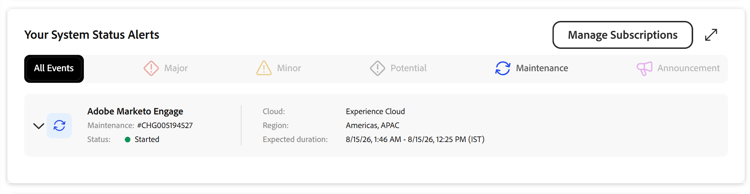
This section displays real-time alerts for Adobe products. You can filter alerts by event type using the following tabs:
- Major
- Minor
- Potential
- Maintenance
- Announcements
And, Each alert includes:
- Issue number
- Cloud
- Region
- Status
- Start and end time for your reference
Select an alert to expand and view additional details.
Manage Subscriptions
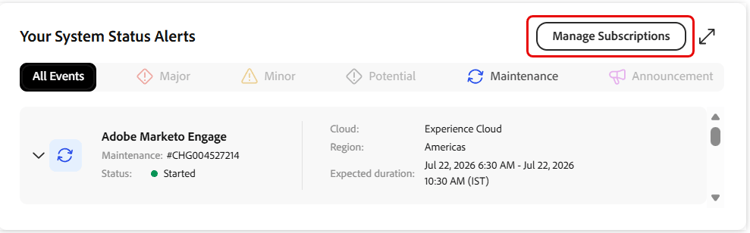
Use Manage Subscriptions to set up email notifications for Adobe product and service status events. When there’s an update to a product you’ve subscribed to, you receive an alert.
-
In the Your System Status Alerts section, select Manage Subscriptions.
-
On the Manage Subscriptions page, select Create Subscription.

-
In Please Select Cloud, select the Adobe cloud that contains the product that you want to monitor.
-
In Please Select Product & Offerings, select the product for which you want to receive notifications.
-
In Please Select Regions, select one or more regions to monitor.
-
In Please Select Event Types, select one or more of the following event types:
- Major Service Issue
- Minor Service Issue
- Service Maintenance
- Announcements

-
Review the default notification settings, including the language and time zone.
-
Select Continue.
-
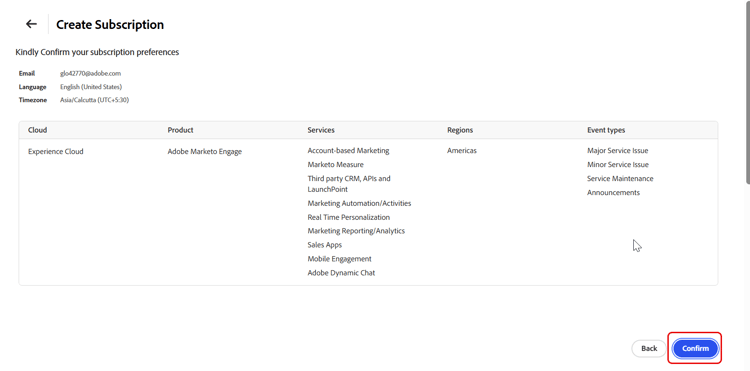
Review the subscription details, including the selected cloud, product, services, regions, and event types.
-
Select Confirm to create the subscription.
-
A confirmation message appears and the subscription is created.
After the subscription is created, Adobe sends email notifications when events that match the selected product, region, and event type criteria are created, updated, or resolved.
The next time that you open Manage Subscriptions, the page displays your current subscription details, including the selected cloud, product, services, regions, and event types.

From this page, you can perform the following actions:
- Select Edit Subscription to modify an existing subscription.
- Select Unsubscribe All to remove all subscriptions.
- Select the delete icon next to a subscription to remove an individual subscription.
Your Plan Information
This section displays key details about the support plan (Ultimate Success plan and Expert Success plan) and available benefits. Select Learn More to explore the full range of plan offerings.
My Success
The My Success page provides a personalized view of engagement with Adobe. It offers direct access to the Success team, program benefits, and learning resources.
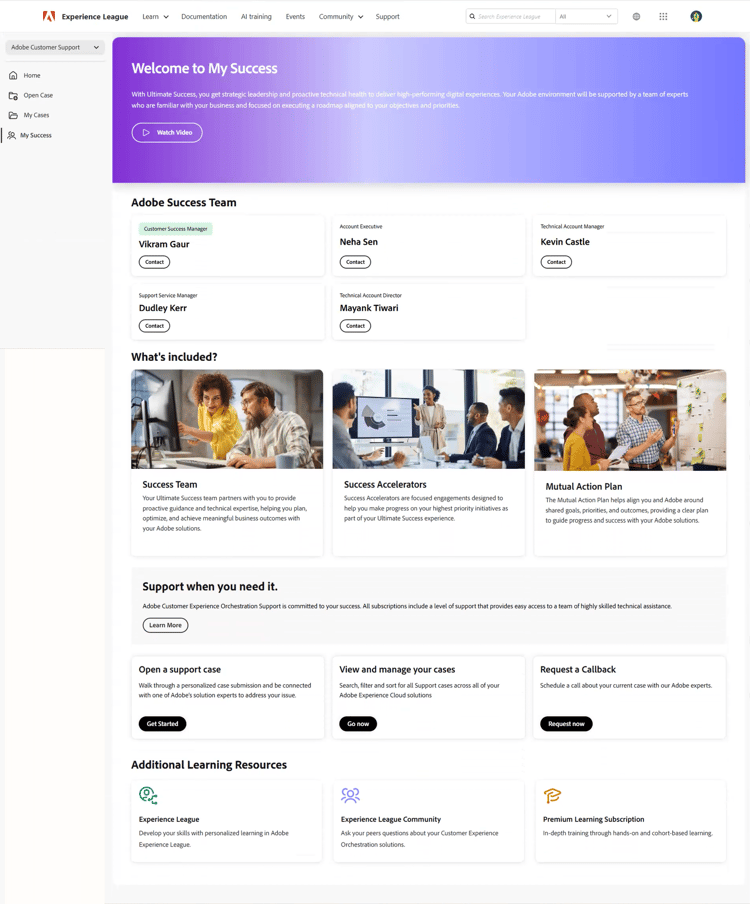
The page includes:
-
A welcome message outlining how Ultimate Success provides strategic leadership and proactive technical health support to deliver high-performing digital experiences
-
A Watch Video option to learn more about the plan
-
Key components of the plan, including:
- Success Team
- Success Accelerators
- Mutual Action Plan
It also provides access to learning resources such as Experience League, the Experience League Community, and Premium Learning Subscriptions.
Adobe Success Team
This section displays your dedicated Adobe Success team. Select Contact next to a team member to send an email.