Allocate products to child organizations using the Global Admin Console
Applies to enterprise.
Learn how global administrators can distribute resources to child organizations (child Admin Consoles in your hierarchy), enabling system administrators in each console to assign licenses to users.
In the Global Admin Console, go to the Product Allocation tab, and then select a product to allocate to child organizations. Global administrators allocate products down the hierarchy; they do not assign licenses to end users—that work stays in each child Adobe Admin Console.
Sign in to the Global Admin Console.
Part of distributing and administering Adobe products across organizations is partitioning purchased resources into resource allocations across the organizations to be managed. You can distribute administration of product resources to other organizations by giving all or some of the resource. Not all resources of all products can be allocated; some products are not distributable to other organizations. Such products appear in the Product Allocation tab but have no controls to add them to other organizations.
Pooled storage
This applies to customers who have a Storage tab in their Admin Console. If you do not see a Storage tab, your Admin Console has not yet been updated to the Enterprise Storage Model. Once your organization is migrated, you will see the following changes:
- Global administrators gain access to storage quota and usage across the hierarchy and can allocate storage to organizations using the Product Allocation tab in the Global Admin Console.
- System administrators and storage administrators have full control and visibility of storage across the organization. They can track and manage storage using the Storage tab in the Adobe Admin Console.
With the updates to Adobe Creative Cloud storage, storage quotas are flexible for end users, up to the amount of storage purchased by the organization. Learn more.
Allocate products
The Product Allocation tab in the Global Admin Console shows allocation units for products purchased across the organization hierarchy. As a global administrator, you can allocate these product resources to another organization in the organization tree and specify the allocation quantity. As a global viewer, you can view and export the data but cannot make any updates.
To allocate products to an organization, follow these steps:
-
Sign in to the Global Admin Console and go to Product Allocation.
-
Select a product from the drop-down list to see how it is allocated to different organizations.
If an organization does not currently have the product, the Add + icon appears.note Note If the child organization already has a purchase contract, product allocation from the parent to that child organization may be limited. Learn more. -
To allocate the product, select the Add + icon for the relevant organization.
Some products include more than one allocatable resource; in that case, several resources are listed in the dialog box, and you must provide values for each. For example, Adobe Stock can include Adobe Stock Image credits and premium credits.
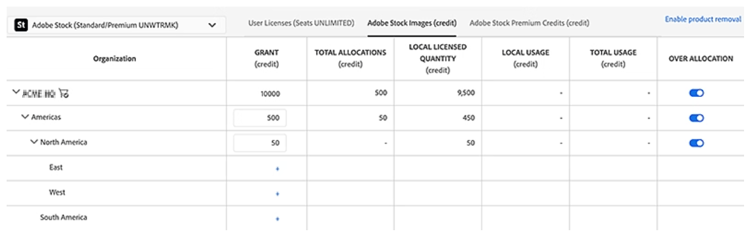
-
In the dialog box that appears, specify the product quantity.
-
Select Save.
-
To allow or disallow overallocation of a resource, select the relevant toggle.
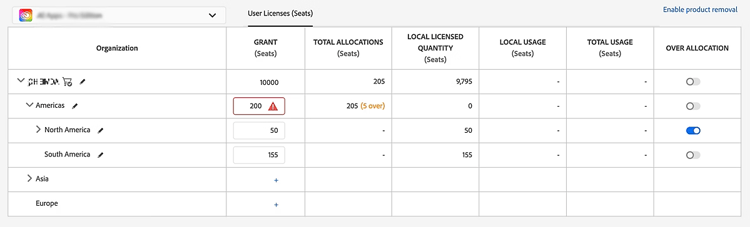
-
Select Review Pending Changes after you are done allocating resources. After reviewing, select Submit Changes to execute them.
Allocate and distribute Adobe Acrobat Sign user licenses or transactions
The Global Admin Console lets you allocate and distribute Acrobat Sign user licenses or transactions across the organizational hierarchy. Each organization in the hierarchy that has Acrobat Sign licenses or transactions allocated to it creates its own separate Acrobat Sign account.
- Each Acrobat Sign account created is independent and siloed in terms of administration and content.
- Each Acrobat Sign account is unaware of other Acrobat Sign accounts (for example, in parent or sister organizations).
Learn more about managing Adobe Acrobat Sign in the Admin Console.
To manage authentication add-ons such as Knowledge-based Authentication (KBA) and Phone Authentication (PA), contact your Adobe representative or Customer Success Manager.
Limitations on product allocation
Allocation from a parent organization to a child organization is limited in these cases:
- If both organizations have different contracts and the product you are trying to allocate exists in both, mixing the same offer between contracts is not allowed.
- If both organizations have the same contract, you can request permission to allocate the product by contacting your Adobe representative or by submitting a support case specifying that Product Allocation in Global Admin Console is blocked.
Overallocation
As a global administrator, you can allow overallocation of resources.
An allocation policy associated with the product and organization indicates whether overallocation is allowed.
Overallocation allows granting more product resources to a child organization than are available in the parent organization. It is useful when allocations are approximate, and the administrator does not want to be burdened with keeping the resource allocations adding up.
If overallocation is disabled for a product resource in an organization, then the sum of child grants cannot exceed the parent grant. Requests to overallocate a resource marked with overallocation disabled are not executed.
When the overallocation toggle is switched from enabled to disabled, the grant values must be adjusted to eliminate overallocation before grant updates can be executed, if an overallocation situation is present in the grant quantities of a resource.
Expired contracts in the hierarchy
You cannot allocate products to a child organization from an ETLA contract that has expired. In‑app banners and notifications, such as the following, on the Overview and Product Allocation pages clearly indicate when the contract on one or more child organizations is going to expire, has expired, or is inactive.
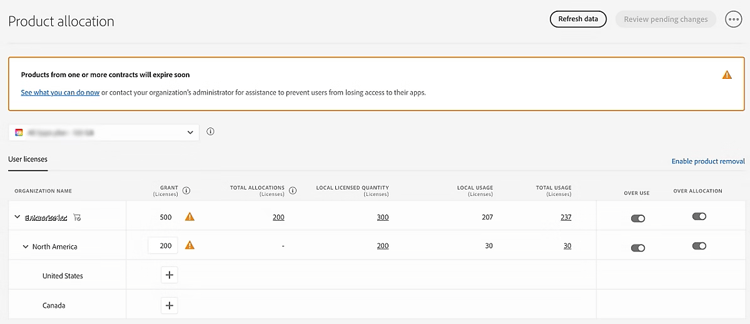
Learn more about contract expiry, or contact your company’s administrator for assistance to prevent users in the child organization from losing access to their Adobe apps and services.