Substance in 3ds Max Overview
Plugin Overview:
Opening a Substance
-
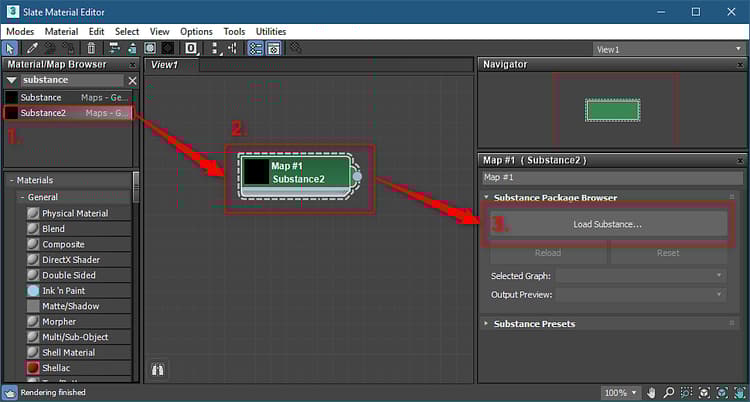
Open the Slate editor, search for Substance and drag the Substance2 node to the view.
-
Double click the Substance node to activate the properties and under Substance Package Browser, load a Substance.
note NOTE You can also drag and drop the .sbsar file into the Slate Editor to automatically create the node and import the sbar. -
If a Substance contains multiple graphs, you can choose the graph you want to output as a material in the Selected Graph drop down menu.
-
With the Substance node selected, go to the Substance menu and choose a supported renderer. The material will be created and ready to be applied to the object. Substance textures are hooked into the rendering material.
table 0-row-1 1-row-1 2-row-1 3-row-1 4-row-1 Supported Renderers Arnold Vray Corona Octane 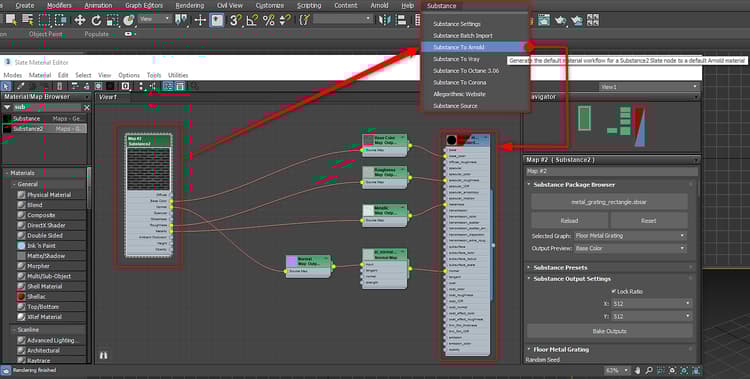
Changing Resolution:
-
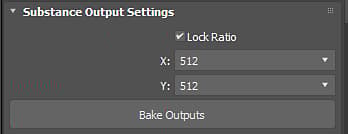
Set the desired resolution for the computed Substance textures in the Substance Output Settings.
-
For resolution up to 8K, make sure you are using the GPU engine, which is set in the Substance Settings.
Changing Parameters:
-
Double click on the Substance node to load the Substance parameters in the parameter window.
-
Change the parameters to update the Substance textures automatically.
{width="500px"}
Setting Output Preview:
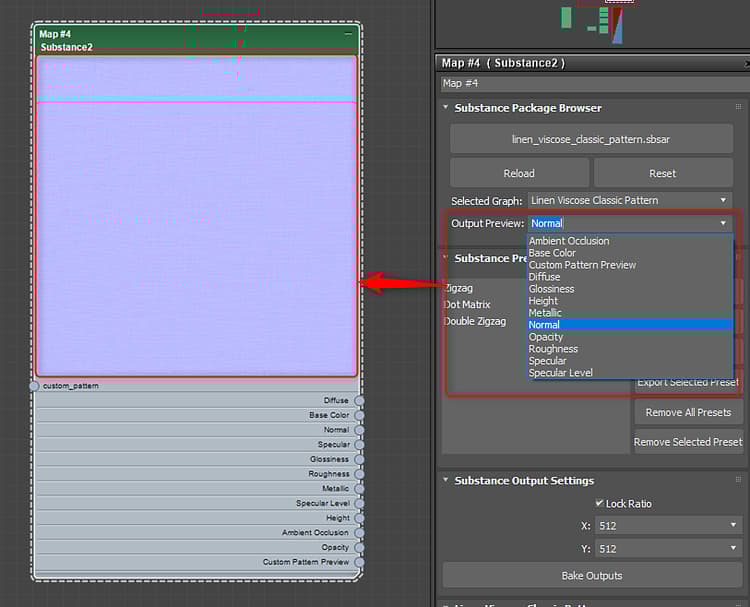
You can set a specific channel for the thumbnail for the Substance node.
-
In the Output Preview drop down, choose the channel you want to use for the node thumbnail.
Tiling Substances:
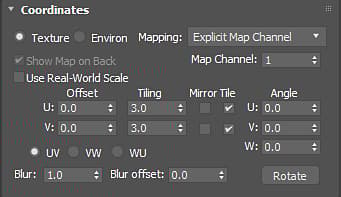
You can use the Coordinates properties to tile Substance textures and set Map Channels.