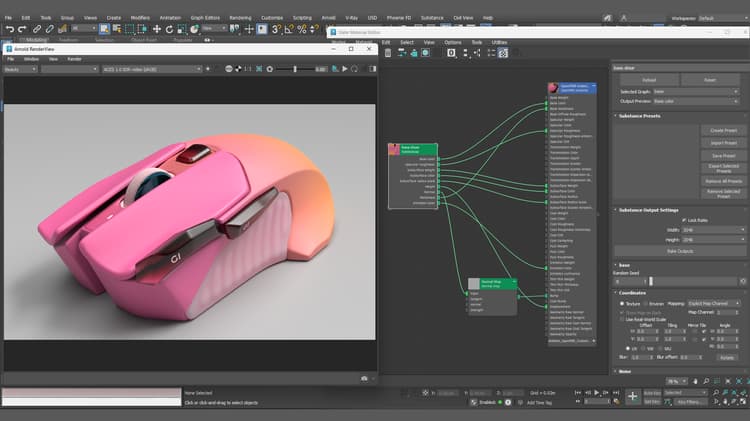
Using Workflows in 3ds Max
The Substance in 3ds Max plugin contains workflows for automatically creating a shader network to support renderers. The render workflows can be found in the Substance menu.
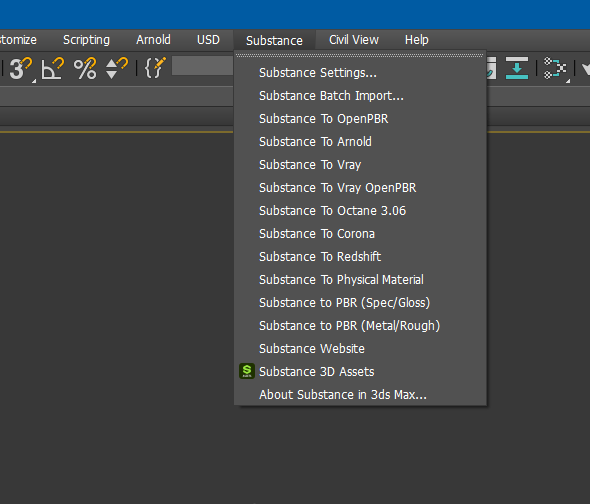
To use a workflow, select the Substance node in the material editor and then choose the workflow from the Substance menu.

OpenPBR Workflows
Two OpenPBR workflows are available in the Workflows list from the Substance menu: Substance to OpenPBR and Substance to V-Ray OpenPBR. These workflows are designed for use with SBSAR files authored using the OpenPBR material model in Substance 3D Designer or Sampler (OpenPBR has been the default model since Designer V16.0+ and Sampler V6.0+).
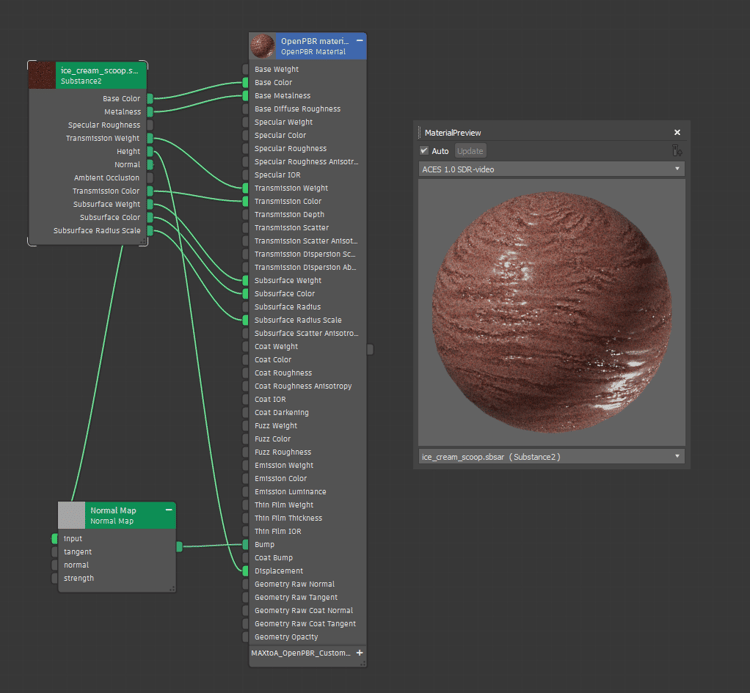
What is OpenPBR?
OpenPBR is an open, physically-based material shading model developed by Adobe and Autodesk and contributed to the Academy Software Foundation (ASWF). It provides a unified material definition compatible across renderers. For more information, visit the OpenPBR documentation.
When to use an OpenPBR workflow
Use an OpenPBR workflow when your SBSAR file was authored using the OpenPBR material model in Substance 3D Designer or Substance 3D Sampler. If your SBSAR was authored using Adobe standard material model (ASM), use the legacy workflow compatible with your renderer (Arnold, V-Ray or V-Ray 6).
Available OpenPBR workflows
OpenPBR
Uses the native 3ds Max openPBRSurface node. Compatible with Arnold and V-Ray. This is the recommended workflow for most users working with OpenPBR materials in 3ds Max.
OpenPBR - V-Ray
Uses the V-Ray material (VRayMtl) in OpenPBR mode. Recommended for users whose pipeline is specifically built around V-Ray material setups.
How to apply an OpenPBR workflow
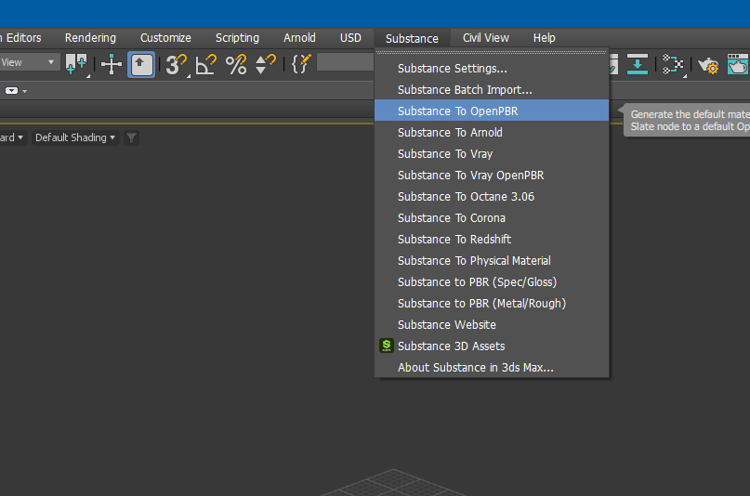
- Select your SBSAR file (OpenPBR) using the Load Substance button.
- On the top menu, select OpenPBR or OpenPBR - V-Ray.
- Click Create Network to create the shader network in the Slate Material Editor.
- The plug-in automatically connects the SBSAR outputs to the corresponding inputs of the OpenPBR node.
- Assign the material to your mesh as usual.