Interface
Sampler’s workspace is made up of the 2D and 3D viewports, the left and right Sidebars, and a collection of panels. Each panel is dedicated to a specific purpose, so different panels are useful during different parts of the creative process.
Workspace overview
The workspace is where you will spend most of your time in Sampler. By default the workspace consists of six areas:
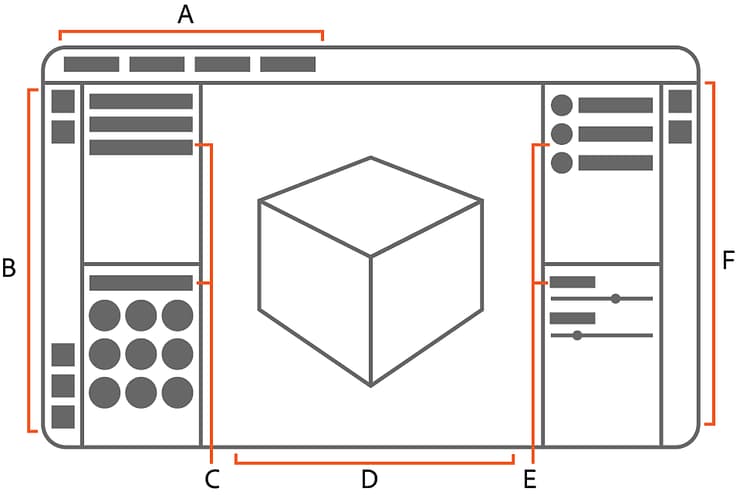
A. The Application menu bar shows the current project name. It also holds the File, Edit, Window, Help, and License menus.
B. From the Left sidebar you can:
- Add and import content.
- Browse 3D assets on Creative Cloud Desktop.
- Access Quick actions.
- Quickly access common tools.
- Open the Channel settings panel.
C. The Project and Assets panels.
D. The 2D and 3D Viewports display the asset you’re currently working on.
E. The Layers and Properties panels.
F. From the Right sidebar you can access the following panels:
- Exposed parameters
- Physical size
- Metadata
- Export
The Application menus are covered in more detail below. Panels, the Viewport and the Sidebars each have their own articles.
Customize the workspace
Sampler’s workspace is fully customizable, so you can find a layout that works best for you. If you ever want to reset the panels to the default layout, use Window > Reset to default layout.
Rearrange panels
Click and drag the title of a panel to start moving it.
You can dock a panel on the edges of the viewport or other panels: drag the panel over the edge where you’d like it to be docked and a blue highlight guide will appear. When you see the line appear, drop the panel to dock it.
Open and close panels
Use the X at the upper right of a panel to close it. Closed panels are stored in the sidebars.
To open a panel again, click the relevant icon for the panel in either the left or right sidebar. This opens the panel temporarily. Drag the panel out to keep it open permanently.
Application Menus
The Application menu bar shows the current project name. It also holds the File, Edit, Window, Help, and License menus.
Use the File menu to create a new project, open an existing project, or save or export your current project.
Use the Edit menu to undo and redo actions or open Preferences.
Use the Window menu to reset your workspace to the default layout.
Use the Help menu to learn more about Sampler or find out how to fix issues.
From the License menu, use Manage my account to access your Adobe account. Sign out of your Adobe account by clicking sign out.