Create and edit custom presets
Custom presets can be created with Substance 3D Designer.
The creation of custom presets respects the same rules as creating a custom filter for Sampler. Documentation is available here.
Creation
Create the graph
Open Substance Designer and create a new Substance graph.
Open the graph properties and fill in the following mandatory information:
- Label: Enter the name of your custom preset that will be used in the Sampler interface
- User Data: alchemist::type=filter
Definition of inputs and outputs
Inputs
The inputs represent the material channels you want to transform before the export.
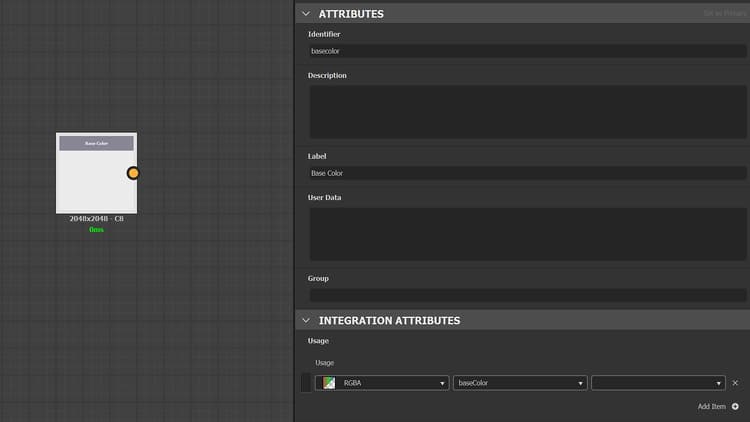
Create an Input Color node (or grayscale) per material channel and add a usage in the attributes to each input node to ensure the connection is made between your material(s) and your custom preset.
Example: Definition of the Base Color input
Outputs
The outputs represent the result of your texture export.
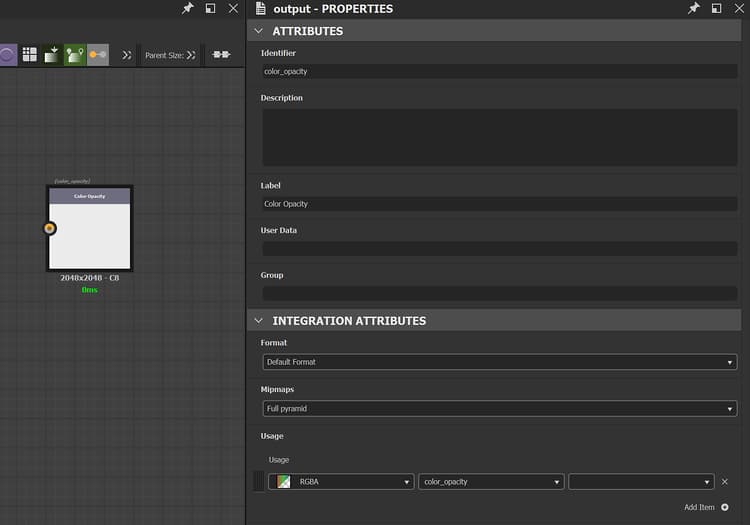
Create one Output node per texture and add usage and a label in the attributes to each output node. The label will be displayed in the Channels list in the Exporter window and in the name of your texture file.
Example: Definition of the custom texture Color Opacity
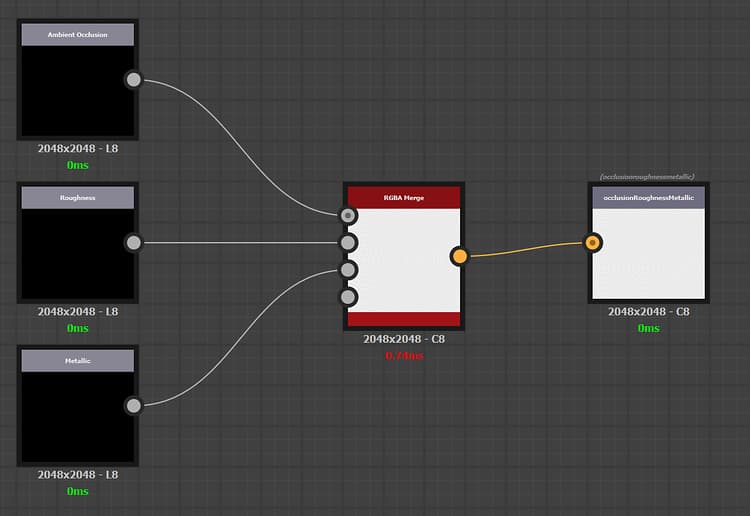
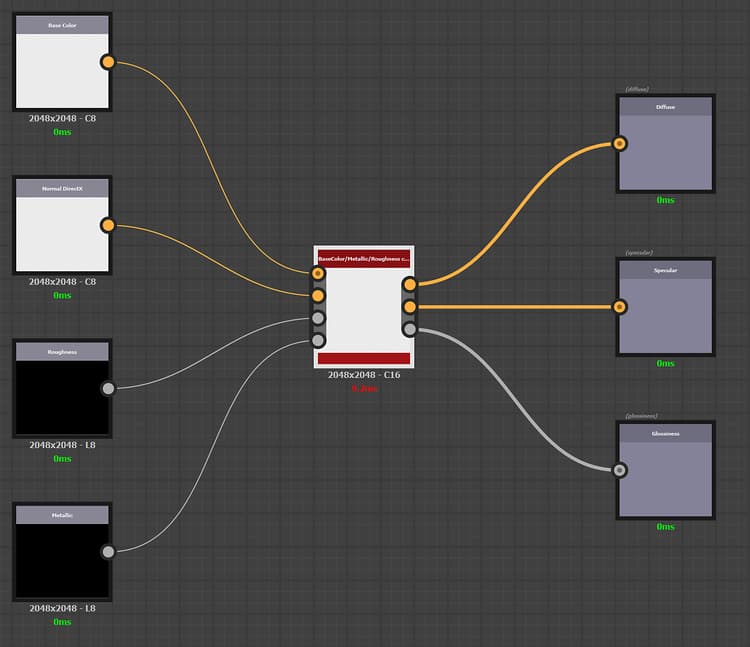
Example of channel packing and channel conversion
Packing of 3 grayscale channels in one RGB texture:
Channel conversion from PBR Metallic/Roughness to PBR Specular/Glossiness:
Import
To import your new preset:
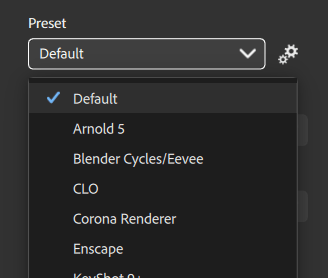
- Click the Manage presets button to the right of the Presets dropdown.
- Use the Import presets button at the bottom of the presets list.