Custom Filters
Substance Custom Filters
You can import filters made with Adobe Substance 3D Designer via the Import button in the Layer Stack actions.
Create a Substance Filter
Filters must be built in a specific way in Designer to work correctly once imported into Sampler.
The input and output nodes of the filter must have an identifier or usage defined.
Format
Export your filter as a Substance Archive file (.SBSAR)
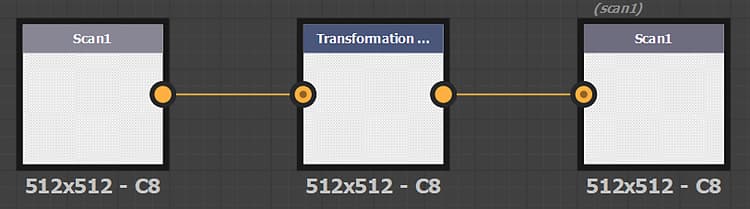
Create a filter to modify images
Create a filter to modify channels
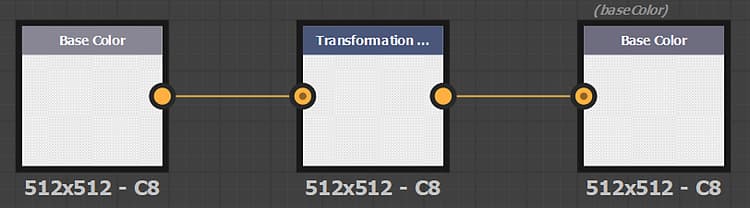
- alchemist::type=filter;alchemist::type=multi
- alchemist::type=filter;alchemist::type=material
Specific parameters
Specific parameters are globally managed by the application. It’s a way to use global parameters of the application, the project, and the layer stack in your custom filters.
Normal format
Control of the normal format over the application. Set to DirectX in Sampler
Parameter identifier: normalformat, normal_format, $normalformat, $normal_format
Input Count
When you want to modify images (scan1 to scanX), you can use the number of images in the layer stack by using the Image Count parameter.
- Parameter identifier: input_count
- Parameter type: integer1
Material Input
If you want to display a material slot in the layer stack like the atlas scatter or the splatter:
-
Add a new set of Input nodes (Base Color, Normal, … )
-
All Input nodes of the background (bottom material in the layer stack) should be in the Group Material1
-
All Input nodes of the first material you want to add on top should be in the Group Material2 and etcetera if you want several material slots.
-
Add a material input parameter:
- Parameter identifier: material_input
- Parameter type: integer1
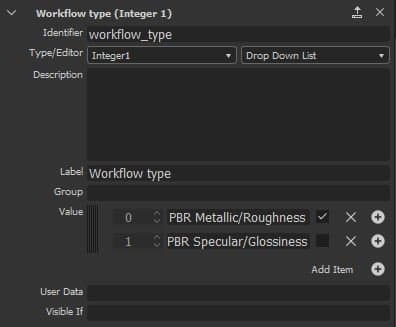
Workflow Type
If you want to display/hide some parameters based on the workflow of your project (PBR Metalic/Roughness or PBR Specular/Glossiness), you can use the Workflow Type parameter
Parameter identifier: workflow_type
Parameter type: integer1, dropdown list
options:
- 0: PBR Metallic/Roughness
- 1: PBR Specular/Glossiness