Text resource
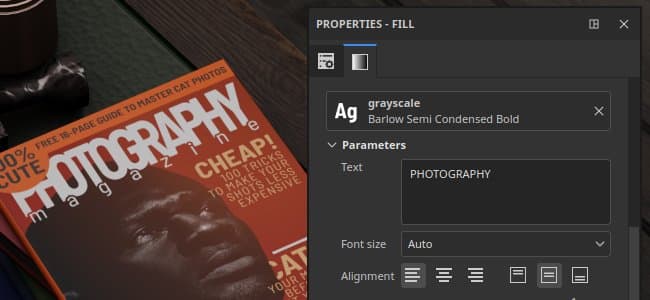
The Text resource in can be used to write text into textures with the use of specific font files. Several parameters are available to adjust the look of the final text drawn.
Browsing fonts
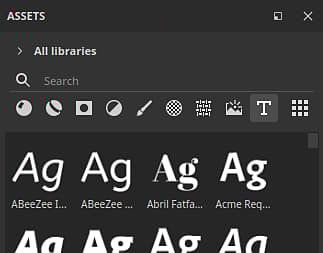
To browse the available font files, simply click on the font filter (the T button) in the Assets window:
Font can also be filtered by paths depending on where they are located on the system:
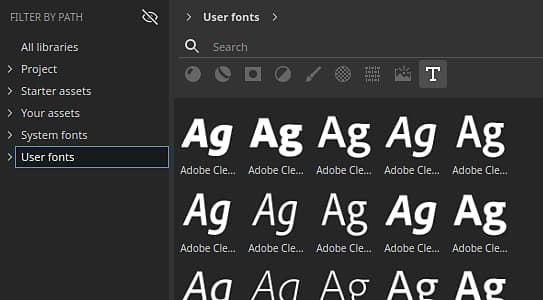
The font locations available depend on the current operating system:
- System: C:/Windows/Fonts
- User: C:/Users/username/Appdata/Local/Microsoft/Windows/Fonts
- System: /System/Library/Fonts
- Local: /Library/Fonts
- User: /Users/username/Library/Fonts
- System: /usr/share/fonts/
- Local: /usr/local/share/fonts/
- User: /home/username/.local/share/fonts/
Importing fonts
Fonts can be imported manually or put into an existing Painter’s library like any regular resources. To do so see the import documentation.
Painter support both .ttf and .otf font formats.
Using a font as a text resource
A texture resource works like other resources (images or Substance materials for example) and can be used in brush parameters, fill projections or Substance image inputs.
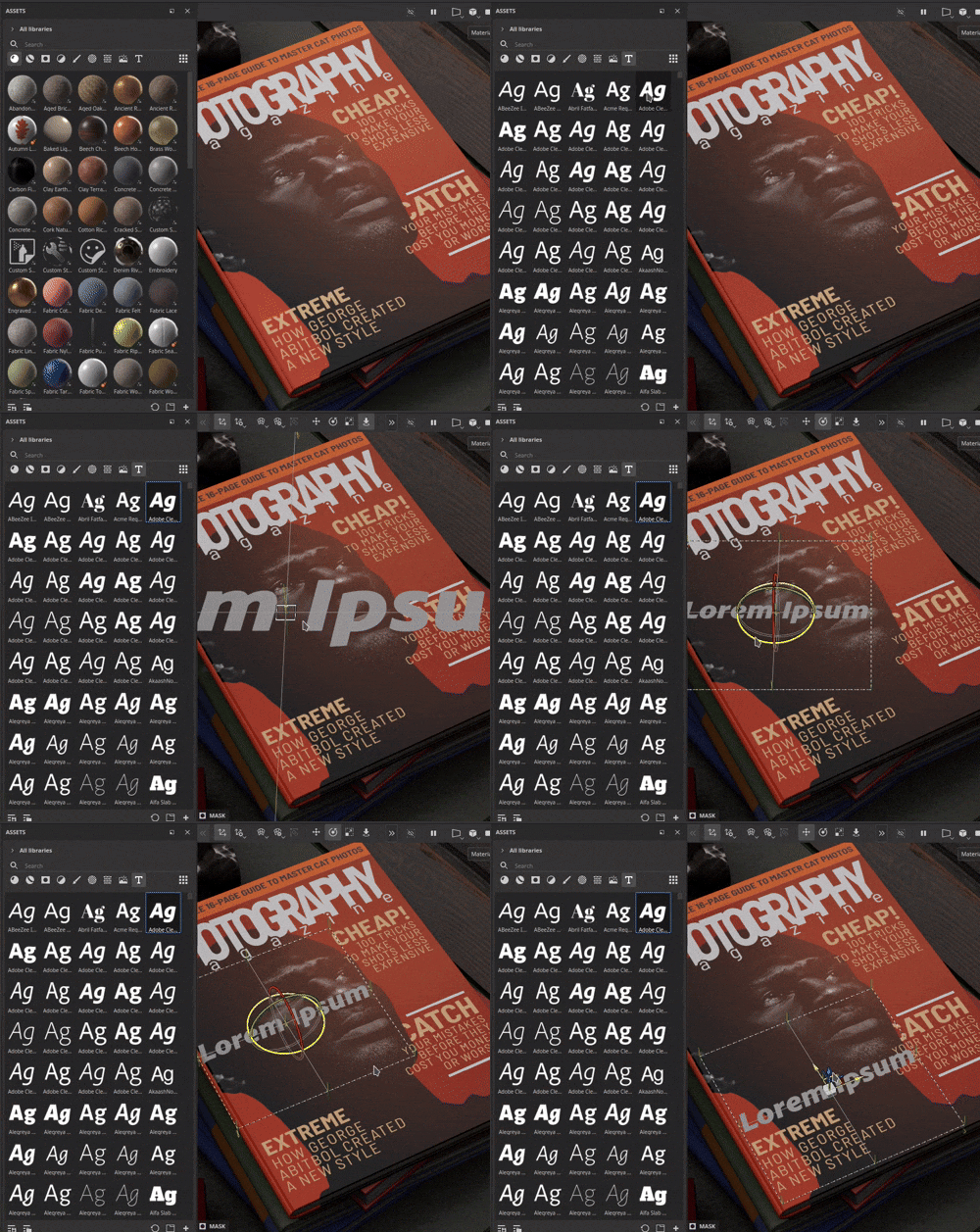
To create a text resource simply add a font into a resource slot. Drag and dropping a font in the viewport is also possible.
Text resource parameters
A text resource has the following basic parameters:
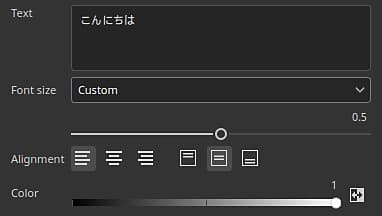
Specify the mode used to compute the font size. Available modes are:
- Auto: the size is automatically computed from the text content and fit the texture.
- Custom: the size can be controlled manually via the dedicated setting.
More advanced parameters are also available:
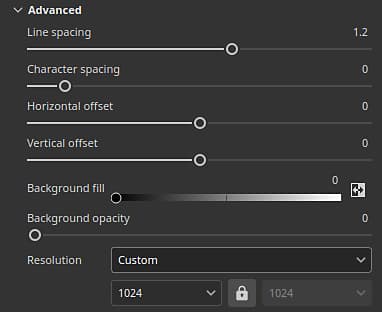
Specify the mode used to compute the size of the texture used to render the text. Available mode are:
- Auto: Resolution is automatically computed.
- Custom: Resolution can be manually defined via the dedicated setting.