Create and save presets
Use the Properties window to tweak brush parameters, then save the brush configuration as a preset for quick re-use in the future.
NOTE
With the Path tool equipped, a Presets section is available in the Properties panel where you can quickly access Path related presets. You can also add path presets to your favorites. Learn more about managing your favorite path presets here.
Create a new preset
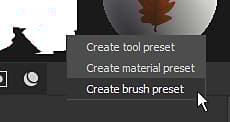
Presets can be created by right clicking in the Properties window when Tool properties are available (paint layer or paint effect).
Right-click in the Properties window to open a context menu with the following options:
- Create tool preset : Save the brush parameters and the materials with all required resources within the same preset file.
- Create material preset : Only save the material properties and material resources inside a preset file.
- Create brush preset : Only save the brush parameters and the alpha and stencil resources inside a preset file.
Update an existing preset
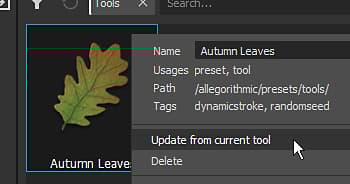
It is possible to update an existing preset based on the current values in the Properties window. Right-click on the asset in the Assets window and select “Update from current tool” to update the preset.
recommendation-more-help
substance-3d-painter-help-guide